Find the 1Password version number
To find the 1Password version number on your Mac:
- Open 1Password.
- Select 1Password > About 1Password from the menu bar.
- Optionally, select the version number to copy it to the clipboard.
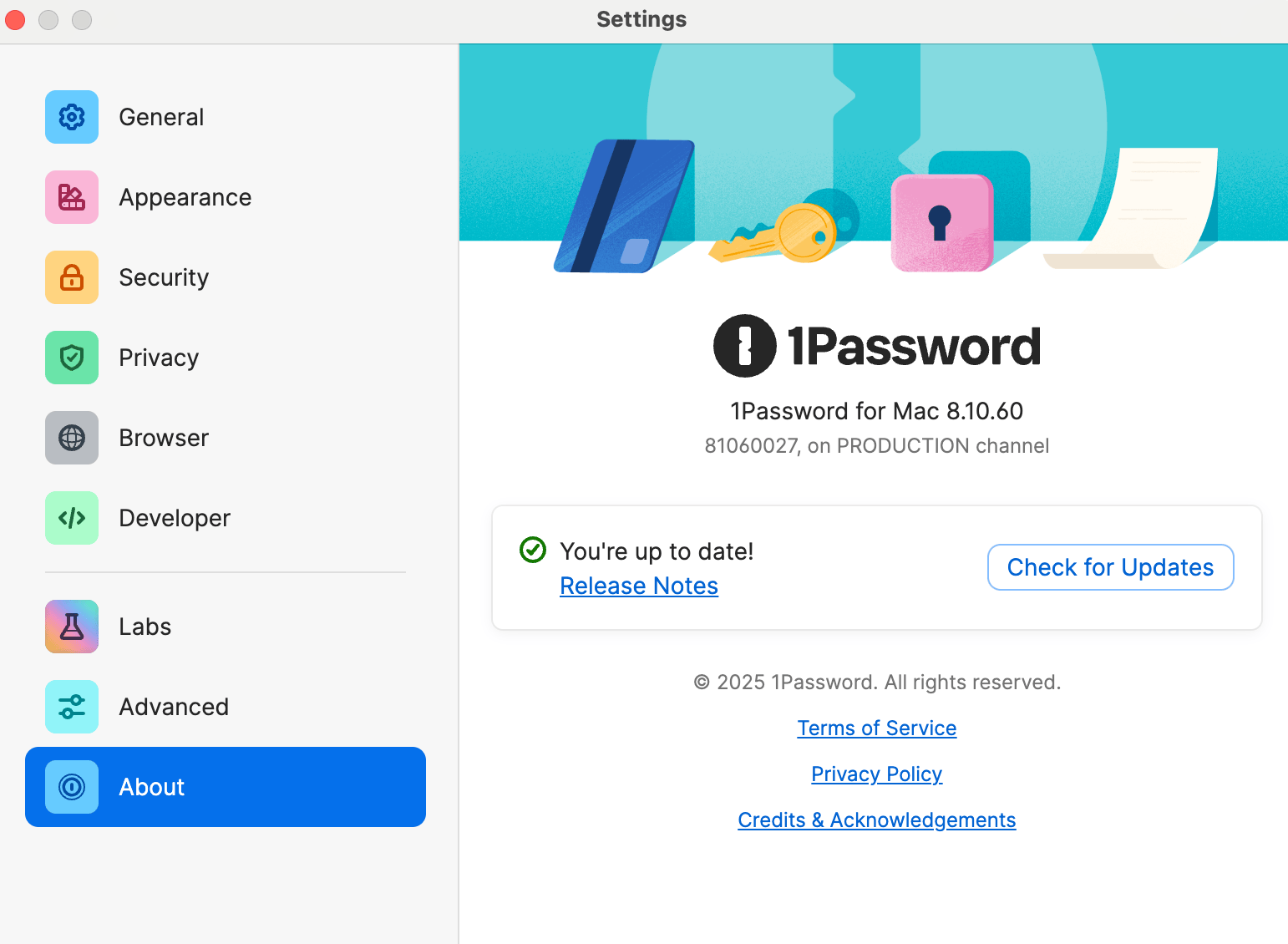
This example shows 1Password for Mac version 8.10.60.
In 1Password 7 and earlier, you'll see "AgileBits Store" if you downloaded the app from our website or "Mac App Store" if you downloaded the app from the Mac App Store.
Find the 1Password version number in your browser
Learn how to find the version number for 1Password in your browser.
Find the macOS version number
Learn how to find the macOS version number on your Mac.
Find the 1Password version number
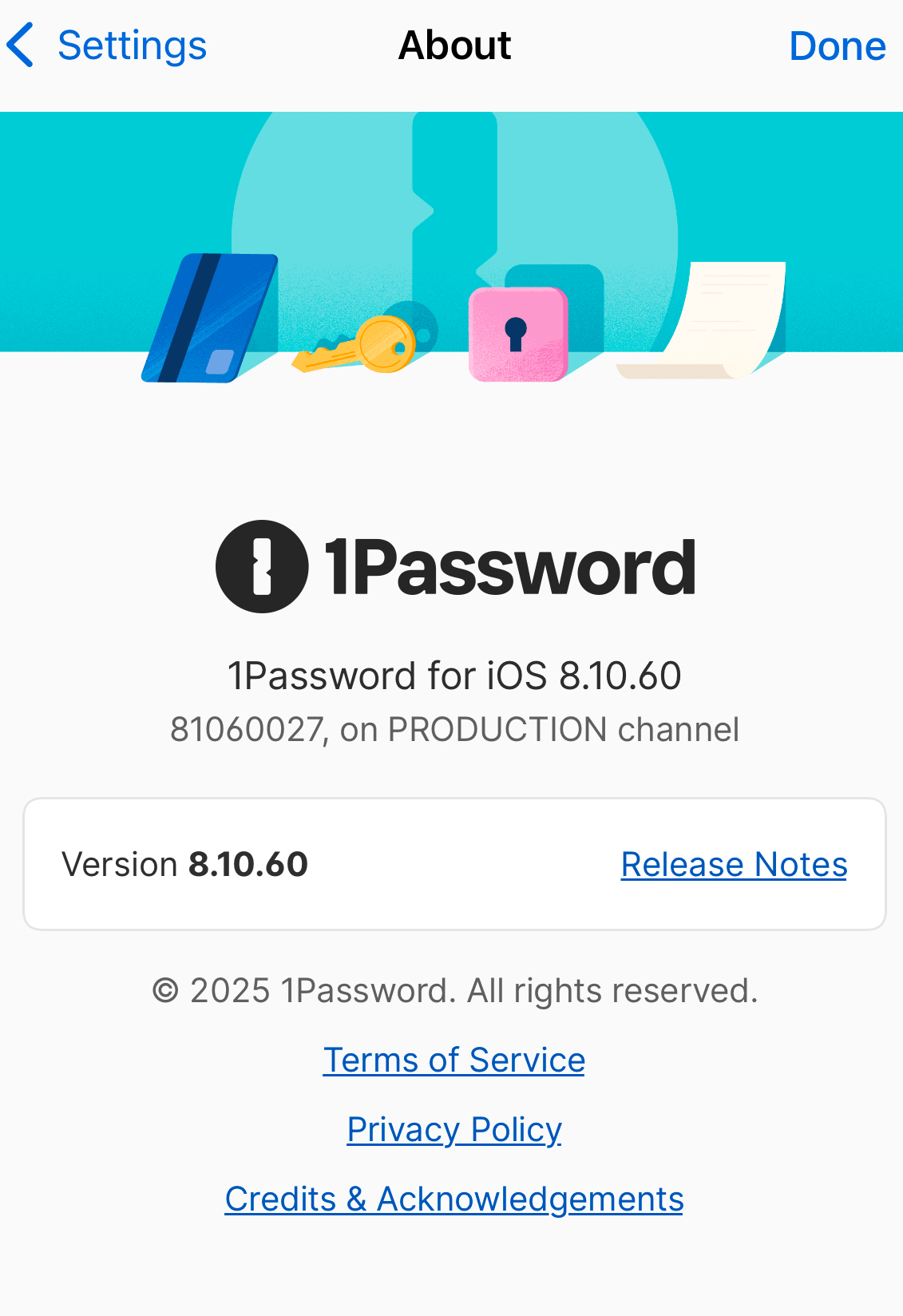
To find the 1Password version number on your iPhone or iPad:
- Open and unlock 1Password.
- Select the icon for your account or collection at the top left, then select Settings > About.
If you’re using an iPad, select your account or collection at the top of the sidebar.
- Optionally, select the version number to copy it to the clipboard.
This example shows 1Password for iOS version 8.10.60.
Find the iOS version number
Learn how to find the iOS version number on your iPhone or iPad.
Find the 1Password version number
To find the 1Password version number on your Windows PC:
- Open 1Password.
- Choose the ellipsis > Settings, then select About in the sidebar.
In 1Password 7 or earlier, choose Help > About 1Password from the menu at the top of the window.
- Optionally, select the version number to copy it to the clipboard.
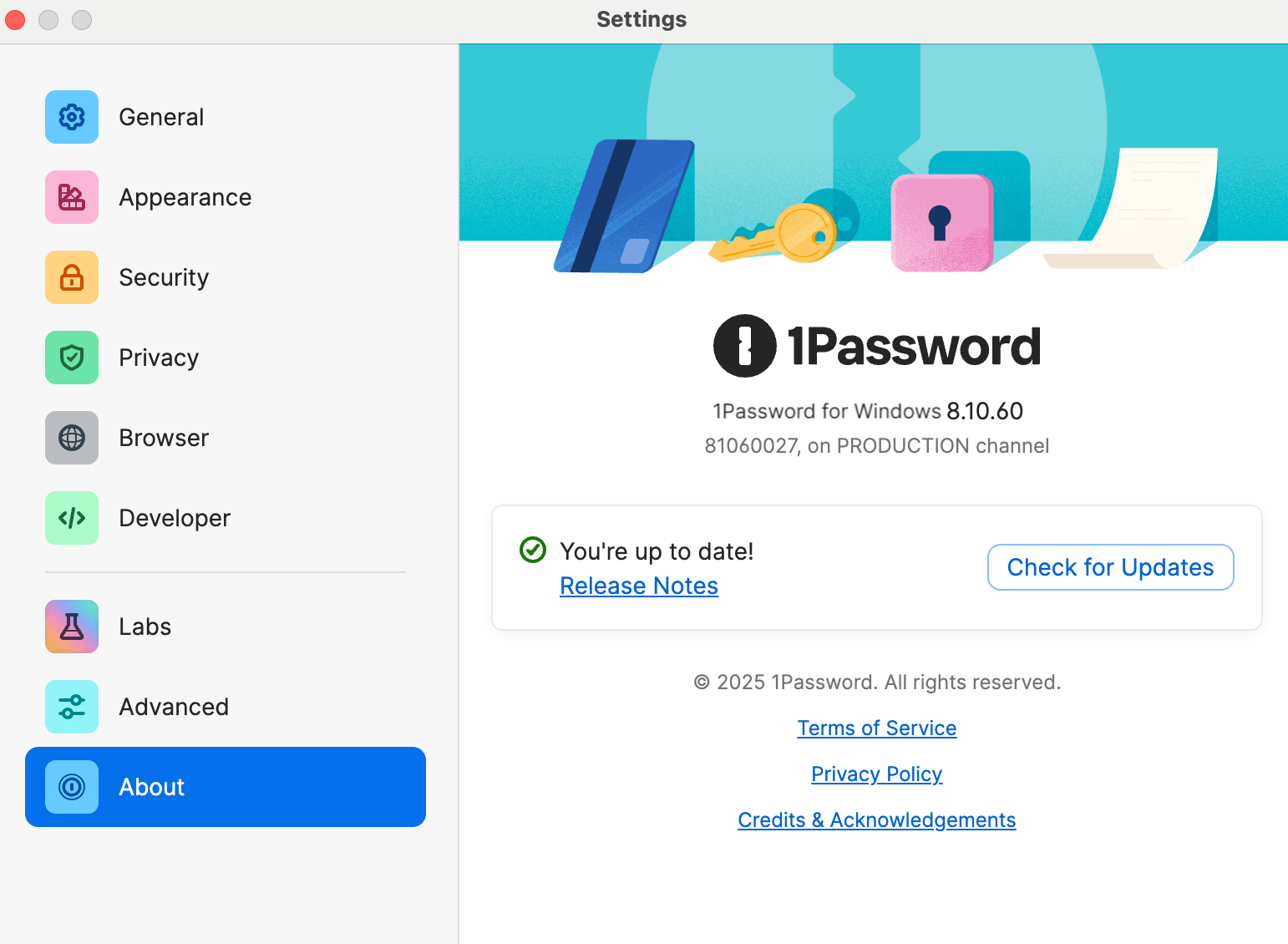
This example shows 1Password for Windows version 8.10.60.
Find the 1Password version number in your browser
Learn how to find the version number for 1Password in your browser.
Find the Windows version number
Learn how to find the Windows version number on your PC.
Find the 1Password version number
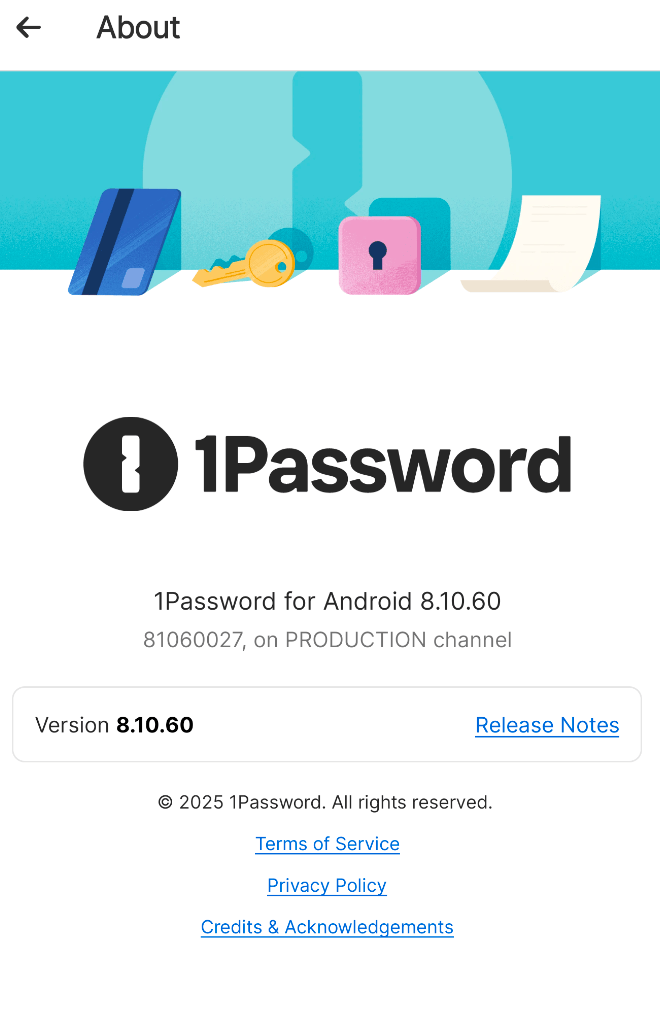
To find the 1Password version number on your Android device:
- Open and unlock 1Password.
- Select the icon for your account or collection at the top right, then select Settings > About.
If you’re using a tablet, select your account or collection at the top of the sidebar.
- Optionally, select the version number to copy it to the clipboard.
This example shows 1Password for Android version 8.10.60.
Find the Android version number
Learn how to find the Android version number on your device.
Find the 1Password version number
To find the 1Password version number on your Linux computer:
- Open 1Password.
- Choose the ellipsis > Settings, then select About in the sidebar.
- Optionally, select the version number to copy it to the clipboard.
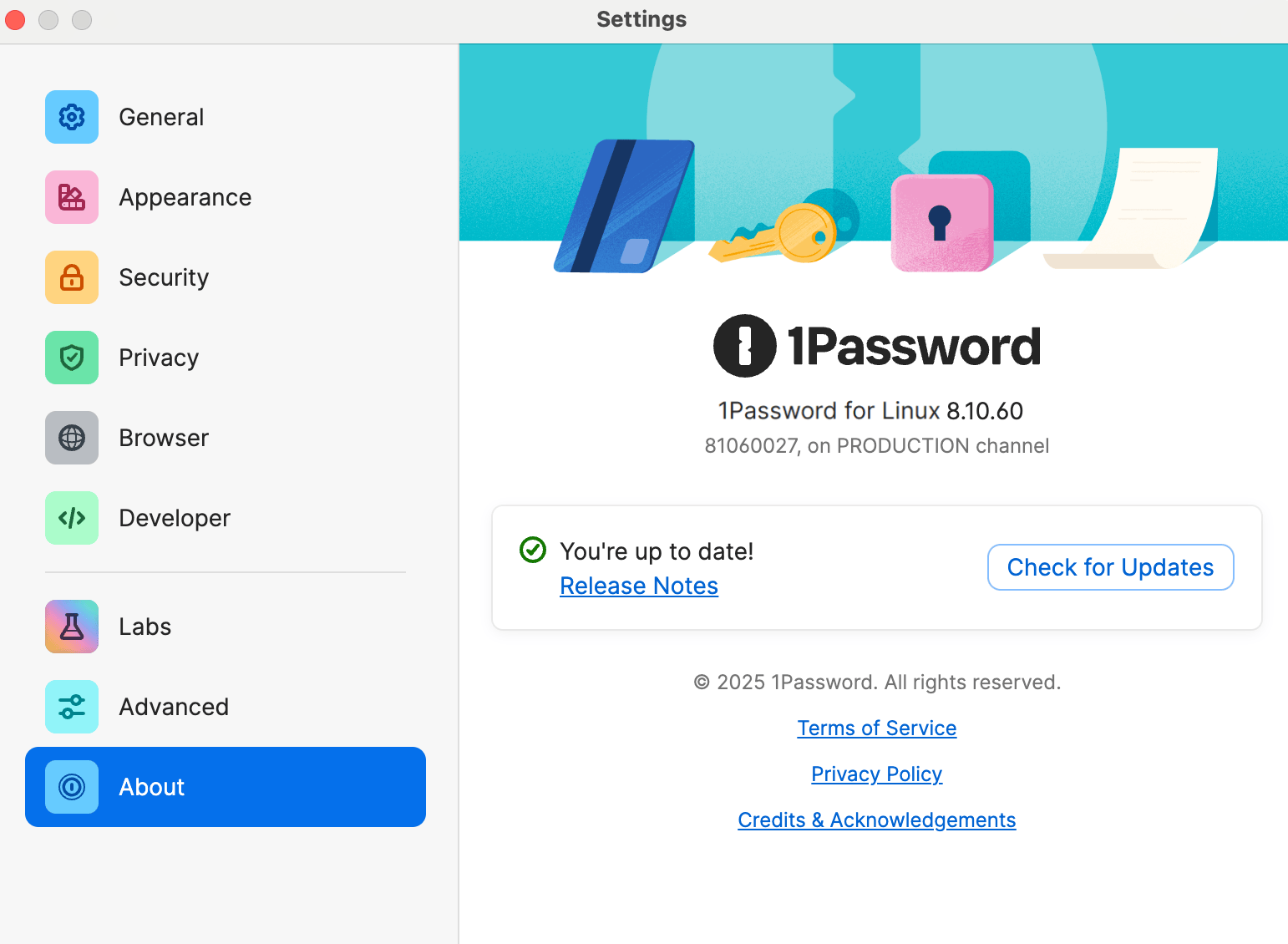
This example shows 1Password for Linux version 8.10.60.
Find the 1Password version number in your browser
Learn how to find the version number for 1Password in your browser.
Was this article helpful?
Glad to hear it! If you have anything you'd like to add, feel free to contact us.
Sorry to hear that. Please contact us if you'd like to provide more details.