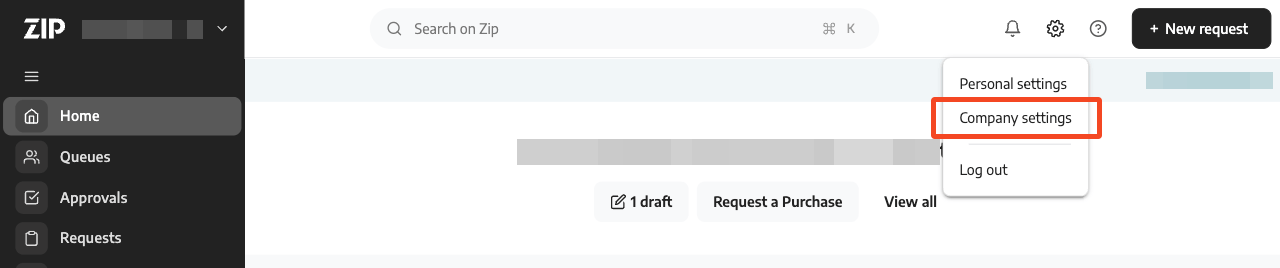
Log in to Zip as an administrator and click the Settings ‘cog’ and choose Company settings:
In the Setup menu click API
With the API keys tab selected click Create API key

You will be asked to select wither a Standard or Restricted API key. You must choose Standard.
Note
We would typically recommend creating a Restricted key to more tightly control the scopes. 1Password SaaS Manager however shows a list of Category records (to let you restrict the data you are returning). Zip’s API currently does not provide a scope to read Category records so their technical team specify using a Standard key. Aside from the category records, the SaaS Manager integration accesses (read-only): Departments, Documents, Purchase Orders, Requests, Users, and Vendors.Enter a key name (for example SaaS Manager)
The expiration date is optional. If you enter an expiration date you will need to recreate the key and reconnect SaaS Manager to Zip after this date.
Click Create.
Was this article helpful?
Glad to hear it! If you have anything you'd like to add, feel free to contact us.
Sorry to hear that. Please contact us if you'd like to provide more details.