1Password SaaS Manager synchronizes with Okta on a daily basis, but you may want to run workflows as soon as events occur in Okta.
This example shows you how to trigger a workflow in SaaS Manager as soon as someone is suspended in Okta.
You could for example use this to send a message in Slack to the IT operations channel to ask if the person should be offboarded immediately using SaaS Manager.
Creating the SaaS Manager workflow
In SaaS Manager under Workflows, create an API webhook workflow trigger. Within the webhook, make sure that Verify request is ticked.
Select Secret for the verification method, and enter a header name, for example x-secret
SaaS Manager can generate a secure secret for you. Select Generate, copy the value to the clipboard, then select Use Secret.
You will also need to provide Okta with the SaaS Manager webhook URL.
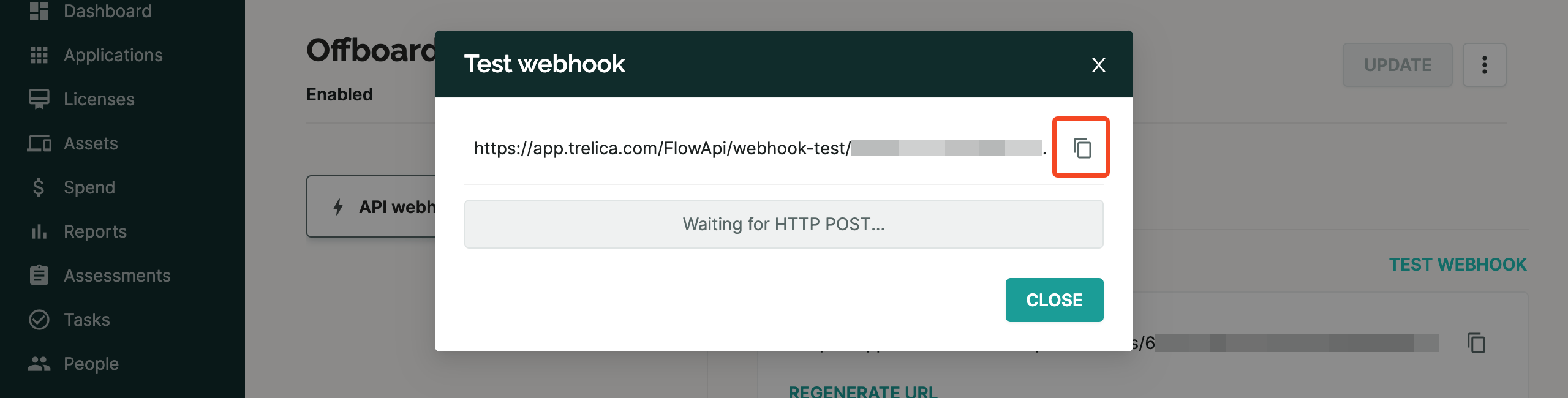
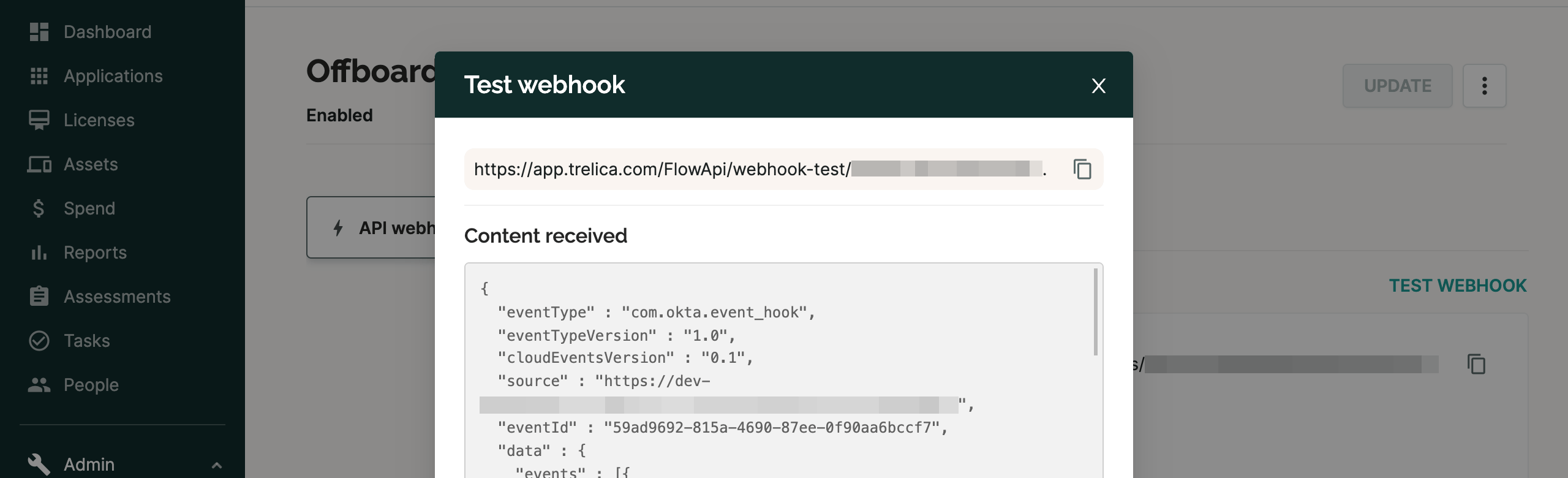
We’re going to do a test first, so click Test Webhook in SaaS Manager and this dialog will show you the test URL that you’ll need for Okta shortly. Copy the URL.
Configuring the Okta Event Hook
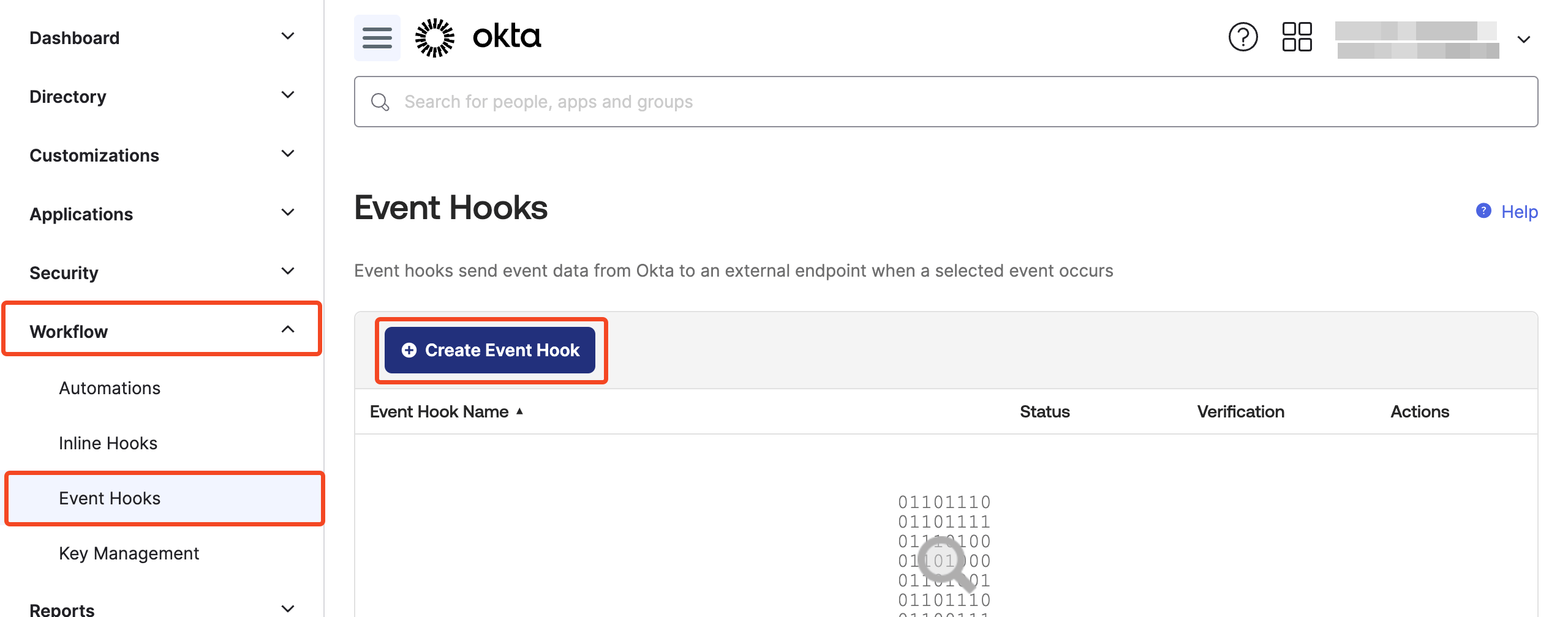
In a separate tab, login in to Okta and go to Workflow > Event Hooks and click Create Event Hook:
- Give the hook a name.
- Paste in the SaaS Manager test URL.
- Enter the header name for the secret (we chose
x-secretas an example above). - Paste in the secret generated by SaaS Manager for you.
- Choose User suspended for the event to subscribe to (the internal Okta name is
users.lifecycle.suspended. - Click Save & Continue.
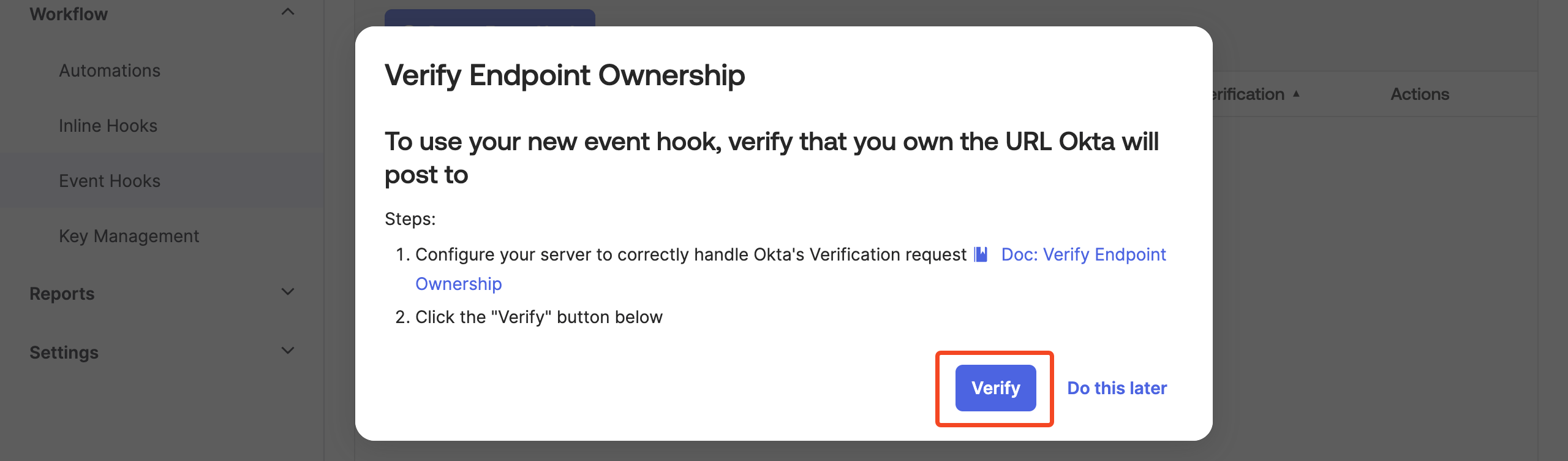
Okta will now prompt you to verify the URL. SaaS Manager knows about this process, so you can go ahead and select Verify.
Testing the Event Hook
Okta will now help you with the testing by letting you pick a recent event from your logs.
Note
Assuming you’ve suspended a user recently, you can choose User suspended for the Event type and then pick one of the events to test with in the System Log Event dropdown.
If no logs are available Okta will provide some sample JSON but this won’t work well for testing as the ’target’ field is probably null, so you may need to edit this.
Go ahead and click Deliver Request:
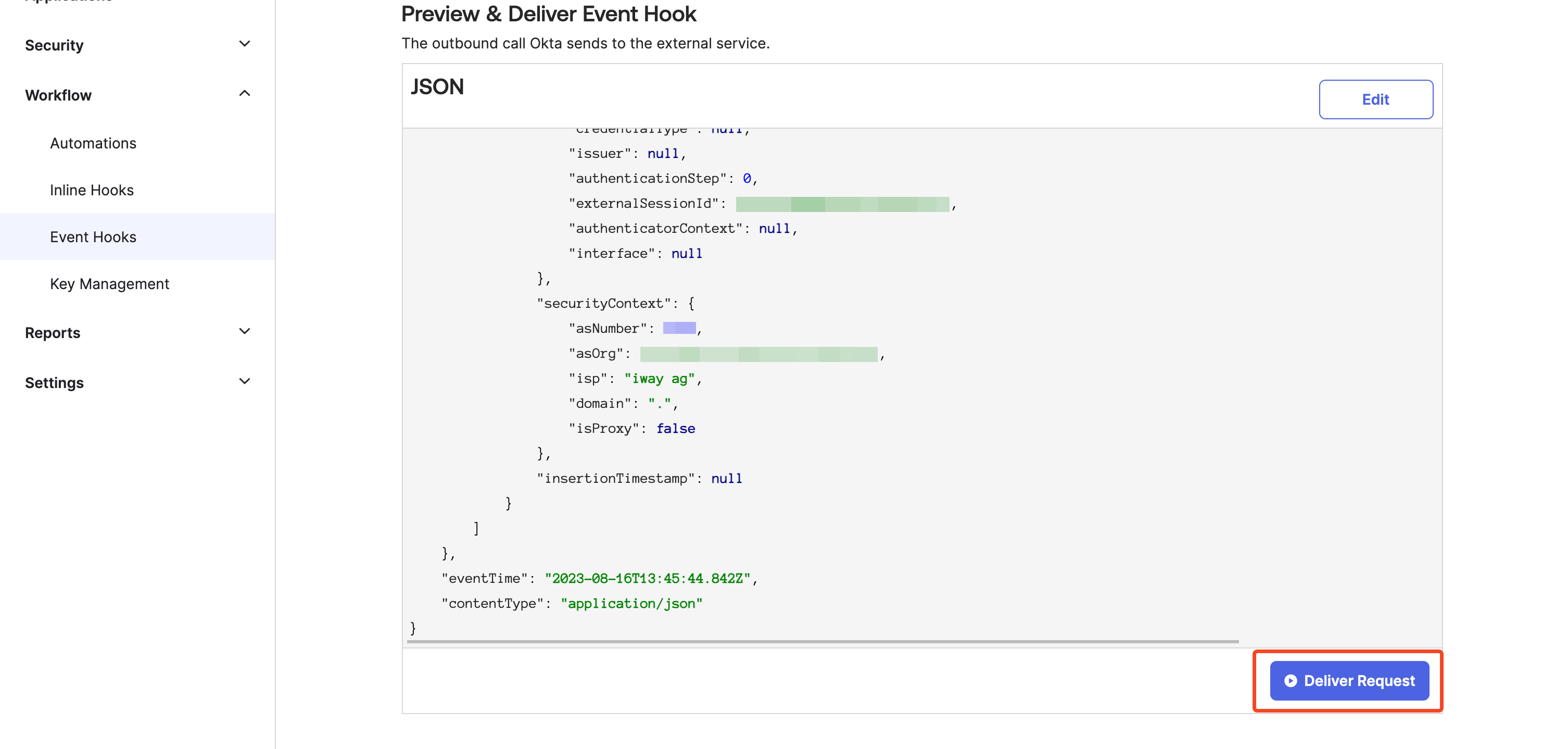
You should see a message in Okta confirming successful delivery:

In SaaS Manager, you will see that the data has been successfully received:
Linking the Okta Event target to a person in SaaS Manager
The next step is to set the SaaS Manager workflow context to the email of the user who was suspended.
Close the Test webhook window in SaaS Manager.
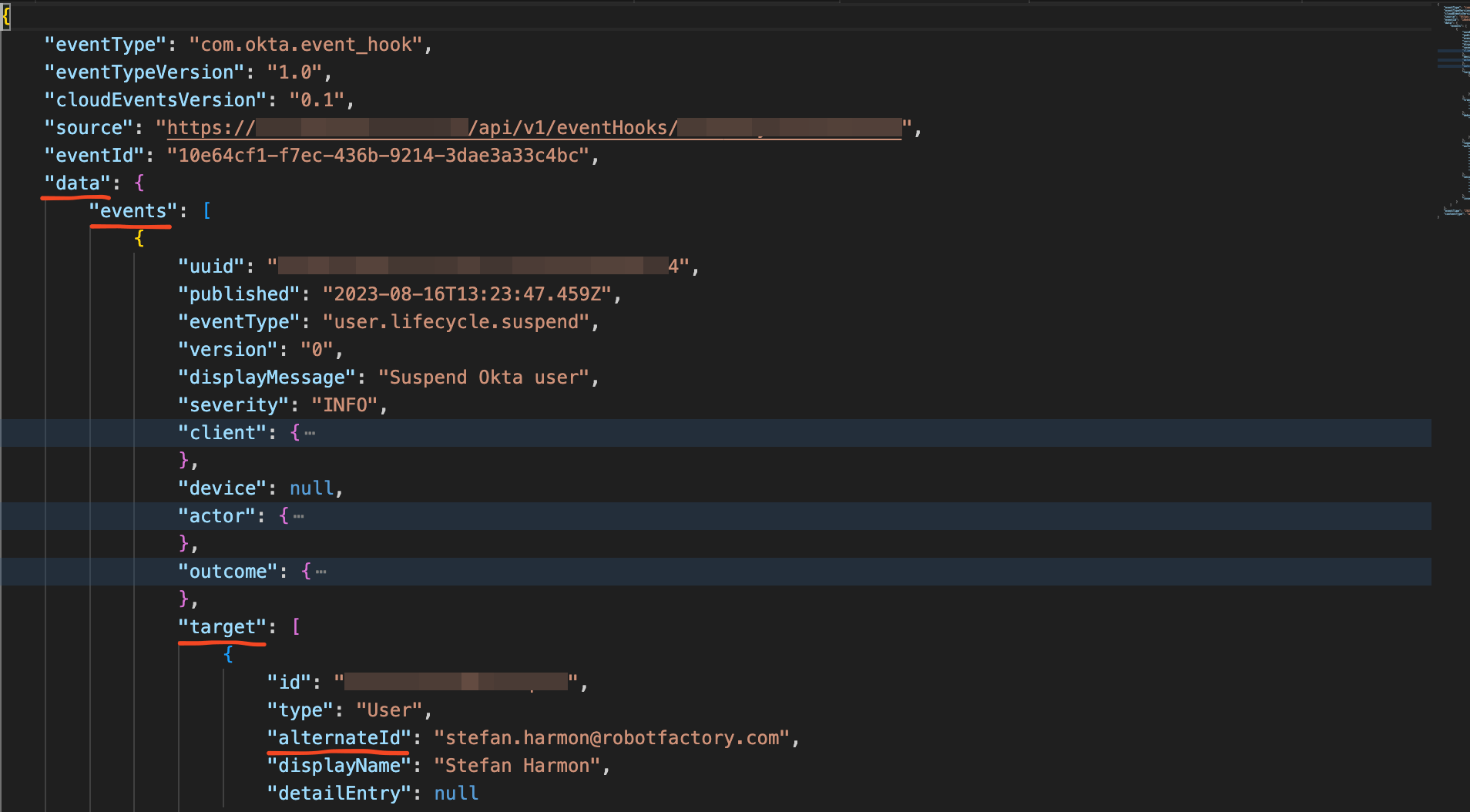
Okta can send multiple events in a single webhook, so it is critical that you check Multiple entries in one request or events may get missed (without this SaaS Manager would take the first match in an array).
Enter
data.eventsas the JSON path to array value. This matches the events array in the Okta data structure.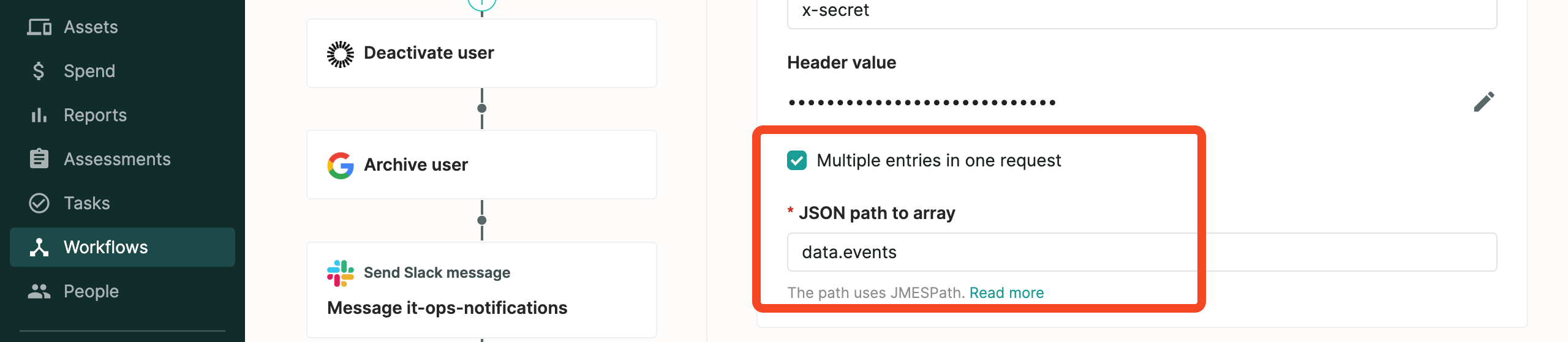
Set the Context to Person and the Type to Email.
For the JSON path, enter
target.alternateId.This is the path to the email in the Okta data that gets sent.
Click Save Draft (or Update if the workflow is already enabled) to save your SaaS Manager workflow after this change.
Click Test webhook in SaaS Manager again.
Back in Okta, click Deliver Request to re-post the data.
You should now see that SaaS Manager has linked this back to a SaaS Manager person entity.
Adding other attributes to the SaaS Manager workflow
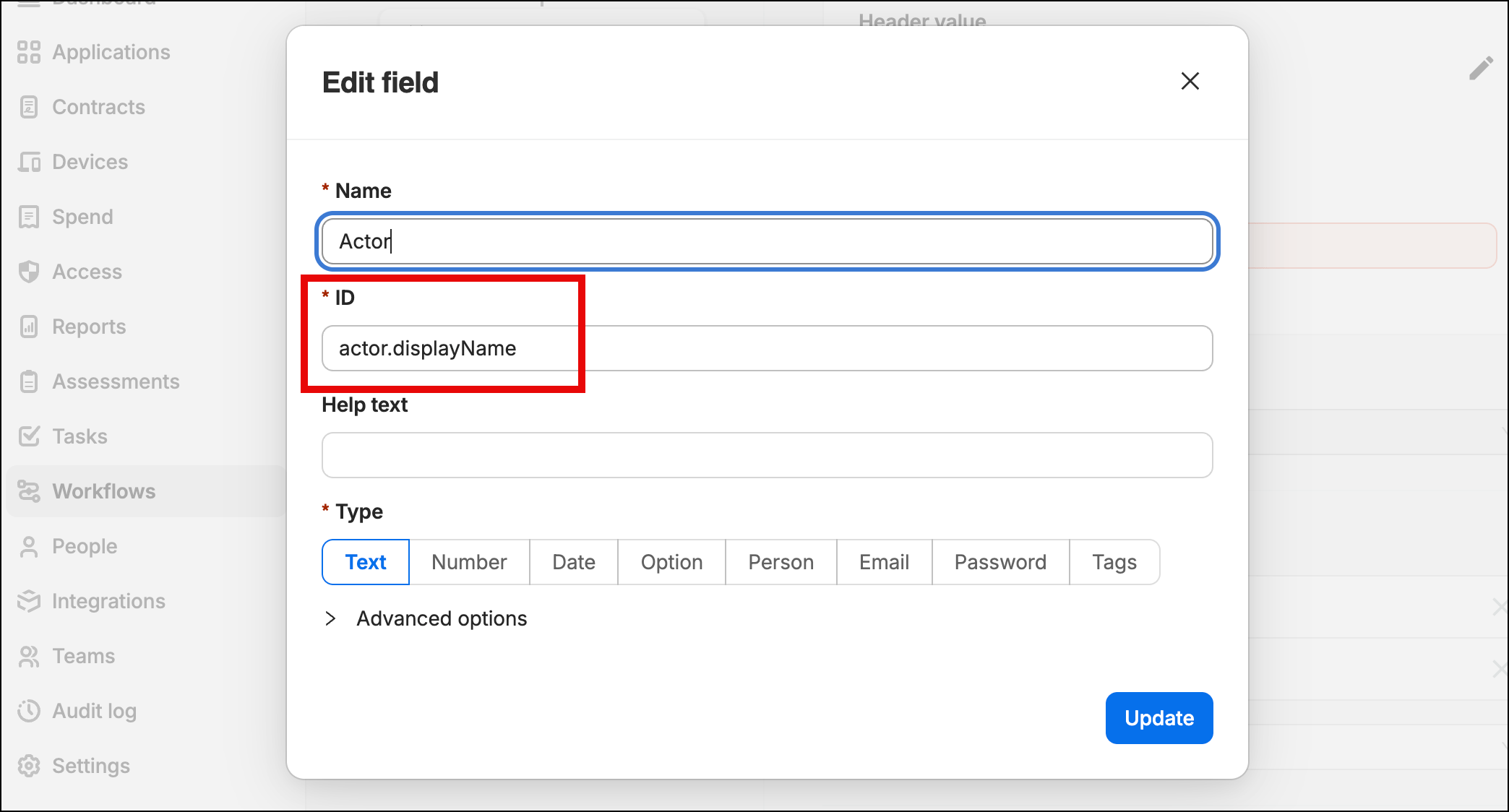
You might want to bring across the ‘actor’ who initiated the event in Okta. To do this we can define input fields, and then link these to data from Okta.
Click the Add field dropdown and choose Add new field…
Enter a Name for the field.
An ID is automatically generated but replace this with a JSON path, for example actor.displayName.
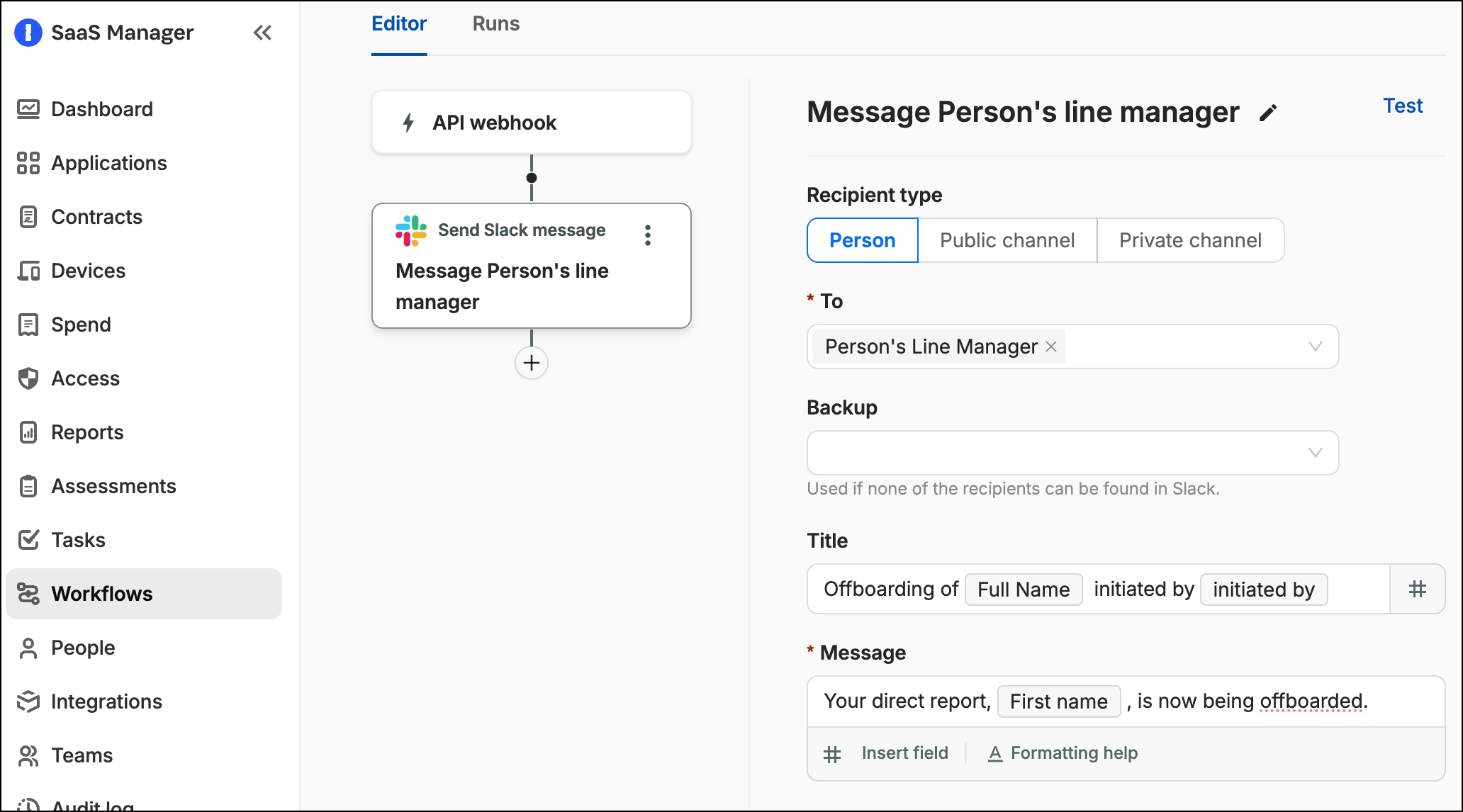
You could use this new field in a Slack message to the suspended person’s line manager:
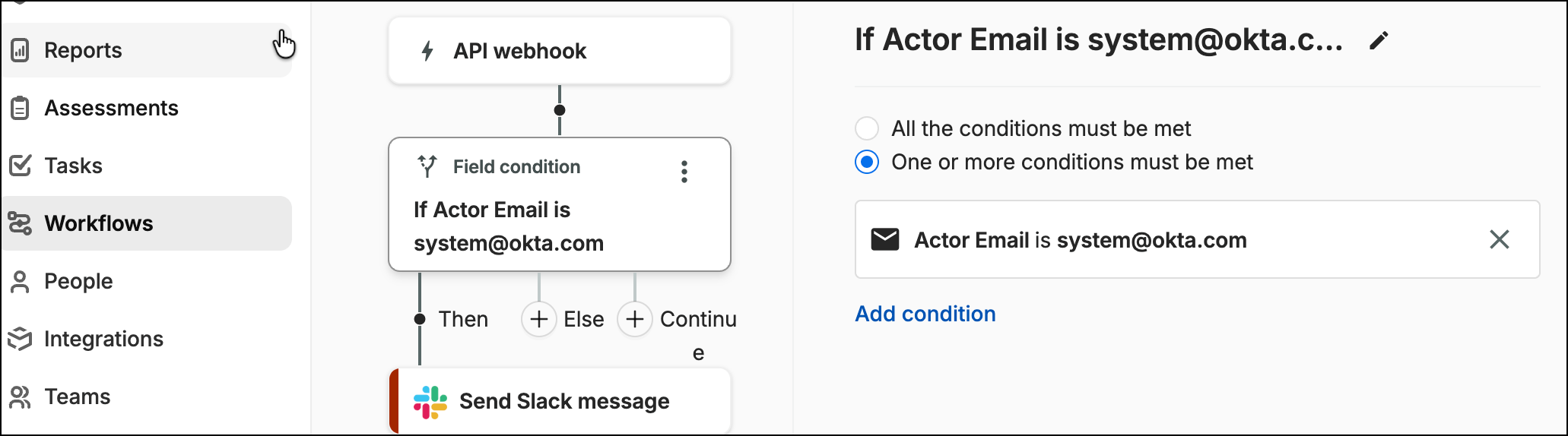
You could also add actor.alternateId and map to an email Input field. Then add a Field condition step to the workflow to check whether the action was initiated by a human or by an Okta system process (for example a synchronization from an HR system):
Enabling the workflow
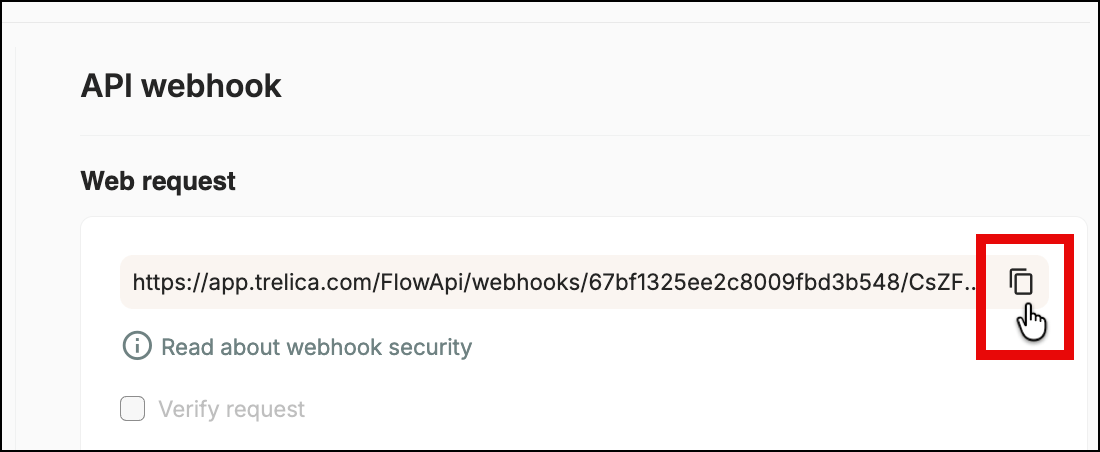
Now we’re happy with our testing, we need to get Okta to use the ’normal’ SaaS Manager webhook URL.
Copy the URL from SaaS Manager:
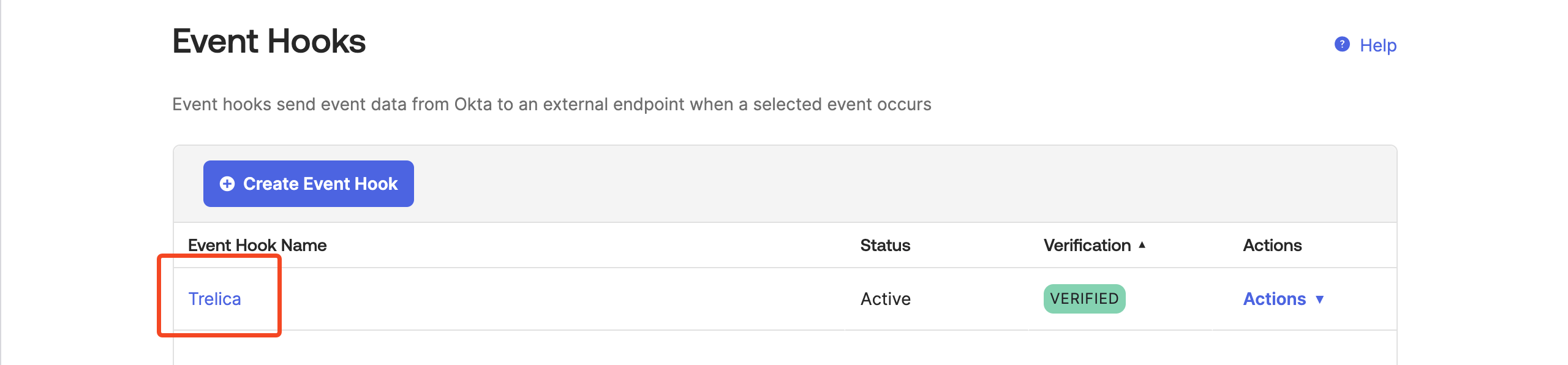
Edit the Okta webhook:
Paste in the new URL:
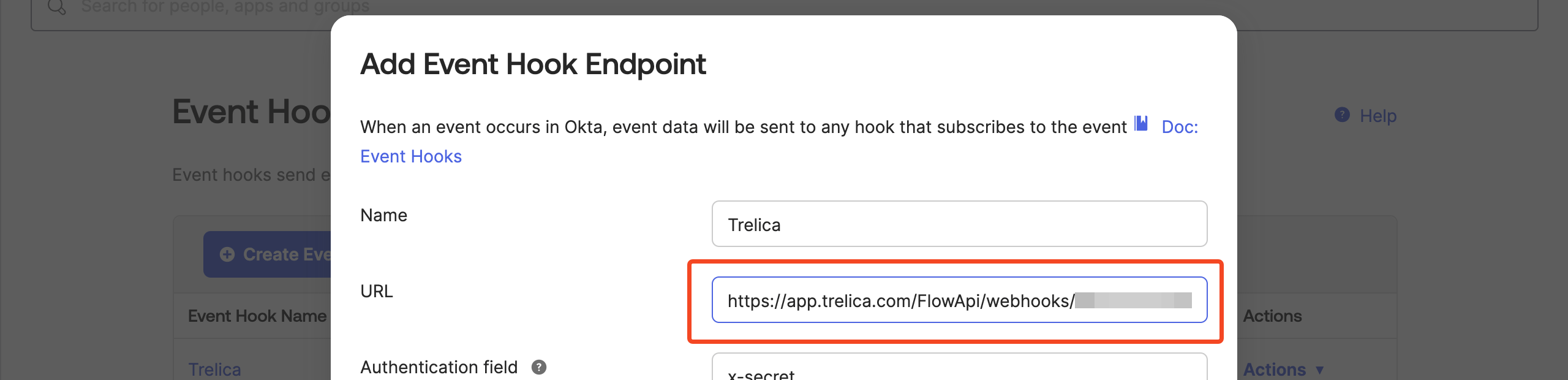
Click Save & Continue and click Verify again.
Okta will now post to trigger the SaaS Manager workflow.
Don’t forget to enable the workflow in SaaS Manager or posts from Okta won’t be accepted.
Important
If the workflow isn’t enabled, Okta will get an HTTP 404 response from SaaS Manager, for example
Hook "SaaS Manager" execution failed. Remote server responded with client error,
responseCode=404 message=Not Found
Events triggered from Okta will now run the workflow.
When you view the workflow runs in SaaS Manager you will see details of the fields carried over, and the actual JSON that was posted.
Was this article helpful?
Glad to hear it! If you have anything you'd like to add, feel free to contact us.
Sorry to hear that. Please contact us if you'd like to provide more details.