To connect 1Password SaaS Manager to Pingboard you will need to generate a Client ID and Client Secret in Pingboard. You will need to be logged in as an Administrator to follow these steps.
Go to Admin > Settings.
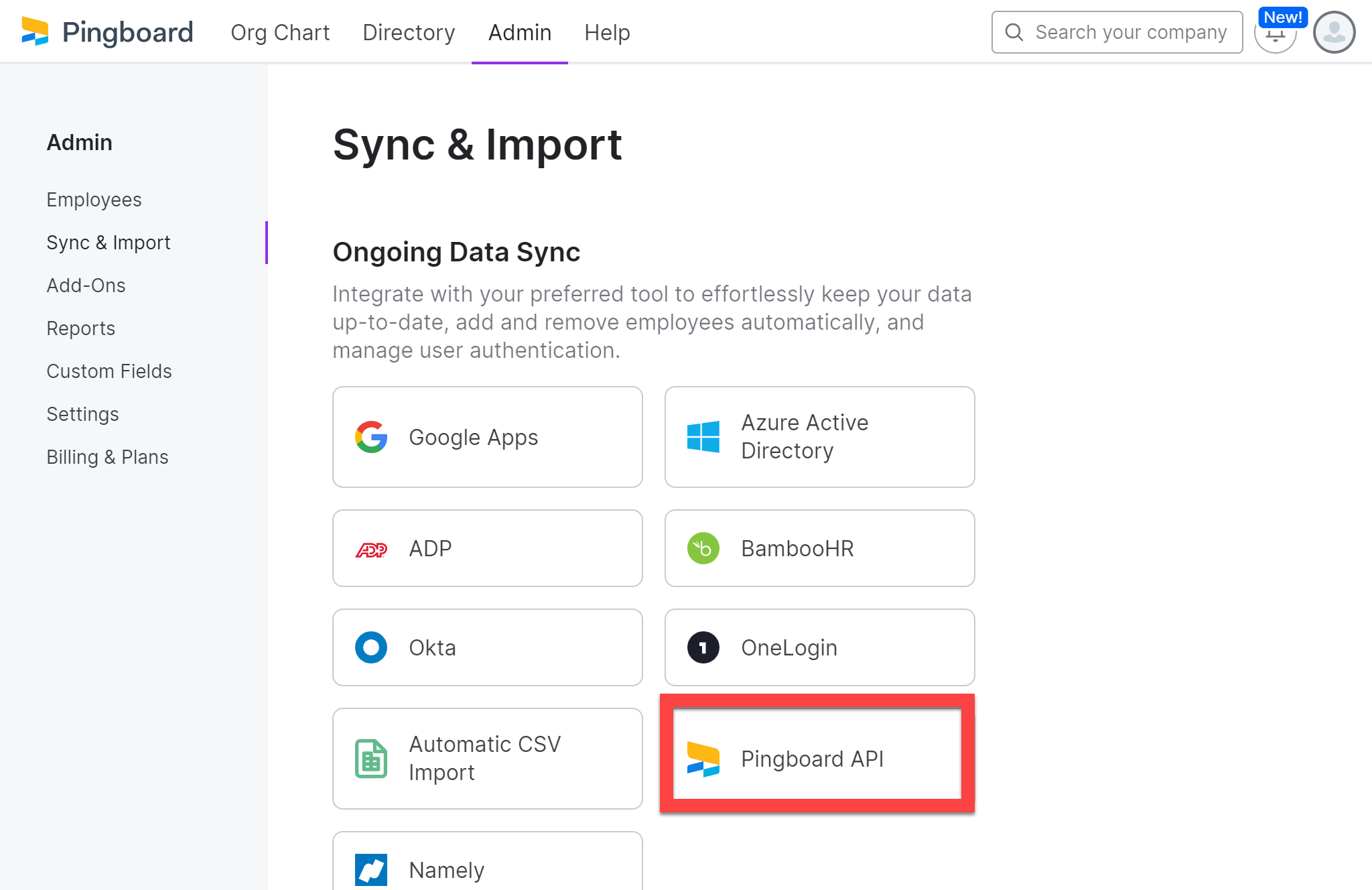
From the sidebar, select Sync & Import.
Pick Pingboard API from the list of sources:
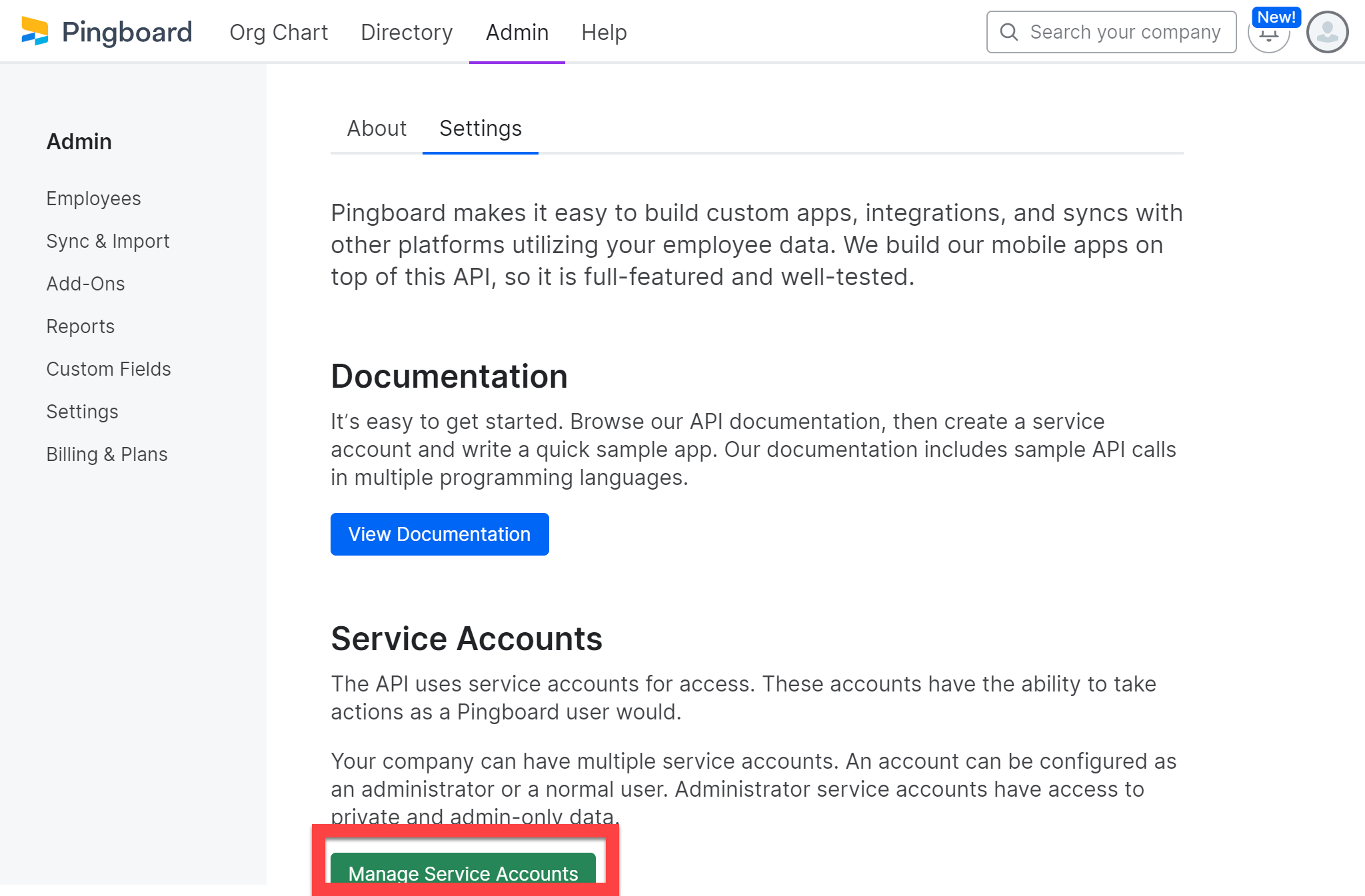
Click the Settings tab, and under the Service Accounts section, click Manage Service Accounts:
On the New Service Account page, click + New Service Account and enter
SaaS Manageras the name.Make sure the Company Admin toggle is selected.
Click Save.
You will then be shown the Client ID and you can click to show the Client Secret. You will need to cut and paste these into SaaS Manager.
Was this article helpful?
Glad to hear it! If you have anything you'd like to add, feel free to contact us.
Sorry to hear that. Please contact us if you'd like to provide more details.