To create an API key go to: Account settings > Developers > New API key.
Enter ‘1Password SaaS Manager’ as the Key name, and click Create key:
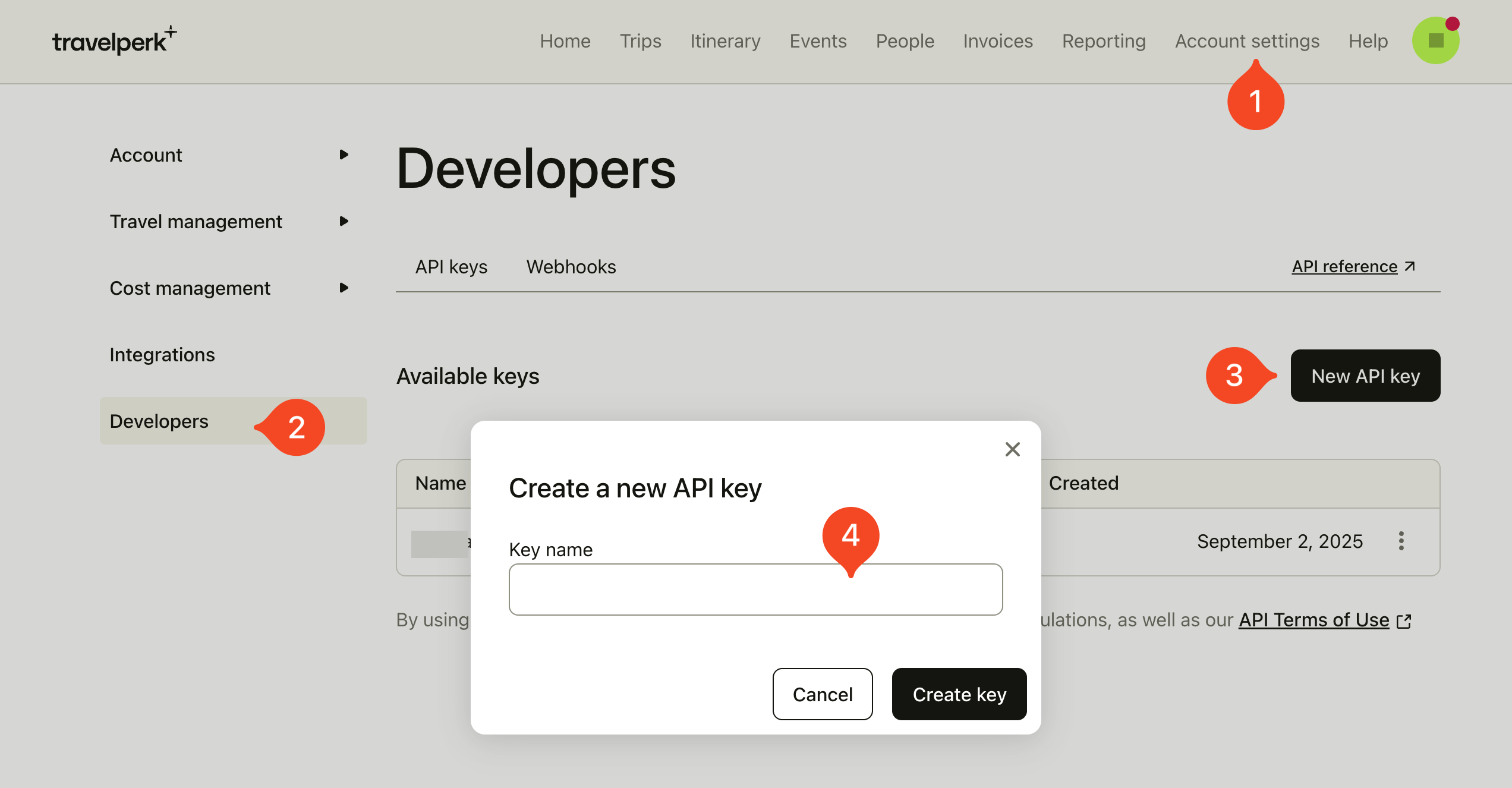
Copy the key and paste it into SaaS Manager.
SCIM
Important
Perk supports other HR systems for user provisioning and only one provisioning system is allowed to run at the same time. If you have provisioning using an HR system already configured Perk recommend that the company admin removes the existing integration from the Integrations section within Account settings.
To view the SCIM integration status go to: Account settings > Integrations. Search for ‘User provisioning’.
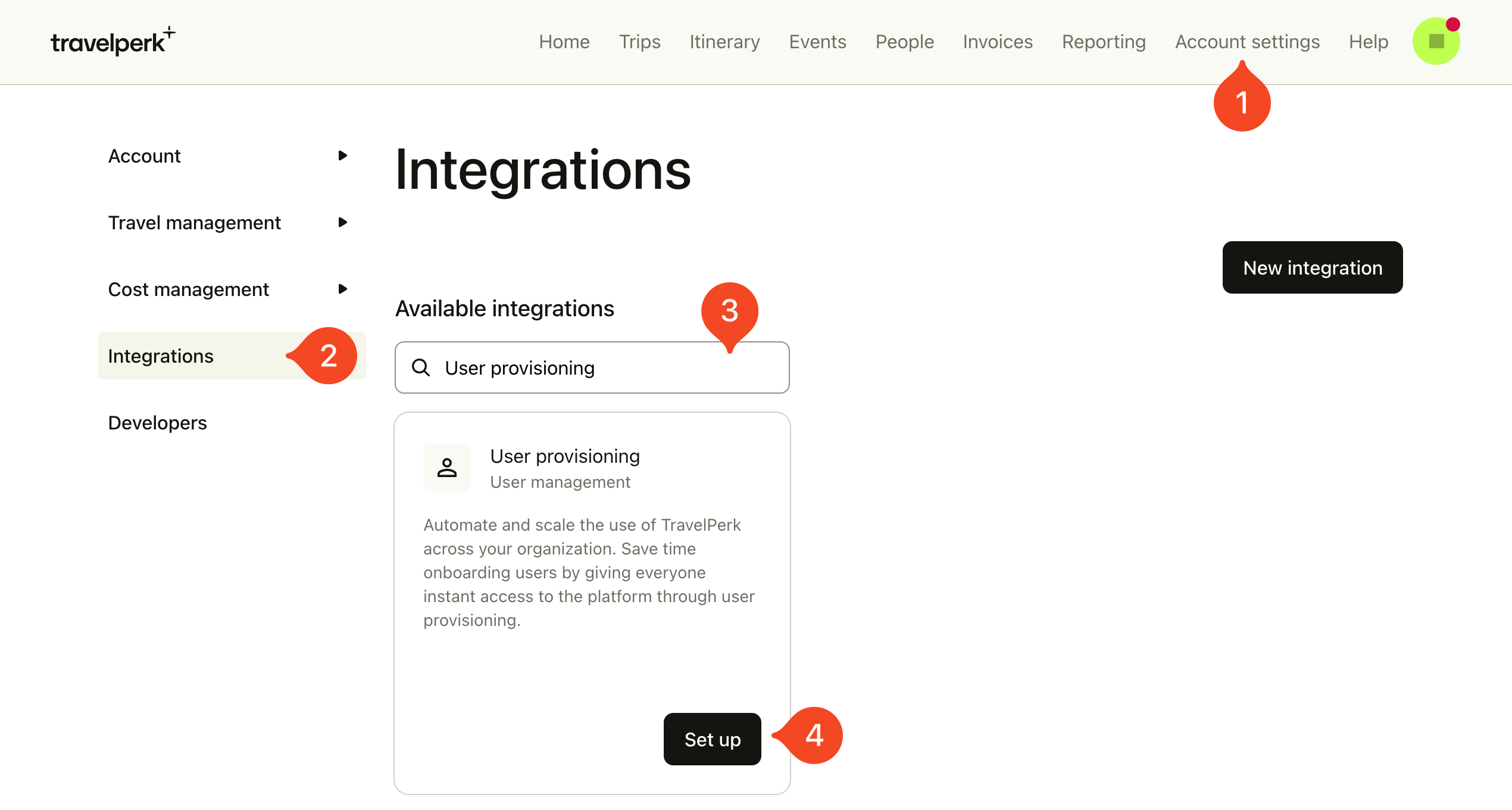
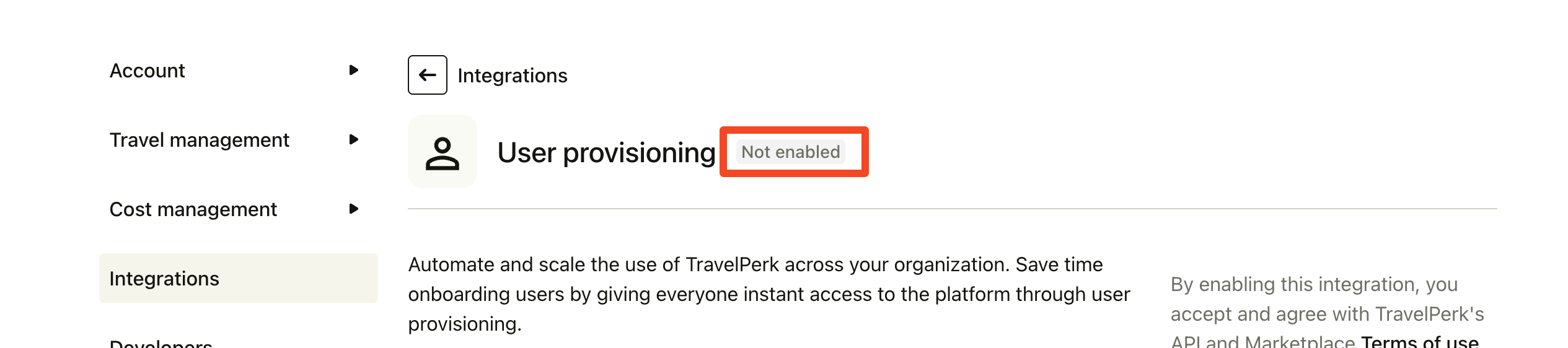
Even using the SCIM API does not show the User provisioning integration as active.
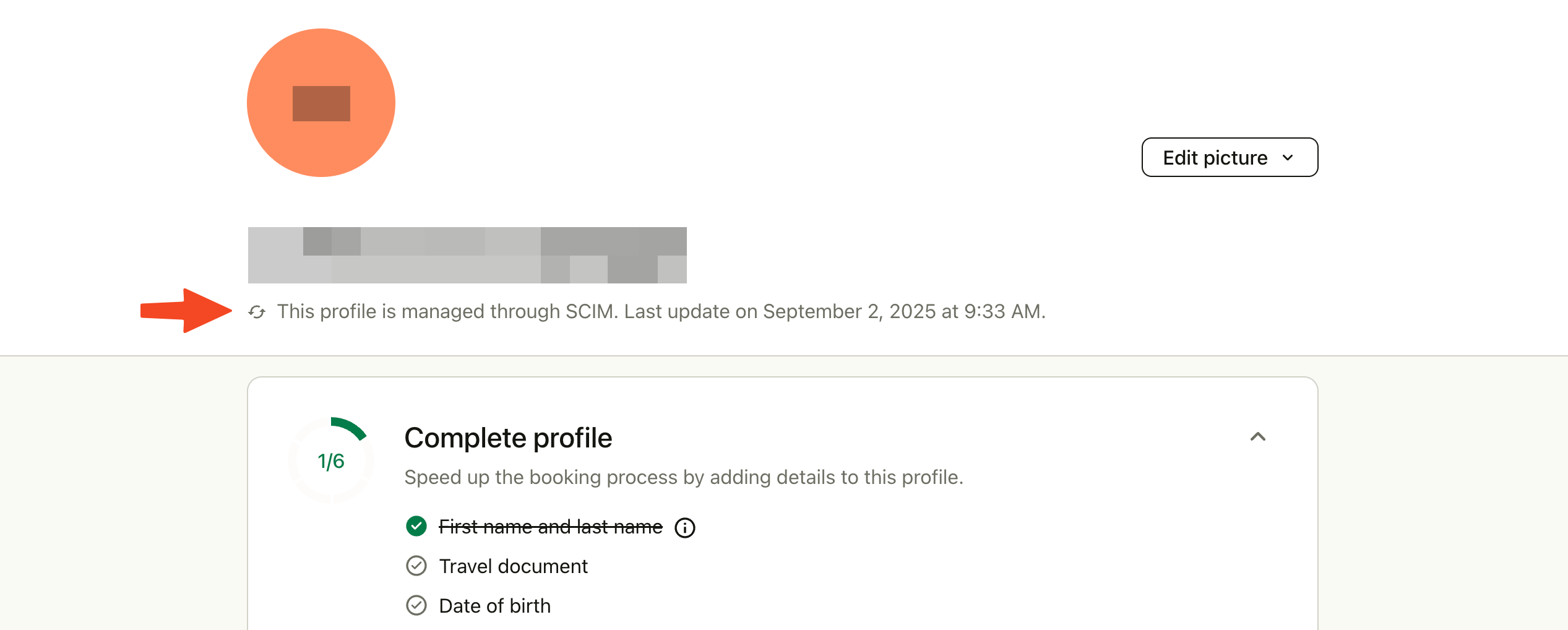
Use profiles indicate where they have been created or modified using SCIM:
Was this article helpful?
Glad to hear it! If you have anything you'd like to add, feel free to contact us.
Sorry to hear that. Please contact us if you'd like to provide more details.