When you try to connect Panther to 1Password SaaS Manager you will be asked for an API Token and API URL. This guide explains how to provide these parameters.
Creating a Panther API Token
Important
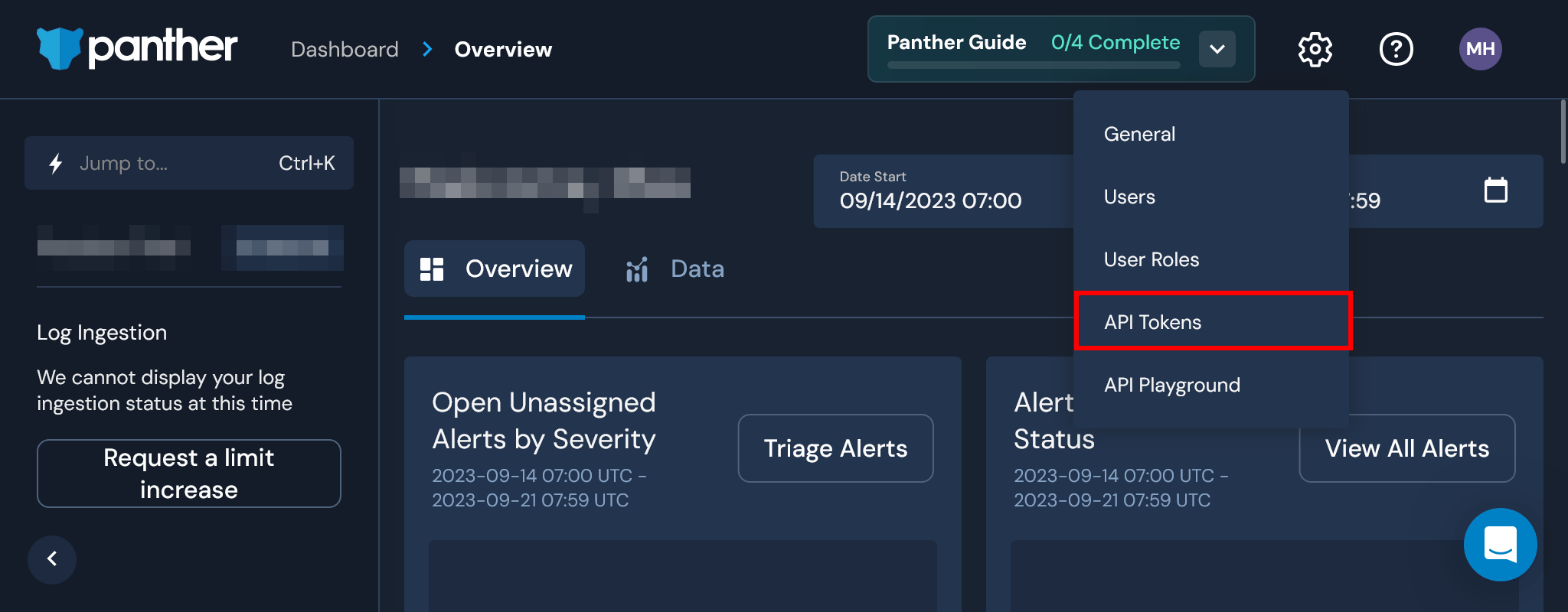
From the Panther dashboard, click the gear icon in the top right and select API Tokens:
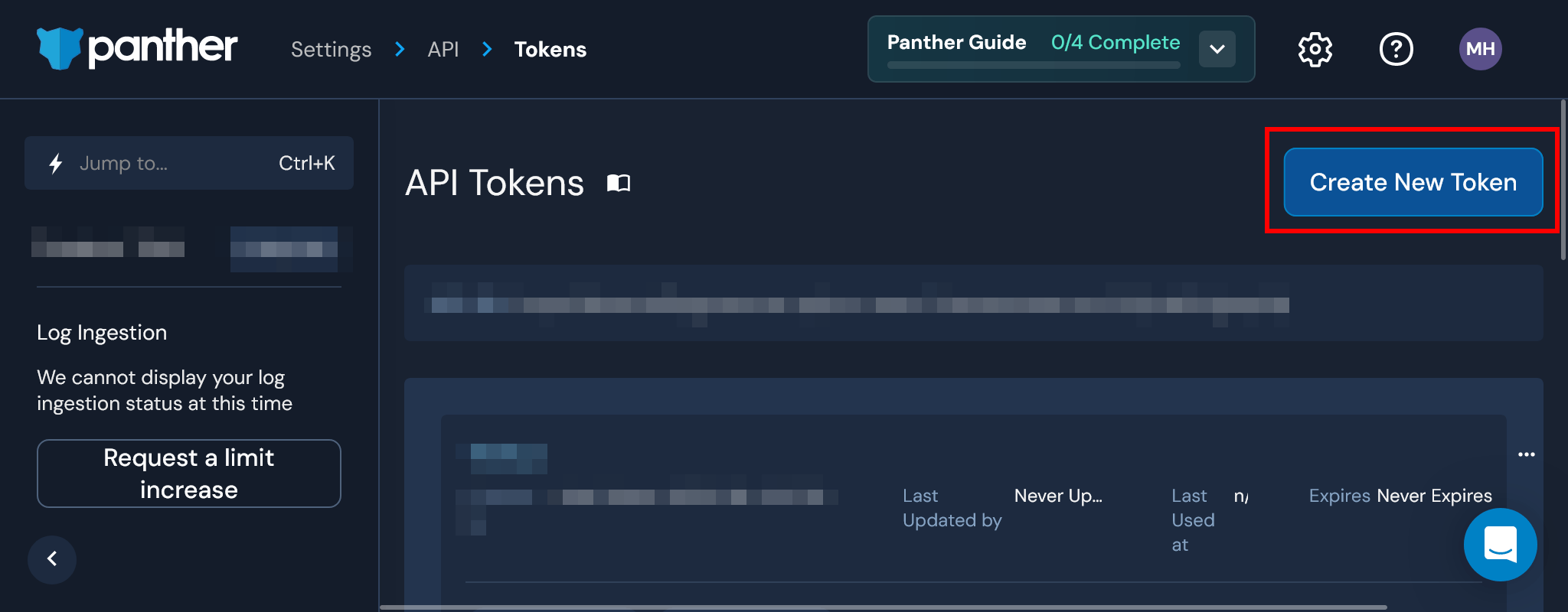
Click the Create New Token button:
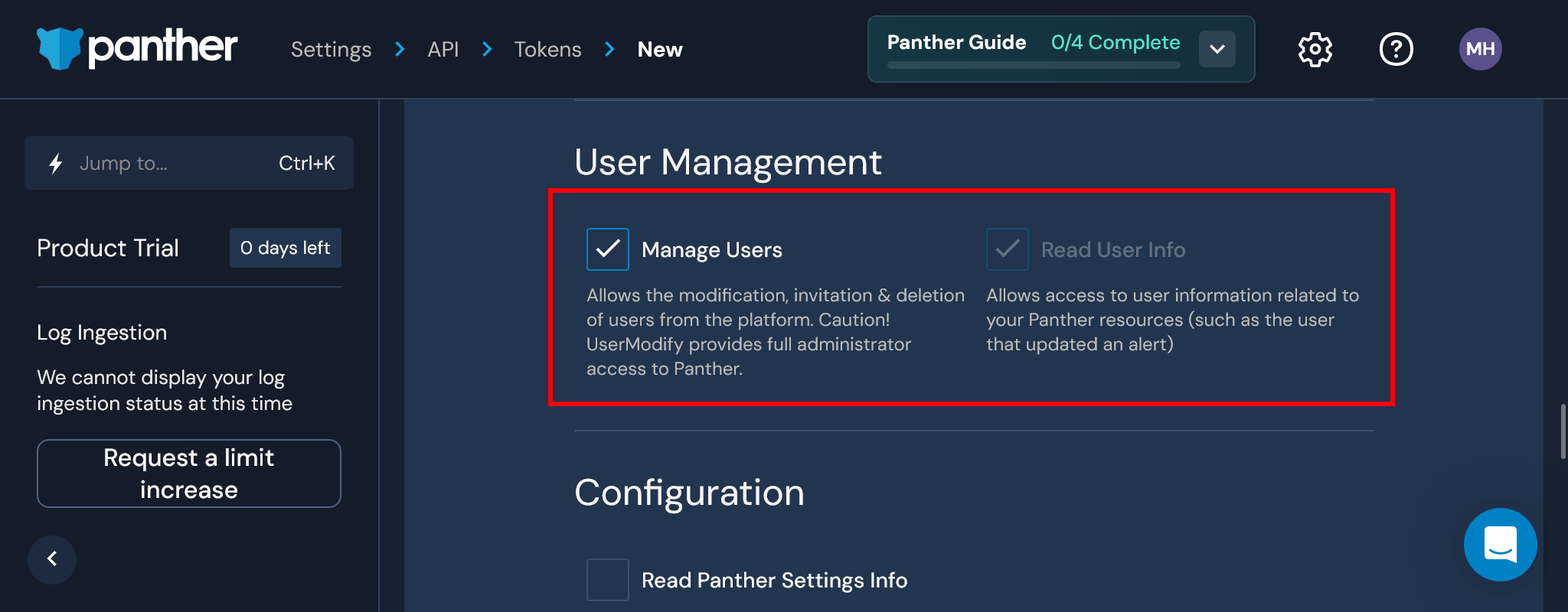
Under User Management, select the Manage Users and Read User Info scopes:
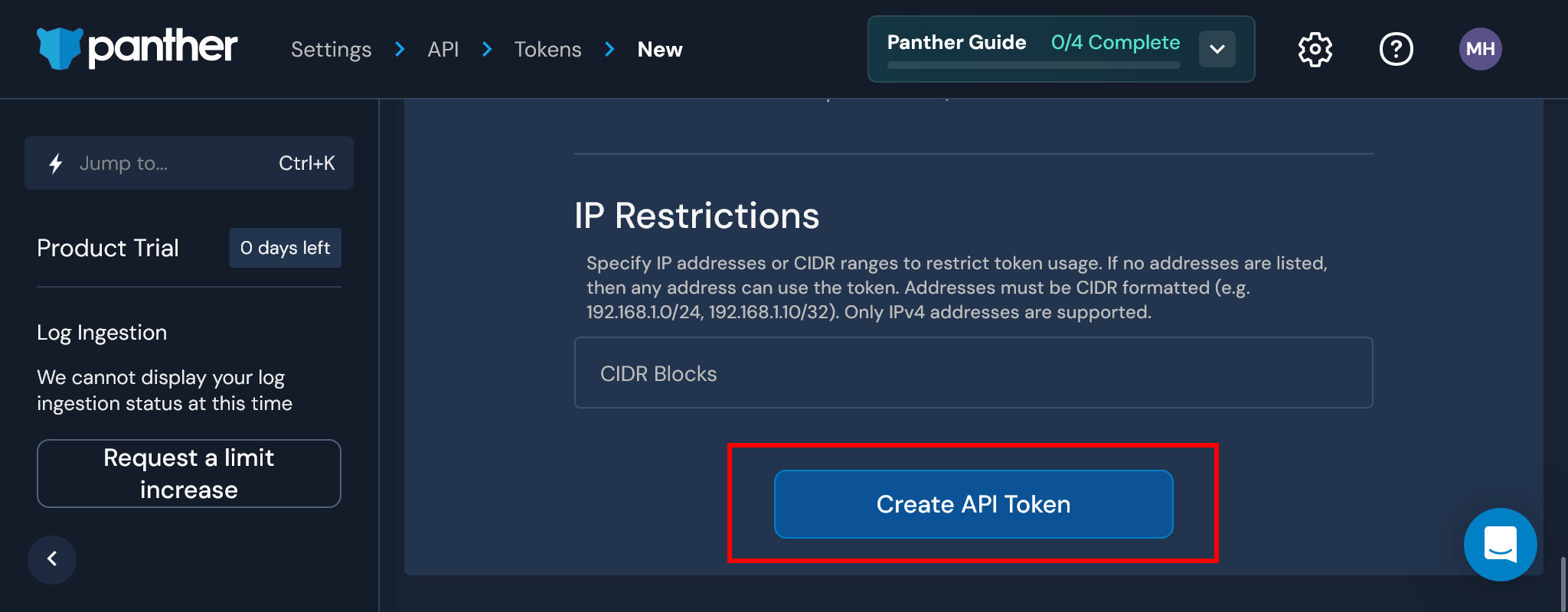
Click Create API Token at the bottom of the screen:
Note
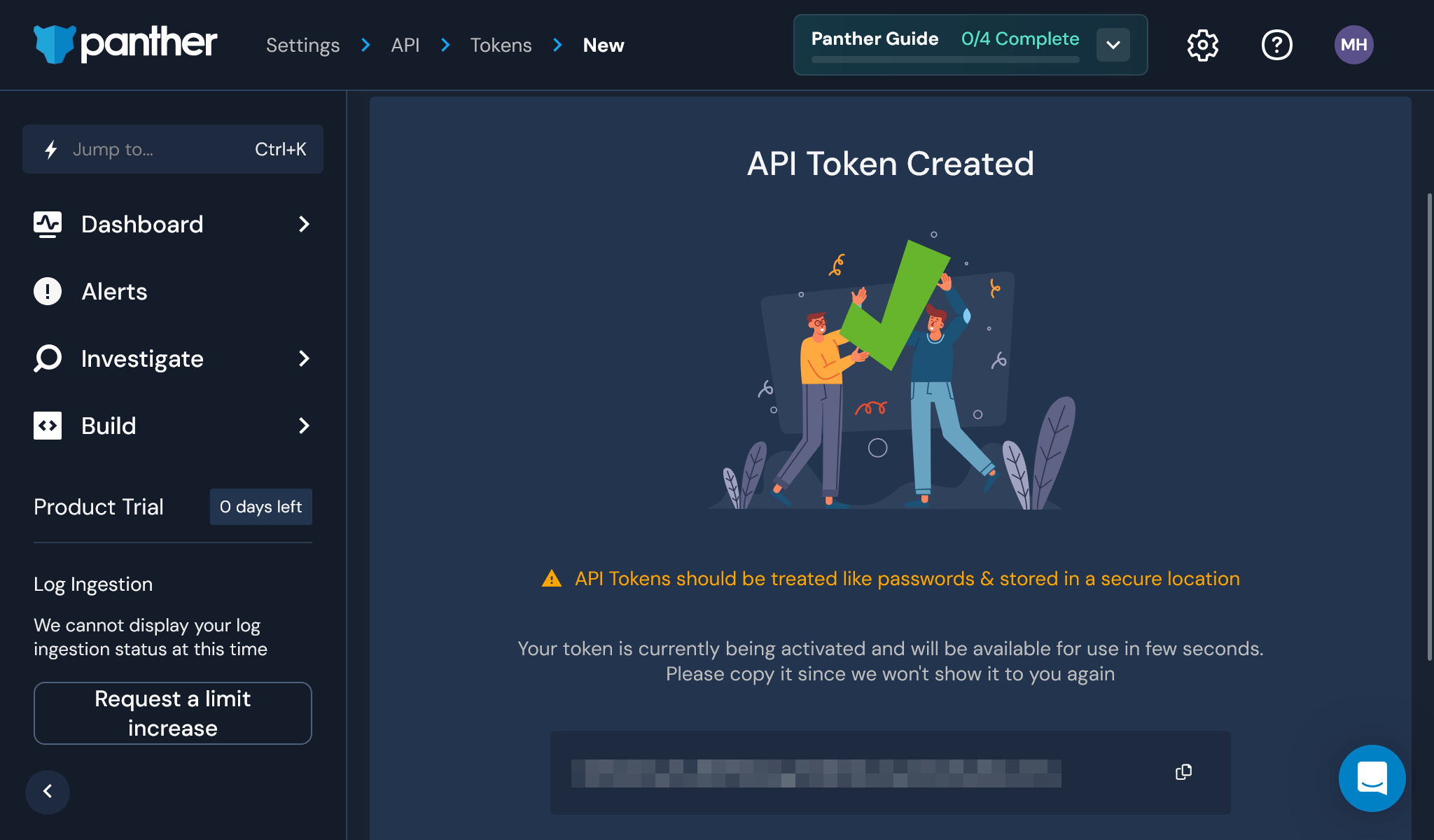
You may now copy your API Token into SaaS Manager:
Acquiring your Panther API URL
From the Panther dashboard, click the gear icon in the top right and select API Tokens:
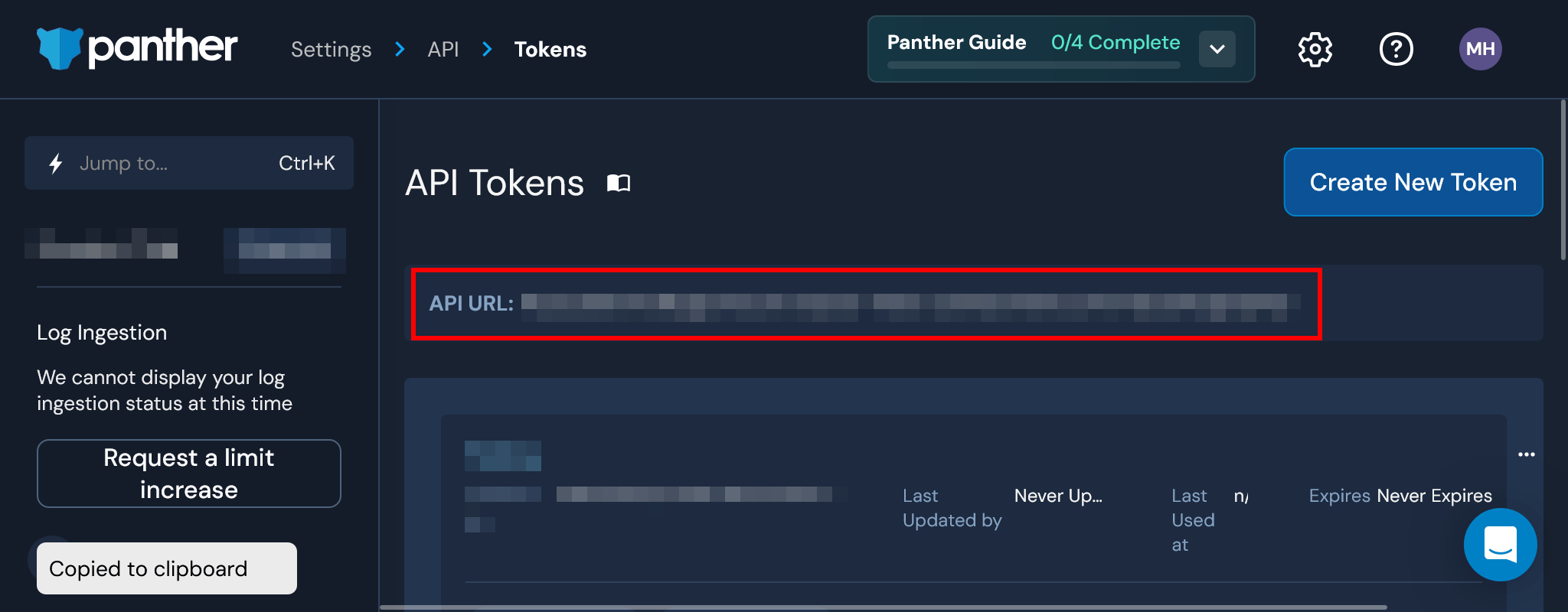
Click anywhere inside the API URL box to copy the URL to your clipboard:
Was this article helpful?
Glad to hear it! If you have anything you'd like to add, feel free to contact us.
Sorry to hear that. Please contact us if you'd like to provide more details.