App licenses and subscriptions can represent a significant proportion of your IT budget. 1Password SaaS Manager can help you to reduce unnecessary license costs by identifying opportunities to recover or downgrade app account licenses based on their usage.
Using the data provided by app integrations and the Browser Extension, you can use 1Password SaaS Manager to:
- Assess how frequently accounts access relevant apps.
- Determine whether existing license allocations are justified and identify any under-used or unused licenses.
- Automate the process of downgrading or recovering app licenses that are not in use.
- Set license threshold alerts for license availability.
Assess app account engagement
SaaS Manager collates login data from integrations and the Browser Extension, associates it with the employees and contractors listed in your People directory, then adds it to your App Catalog.
When sufficient app account data is available, you can view the proportion of accounts that are actively using each app from the App Catalog. This helps identify apps with large numbers of unused accounts so you can optimize license allocations.
By default, accounts are considered “engaged” if they’ve logged in to the app in the last 90 days. You can change this default threshold for all apps from Settings > Applications > Unused account period.
When reviewing app account engagement, keep in mind that the count of total accounts includes any accounts on a free tier. Additionally, if app account data is sourced from your IdP (such as Okta or Microsoft Entra ID), the number of accounts may include accounts that have been granted access using the IdP but have never logged in to the app.
Account engagement breakdown
Open the app profile to view a breakdown of account engagement based on how frequently each app account has logged in. Alternatively, to compare account engagement breakdowns for multiple apps, open the Reports page and select Account engagement report.
Accounts that haven’t logged in to the app within the threshold period are listed as “unused”. For accounts that have logged in to the app within the selected period, their login data is used to calculate their engagement level.
Initially, account engagement is calculated based on the recency of each account’s last login, with what constitutes high, medium, or low engagement varying according to the unused account threshold selected.
For example, if the threshold for unused accounts is set to 30 days, an account that last logged in over 15 days ago (but within the last 30) will be categorized as low. By contrast, if the threshold is set to 90 days, an account is only categorized as low if the account last logged in between 45 and 90 days ago.
As SaaS Manager collects more login data for each app over time, we use this information to provide a more accurate assessment of account engagement. After the login data covers the selected threshold period, the categorization changes to be based on the number of daily logins each account has made within that period. The lower the threshold, the more frequently an account needs to have logged in to be categorized as high.
Note
App account details
From an app’s Overview page, go to the Accounts tab to view the last login date for each app account. Depending on the app integration and the features you have turned on, other details - such as license type - may also be displayed. You can use this information to identify app accounts that may no longer need a paid license.
Note
Sources of app account login data
When using SaaS Manager to optimize app license allocations, it’s important to understand the quality of the data available. You can view the source of the login data from the Accounts tab for each app.
The most accurate sources of login data for apps are:
- Direct app integrations that provide login data and for which the session duration is 24 hours or less.
- Your Identity Provider (such as Google Workspace or Okta) if you have enabled “Big Bang” SAML2 SSO for access to other apps. This means that accounts can only log in to another app (such as Zoom or Slack) using your IdP.
- The SaaS Manager Browser Extension.
If an integration indicates that accounts have logged in to an app using OpenID Connect (OIDC), this information is recorded and displayed in SaaS Manager as the account’s “Last authenticated” date rather than the “Last login” date. This is because the access token granted by OIDC can be valid for several months, during which the account may access the app multiple times or not at all. OIDC authentication data is not used to calculate account engagement levels unless that data is supplemented by data from the Browser Extension.
For more information about the factors that affect the quality and consistency of login data, see App account login and engagement data.
Manage app account licenses with SaaS Manager
We recommend focusing your optimization efforts on apps that you actively manage with high levels of spending and/or high levels of unused licenses. The Spend Insight and Account Engagement reports provide useful overviews of this data to help you prioritize apps.
After you’ve identified the apps for which you want to optimize licenses, check the features listed on each app’s integration page to confirm whether you can manage app licenses from SaaS Manager. For apps managed using your IdP, check whether the app supports deprovisioning using the IdP.
If a suitable integration is available, you can change and recover app account licenses from SaaS Manager, either using an automated optimization workflow or on an ad hoc basis.
For apps without suitable integrations, you can add, update and remove app accounts in SaaS Manager manually. This allows you to maintain an accurate record of who has access to your apps, their license and status, despite not being able to integrate the app with SaaS Manager. For more information, see Import and update app usage data manually.
Set license availability alerts
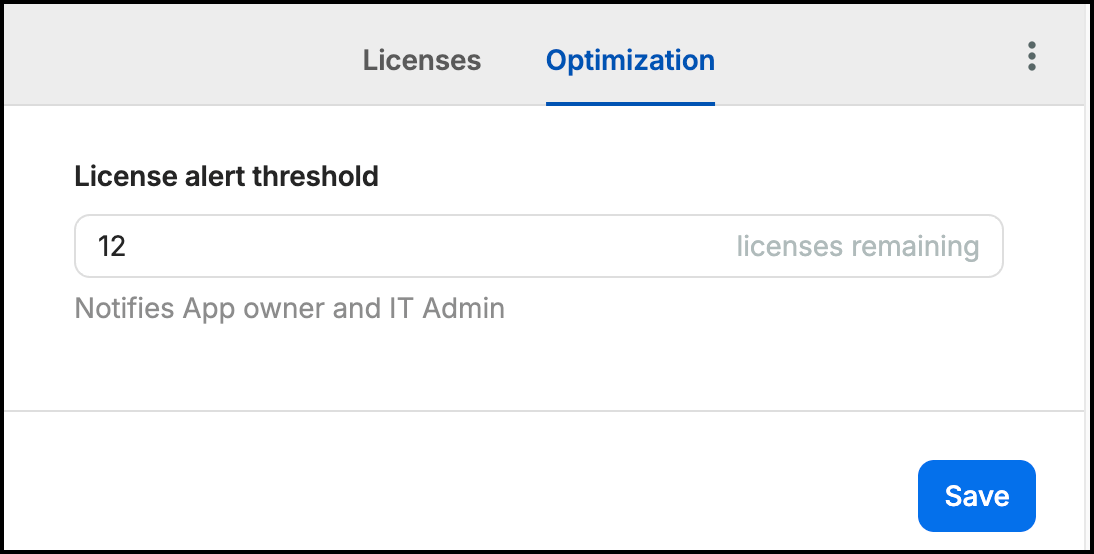
App owners and IT Admins can review alerts when an app’s license availability hits a set threshold.
From the app’s Overview page, select the licensing section to open the Licenses sidebar. Select the Optimization tab to set the threshold number you want to be alerted for. Select Save.
Was this article helpful?
Glad to hear it! If you have anything you'd like to add, feel free to contact us.
Sorry to hear that. Please contact us if you'd like to provide more details.