When you try to connect OneTrust to 1Password SaaS Manager you will be asked for a Client ID and Client Secret. This article explains how to provide these parameters.
In the OneTrust app, click the gear icon in the upper right-hand corner to access Global Settings.
In the Global Settings menu, select Access Management > Client Credentials and click the Add button.
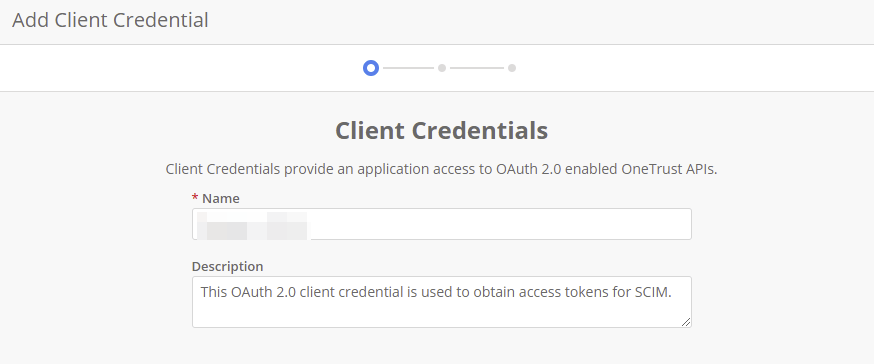
Enter a name and click the Next button.
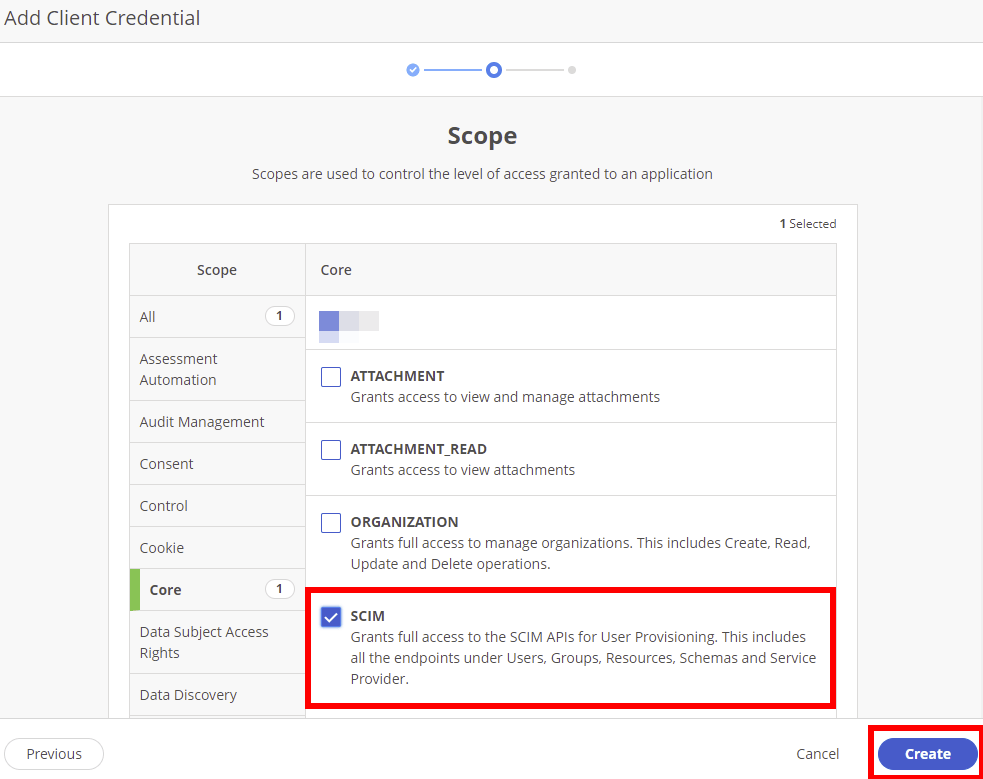
In the Core scopes, check the SCIM scope box and click Create.
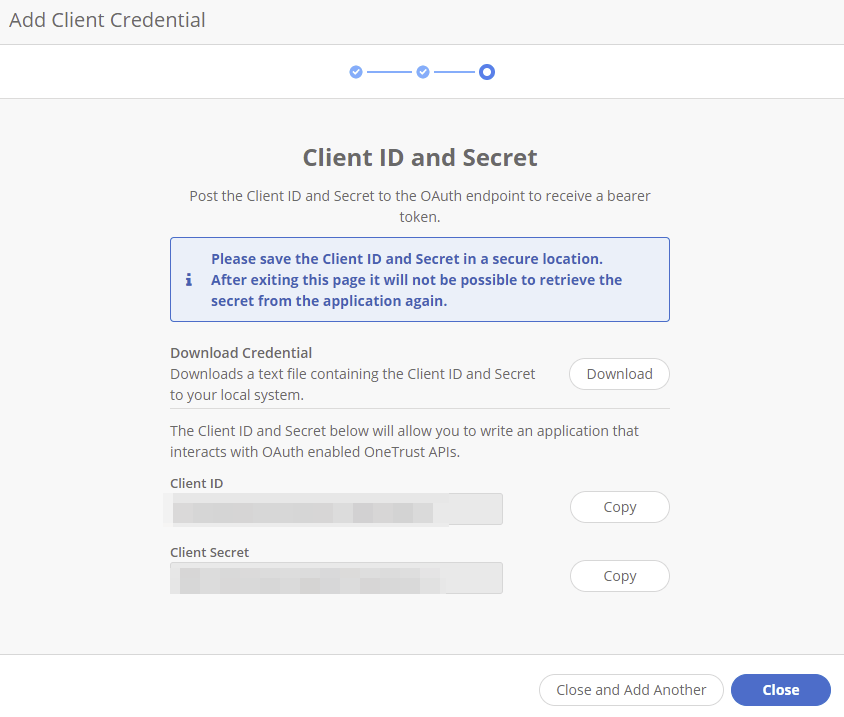
Your Client ID and Client Secret will be displayed to you, which you can copy and paste into SaaS Manager.
Was this article helpful?
Glad to hear it! If you have anything you'd like to add, feel free to contact us.
Sorry to hear that. Please contact us if you'd like to provide more details.