The 1Password SaaS Manager integration will let you return device or employee data from a Notion Database. Data is imported based on column name mappings identical to those described in the Google Sheets connector:
Creating an integration in Notion
Follow these steps to create an internal connection in Notion’s documentation.
Make sure the capabilities of the connection match the following requirements:
- Under Content capabilities, turn on Read content.
- Under User capabilities, select Read user information including email addresses.
After you create the connection, make sure you copy the internal connection token. You’ll need this to finish connecting to SaaS Manager.
Sharing your data with the integration
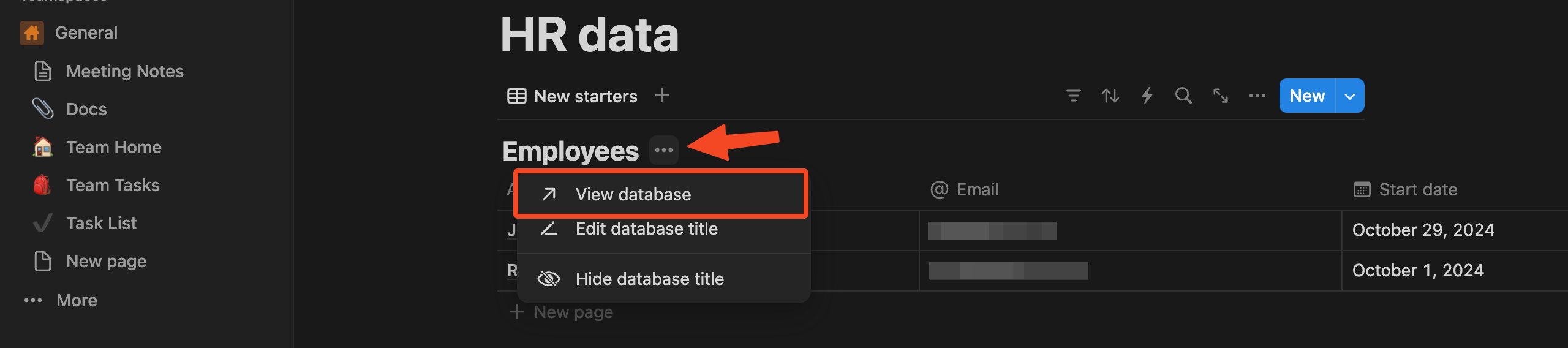
Go to the page containing your database and choose View database:
Click the three dots at the top-right and choose Connect to
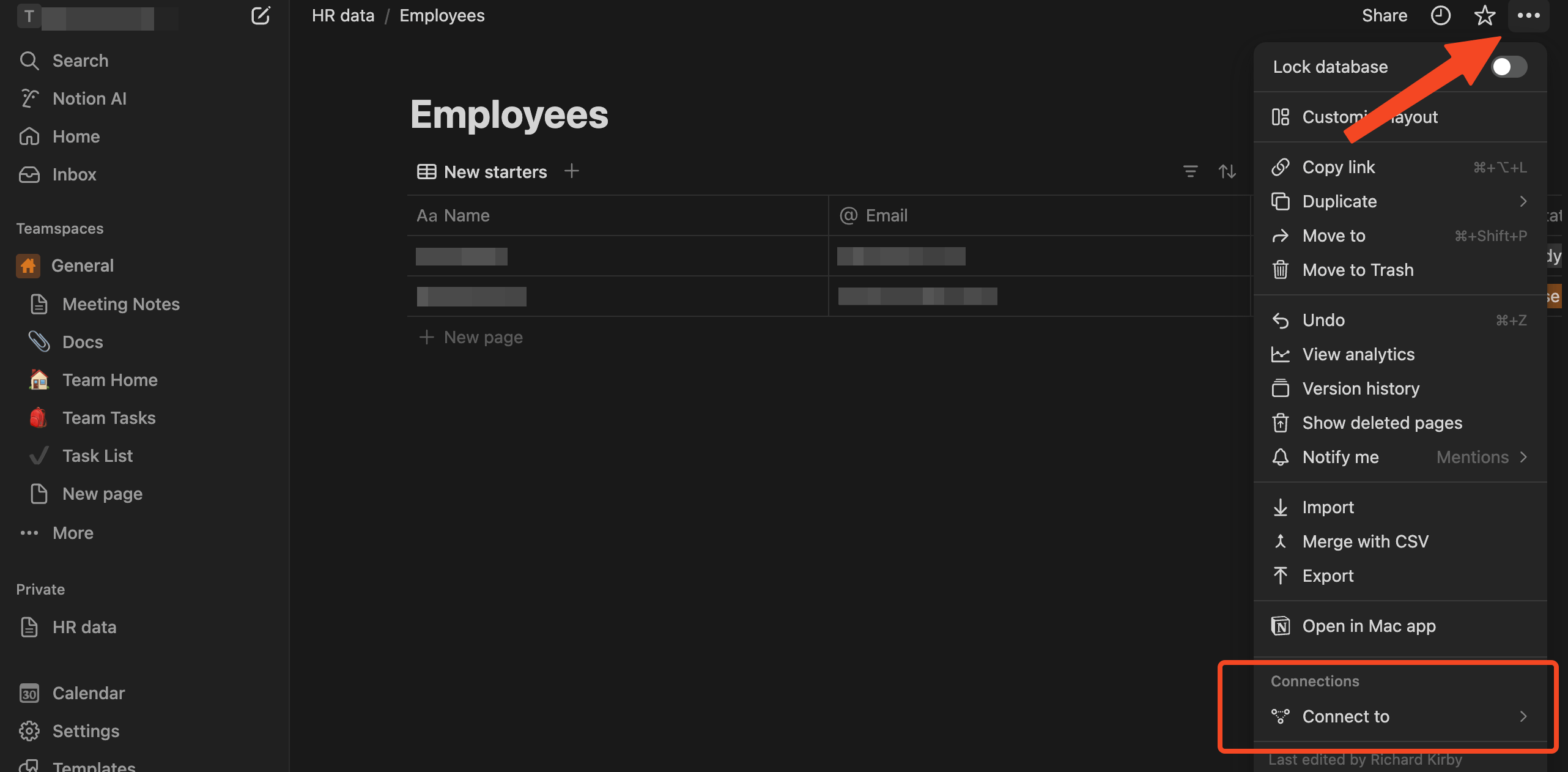
Select your new integration from the list and click Confirm

Finding the database ID
Finally to get your database ID, look at the URL of the page you are on - the ID is the text before the ? character.

Connecting from SaaS Manager
Log in to SaaS Manager as an administrator and find the Notion Database integration under Integrations. Note that this is separate to the main Notion integration which helps you manage users of Notion.
Now paste in the Integration secret and Database ID you generated or found in the earlier steps.
Choose whether this data represents People or Devices in your organization and click Connect.
Was this article helpful?
Glad to hear it! If you have anything you'd like to add, feel free to contact us.
Sorry to hear that. Please contact us if you'd like to provide more details.