Creating the client to authenticate
Select the realm where you want to create the client (under Manage realms). Note the realm name as you will need to enter this into 1Password SaaS Manager.
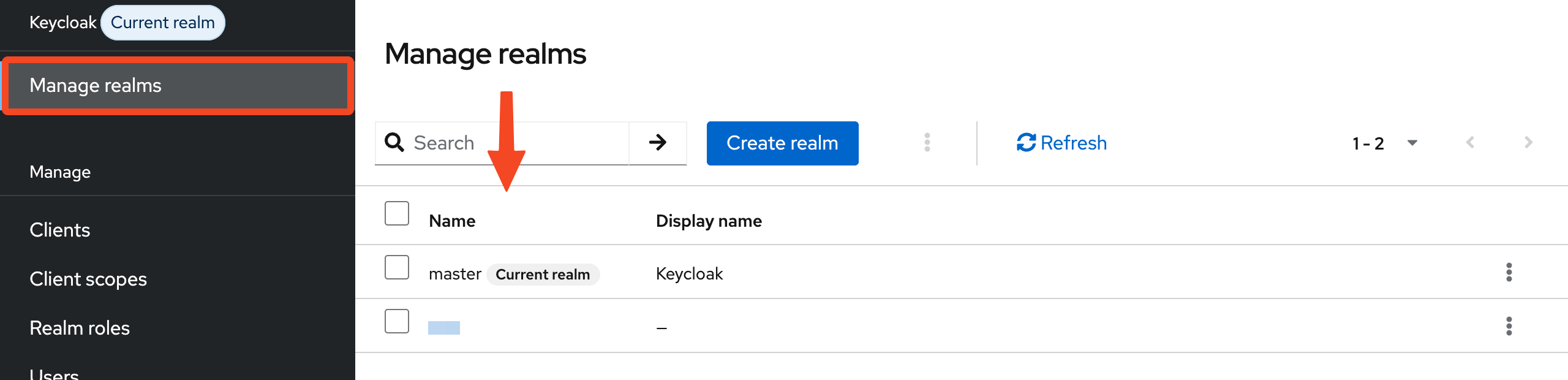
In the left menu, go to Clients > Create client.
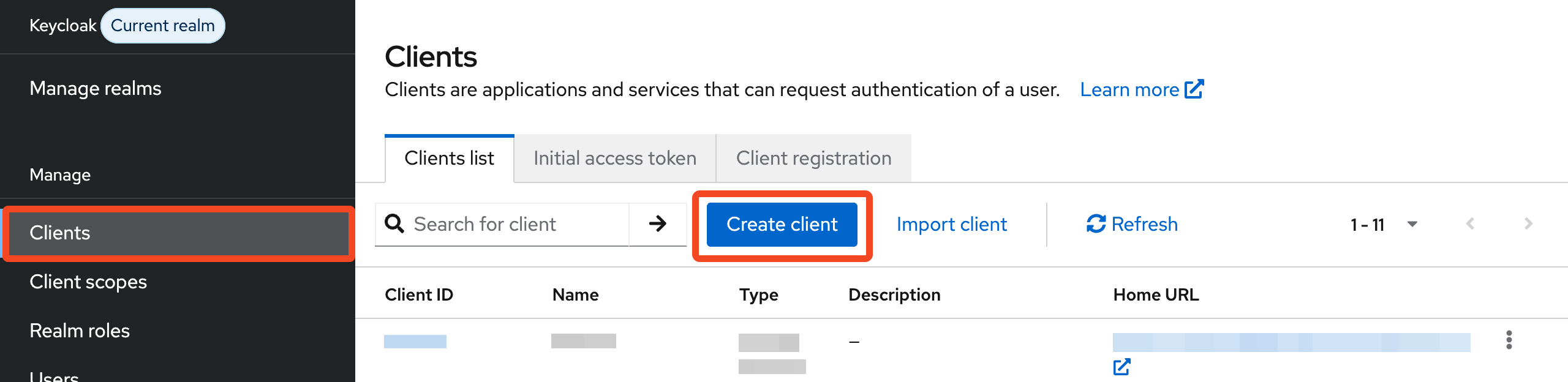
On the General settings tab:
- Select OpenID Connect as the Client type.
- Enter SaaSManager-integration as the Client ID and add an appropriate Name and Description
Click Next.
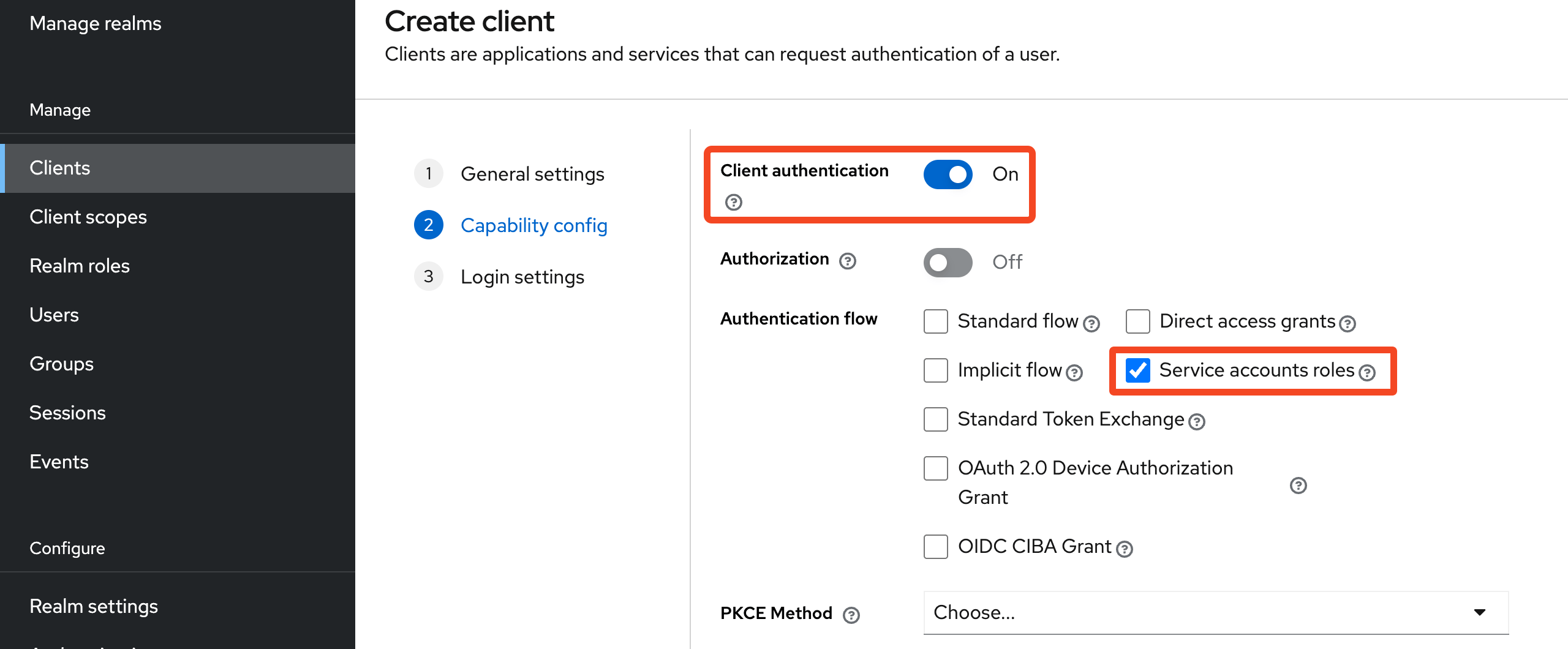
On the Capability config tab:
- Turn Client authentication on.
- Make sure Service accounts roles is checked, and uncheck all other authentication flows.
Click Next.
On the Login settings tab leave all options unchanged.
Click Save. You’ll be taken to the configuration detail page.
Configuration detail page
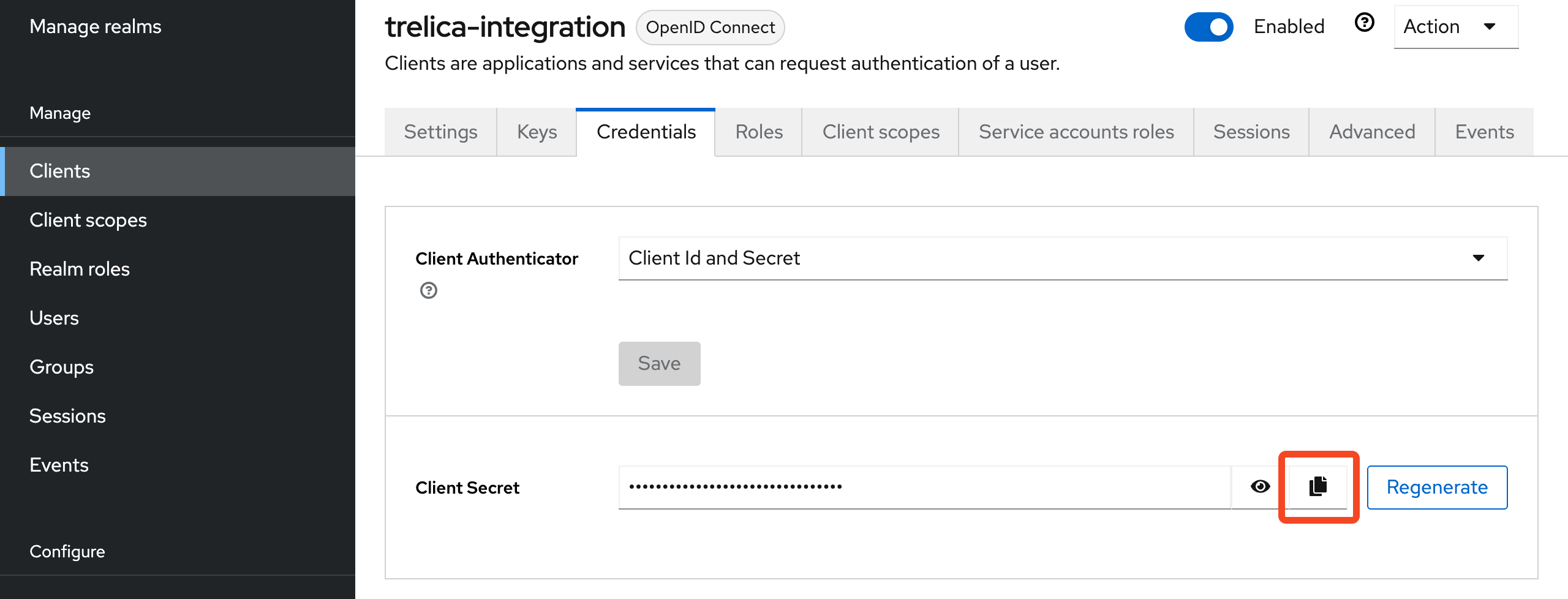
On the Credentials tab:
- Confirm the Authenticator is set to Client Id and secret.
- Copy the generated Client secret as you will need to paste this into SaaS Manager.
On the Service accounts roles tab:
- Click Assign role > Client roles and select the appropriate roles for the client:
- To read users and activity data (required):
view-usersview-events - For the Apps feature to show clients being accessed by users:
view-clients - For the Provisioning or Deprovisioning features:
manage-users
- To read users and activity data (required):
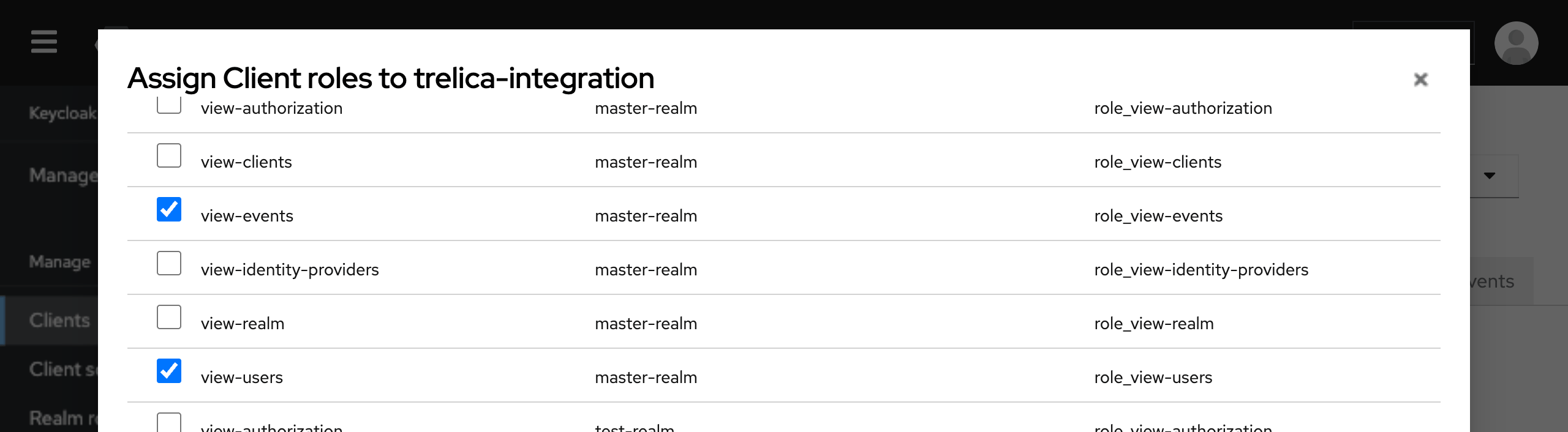
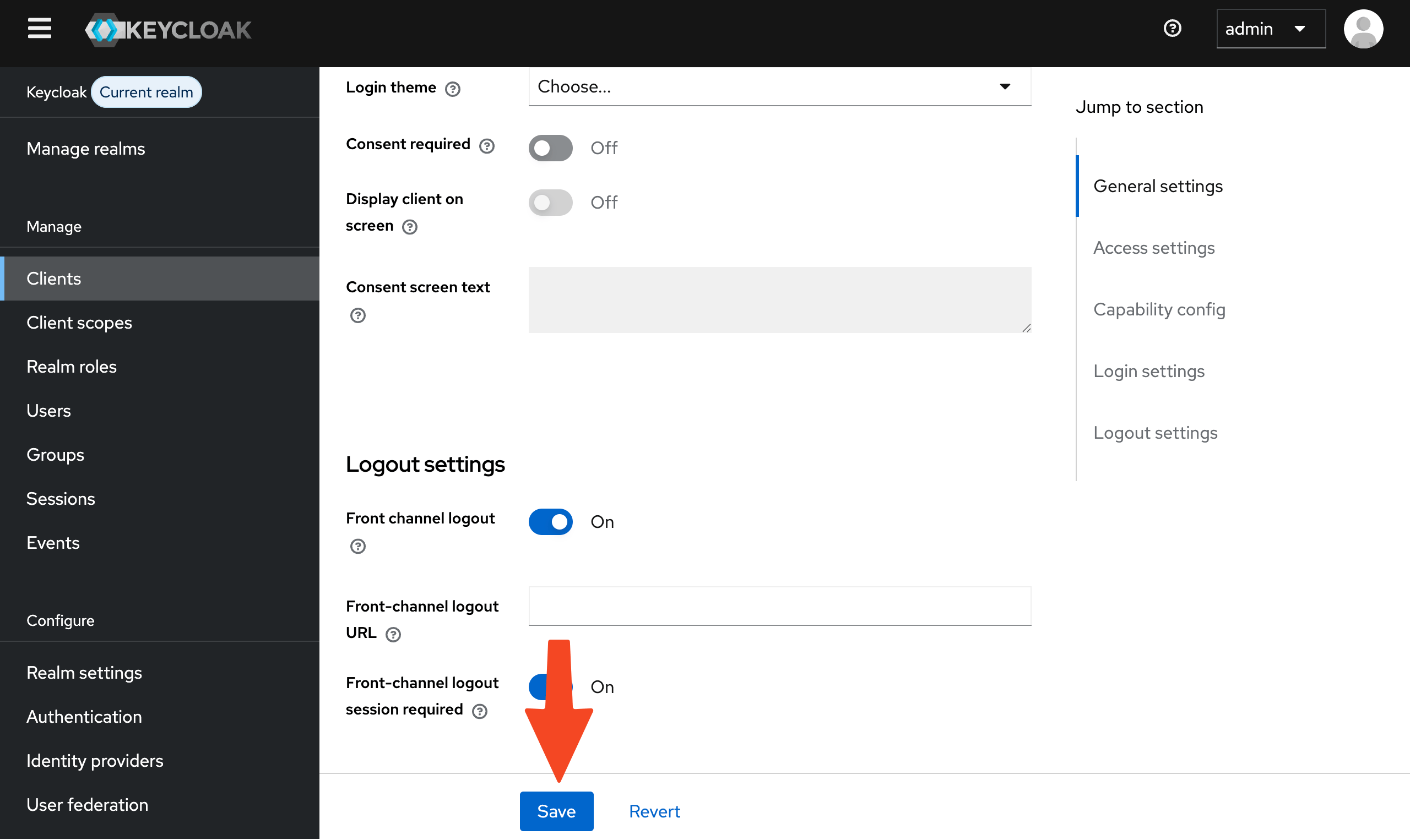
Click Assign and the click Save on the Settings tab.
Important
You must click the Save button to apply your changes.
Mapping user attributes
Keycloak comes with a minimal set of default user attributes. You can map the Keycloak attributes you have configured to core SaaS Manager user profile fields, or even map custom fields.
These fields will be imported into SaaS Manager and also set when creating users in Keycloak.
Open up the Mappings dialog
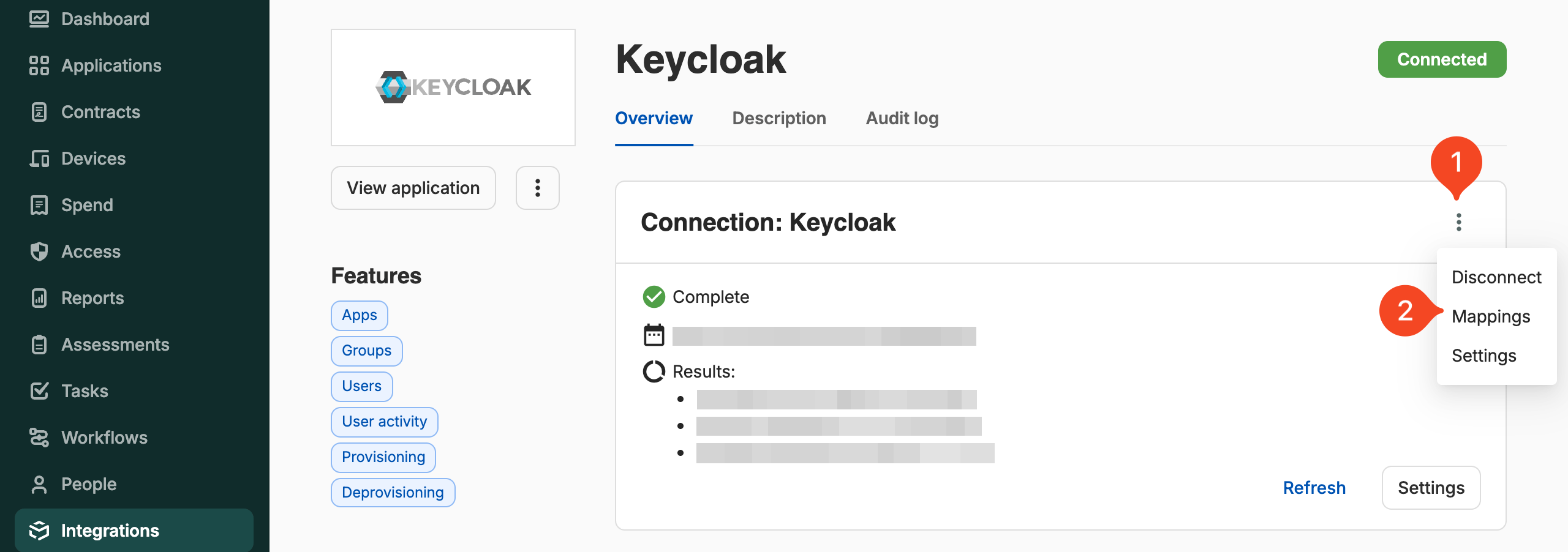
Map Keycloak fields to SaaS Manager attributes or add custom SaaS Manager fields from Keycloak fields.
FAQ
I’m not receiving login event data
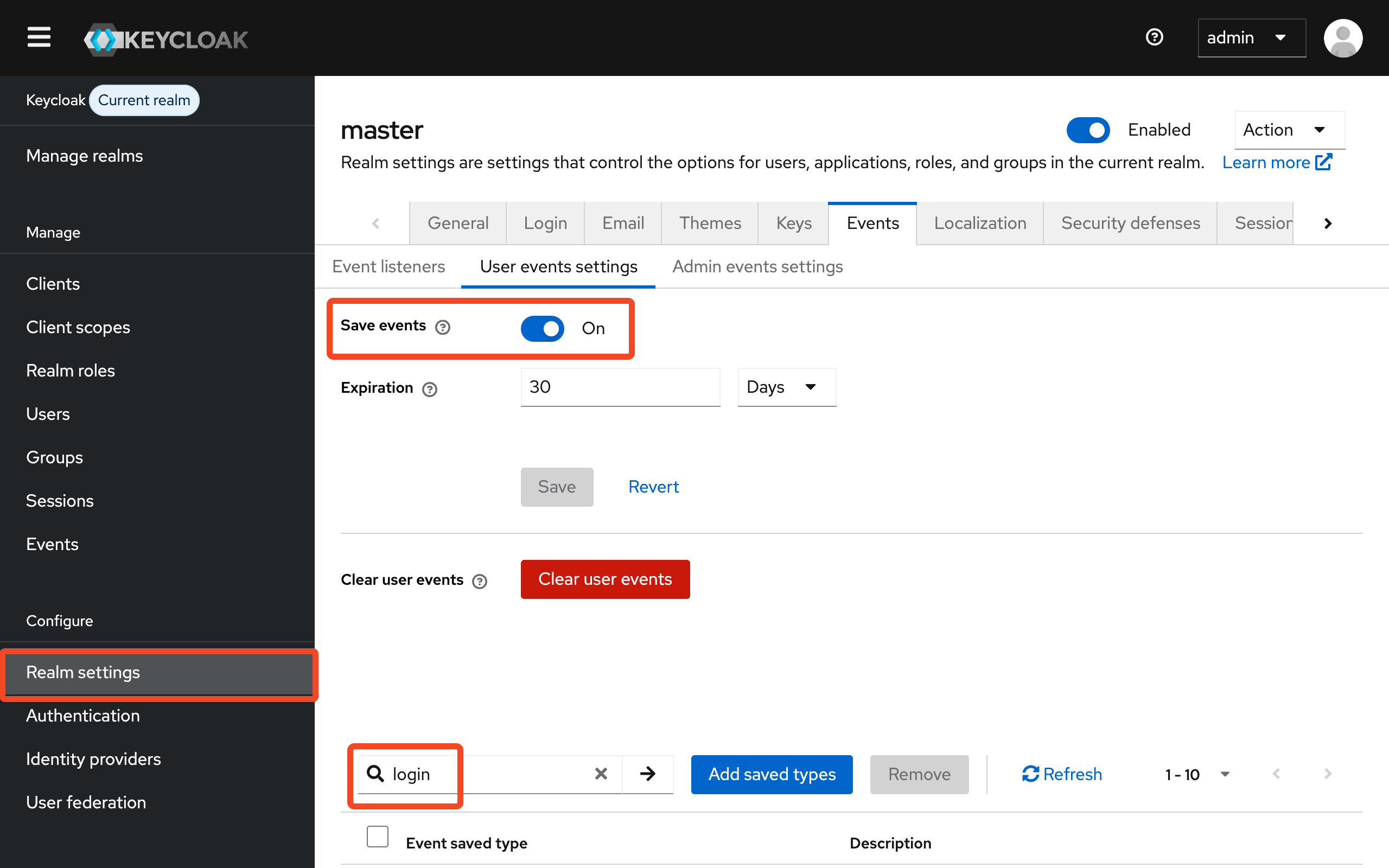
Login data is synchronized every four hours so you may need to wait a little after initial connection. If you’re still not receiving login data, make sure that User events are being saved and that Login events are selected in the Realm settings > Events > User events settings tab.
Was this article helpful?
Glad to hear it! If you have anything you'd like to add, feel free to contact us.
Sorry to hear that. Please contact us if you'd like to provide more details.