When you try to connect JetBrains to 1Password SaaS Manager you will be asked for a customer code and API token. This article shows you how to find the customer code and API token.
Connecting to JetBrains from SaaS Manager
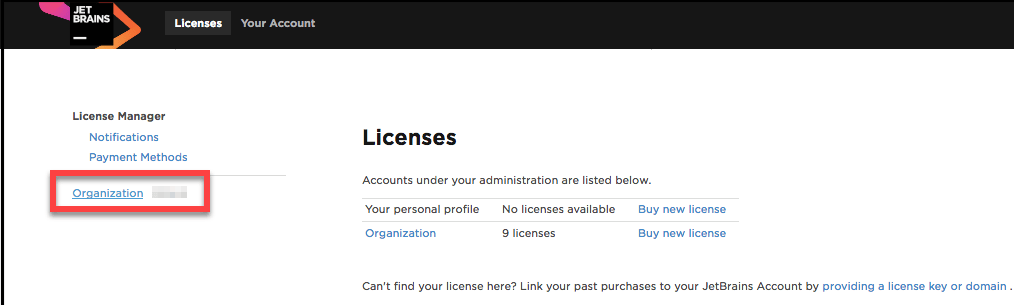
Log in and navigate to JetBrains Account > Licenses.
Click your organization name:
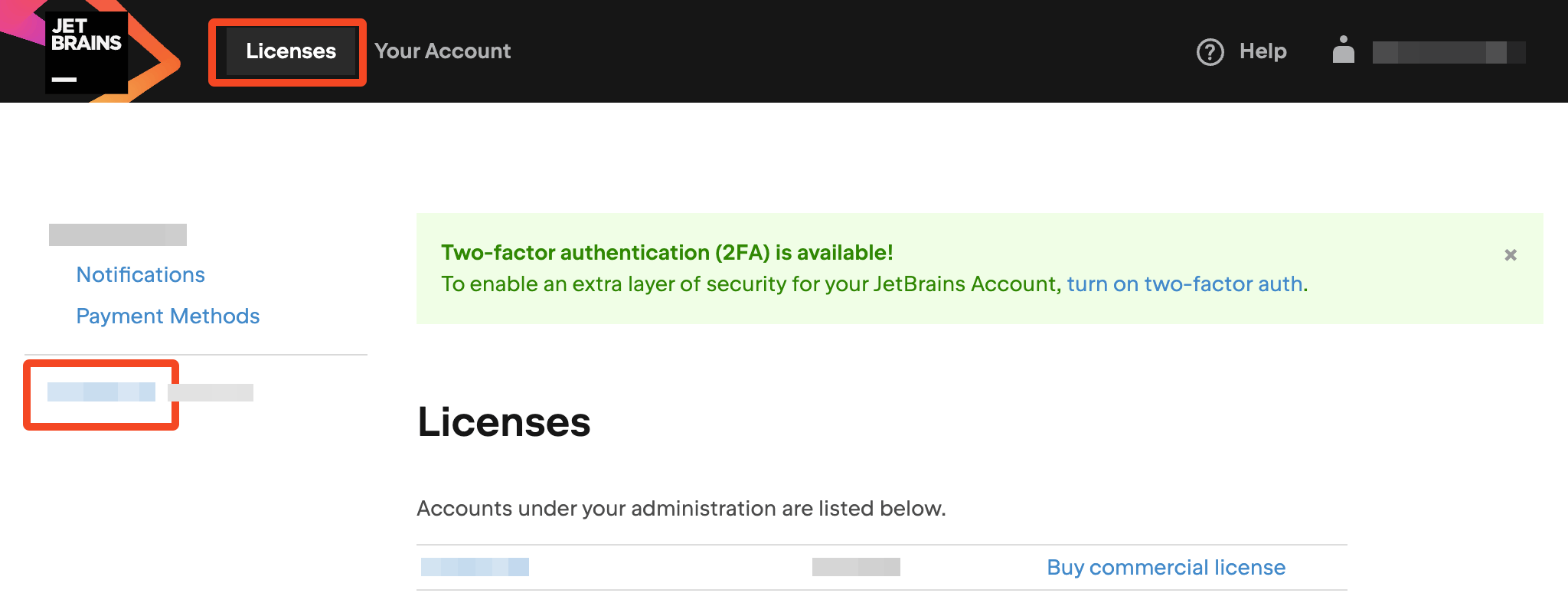
Now choose Administration > Enable API.
Note
If you don’t see the API option, you may need to reach out to JetBrains support to get Account API access enabled.
Find out more in this JetBrains help article.
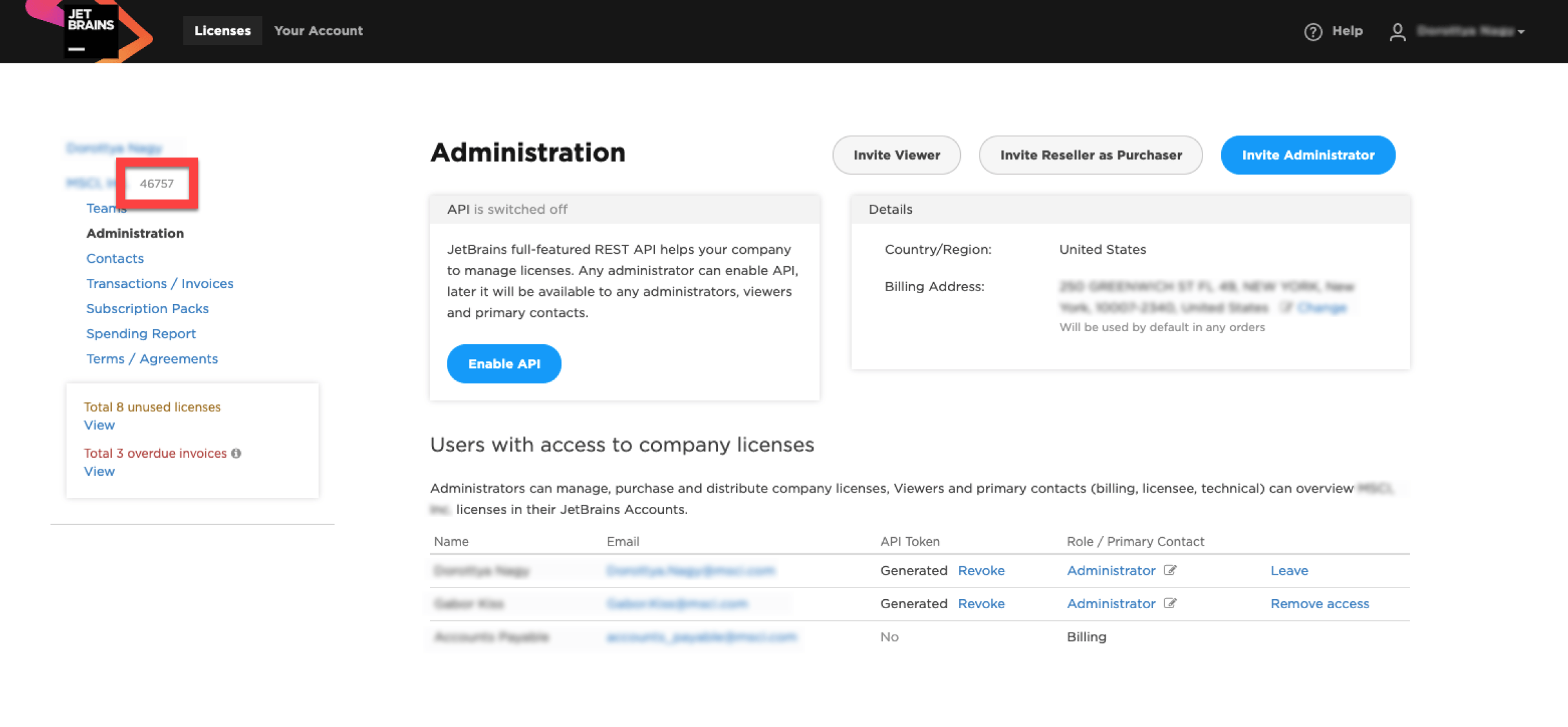
Customer code is a unique organization ID displayed near the corresponding company name on the same page.
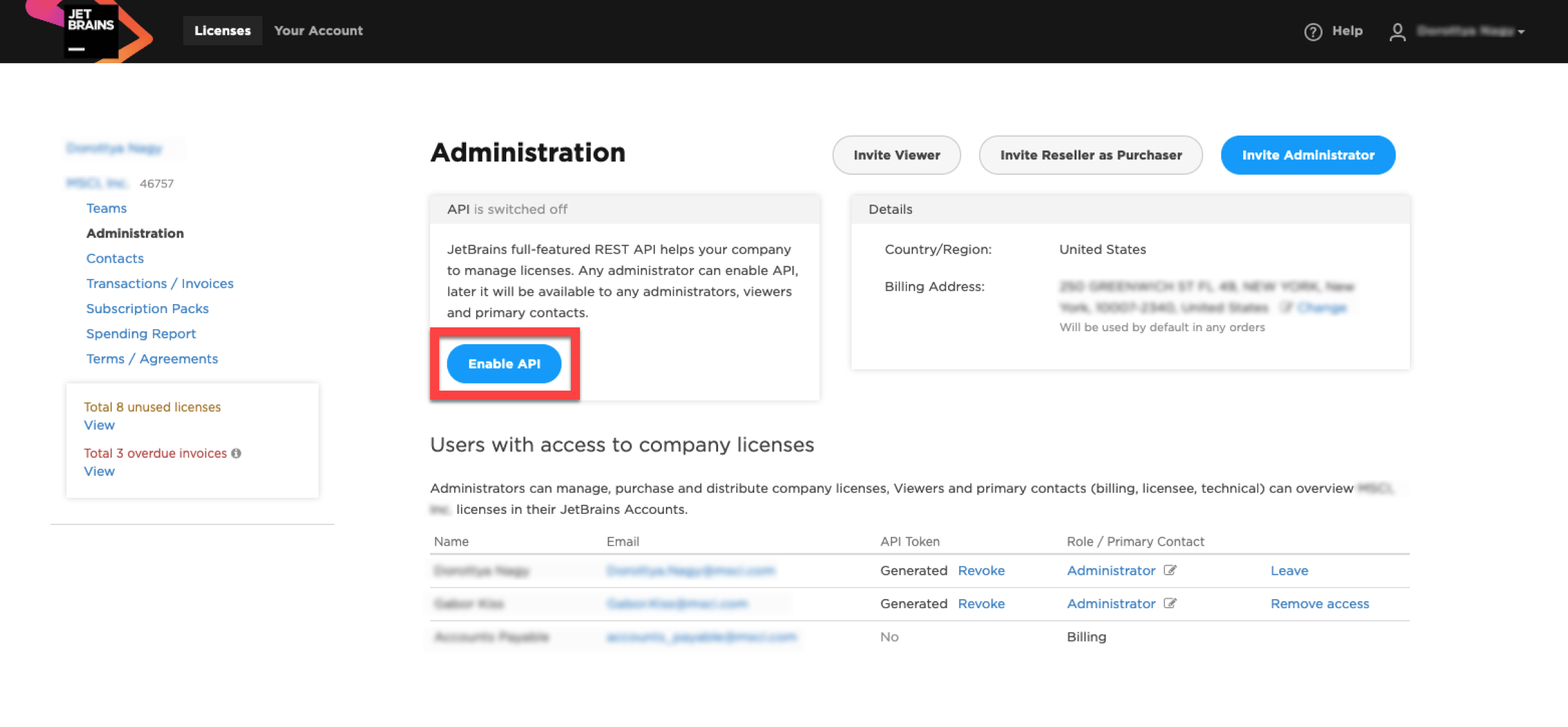
If the API is not already enabled, click Enable API.
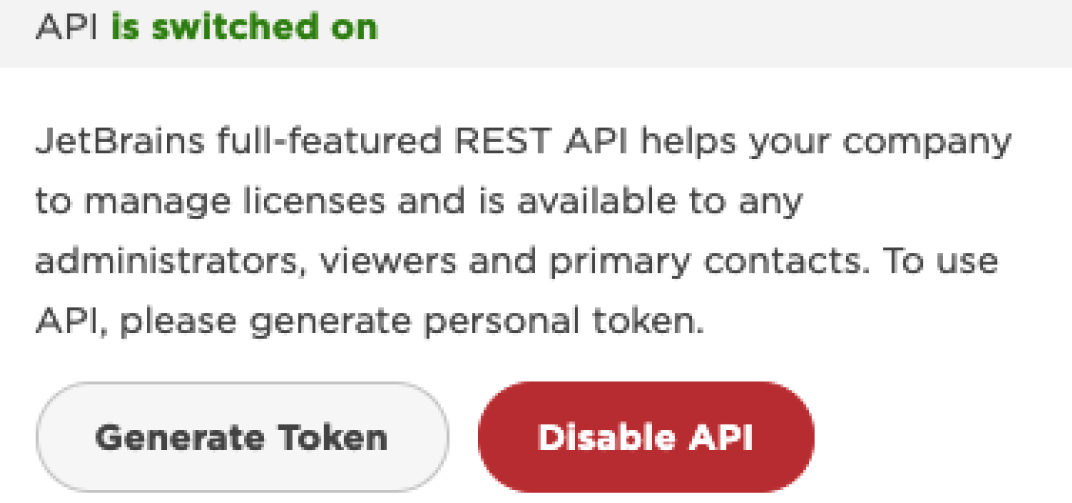
To generate an API token, navigate to click Generate Token after enabling the API.
Exporting a spreadsheet from JetBrain to import into SaaS Manager
If you don’t wish to connect to JetBrains using their Account API, you can export licenses into a spreadsheet which you can then import into SaaS Manager.
Log in and navigate to JetBrains Account > Licenses > Administration.
On the left, click your Organization/Team name:
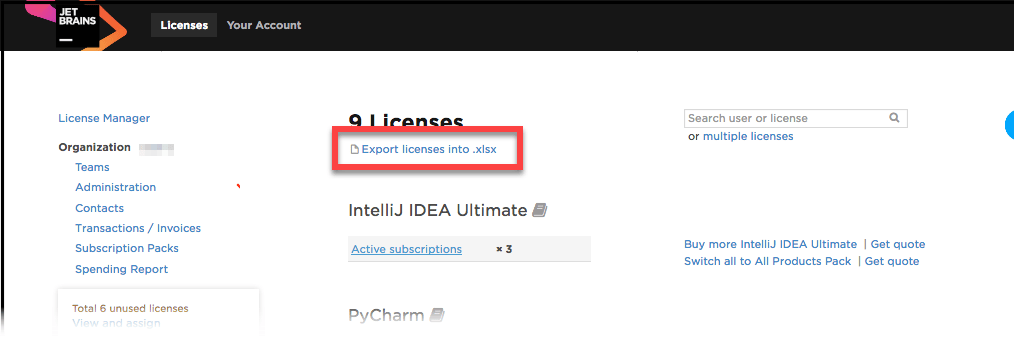
Click Export licenses into.xlsx:
Go to JetBrains (vendor profile) in SaaS Manager and click the Import icon:
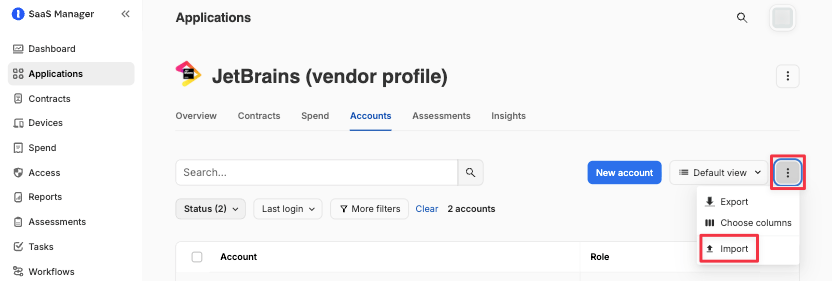
Upload the file, following the prompts.
Was this article helpful?
Glad to hear it! If you have anything you'd like to add, feel free to contact us.
Sorry to hear that. Please contact us if you'd like to provide more details.