Note
Click the icon with your initials in the top-right and choose Your Profile:

Choose My Apps and click Create My App:
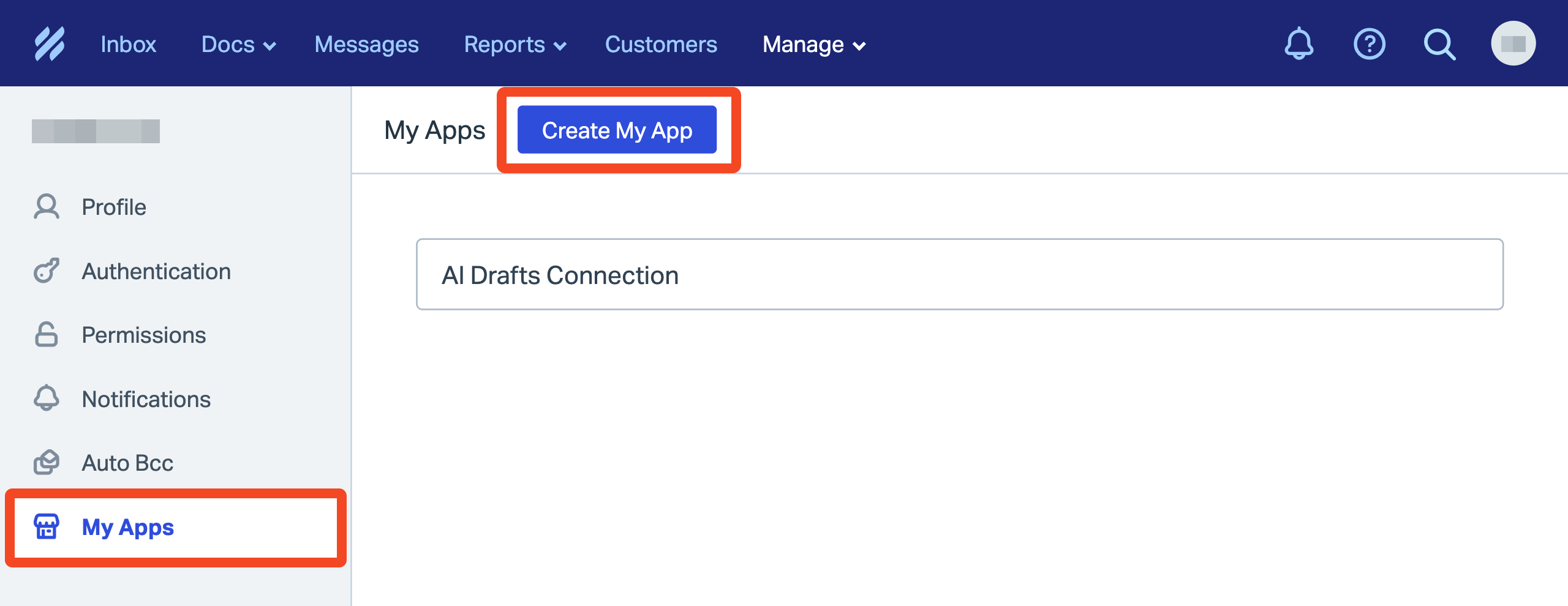
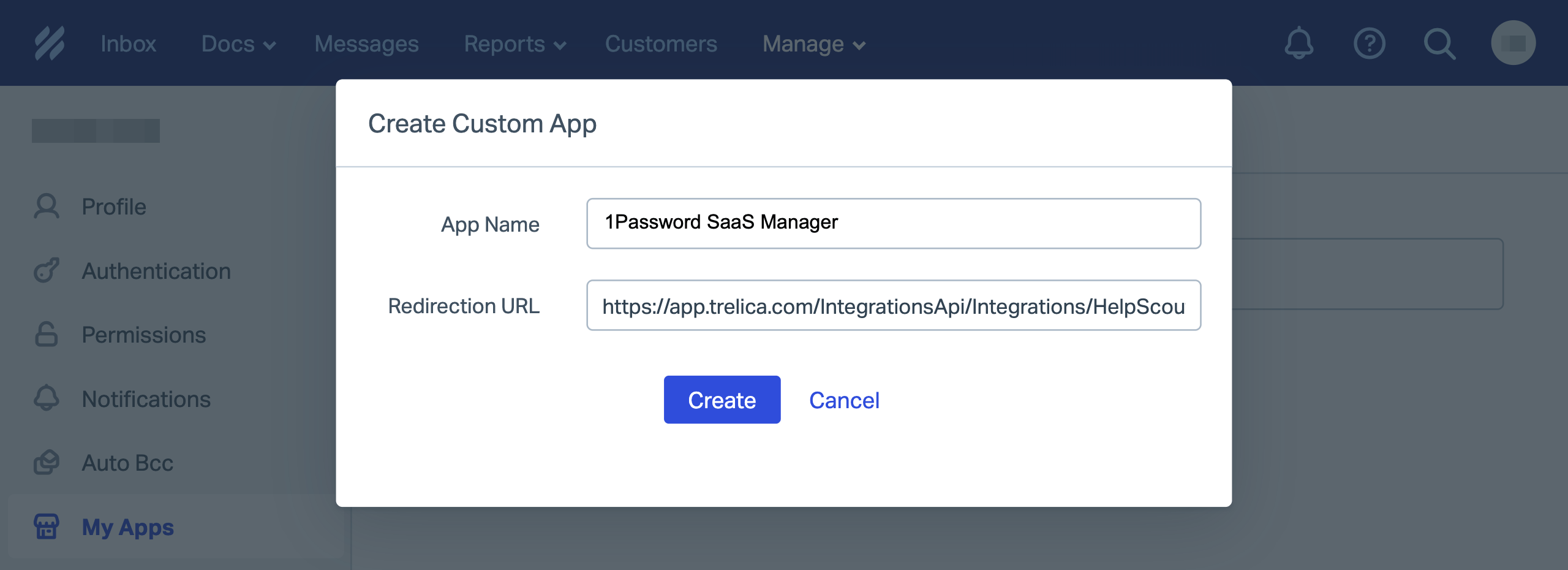
You will be asked for an App Name (for example ‘1Password SaaS Manager’) and a Redirection URL.
This is not required since SaaS Manager connects using the so-called ‘OAuth Client Credentials’, but it’s mandatory in HelpScout, so you can enter this URL:
The URL required will vary depending on whether you are using the trelica.app or trelica.eu environments:
https://trelica.app/IntegrationsApi/Integrations/HelpScout/AuthCallback https://trelica.eu/IntegrationsApi/Integrations/HelpScout/AuthCallback
Click Create:
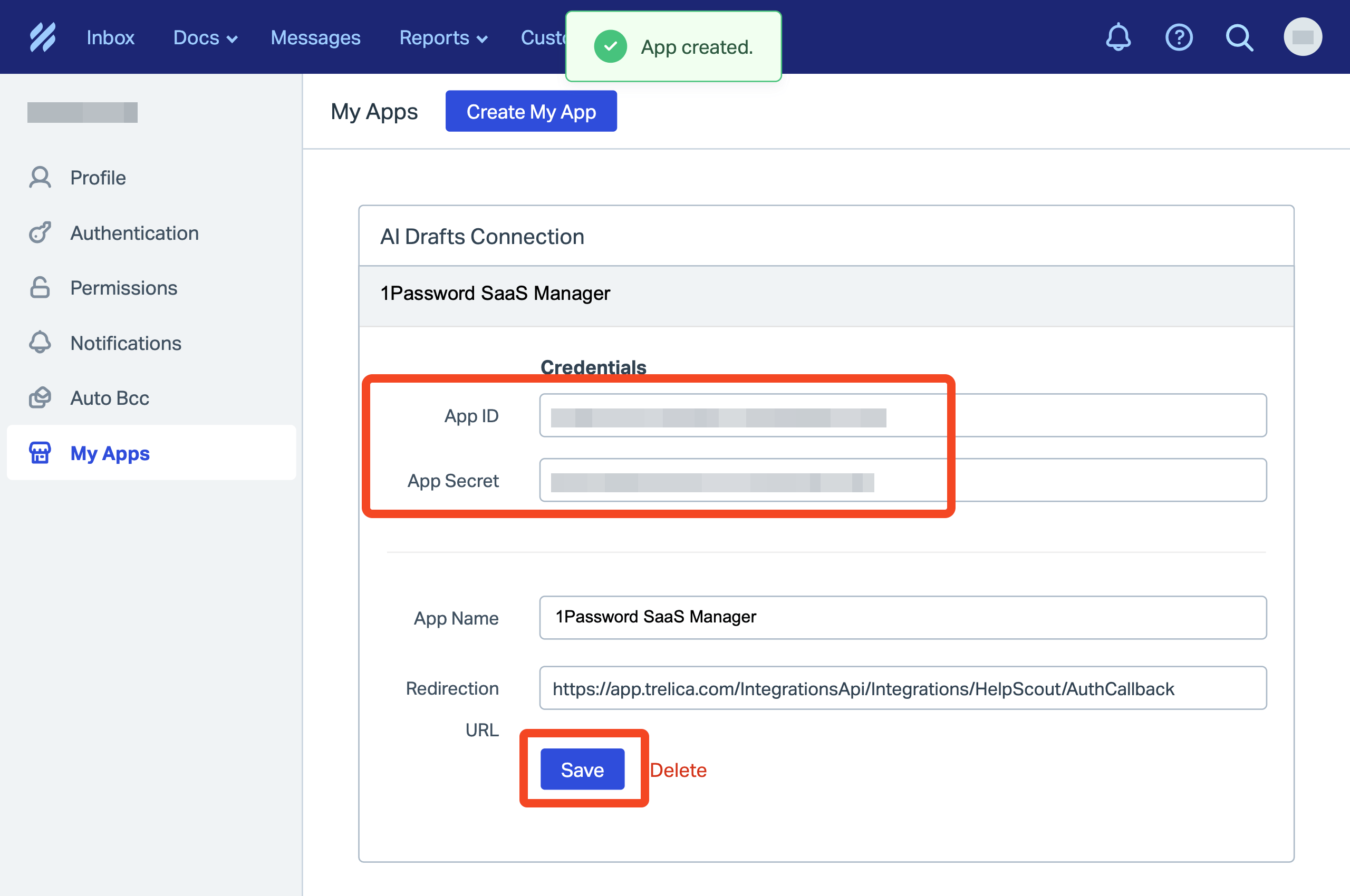
You will be notified that the app has been created.
Copy and paste the App ID and App Secret into SaaS Manager.
Don’t forget to click Save.
Was this article helpful?
Glad to hear it! If you have anything you'd like to add, feel free to contact us.
Sorry to hear that. Please contact us if you'd like to provide more details.