The Dell integration returns purchase and warranty expiration dates for Dell devices.
The Dell API requires 1Password SaaS Manager to pass a list of service tags for devices that you own.
Note
Once this is done you can connect the Dell integration which will pass the service tags to Dell and return purchase date and warranty information about them.
If you don’t already have a TechDirect account then you will need to create one.
Either way, login or register here:
https://techdirect.dell.com/Portal/APIs.aspx
To create an API key, go to Services > APIs:
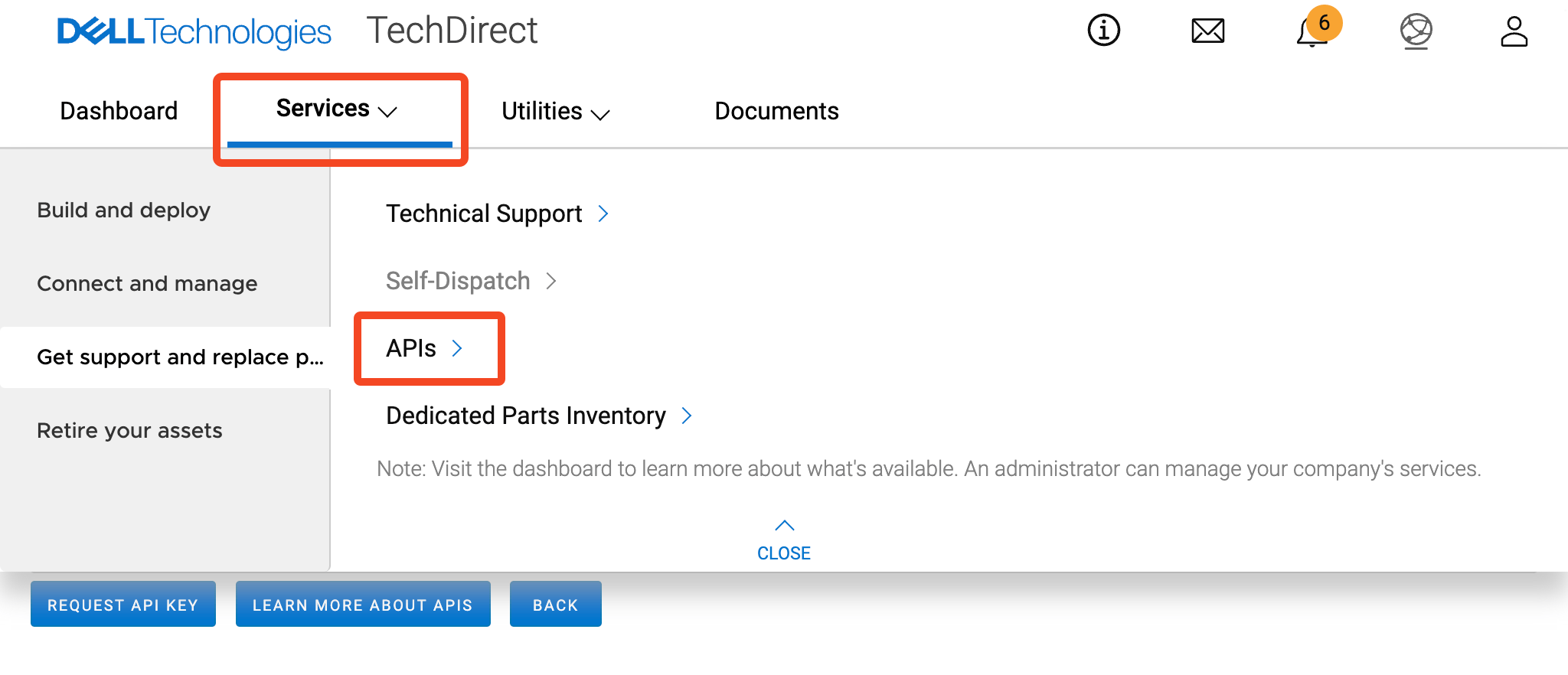
Dell have an approval process before issuing API keys.
First check whether a ‘Warranty’ API key exists. You can view this under Manage API Keys.
If no key exists then choose Request API Key to initiate the API key request process.
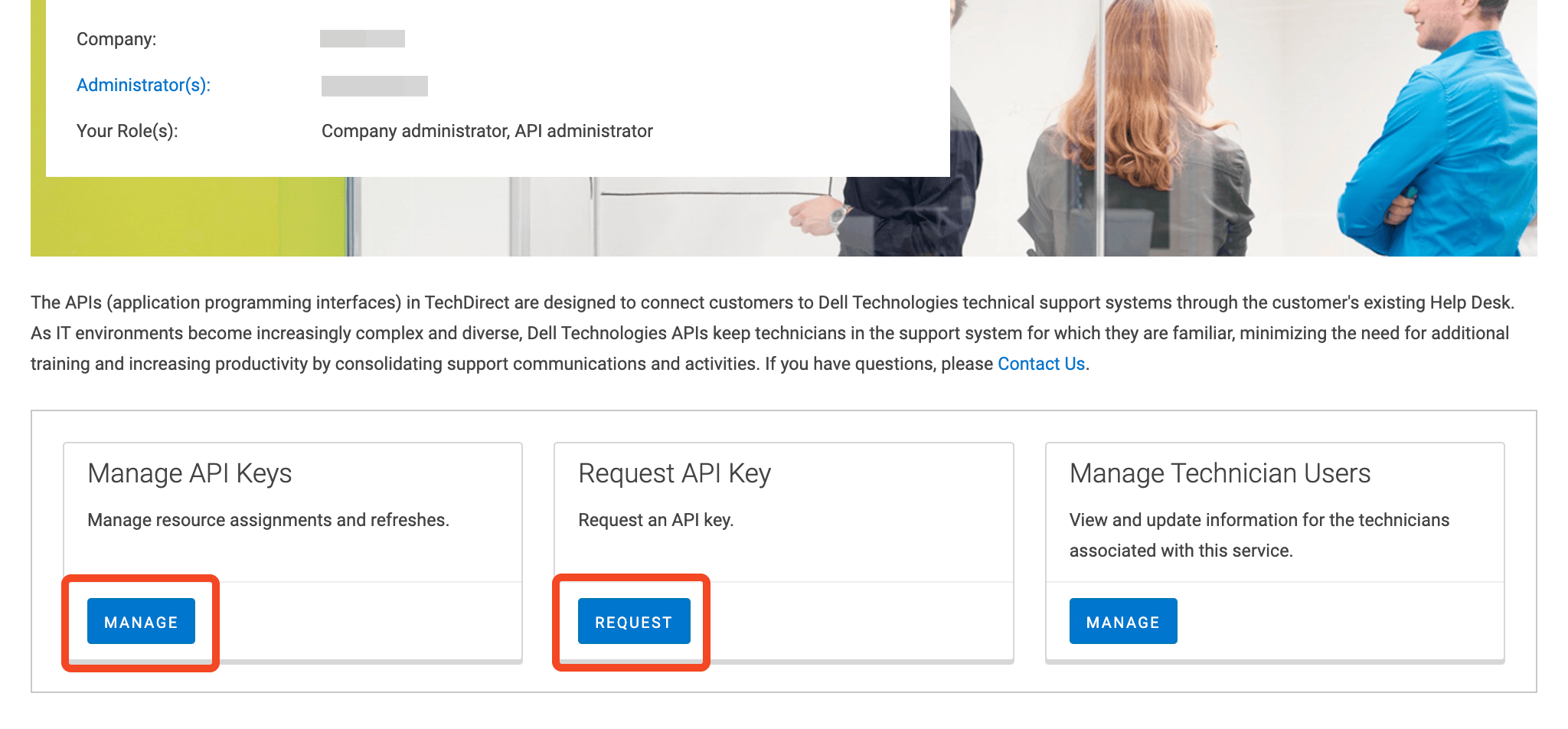
Requesting an API key
The request will be for a Warranty API key.
You can name the project or application ‘SaaS Manager’:
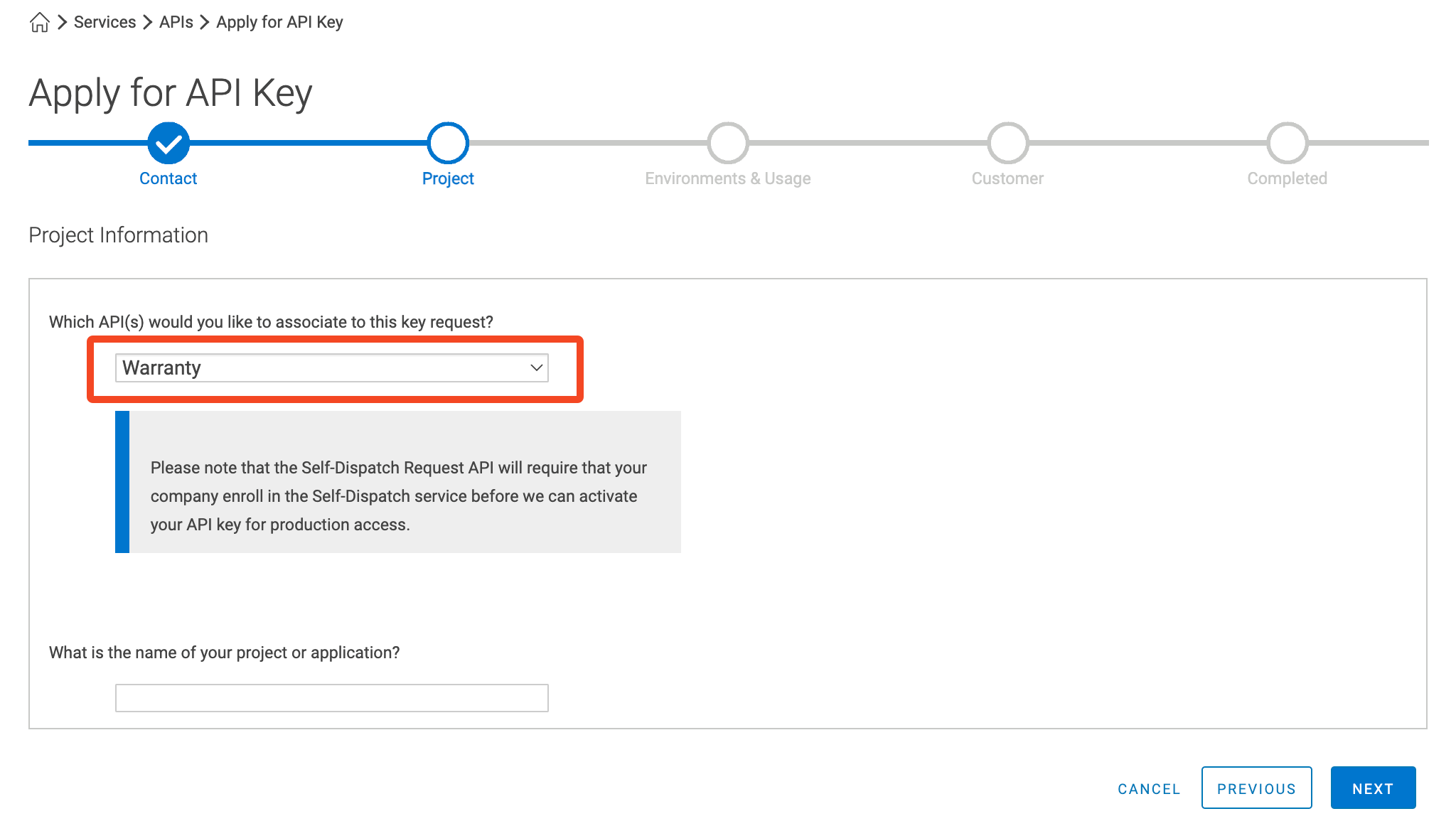
Click Next, and then provide details about your Dell account.
This information is not hugely relevant, but fill in to the best of your knowledge.
The estimate for the number of API requests per day is 20.
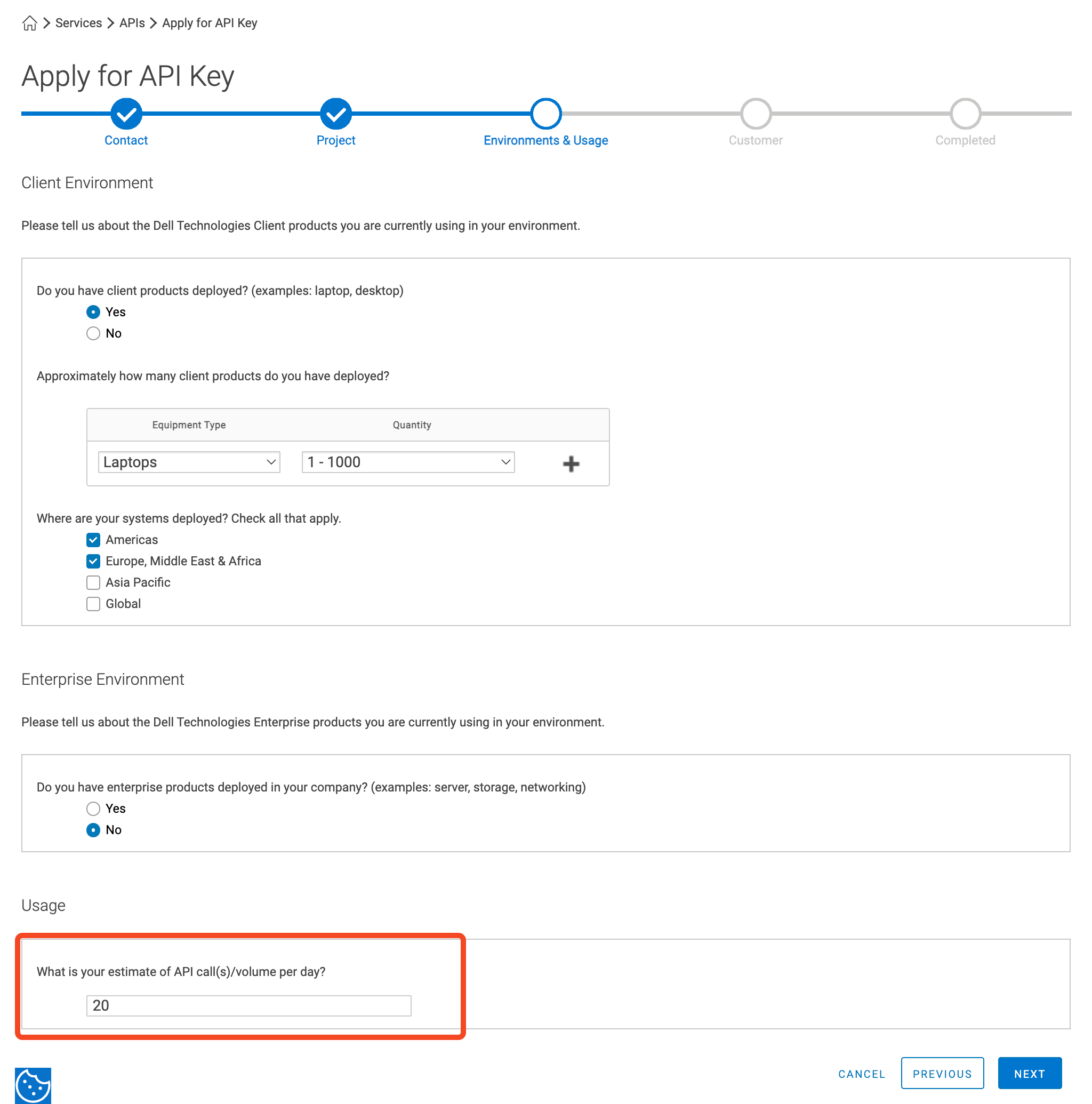
Click Next, and now provide yet more details - again - if you’re not sure just provide sensible responses. The API volumes are so low that Dell shouldn’t need to push this past an Account Manager.
Choose Internal to our company when asked how the API keys are to be used:
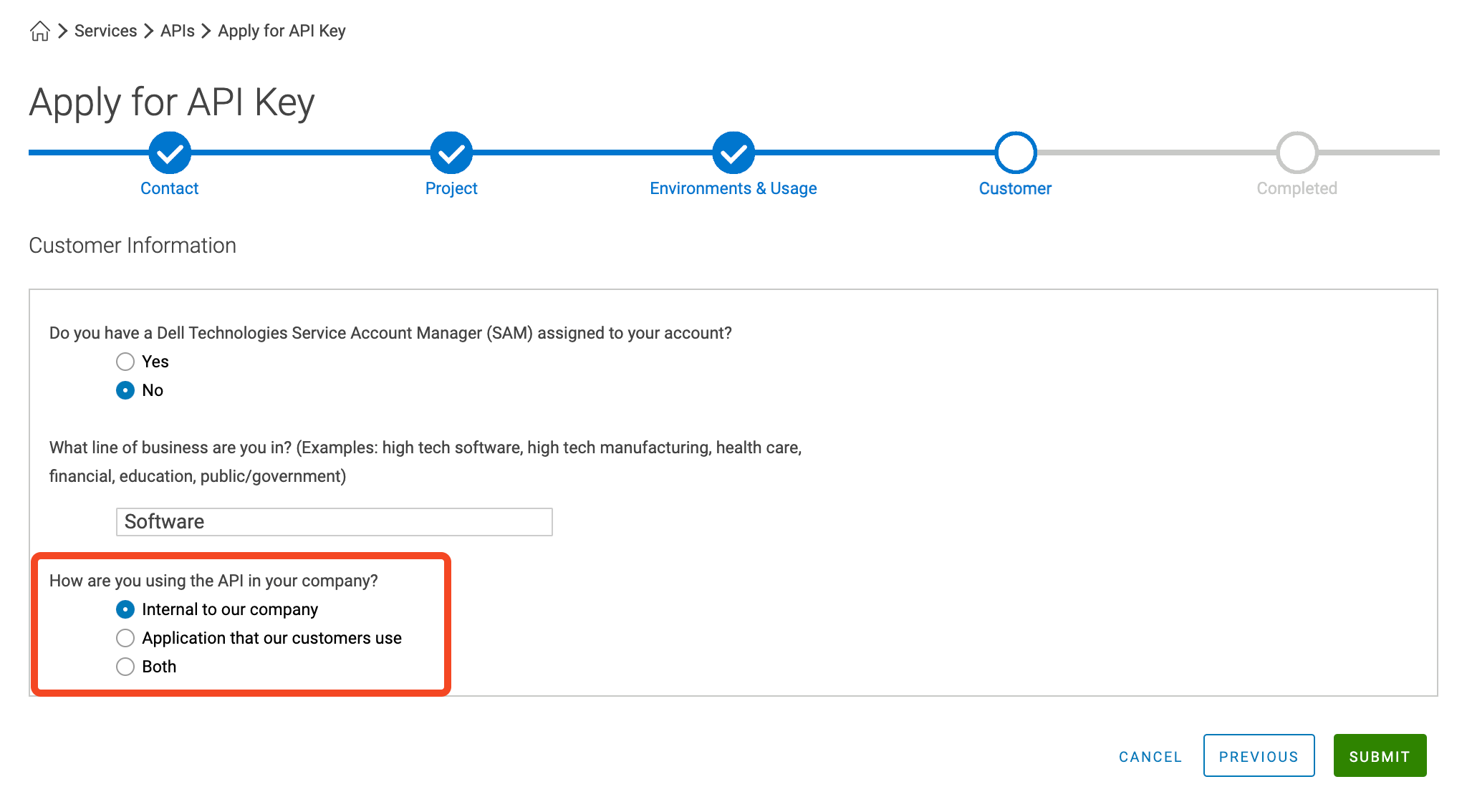
Finally, click Submit.
Once submitted you will be kept updated using Email. Turnaround time varies but can be as fast as one or two working days.
Retrieving credentials
Once your API key request is approved you will receive an email directing you to login again.
Go to Services > APIs > Manage API Keys:
Click Show to view the API Key / Secret which you will need to enter into SaaS Manager.
Was this article helpful?
Glad to hear it! If you have anything you'd like to add, feel free to contact us.
Sorry to hear that. Please contact us if you'd like to provide more details.