Dashlane uses a SCIM API for managing users.
You should read the background Dashlane documentation carefully and work through whether you are using Self-hosted SSO or Confidential SSO. Historically Confidential SSO did not support SCIM (which 1Password SaaS Manager requires), but Dashlane now supports both with SCIM.
Important
To enable SSO go to the Admin console > Integrations > Single sign-on.
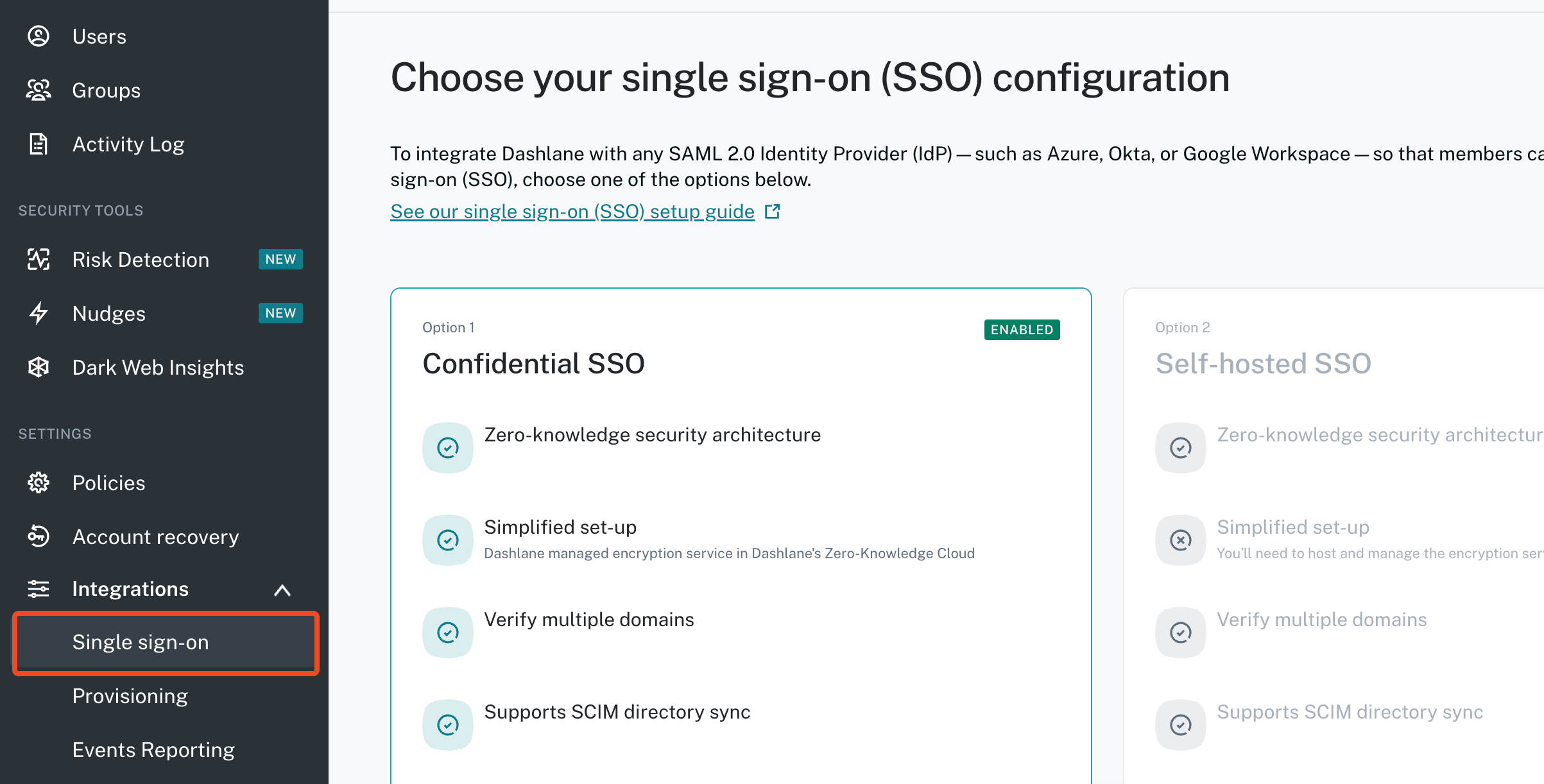
Enabling SCIM for Confidential Provisioning
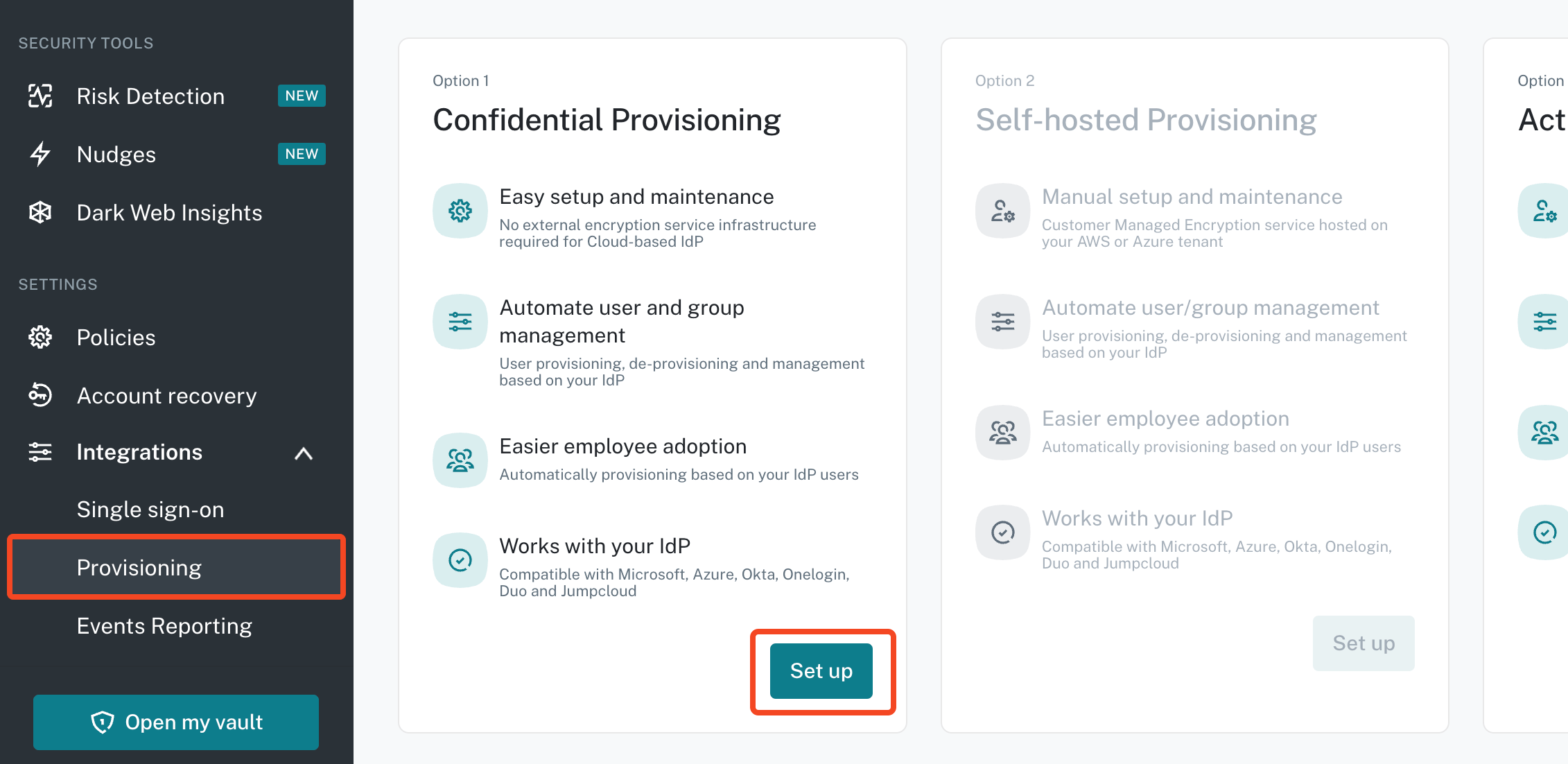
First configure SSO. Then go to Integrations > Provisioning and click Set up under Confidential Provisioning:
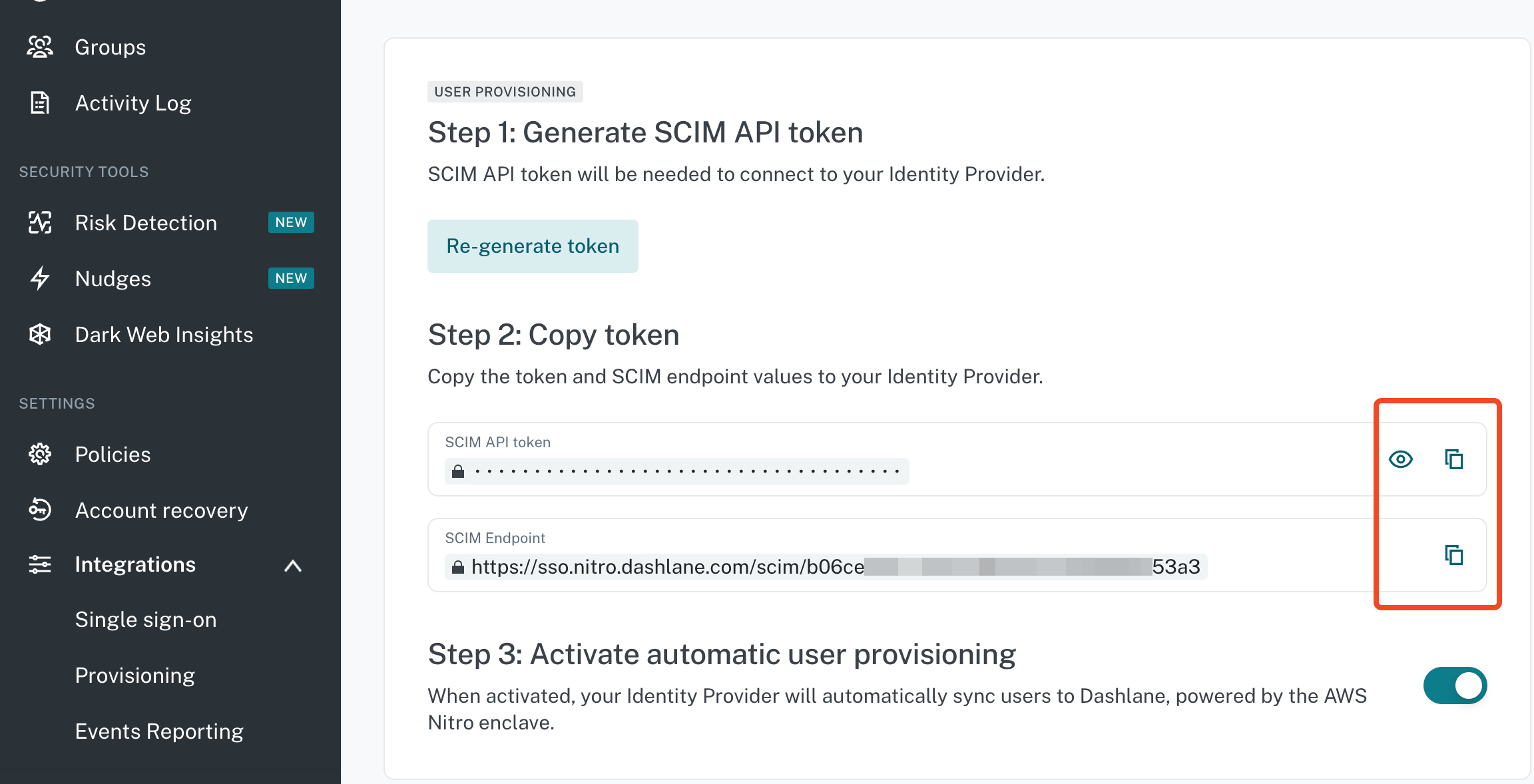
Copy and paste the SCIM API token and SCIM Endpoint to SaaS Manager.
Make sure you Activate automatic user provisioning.
Setting up a Dashlane self-hosted SSO encryption service
Note
Choose where you will deploy the service - in this example we will use Azure, then name your service endpoint (for example yourorg-sso) and click Generate and save for the configuration.
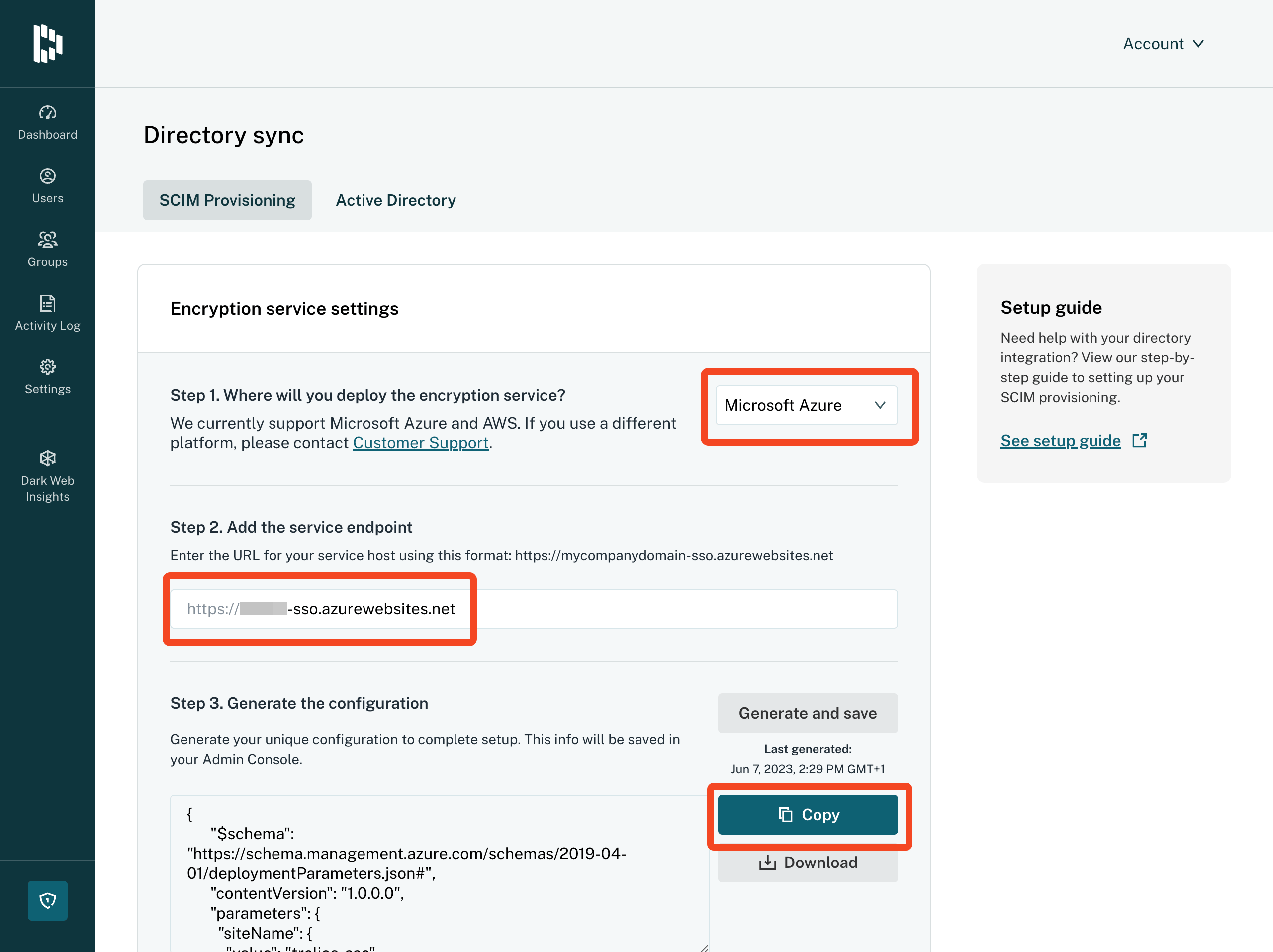
Copy the configuration data to the clipboard and choose Go to service host:

You will then be prompted to login to Azure. Click Edit parameters.
Paste in your Configuration data and click Save.
Finally choose a Resource group to add the services to:
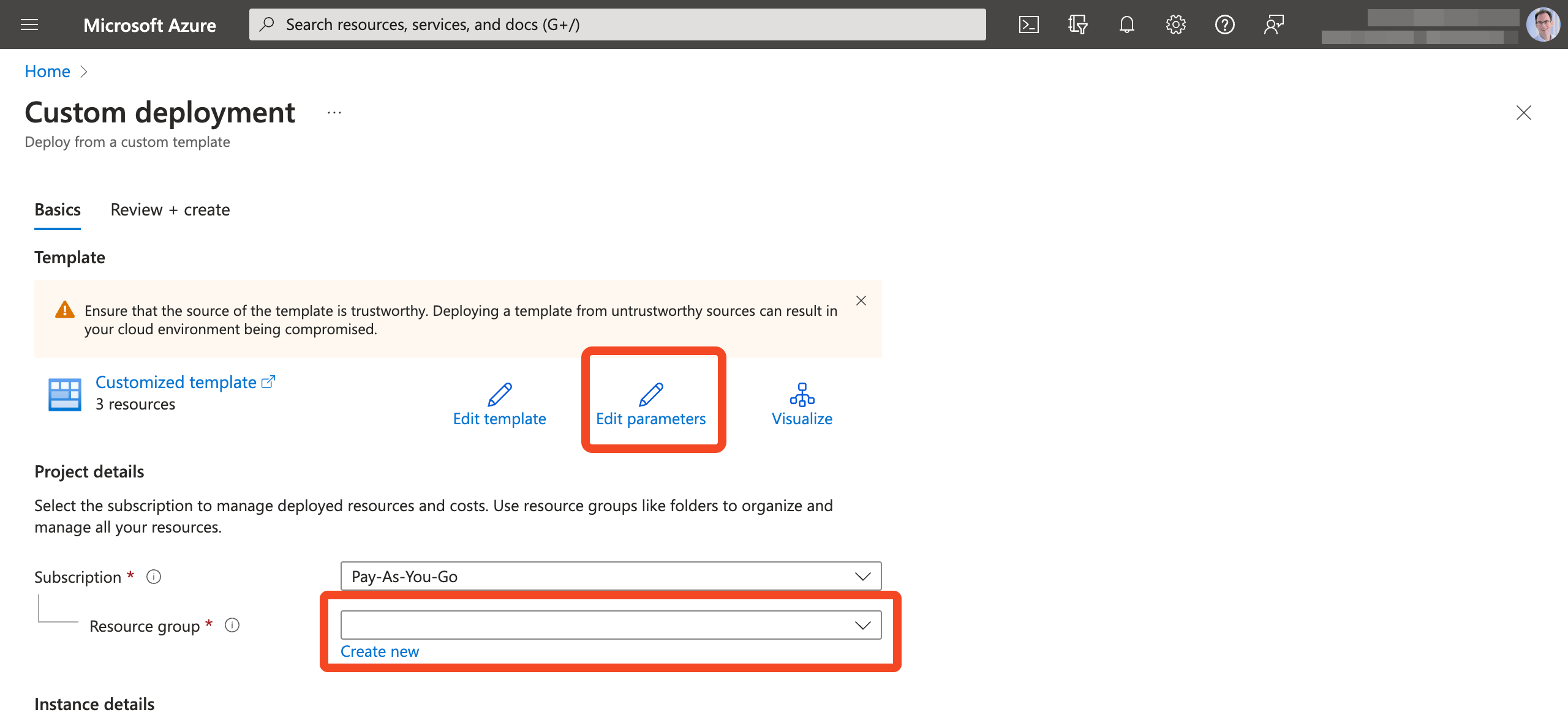
Click Continue to validate the configuration, and then click Create:
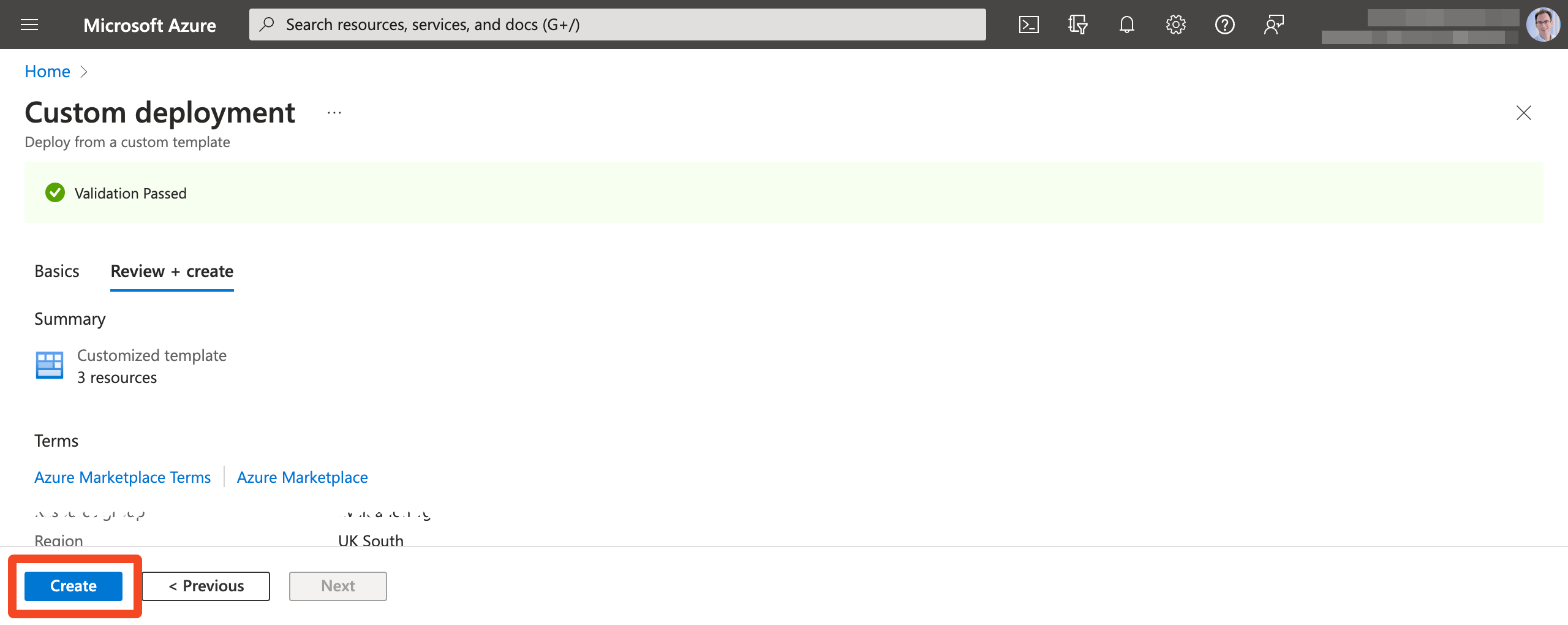
Back in Dashlane validate that the Encryption service is running correctly. Then click Set up under SCIM provisioning settings:
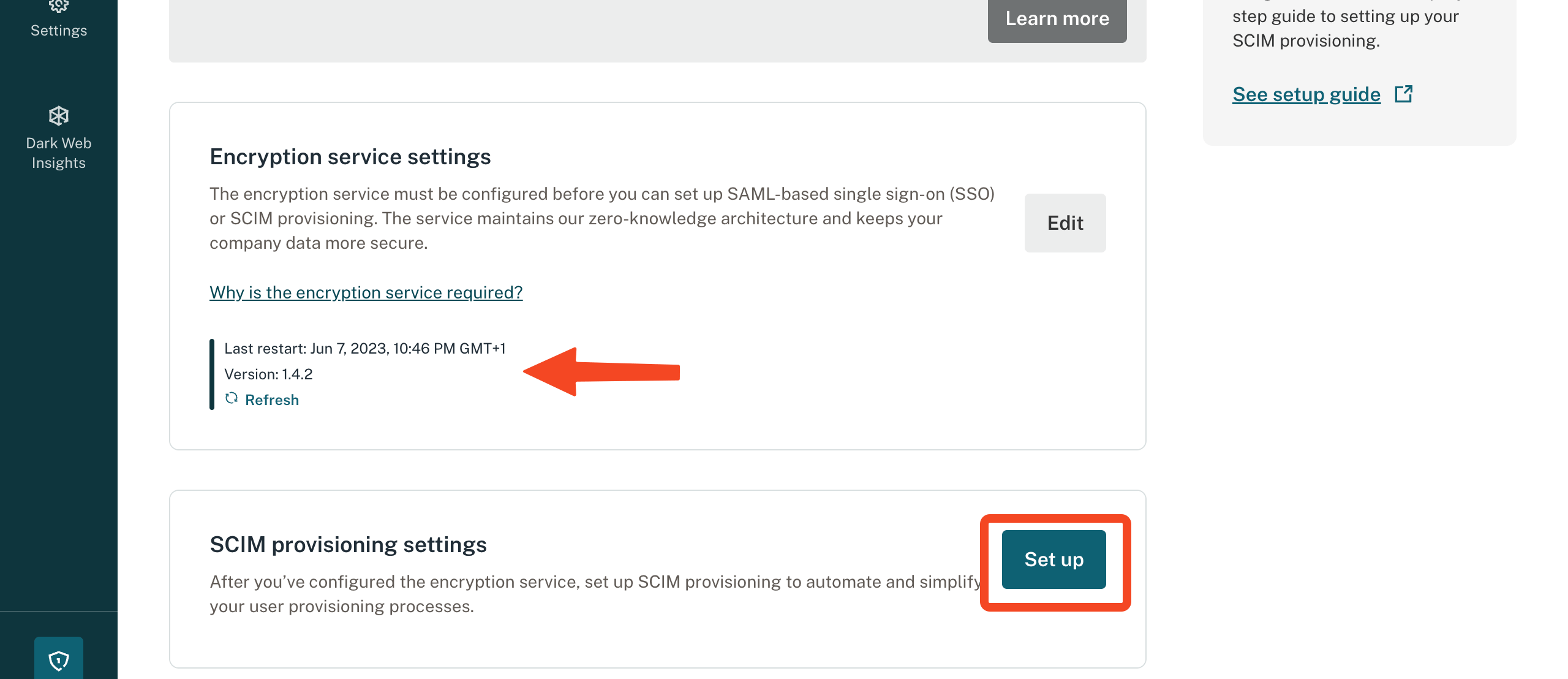
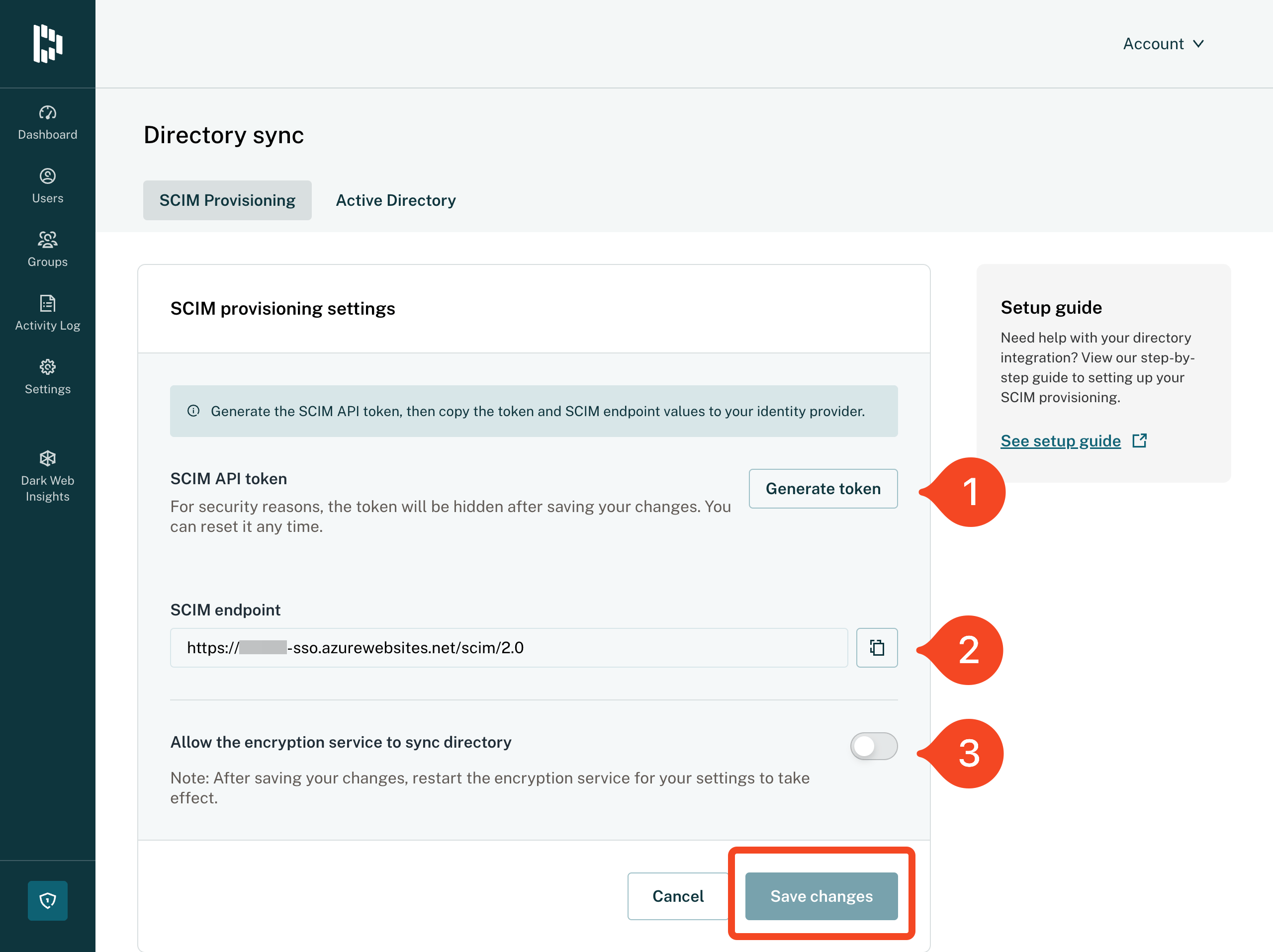
Click Generate token and then cut and paste the token and the SCIM endpoint into SaaS Manager.
You will also need to enable Allow the encryption service to sync directory.
Click Save changes.
Was this article helpful?
Glad to hear it! If you have anything you'd like to add, feel free to contact us.
Sorry to hear that. Please contact us if you'd like to provide more details.