The 1Password SaaS Manager integration with Cloudflare supports both the core Cloudflare services and also Cloudflare Zero Trust (also known as Cloudflare Access).
Creating an access token
To connect you will need to create an Access token in Cloudflare with the correct permissions, which will depend on the features you want access to.
Go to My Profile:

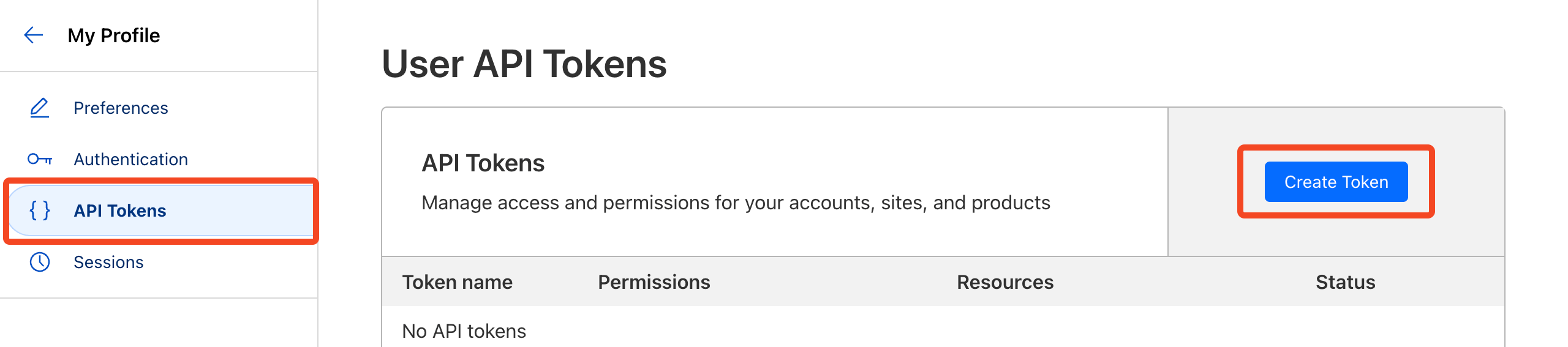
Choose API Tokens and then click Create Token:
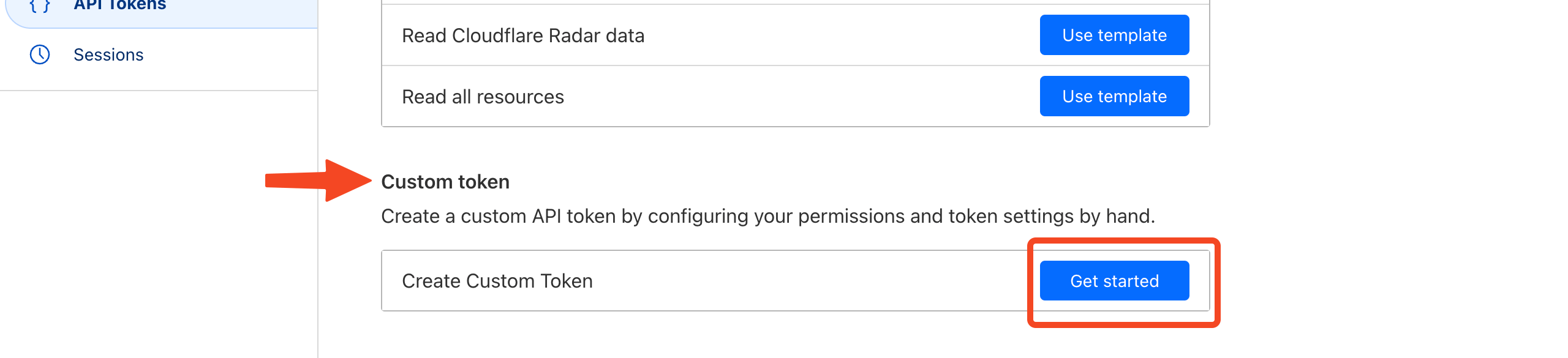
Scroll down the page until you find the Custom token section and then click Get started. This allows you to create a token with the minimal set of permissions required by SaaS Manager which is more secure:
Add the permissions required, based on the table below, using Add more to add each additional permission:
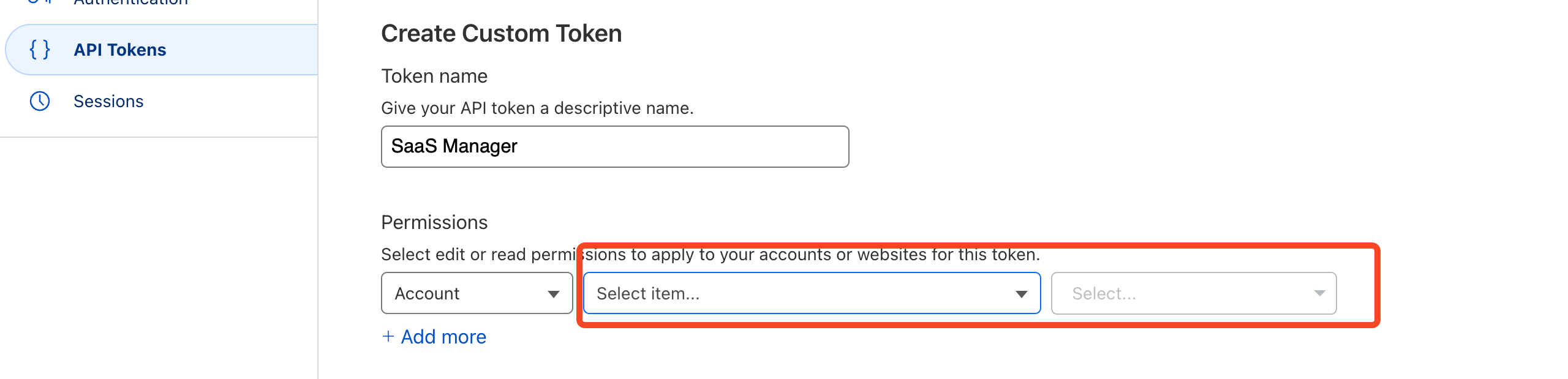
Users, roles and activity Account | Account Settings | Read Licences Account | Billing | Read Provisioning and deprovisioning Account | Account Settings | Edit Zero Trust / Access Account | Access: Apps and policies | Read
Account | Access: Audit logs | Read
Account | Zero Trust | Read
Optionally add IP address restrictions for SaaS Manager IP addresses:

Click Continue to summary when you are ready.
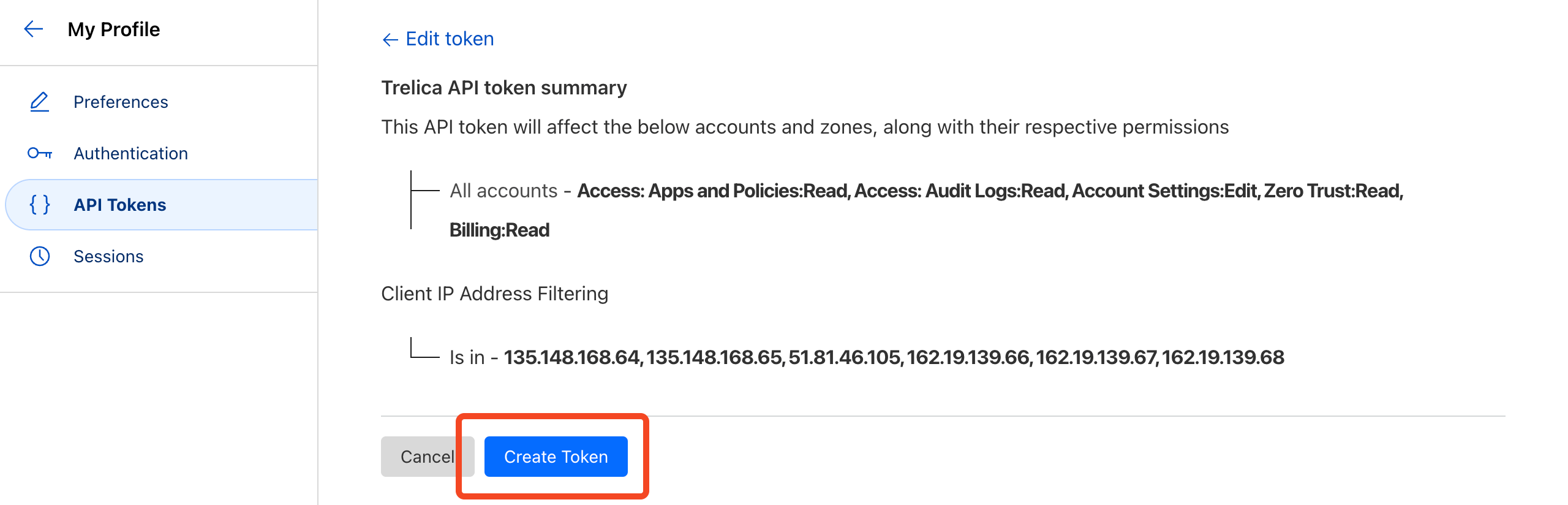
Finally click Create Token and copy it to the clipboard:

In SaaS Manager, navigate to Integrations > Cloudflare. Click Connect. Paste the token into the API key field, then click Connect:
Note
Was this article helpful?
Glad to hear it! If you have anything you'd like to add, feel free to contact us.
Sorry to hear that. Please contact us if you'd like to provide more details.