JumpCloud allows you to easily manage Chrome browser settings using the Browser Patch Management feature. Read more in JumpCloud’s documentation.
The specific use-case here is applying a policy to all devices to force users to login to Chrome. This will mean that the 1Password SaaS Manager browser extension can be applied and users automatically identified.
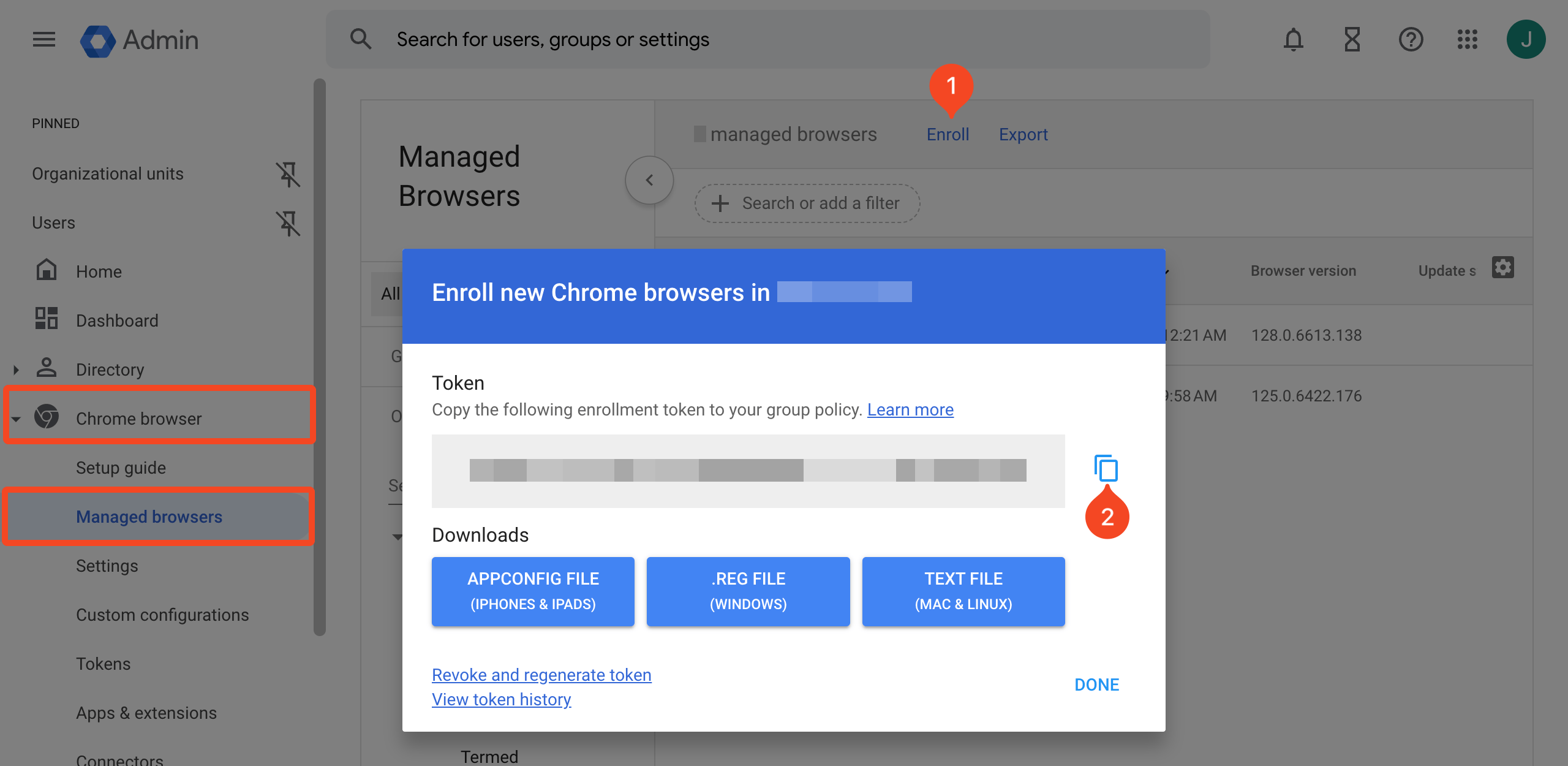
The first step is to log in to Google Workspace and create an enrollment token for Chrome.
- Go to Chrome browser > Managed browsers and click the Enroll button.
- Click to copy the token to the clipboard.
Note
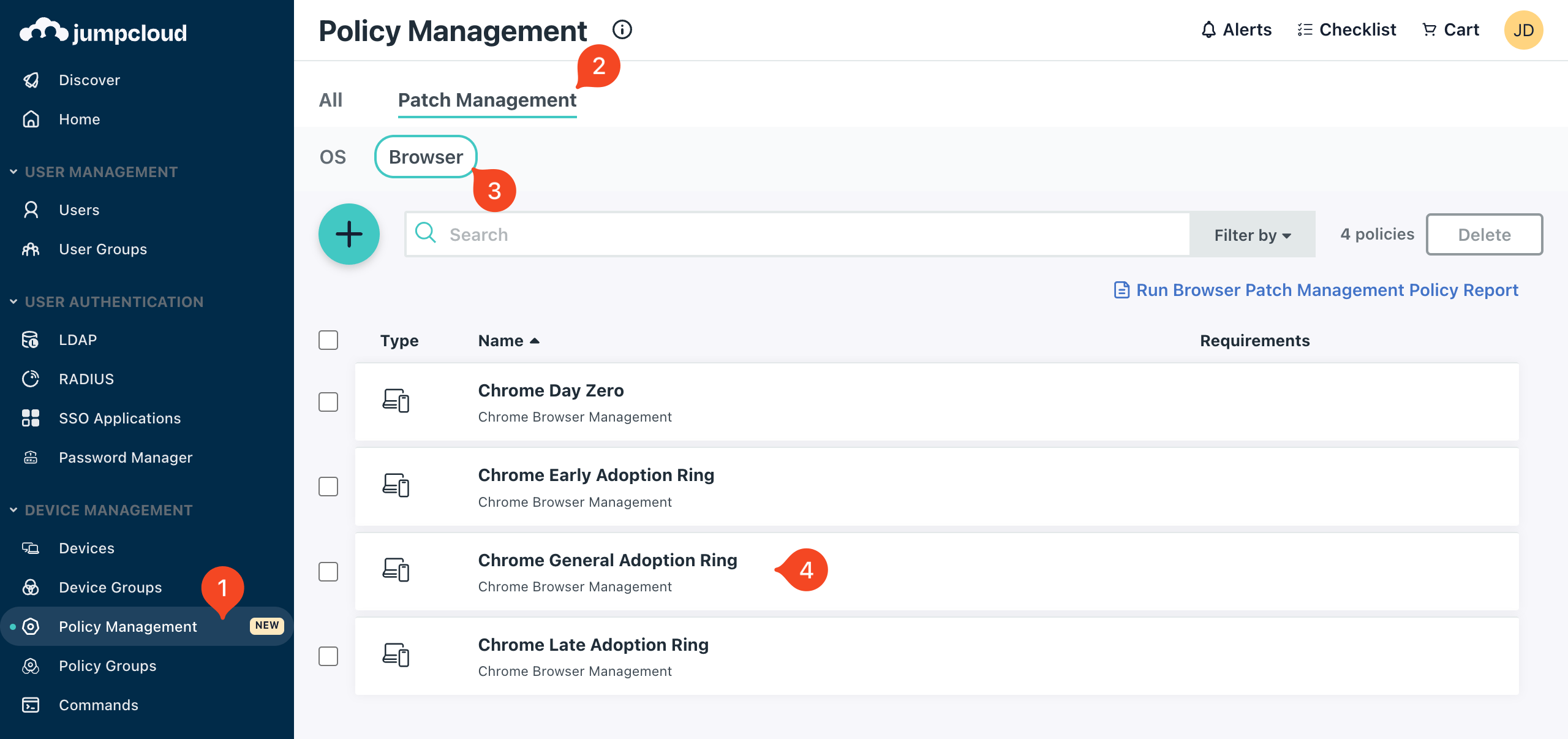
Now log in to JumpCloud and go to Policy Management > Patch Management > Browser
Choose one of the available Chrome policies - we recommend Chrome General Adoption Ring:
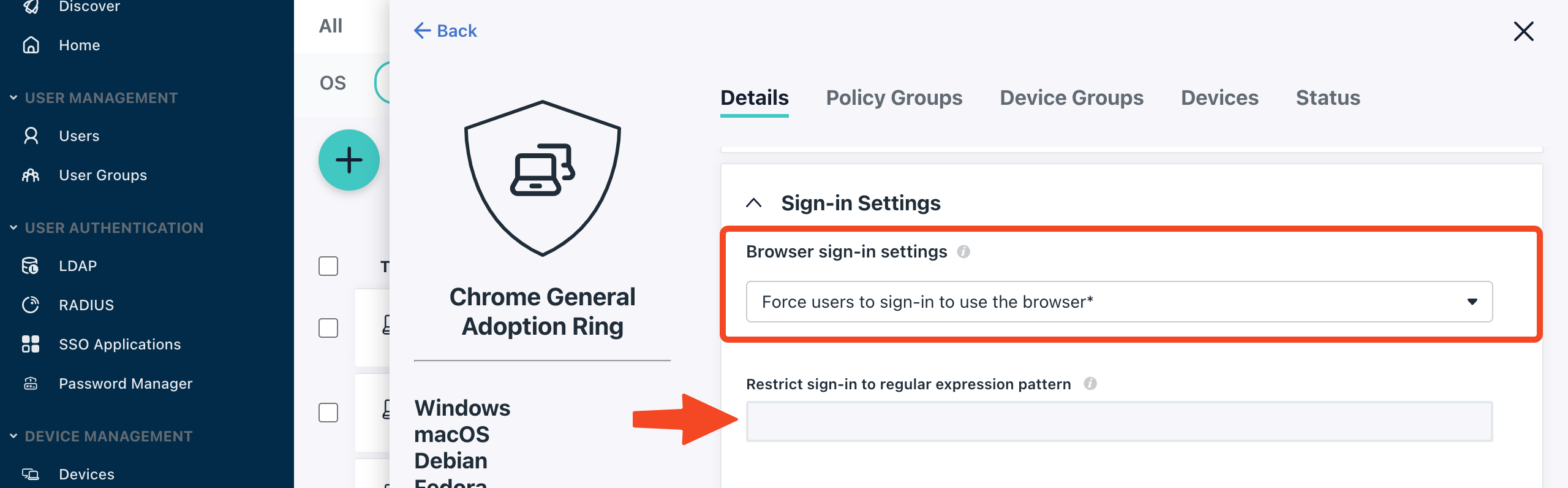
Click through and on the Details tab you can choose how to enforce browser sign-in, and set Chrome Browser Cloud Management Settings:
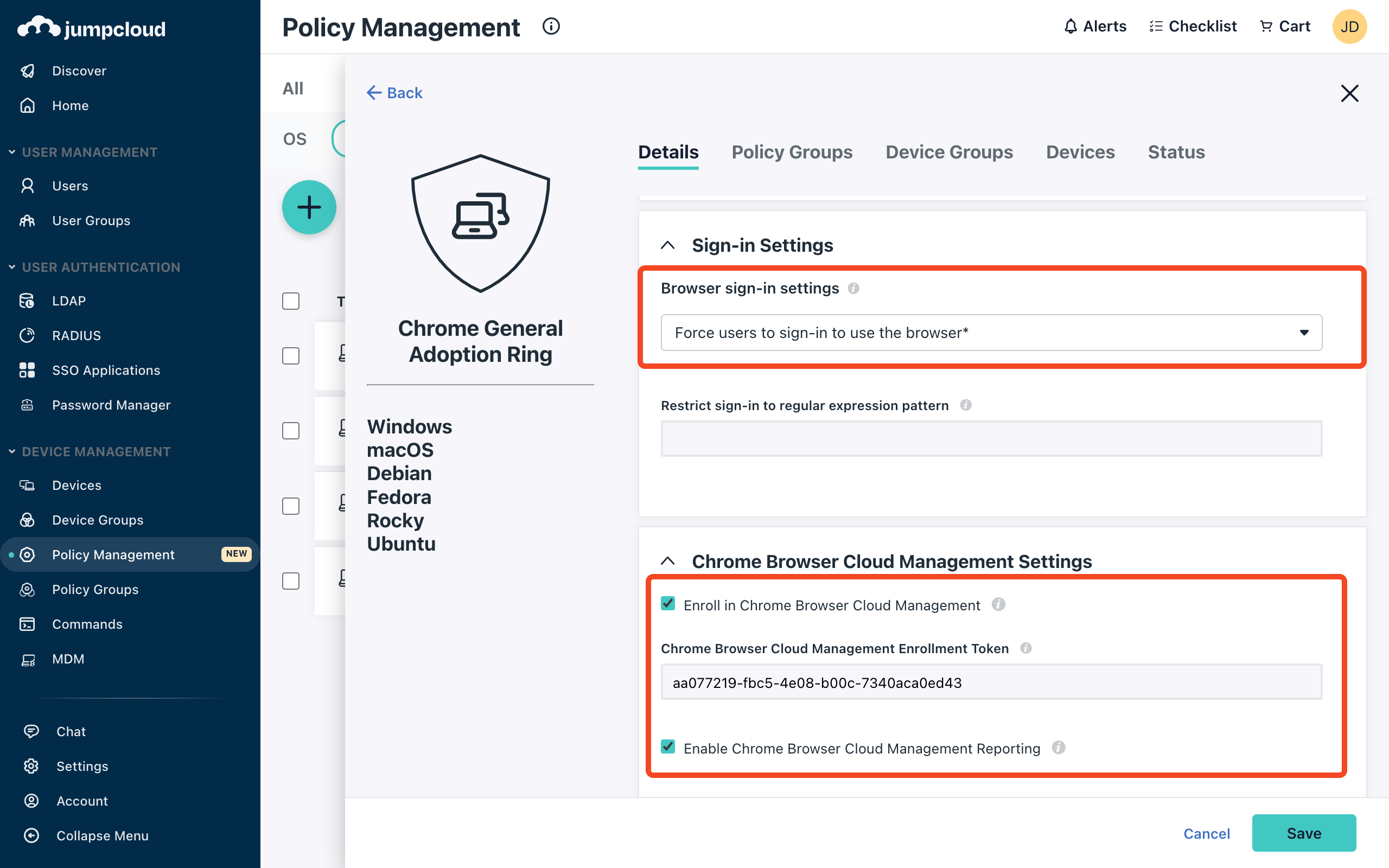
Tick Enroll in Chrome Browser Cloud Management and paste in the enrollment token you created in Google Workspace.
We recommend enabling Chrome Browser Cloud Management Reporting.
You can then apply the policy to individual devices or device groups.
Considerations before enabling ‘Force users to sign-in to use the browser’
If you enable Force users to sign-in to use the browser then the next time an employee opens Chrome they will see a screen like this:
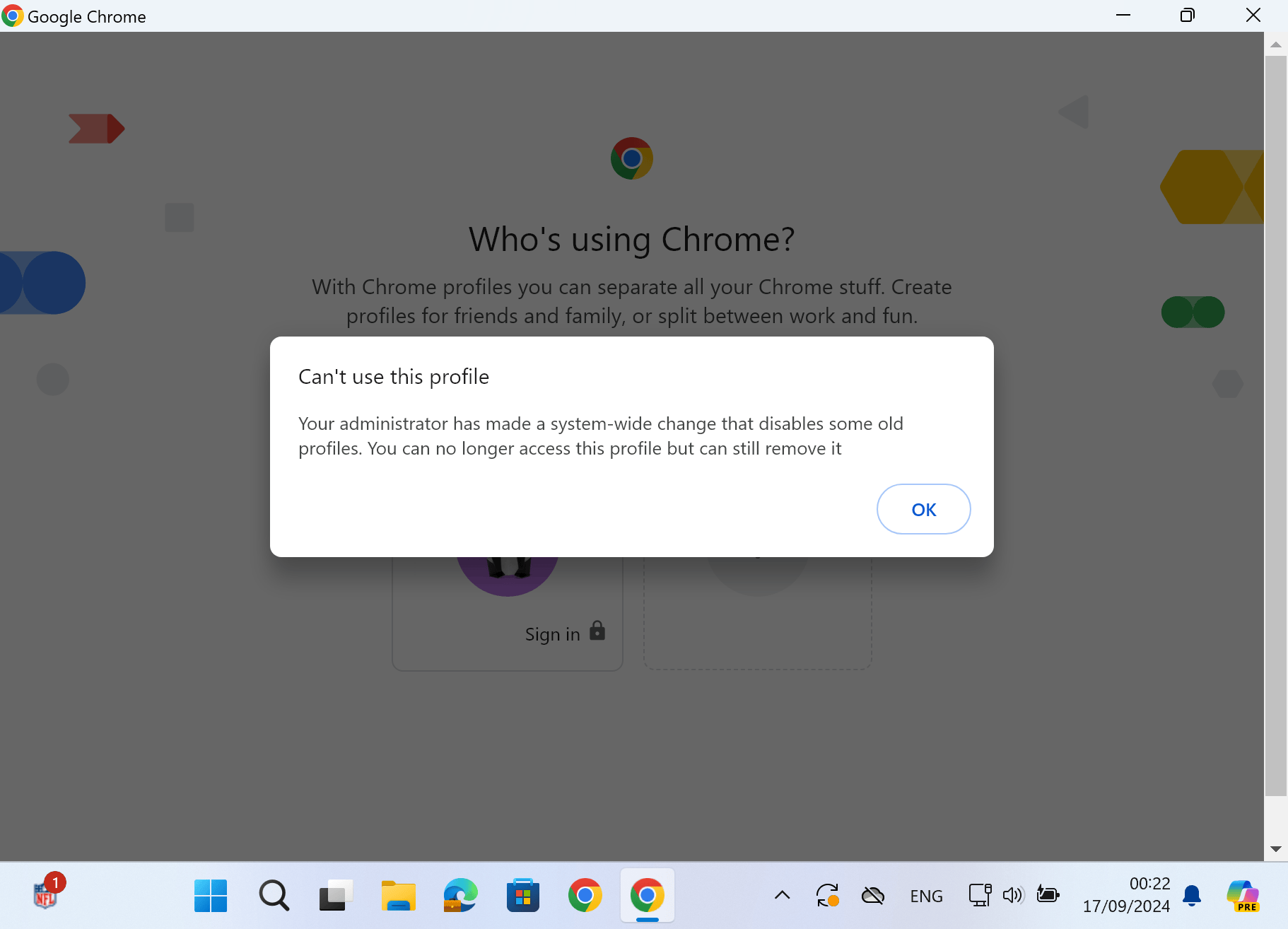
This means the user will lose any bookmarks, Chrome passwords, history and other settings.
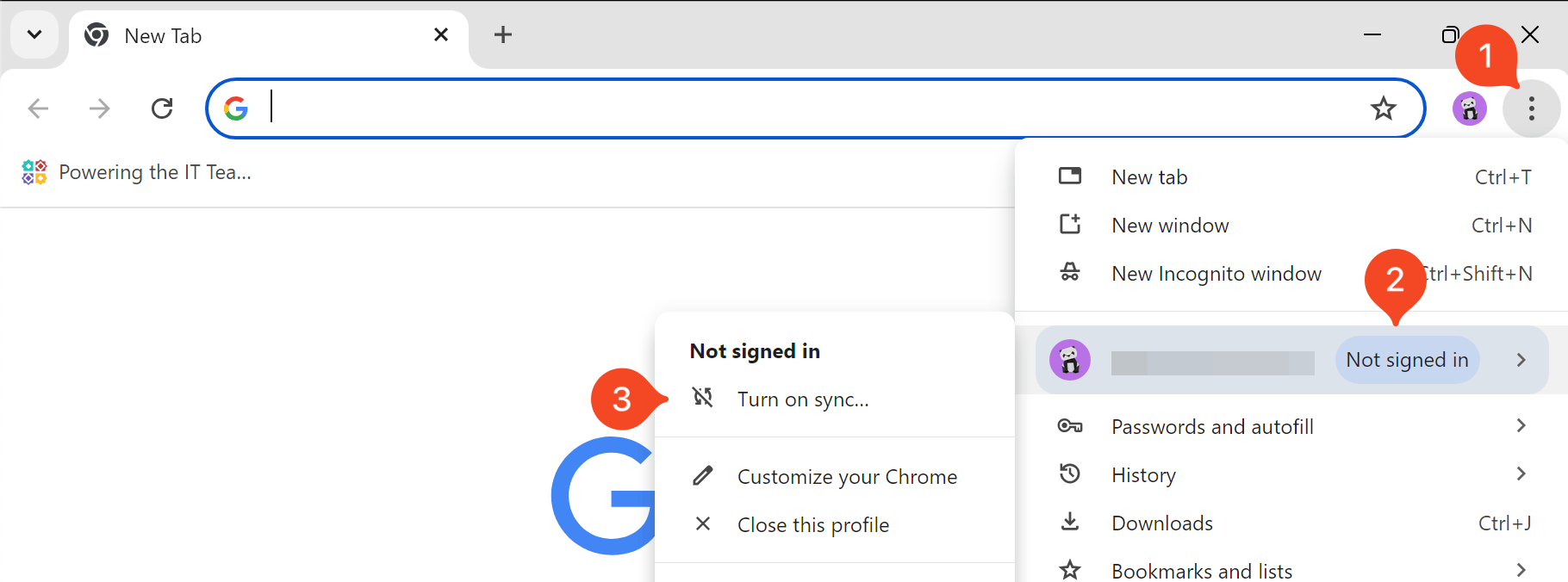
To avoid this, you should notify your users that they must sign-in to Chrome in their browsers using their work credentials. This screen shot shows them how to sign-in and turn on settings synchronization:
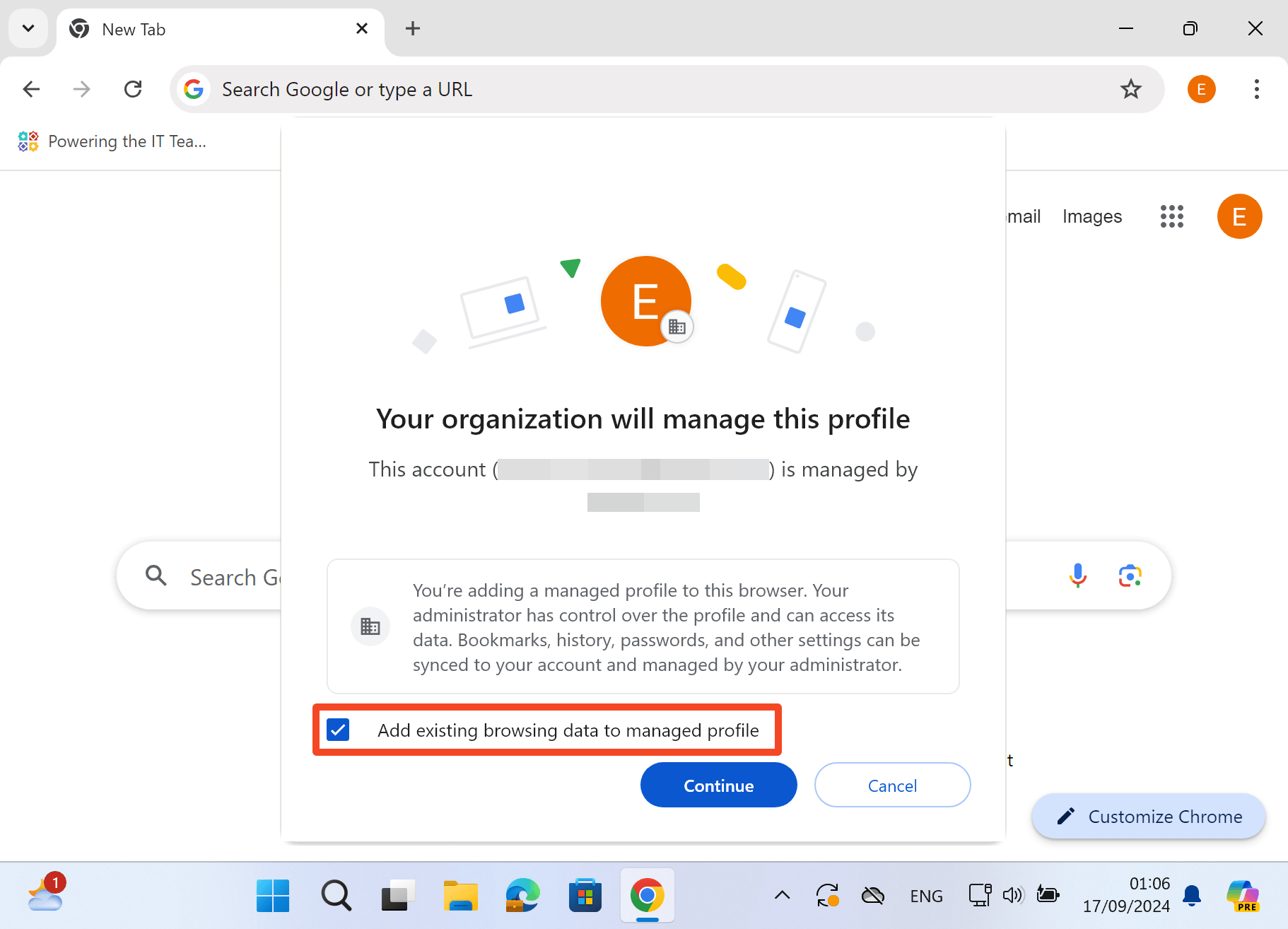
If a user is already signed-in, then once you apply Force users to sign-in to use the browser then users will be given the option to merge their current settings into their online profile if they check the Add existing browsing data to managed profile option.
Forcing sign-in to your domain
When you apply Sign-in Settings you can enter a regular expression in the Restrict sign-in to regular expression pattern field. You can use this to restrict the domains a user can enter when signing in.
Was this article helpful?
Glad to hear it! If you have anything you'd like to add, feel free to contact us.
Sorry to hear that. Please contact us if you'd like to provide more details.