Log in to Anaconda Cloud as an Administrator.
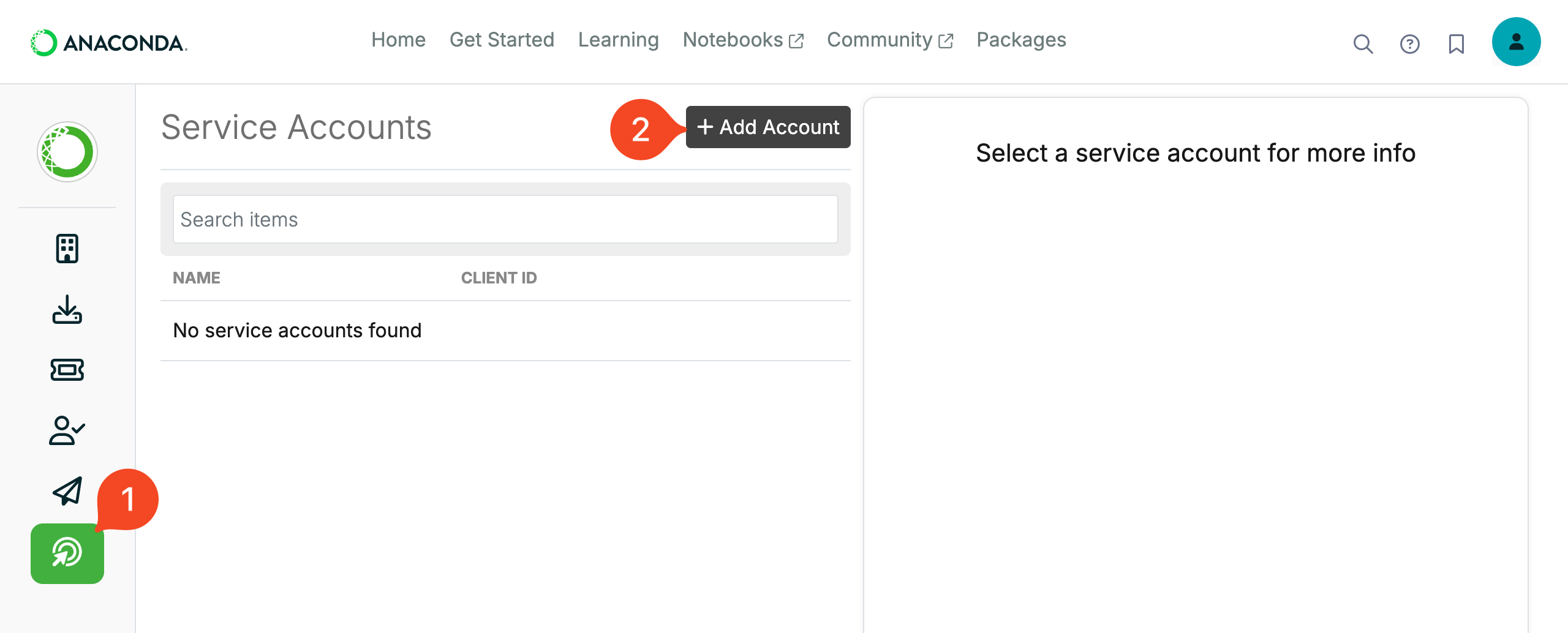
Choose the Service Accounts menu item.
Click Add Account.
Enter a name for the service account, for example
1PasswordSaaSManager: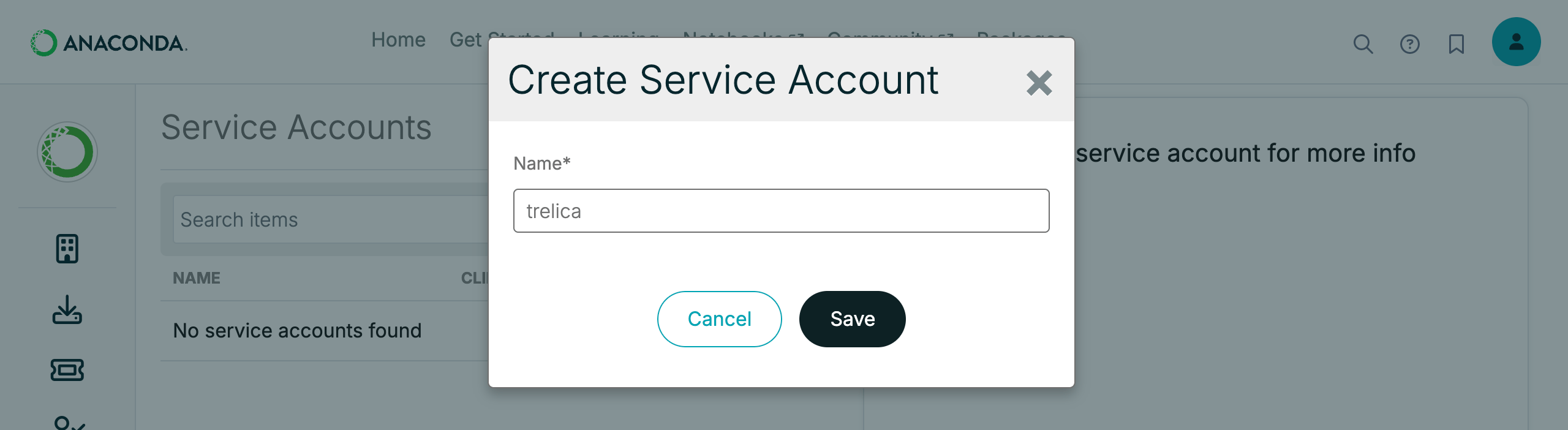
The name MUST be in lower-case. If you type invalid characters you will not be able to click Save and no explanation is given.
Click Save.
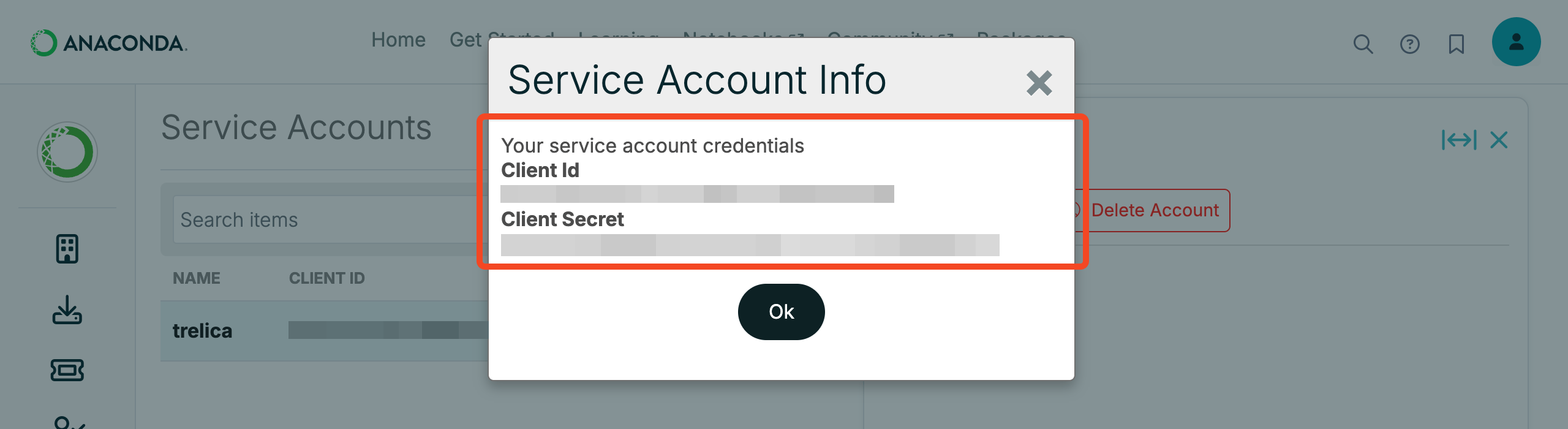
You will be shown the Client Id and Client Secret credentials that will be needed when connecting from 1Password SaaS Manager.
When you connect to SaaS Manager you will also need to enter your Anaconda Cloud Organization ID. This is visible in the Anaconda Cloud URL:

Was this article helpful?
Glad to hear it! If you have anything you'd like to add, feel free to contact us.
Sorry to hear that. Please contact us if you'd like to provide more details.