Help
App Launcher is only available to 1Password Business customers that also use 1Password SaaS Manager. Contact 1Password Support to opt in to App Launcher and give permission to link your 1Password and SaaS Manager accounts.
App Launcher is a personalized hub in the browser where team members can launch 1Password items and managed apps from 1Password SaaS Manager with one click. You can configure App Launcher as the default new tab page in your team members' browsers to give them a simplified, secure place to launch their apps.
Requirements
To manage the App Launcher for your team, you’ll need to:
- Have 1Password Business and also use SaaS Manager.
- Be in the Owners group in your 1Password Business account.
- Have the App Launcher policy turned on. By default, this policy is turned on.
- Make sure your team members have the 1Password browser extension installed.
- Be using a built-in browser management tool or a third-party device management tool.
- Have the App catalog configured in SaaS Manager.
Set up new tab access
Tip
Without a new tab policy set to App Launcher, team members can only access the App Launcher page using this direct link.
To let team members access the App Launcher from a new tab in their browsers, you must configure a new tab policy using managed preferences for any browsers your team uses. You can set your policy using methods such as Group Policy, Mobile Device Management, and Chrome Enterprise Policy.
If you want to give team members the option to turn off the App Launcher as their new tab page, consider using a one-time script to set the policy instead of other methods, such as configuration profiles.
You can find links below for documentation on how to set new tab policies for popular browsers:
In your management system, use the following URL to set the App Launcher as the default new tab page for your team members:
https://1password.com/applauncher
After you’ve configured your new policy, App Launcher will be the default new tab page for team members using the 1Password browser extension.
App tiles in App Launcher
App tiles on the App Launcher page are sourced from your App catalog in SaaS Manager and from 1Password items stored in team members' 1Password vaults. By default, a team member’s most-used apps are shown at the top of the App Launcher page.
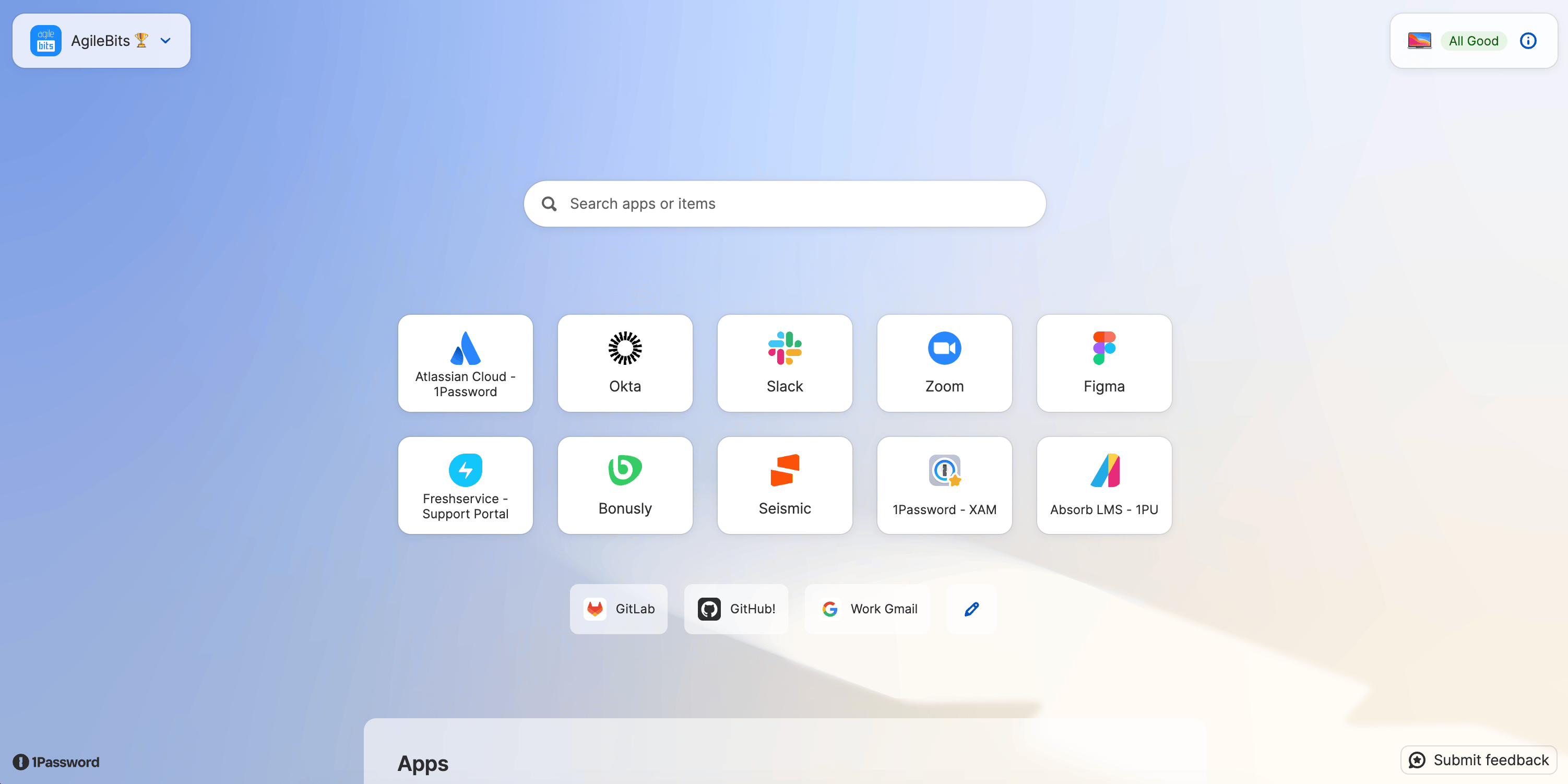
You can pin up to five apps to appear in the bottom row of the most-used apps section:
- Sign in to your SaaS Manager account.
- Select Settings in the sidebar, then select App Launcher.
- Search for a managed app under “Company pinned apps”, then select Pin app.
To unpin an app, select the trash can icon beside an app under “Pinned apps”.
Requesting access to managed apps
From the App Launcher page, team members can hover over an app tile and select the ellipsis > More information, or select Explore more apps at the bottom of the page to browse your app catalog and request access to other managed apps.
To direct users to another service for requesting company apps, you can set a custom app catalog URL in your App Launcher policy. When team members select Explore more apps, they’ll be redirected to the URL you’ve configured.
Learn more
Was this article helpful?
Glad to hear it! If you have anything you'd like to add, feel free to contact us.
Sorry to hear that. Please contact us if you'd like to provide more details.