Tip
Set up Autofill in macOS and Safari
Before you can use the 1Password app to save and sign in on your Mac, you’ll need to turn on support for Autofill on your Mac and in Safari:
- Open and unlock 1Password on your Mac.
- At the top of the sidebar, select your account or collection, then select Settings.
- In the sidebar, select Autofill, then select Set up macOS AutoFill > Turn On.
If you don’t see Autofill, you may need to lock and unlock 1Password to make it appear.
- Open Safari. From the menu bar, select Safari > Settings.
- Select the AutoFill tab, then make sure User names and passwords is turned on.
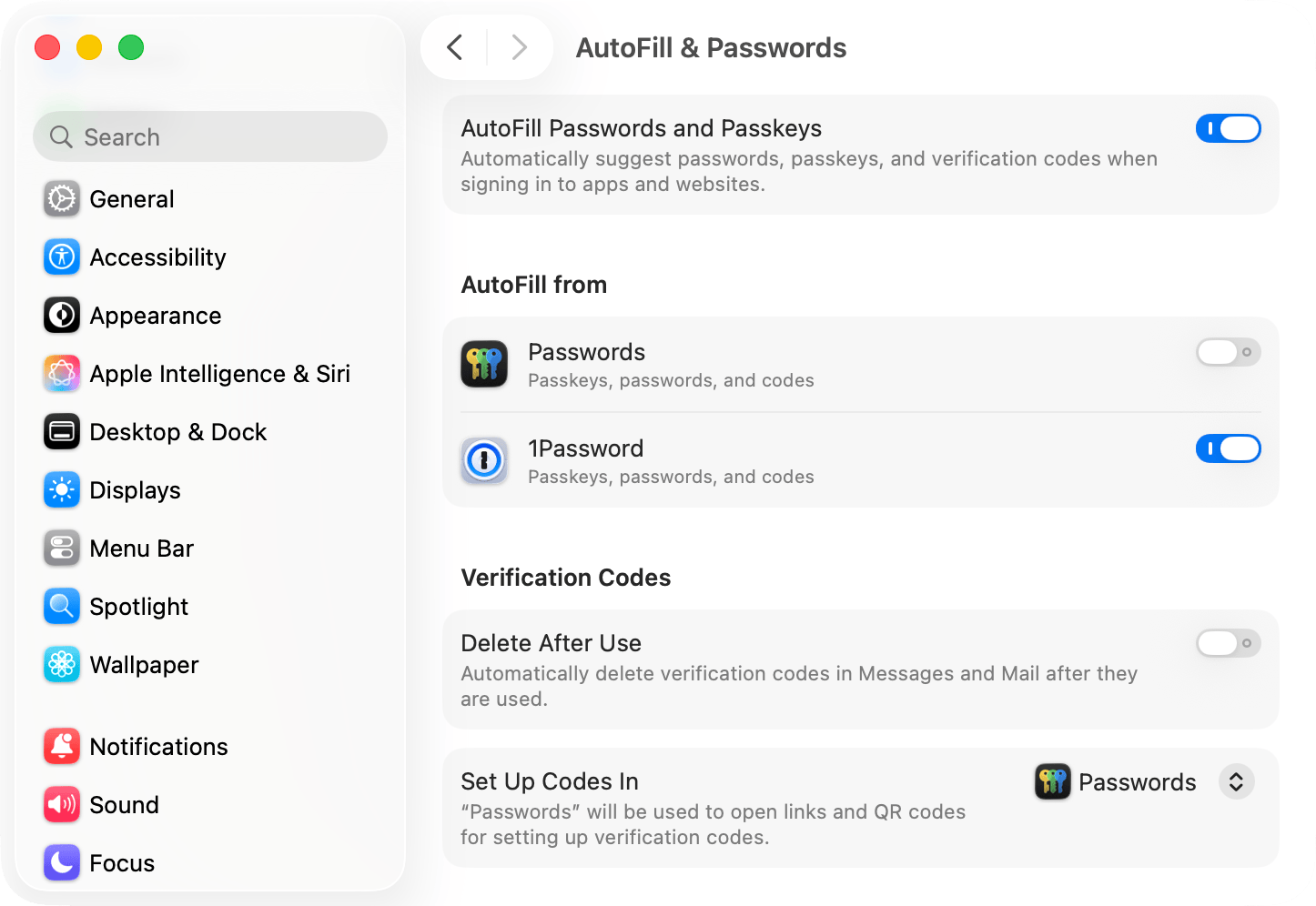
To prevent passwords or passkeys from saving in the built-in Passwords app instead of 1Password, follow these steps:
- From the menu bar, select the Apple menu > System Settings.
- Select General, then select AutoFill & Passwords.
- Under “AutoFill from”, turn off Passwords.
Now, you can fill passwords and save or sign in with passkeys without opening the 1Password app.
Tip
Save, create, and fill passwords
To save, create, or fill a password, open an app or visit a website in Safari that you want to sign in to, then follow these steps.
Save a password or create a new login
To save a password or create a new login:
- Select the username or password field.
- Select 1Password below the field.
You may need to select the key icon at the end of the field to see this option.
- Select New Item. You’ll see a new 1Password window.
- Select the username field, then enter your username.
- Select the password field, then enter your password.
To generate a password, select Create a New Password. Adjust the settings, then select Use.
Fill a login
Tip
To fill a login:
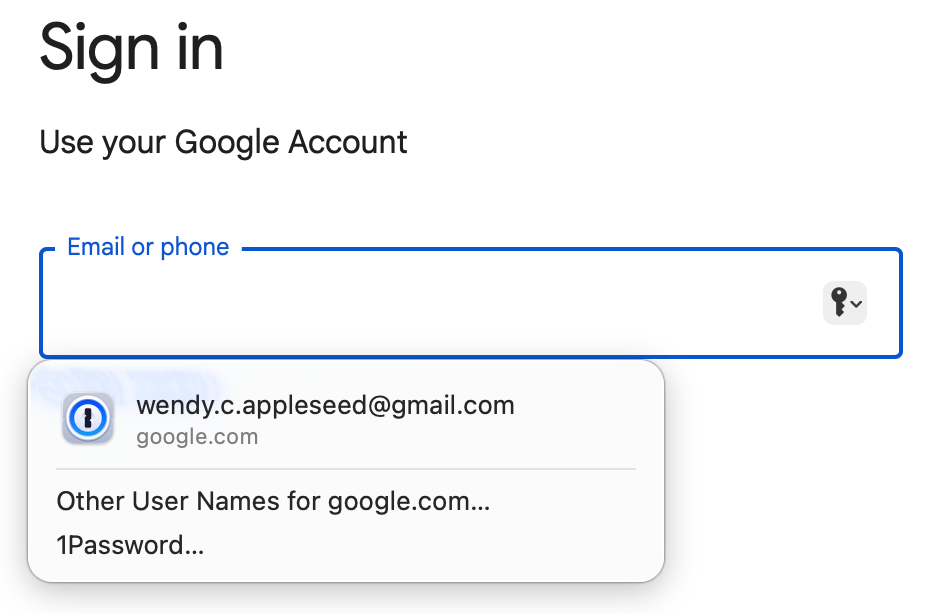
- Select the username or password field.
- Select your login from the suggestions below the field.
If you have multiple logins for an app or website, select Other User Names/Passwords for [website], then select the login you need.
- Sign in to your account.
If there are multiple steps to sign in, select your Login again at the second step.
Save and sign in with passkeys
Tip
To save or sign in with a passkey, open an app or visit a website you want to sign in to, then follow these steps.
Save a passkey
To save a passkey:
- Follow the steps to create an account or add a passkey to an existing account.
You may need to create an account with a username and password before you can create a passkey.
- When you’re asked to create a passkey, select Continue. You may need to select 1Password as the destination for the passkey.
- Choose whether you want to create a new Login item or update an existing item.
- Depending on your choice, select Save or Update.
Sign in with a passkey
1Password will offer to use your passkey when you select the option to sign in with a passkey.
You can fill your username first by selecting the login from the suggestions under the username field.
If you have more than one passkey for the app or website, select More Options, then make sure More from 1Password is selected. Select Continue, then choose the passkey you want to sign in with.
Get help
Saving and filling with 1Password for Mac requires macOS 14 Sonoma or later. Learn how to update your Mac.
If you don’t see suggestions when you try to sign in
If you don’t see suggestions under username or password fields, make sure you see Active next to “macOS AutoFill” in the 1Password app > Settings > Autofill.
If you don’t want to approve with Touch ID when you fill
If you don’t want to use Touch ID each time you fill a login:
- Open and unlock 1Password on your Mac.
- At the top of the sidebar, select your account or collection, then select Settings.
- In the sidebar, select Autofill.
- Under “Touch ID for macOS AutoFill”, select Open System Settings > Open macOS Touch ID Settings.
- In the System Settings window, turn off Use Touch ID for autofilling passwords.
If you see “Failed to connect to 1Password.app”
If you see a “Failed to connect to 1Password.app” error message when you try to use Autofill, make sure 1Password has permission to perform tasks in the background:
- From the menu bar, select the Apple menu > System Settings.
- In the sidebar, select General, then select Login Items & Extensions.
- In the App Background Activity section, make sure 1Password is turned on.
If your Mac is managed by your organization
If your Mac is managed by your organization, some mobile device management (MDM) policies may prevent Autofill from working properly even if you’ve turned it on in the 1Password app.
Some MDM settings include:
- The “Block Safari AutoFill” setting available through Intune. Other MDM solutions include a similar setting.
- A configuration profile that includes a Restrictions payload with the
allowPasswordAutoFillorsafariAllowAutoFillkeys set tofalse.
If you think an MDM policy may be preventing Autofill from working, contact your IT team for further assistance.
If you want to turn off Autofill
If you want to turn off support for Autofill in 1Password on your Mac:
- Open and unlock the 1Password app.
- At the top of the sidebar, select your account or collection, then select Settings.
- In the sidebar, select Autofill, then select Disable macOS AutoFill > Open macOS AutoFill Settings.
- Under “AutoFill from” in the System Settings window, turn off 1Password.
- Select the 1Password icon in the menu bar, then select Quit.
- Reopen 1Password.
Learn more
- Save and fill passwords in your browser
- Use Universal Autofill on your Mac
- Save and sign in with passkeys in your browser
- Get to know 1Password for Mac
Was this article helpful?
Glad to hear it! If you have anything you'd like to add, feel free to contact us.
Sorry to hear that. Please contact us if you'd like to provide more details.