Guest accounts are ideal for sharing information with people on a limited basis. They don’t have their own Employee vaults and only have access to a single vault which you choose. Consider inviting:
- Your client, who needs project-related passwords.
- Your virtual assistant, who needs your email and calendar information.
- Your accountant, who needs your financial information.
If you’re a team owner or administrator, you can invite guests and share a vault with them. To get started, sign in to your account on 1Password.com.
Invite a guest
- Select Invitations in the sidebar.
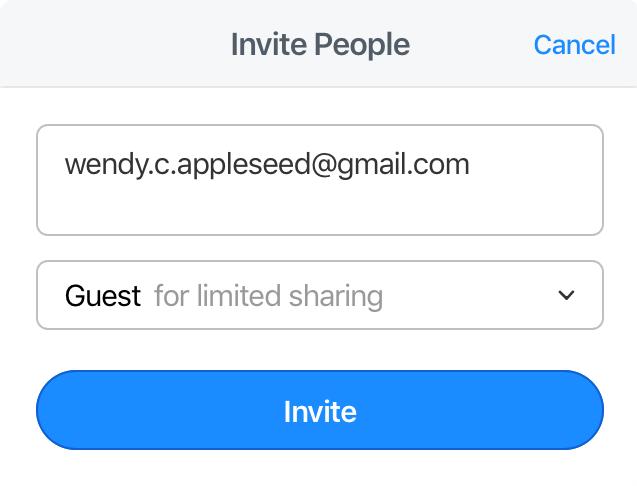
- Select Invite by Email, then enter the email addresses of the guests you want to invite.
- Select Guest from the User Type menu, then select Invite.
1Password Teams includes 5 guests. 1Password Business includes 20 guests. You can invite more guests for an additional cost. Learn more about 1Password pricing.
The 1Password Teams Starter Pack includes a maximum of 5 guests.
Share a vault with a guest
Guests have to accept their invitation and be confirmed before you can share a vault with them. After you’ve confirmed a guest, you can add them to a vault and manage their access to it, like you would a team member.
A guest can only be invited to a single vault at a time, but you can remove them from one vault, then add them to a different one.
Remove a guest
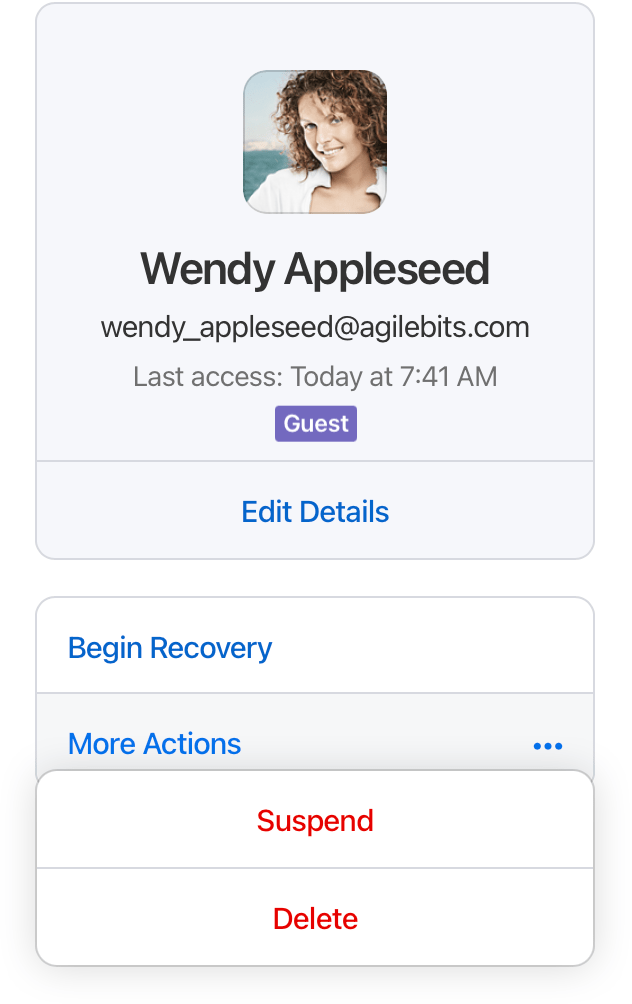
- Select People in the sidebar.
- Choose the name of the guest you want to remove.
- Select More Actions, then select Delete and follow the onscreen instructions.
Tip
It’s possible your guest may have copied the items in the vault before you removed them from it. If this is a concern for you, be sure to change all the passwords they had access to in the vault.
Promote a guest to a team member
If you want to give a guest more access to your account, including their own Employee vault and access to more than one shared vault, you can promote them from guest to team member.
- Select People in the sidebar.
- Choose the name of the guest you want to promote.
- Select Upgrade Guest to Team Member, then select Confirm upgrade.
Learn more
- Administrators: Get started with 1Password
- Create, share, and manage vaults in your team
- Securely share 1Password items with anyone
Was this article helpful?
Glad to hear it! If you have anything you'd like to add, feel free to contact us.
Sorry to hear that. Please contact us if you'd like to provide more details.