You can use custom fields in the 1Password app to create unique answers to security questions, so you won’t forget answers, reuse answers, or rely on personal information others may be able to discover or guess.
Create security questions
- Choose the Login item you want to add security questions to and select Edit.
- Select Add More > Security Questions.
- Choose a question from the list or enter your own.
- Select the answer field, then select Create a New Answer.
- Select Use to enter the randomly generated answer. Or select the redo button to generate a new answer.
- Select Save.
You’ll see the Security Questions section in your item details.
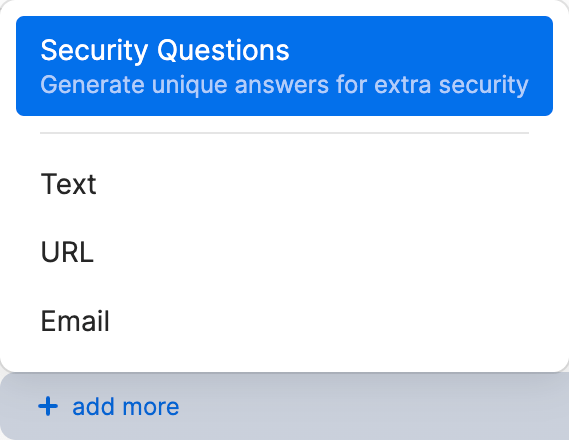
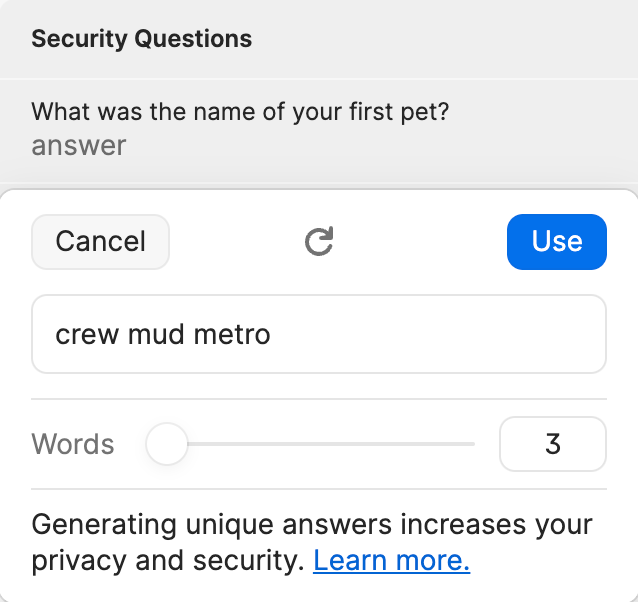
- Choose the Login item you want to add security questions to and select Edit.
- Select Add More > Security Questions.
You may need to scroll down to see these options.
- Choose a question from the list or enter your own.
- Select the answer field, then select Create a New Answer.
- Select Use to enter the randomly generated answer. Or select the redo button to generate a new answer.
- Select Save.
You’ll see the Security Questions section in your item details.
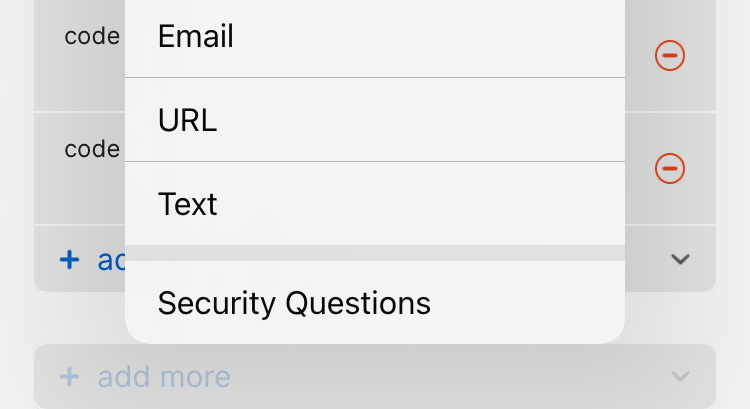
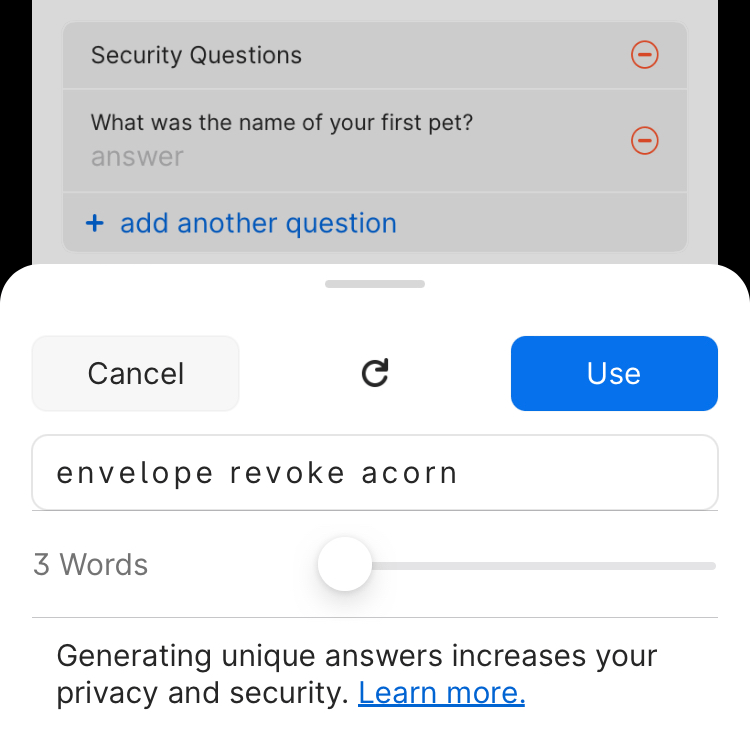
- Choose the Login item you want to add security questions to and select Edit.
- Select Add More > Security Questions.
- Choose a question from the list or enter your own.
- Select the answer field, then select Create a New Answer.
- Select Use to enter the randomly generated answer. Or select the redo button to generate a new answer.
- Select Save.
You’ll see the Security Questions section in your item details.
- Choose the Login item you want to add security questions to and select Edit.
- Select Add More > Security Questions.
You may need to scroll down to see these options.
- Choose a question from the list or enter your own.
- Select the answer field, then select Create a New Answer.
- Select Use to enter the randomly generated answer. Or select the redo button to generate a new answer.
- Select Save.
You’ll see the Security Questions section in your item details.
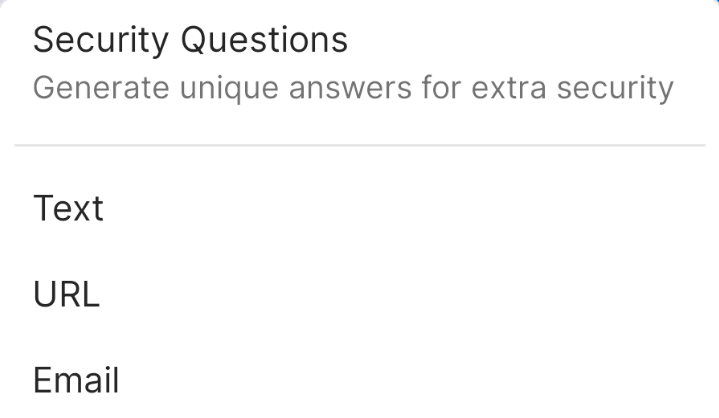
- Choose the Login item you want to add security questions to and select Edit.
- Select Add More > Security Questions.
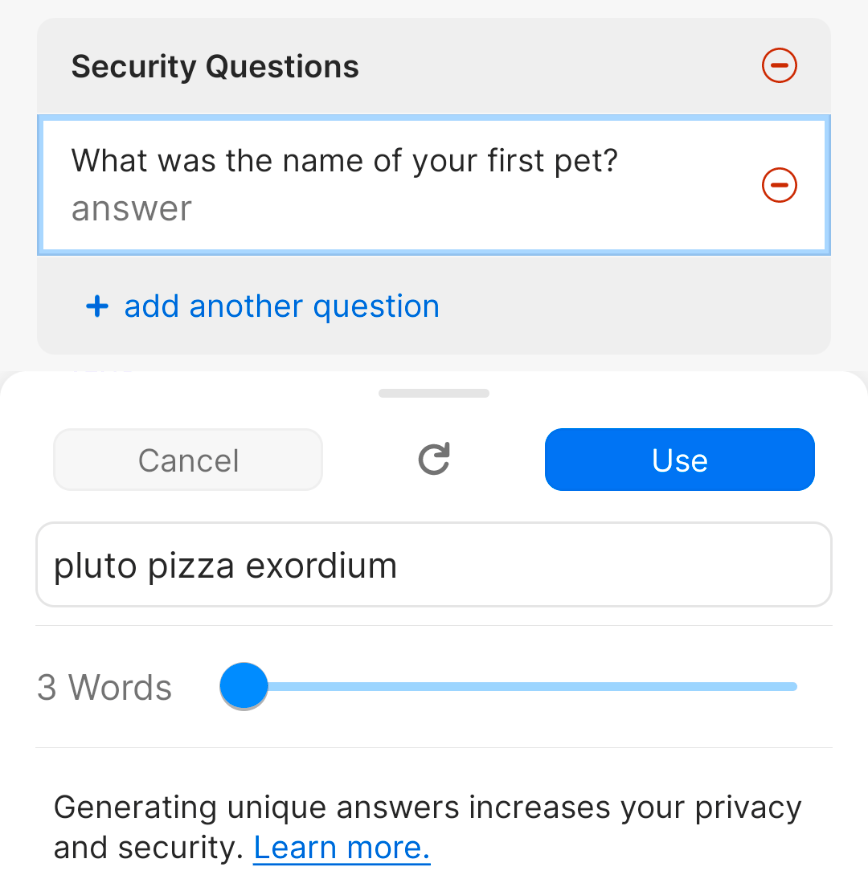
- Choose a question from the list or enter your own.
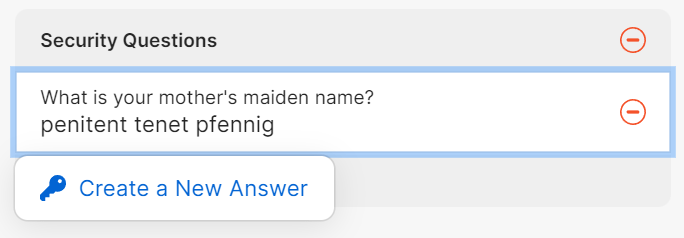
- Select the answer field, then select Create a New Answer.
- Select Use to enter the randomly generated answer. Or select the redo button to generate a new answer.
- Select Save.
You’ll see the Security Questions section in your item details.
To create security questions on 1Password.com
- Sign in to your account on 1Password.com.
- Select View vault items in the sidebar to view your vault items.
- Choose the Login item you want to add security questions to and select Edit.
- Select Add More > Security Questions.
- Choose a question from the list or enter your own.
- Select the answer field, then select Create a New Answer.
- Select Use to enter the randomly generated answer. Or select the redo button to generate a new answer.
- Select Save.
Edit security questions
To change a security question or answer, edit the item, then select the security question you want to edit.
To replace an answer, select it an Create a New Answer.
Fill security questions
To copy a security answer, select it.
To copy security answers from 1Password in your browser:
- Select
 in your browser’s toolbar to open the 1Password pop-up.
 - Select the Login item.
- Hover over the security question and select Copy, then paste the answer into the appropriate field on the website.
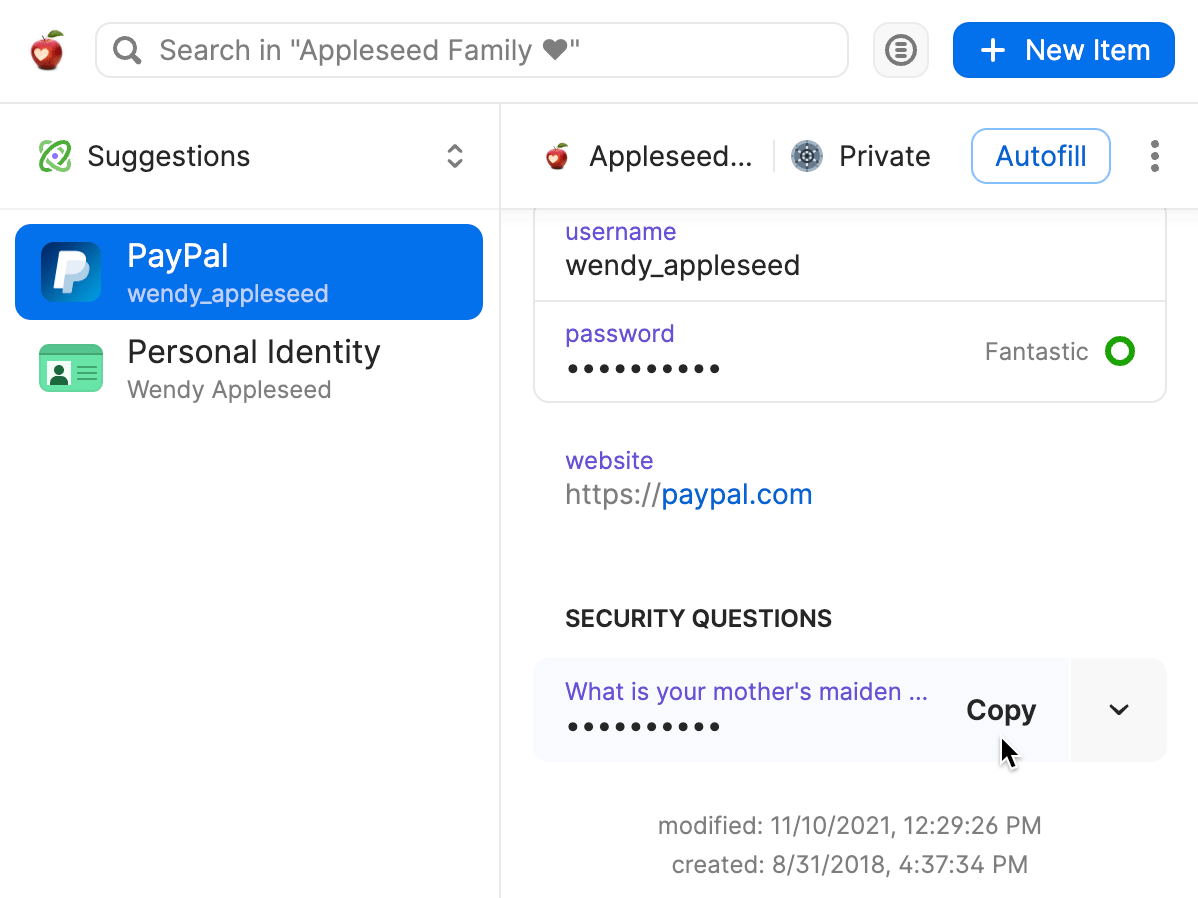
You can also drag the answer from the 1Password pop-up or app into the field.
Learn more
- Get to know 1Password for Mac, iOS, Windows, Android, and Linux
- Get started with 1Password in your browser
- If you don’t see the 1Password icon in your browser’s toolbar
Was this article helpful?
Glad to hear it! If you have anything you'd like to add, feel free to contact us.
Sorry to hear that. Please contact us if you'd like to provide more details.