Note
The End-User Portal allows end users to learn more about Device Trust and their currently registered devices. It also serves as the web interface where end users can read and resolve issues associated with their devices.
Access & authentication
Unlike the Device Trust admin console, which is only accessible to Device Trust administrators, the End-User Portal can be accessed by all end users listed in the People section of Device Trust.
The End-User Portal can be accessed by end users in several ways, including:
- Directly by visiting https://app.kolide.com/x/my
- Through actions shown to the end user in the Kolide menu bar app
- By clicking the Fix Issue button during Device Trust authentication
Device Trust leverages existing authentication sessions and trust relationships to avoid asking the user to authenticate. However, when direct authentication is needed (for example, when browsing to the portal directly), Device Trust will request the user to sign in through Okta.
My devices
The End-User Portal provides a summary of your registered devices and their current status.
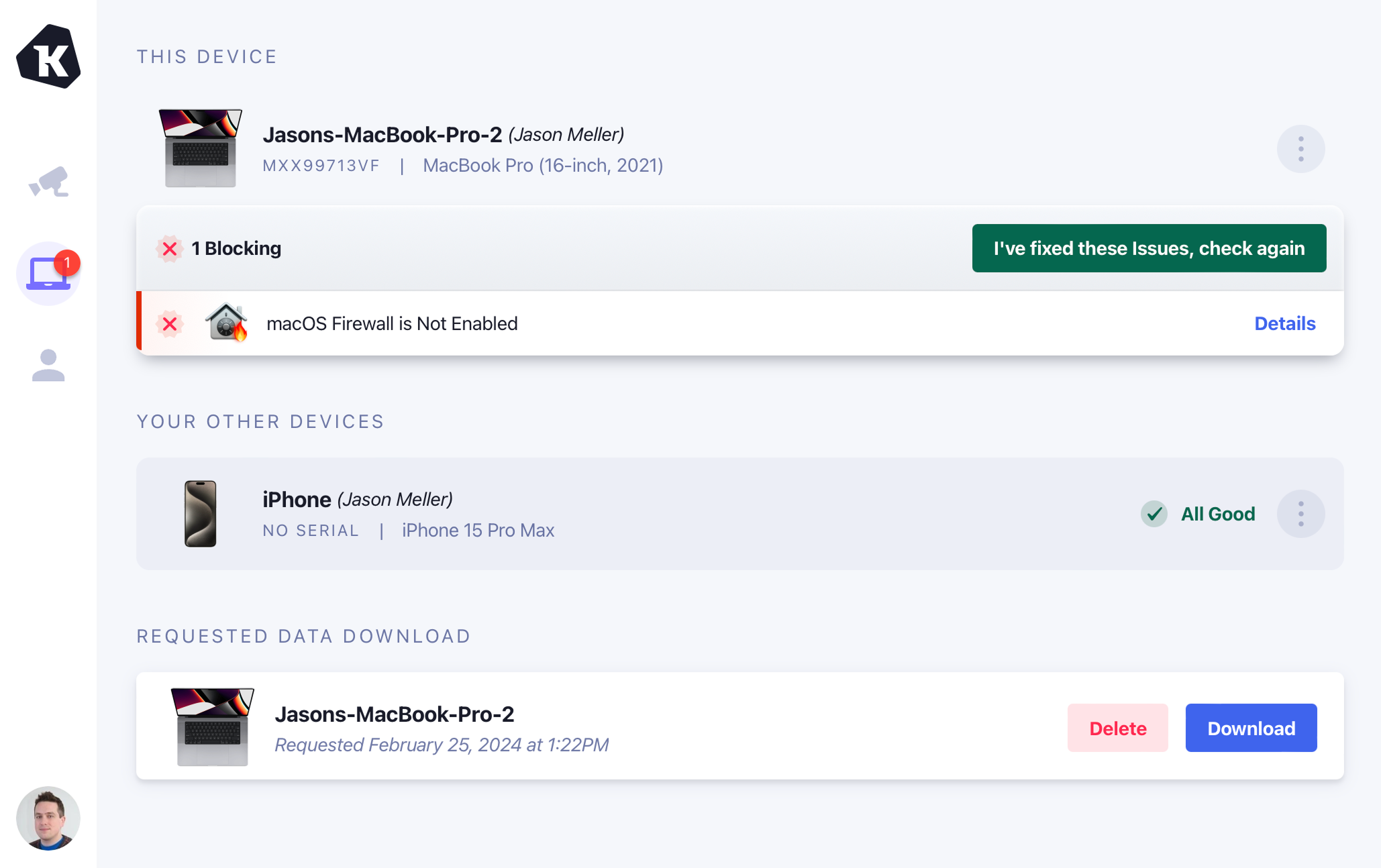
If you are on a currently registered device, it will be highlighted separately at the top above any other registered devices.
From this screen, you can perform the following actions:
- Check if you’ve resolved any ongoing issues
- View the fix instructions for ongoing issues
- Unregister a Device
- Request a Device data download
- Request exemptions for issues
- Snooze active issues
Fixing an issue for a failing check
When an end user fails a device Check, and the Check is set to a user-notifiable strategy (for example Notify Only, Warn then Block, Block Immediately), it will be surfaced in four different ways to the end user:
- Kolide Menubar App: The menubar app icon will be badged with a colored icon, and there will be an affordance to “Fix Failing Check”.
- During Authentication to a SAML configured Device Trust protected app (Device Trust Connect only): The end user will be stopped during the authentication flow, and asked to fix any failing Checks.
- During use of an Extended Device Compliance protected web-app: The end user will receive a pop-over notification in the upper right of their browser window, and be asked to fix any failing Checks.
- Device Trust End-User Portal > My Devices Page: A list of failing Checks will be shown under each registered device.
If the user clicks the “Fix this Issue” or “Fix Failing Check” affordance in any of the contexts listed above, they will be taken to end-user remediation instructions in their End-User Portal.
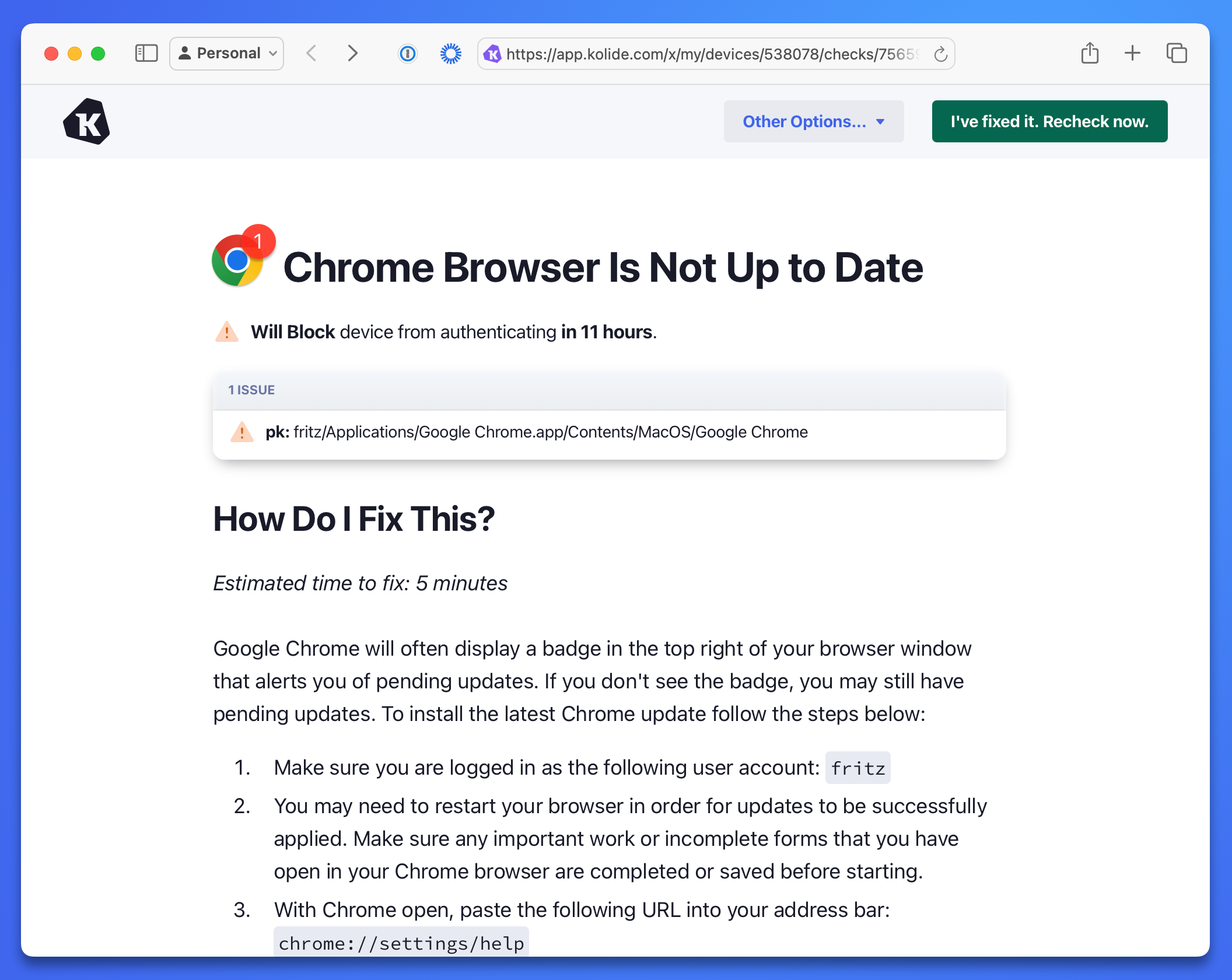
After following the self-remediation instructions for the failing Check, the end user can initiate a live recheck of their device by selecting the button at the top-right labeled: “I’ve fixed it. Recheck now.”. They’ll be taken back to the My Devices page and shown whether the Check has been resolved or is still ongoing.
Unregistering a device
As an end user, unregistering a Device is desirable when you know a device should no longer be used for authentication. By unregistering it, it can no longer be used by you and others to sign in to apps protected by 1Password Device Trust.
Note
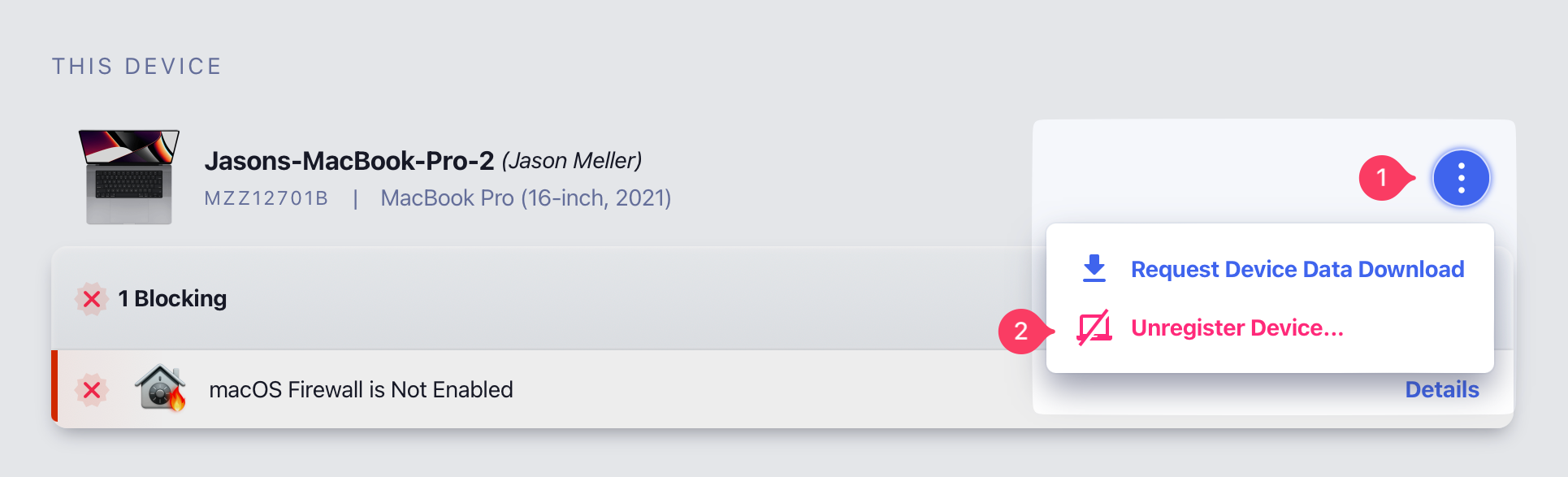
To unregister a device, click the ellipsis menu next to the desired Device and select Unregister Device….
Important
Requesting a device data download
The End-User Portal allows end users to request a copy of the latest data Device Trust has collected about any devices that are currently registered to them. Data exports contain the raw data associated with Check Runs and Device Properties.
To request a Device Data Download, click the ellipsis menu next to the desired device and select Request Device Data Download.
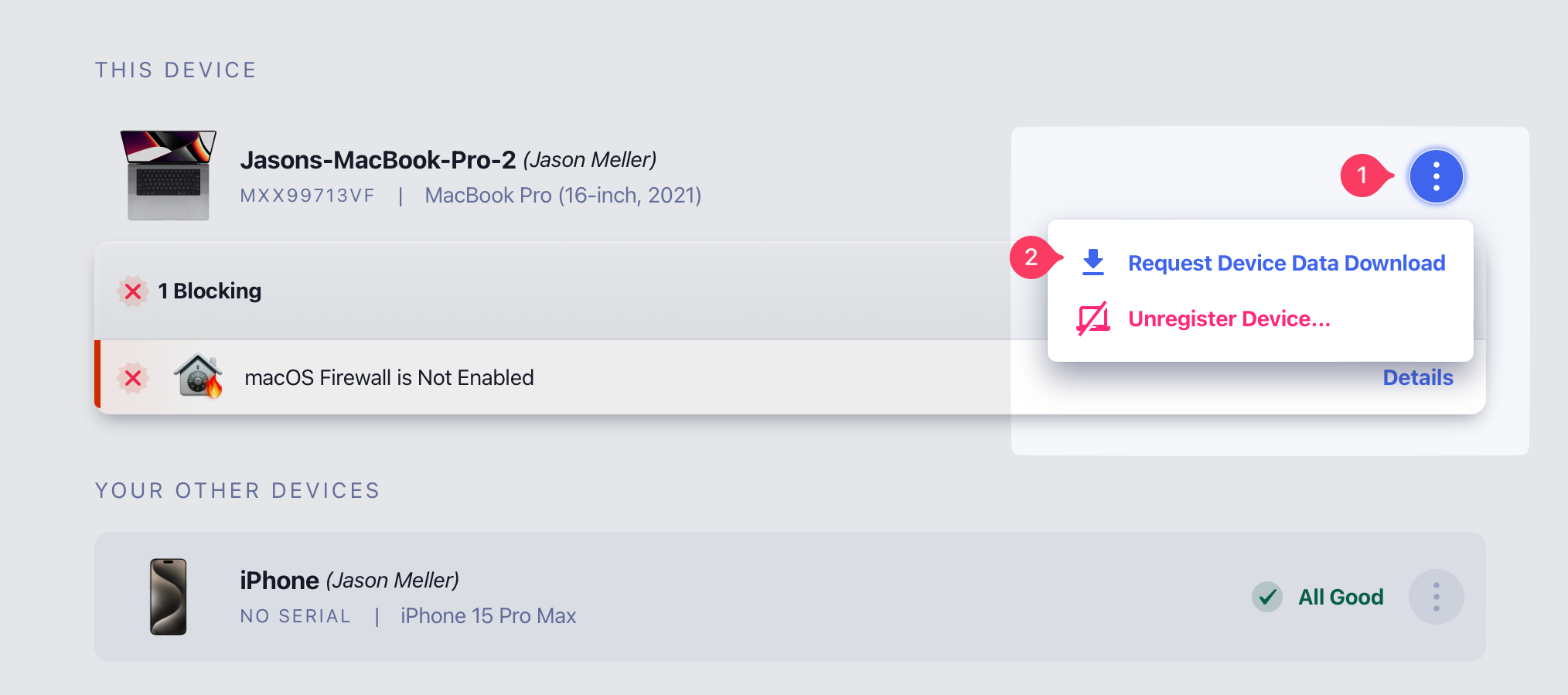
Typically, exports only take a few minutes to generate, and the UI will automatically update when the data export is ready. You will also receive an email when it’s ready for download.
Note


Once the export is ready, click Download to obtain the data in a zip file.
My Data Privacy
The My Data Privacy page allows end users to view answers to the most common privacy and data-collection questions they have about the service.
End users can use this page to understand:
- Who can access their device data
- What data Device Trust collects from their devices
- Which Checks are turned on
- Which apps are reviewed
- Recent data access activity related to their devices
Philosophy
Most endpoint security companies leave it to the administrators to address questions that end users may have about the agent installed on their device(s).
Device Trust enables our customers to practice Honest Security, a philosophy that believes end users are best served when they can independently answer questions they have about the data collection capabilities of the Kolide agent.
Note
The Device Trust Privacy Center is an essential component of maintaining compliance with the EU’s GDPR, the UK’s Data Protection Act, and the California Consumer Privacy Act.
If you have a special situation that makes using the Privacy Center untenable for your organization, Contact 1Password Device Trust support to see if you qualify to have it turned off.
Who can access my data?
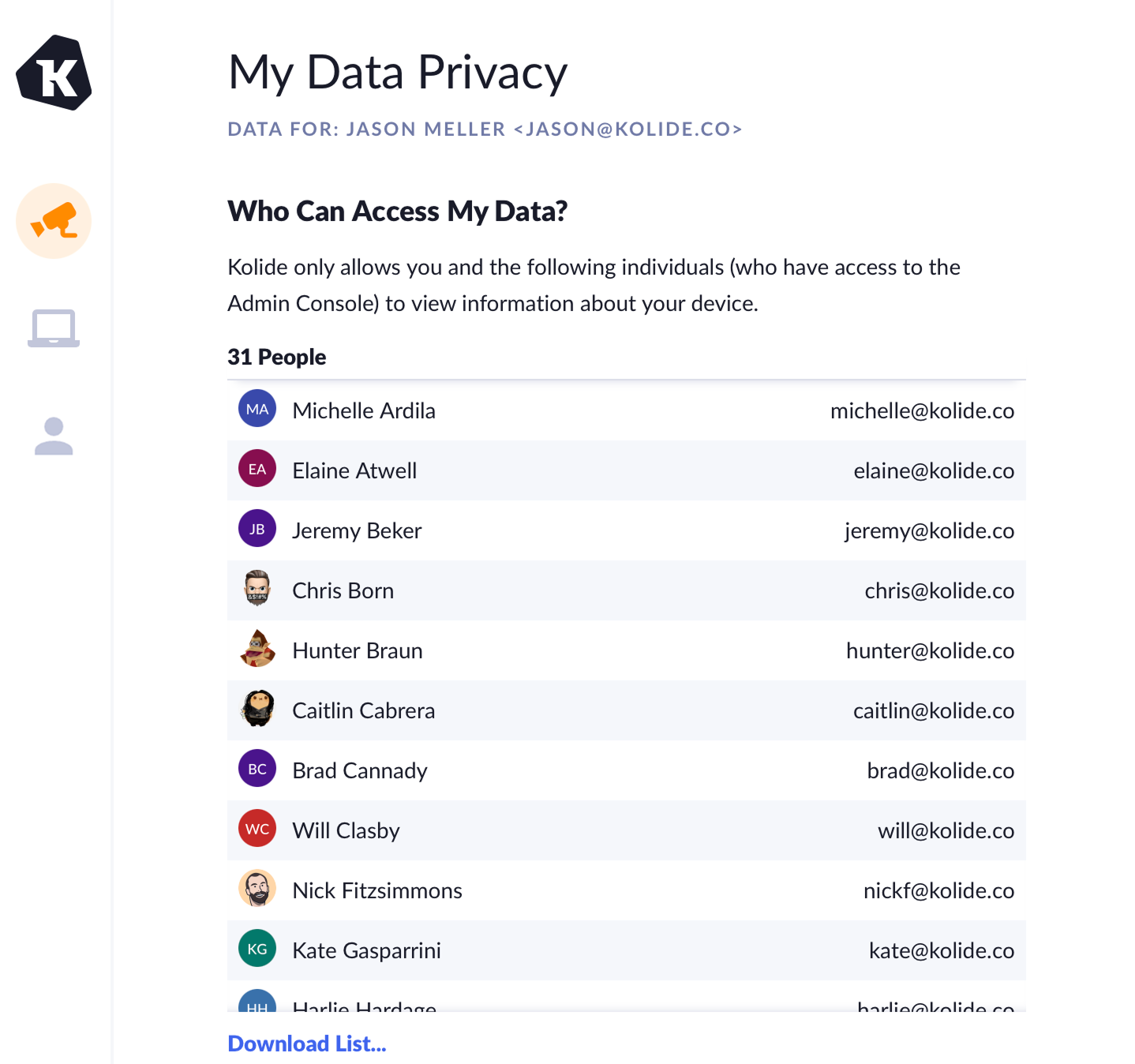
The My Data Privacy page shows a list of people in your organization who have access to view information about end users’ devices in the Admin Console. It includes each person’s name and email address. End users can download the full list.
Device data
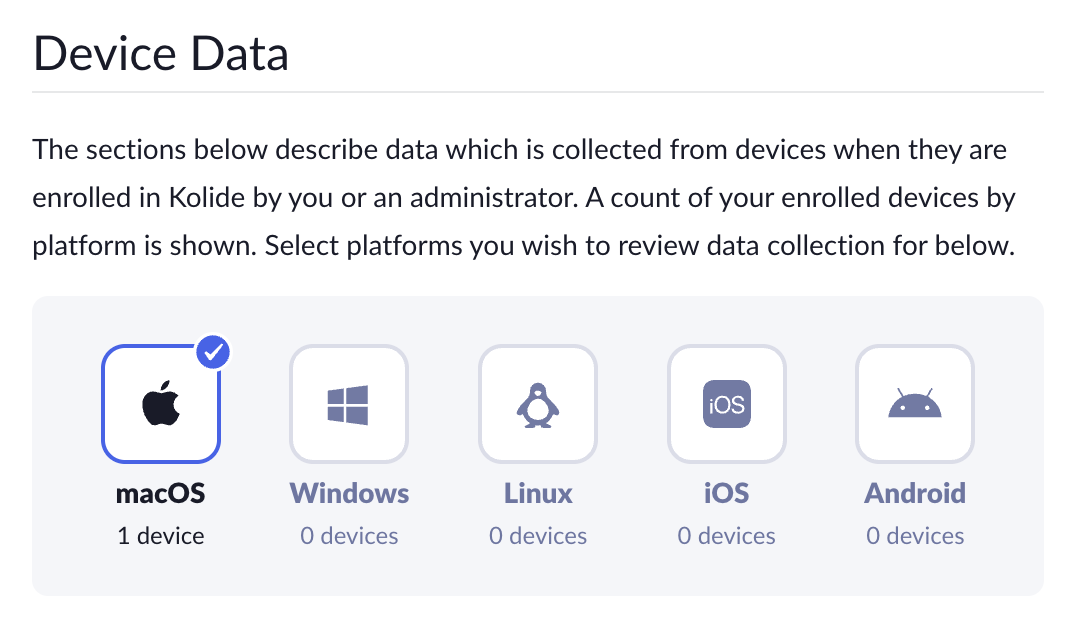
The Device Data section describes the data that Device Trust collects from enrolled devices. This section helps end users understand which data may be collected when they enroll a device or when an administrator enrolls a device on their behalf.
Users can select a platform, such as macOS, Windows, Linux, iOS, or Android, to review the data collection information that applies to devices on that platform.
What Checks are enabled?
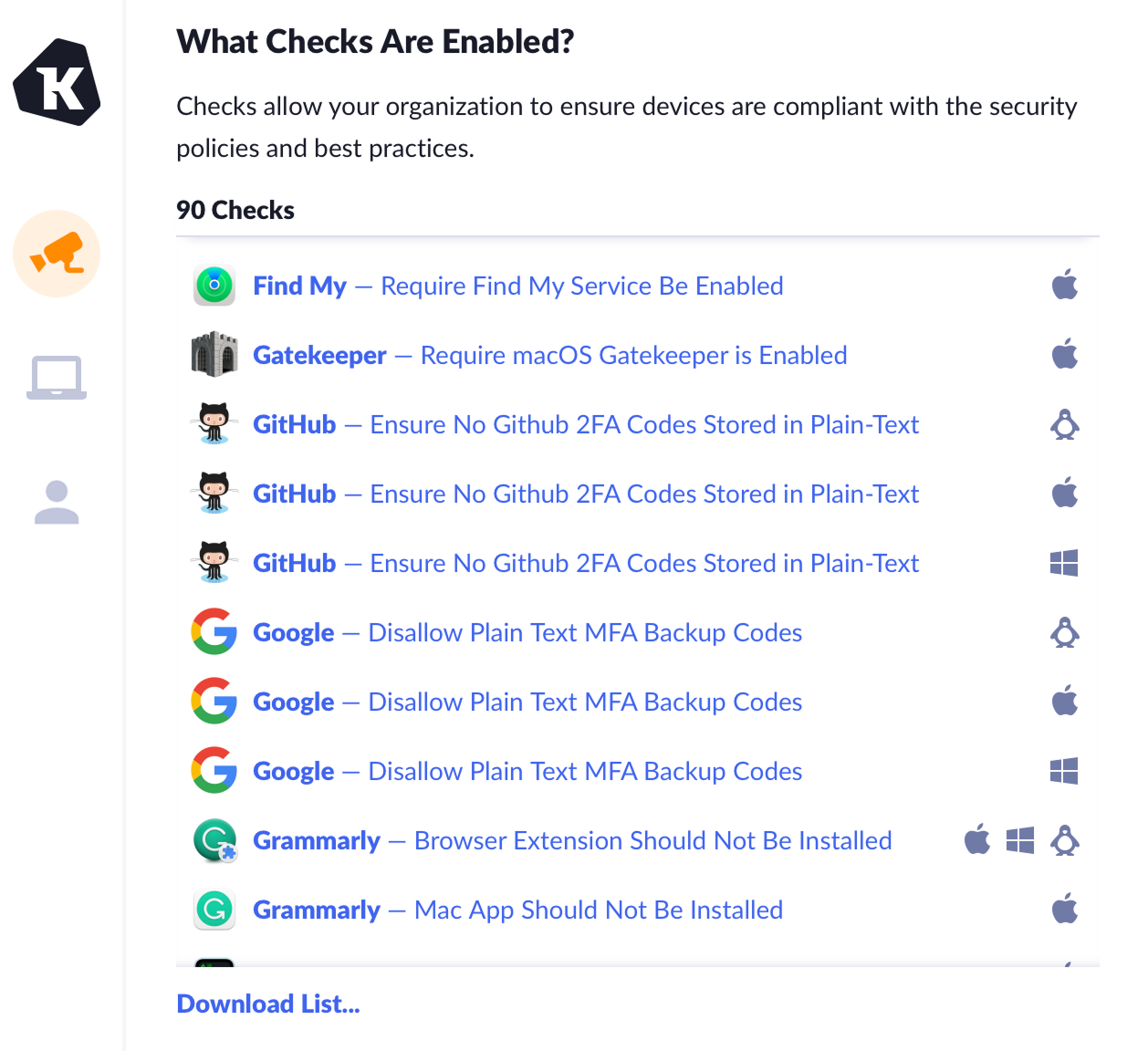
This section shows the Checks that your organization has enabled in Device Trust. Checks help your organization confirm that devices comply with security policies and best practices.
Each Check in the list shows the platforms it applies to. You can filter the list by platform, search it, or download the full list.
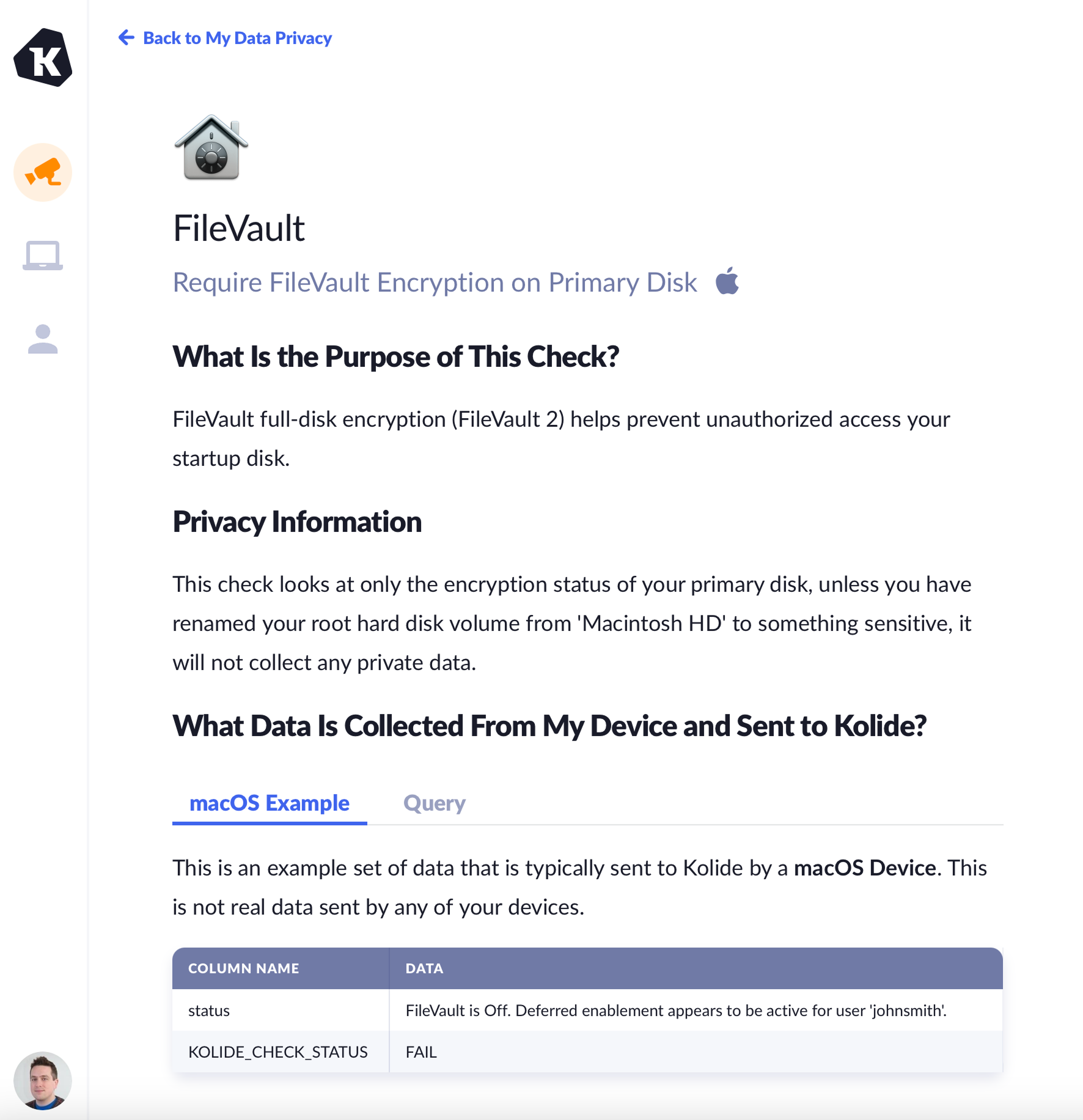
For more information about a Check, select the link to view a detailed page explaining the purpose of the Check, example data, and any potential privacy considerations.
App activity
Note
The App Activity section helps end users understand which apps Device Trust reviews for work-related security and compliance purposes.
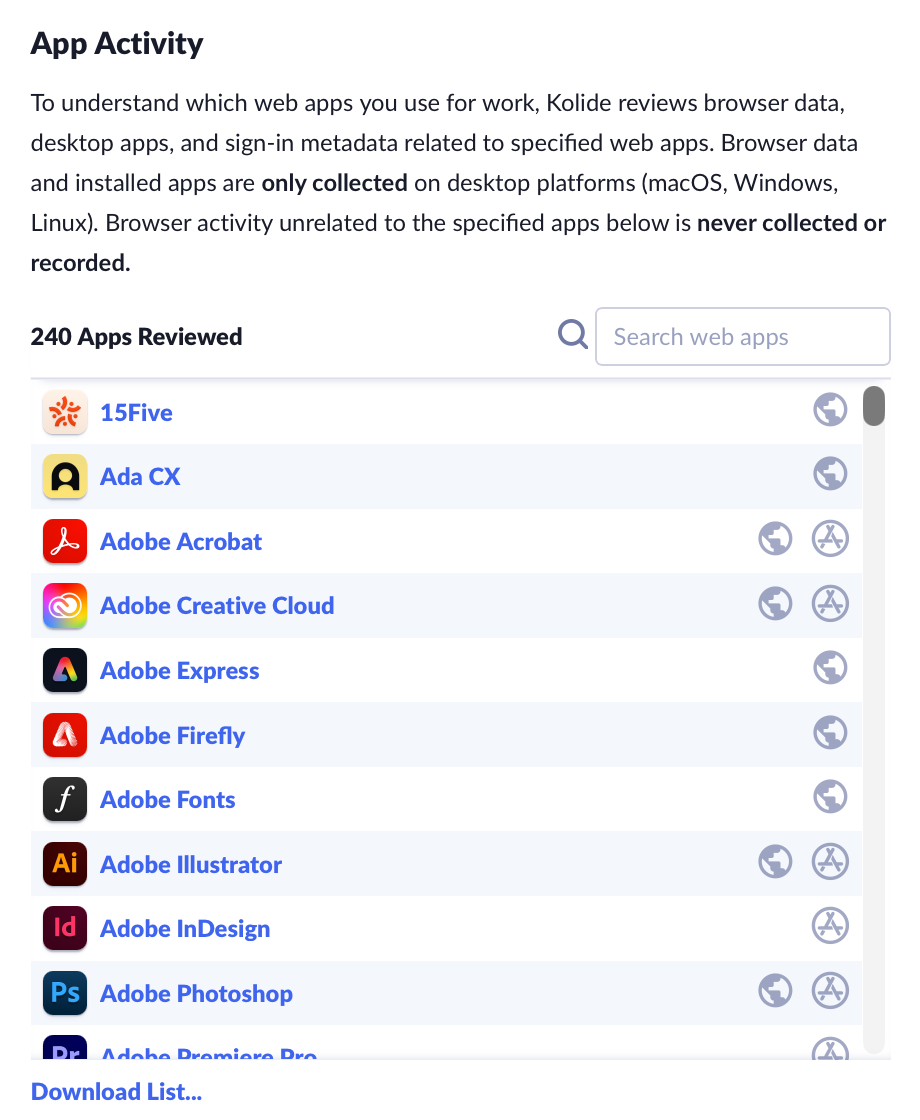
If your organization has browser activity collection enabled, Device Trust may review browser data, desktop apps, and sign-in metadata related to specified apps. Browser data and installed apps are collected only on desktop platforms such as macOS, Windows, and Linux.
If browser activity collection is turned off, Device Trust still reviews desktop apps end users have installed on macOS, Windows, or Linux, and OAuth sign-in grants from Google Workspace for the specified apps listed in App Activity. Browser activity unrelated to the specified apps is not collected or recorded.
End users can search the app list or download the full list.
What other data is collected from devices?
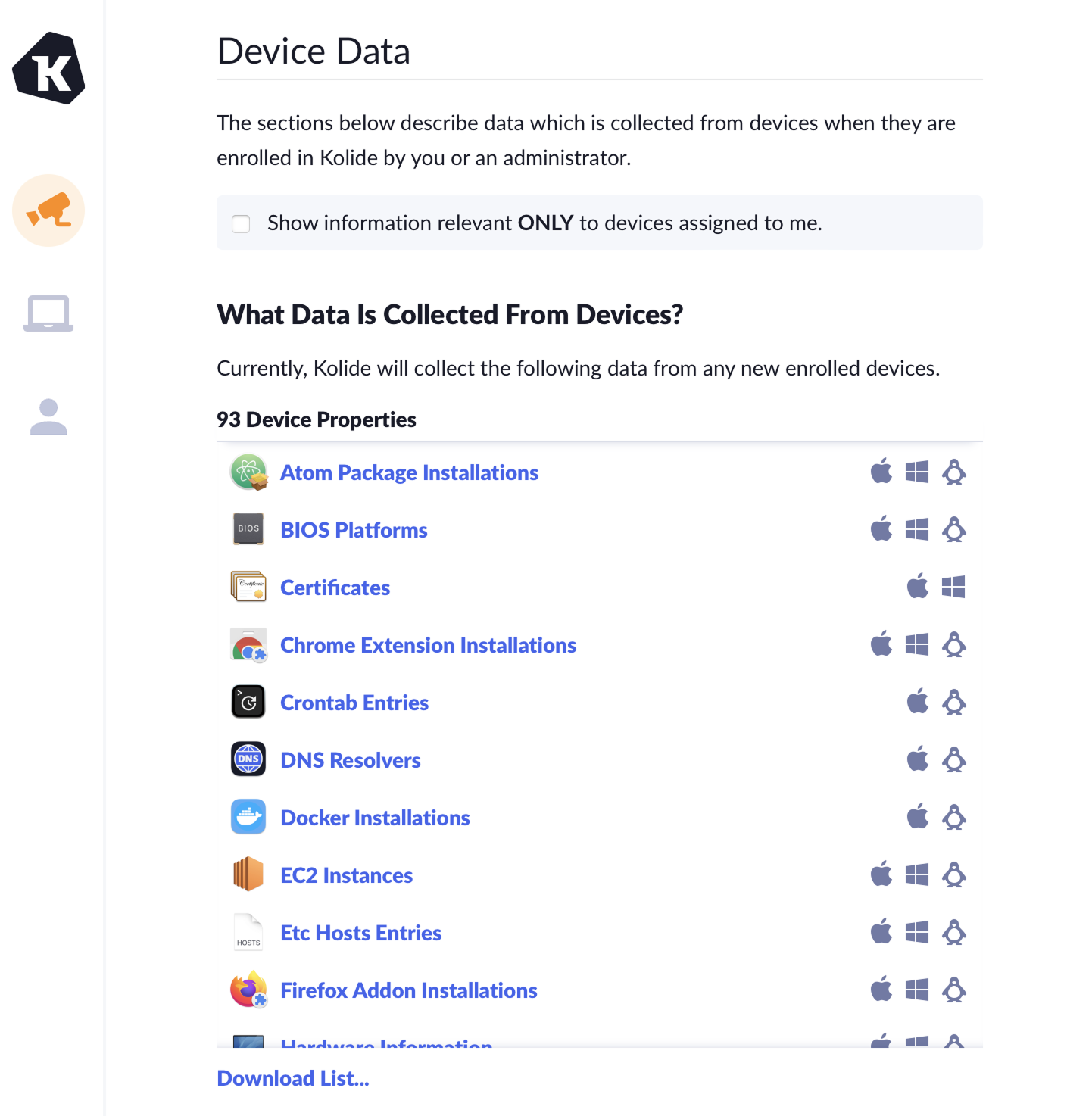
This section lists additional Device Properties Device Trust collects from enrolled devices. Each item shows the platforms where that property may be collected.
Device properties may include:
- Configuration details like firewall settings or disk encryption
- Installed components like apps, certificates, or browser extensions
- Hardware details like device model, CPU, and system memory
- Other security-relevant information
End users can search the list or download the full list.
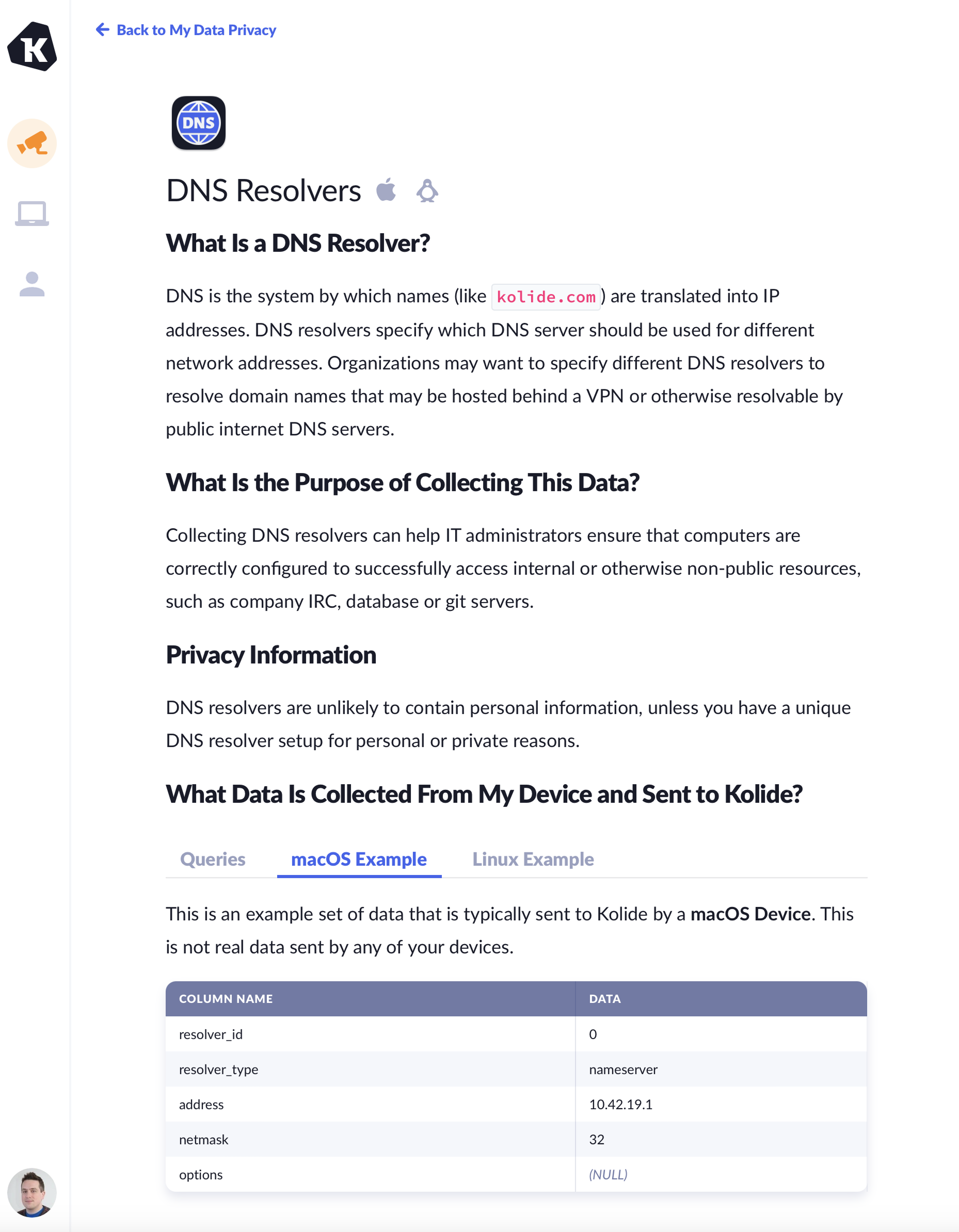
For more information about a device property, select the link to view a detailed page explaining what the device property is, the purpose for collecting it, and any potential privacy considerations.
Scheduled queries
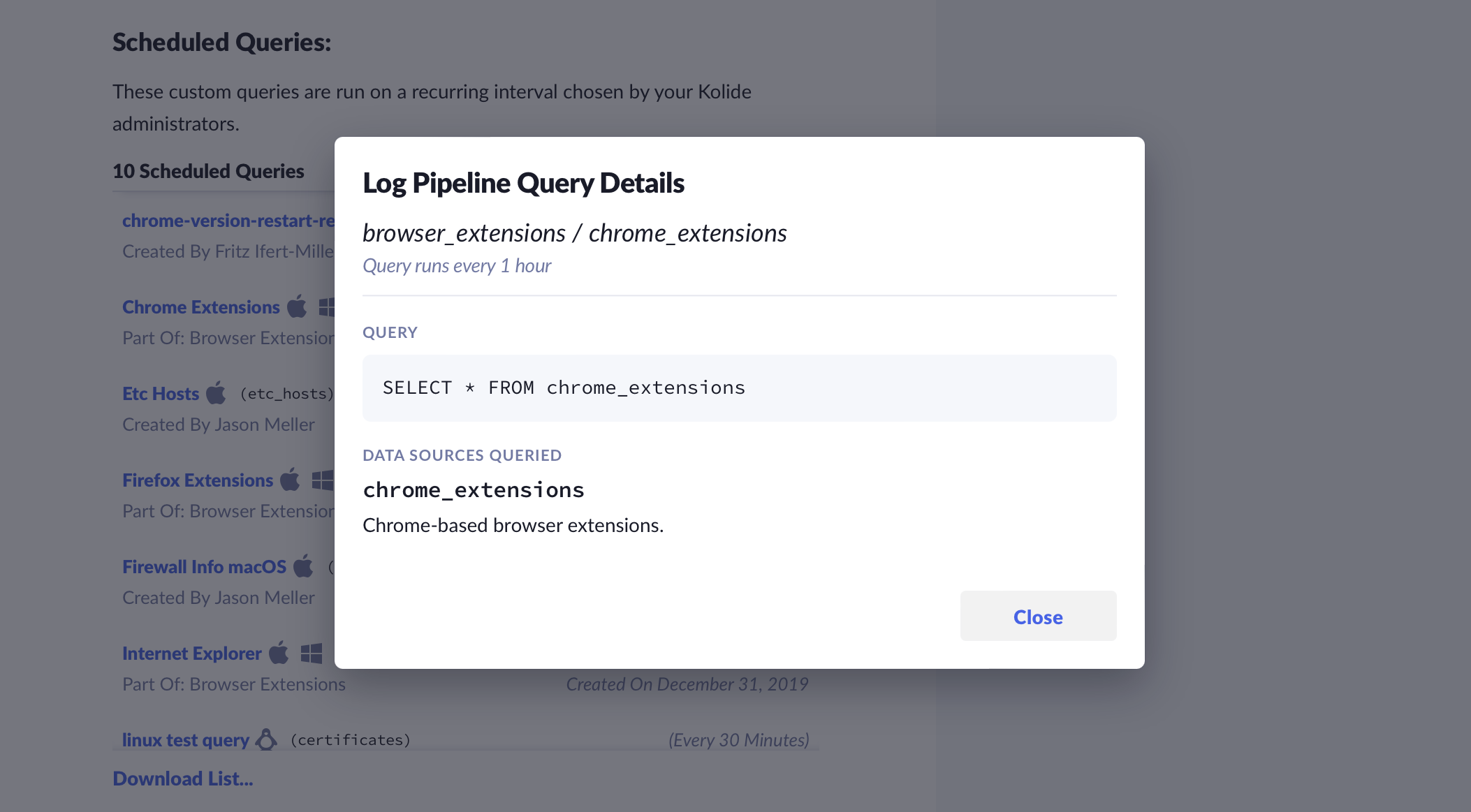
If your organization utilizes either Continuous Live Queries or Log Pipeline Query Packs, the My Data Privacy page will provide end users with a comprehensive list of all queries running on their assigned devices and a list of queries that may be run on devices they enroll in the future.
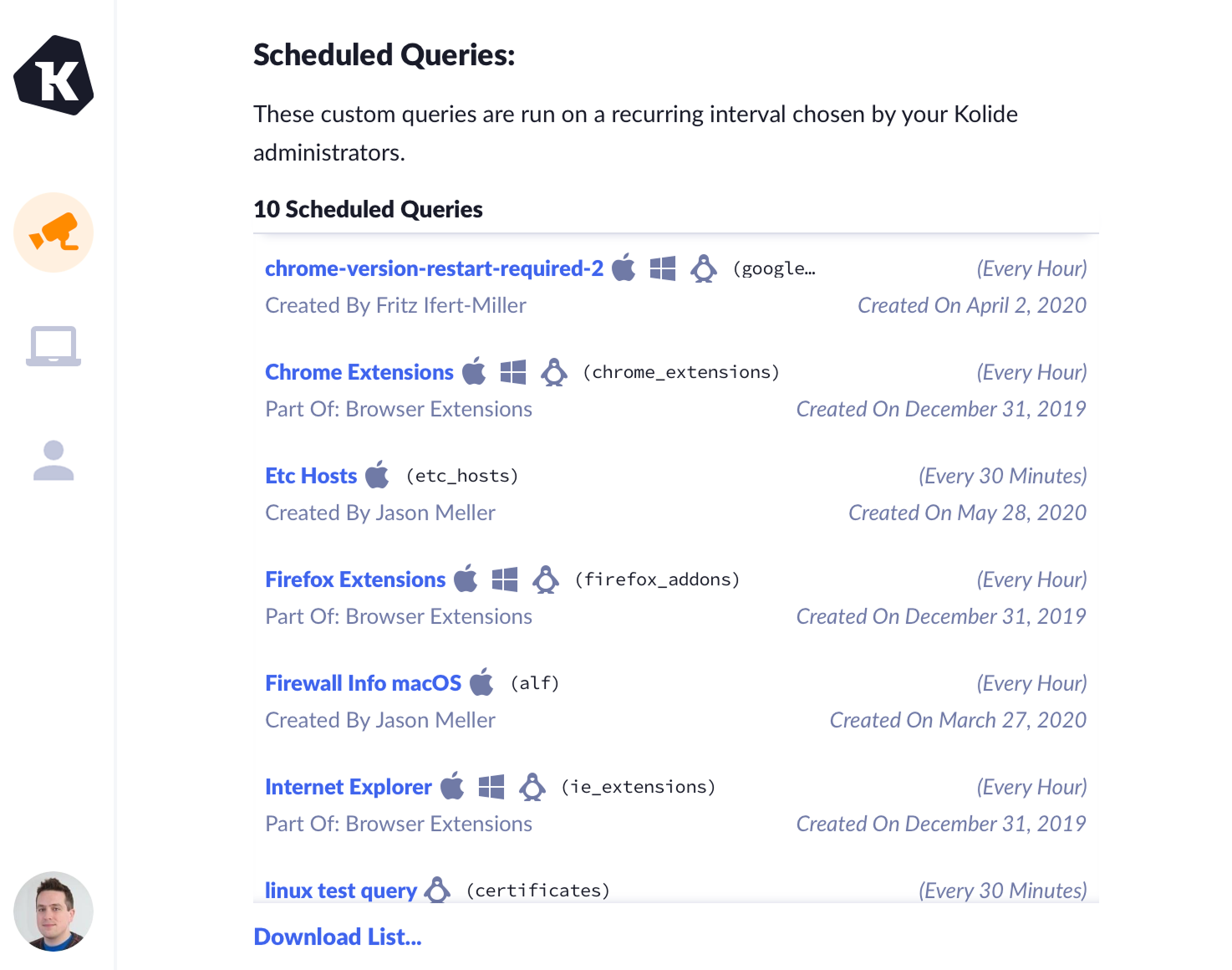
For more information about a query, select the link to view a detailed page explaining the query, how often it runs, and the data sources it queries.
Recent activity
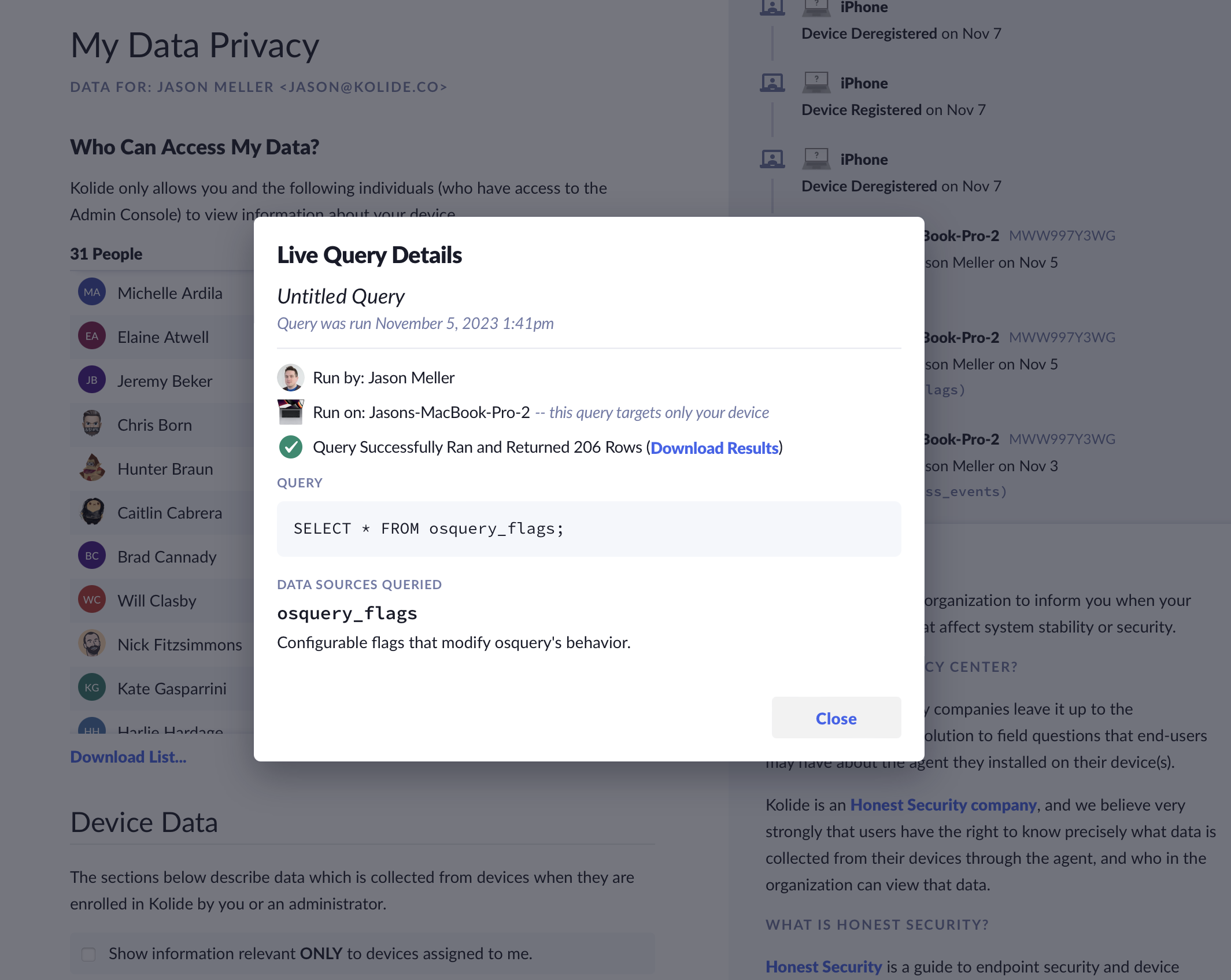
Similar to the Device Trust audit log, the My Data Privacy page offers end-user insights into notable changes associated with their registered devices, or if Device Trust administrators run a Live Query on their device. End users can view this information in the Recent Activity section and export it as a CSV using the provided link.
Device Trust records several events that are included in this subset of the Audit Log:
- When a device is registered
- When a device is unregistered
- When a device is removed from Device Trust
- When a Device Trust administrator runs a Live Query targeting a device registered to the end user, including the query and the results returned to the administrator
For example, if an administrator runs a Live Query against one of the user’s devices, the page shows who ran the query, when it was run, which device was queried, and a summary of the data returned.
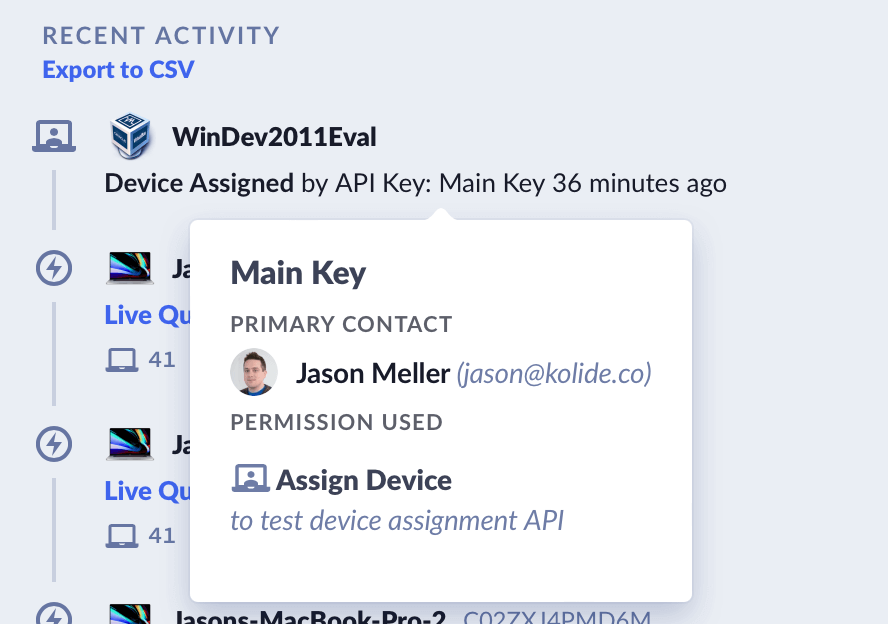
When an API key performs an auditable action, users can hover over the key name to view its primary contact and the documented explanation of how the key is used.
Customizing the privacy center
Note
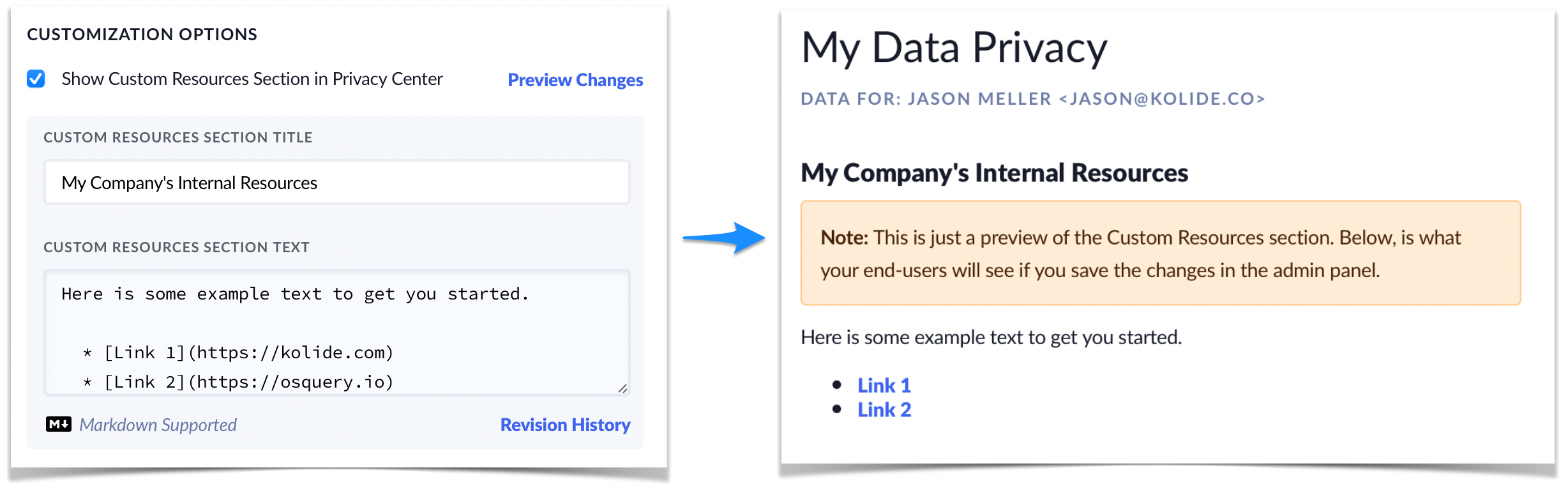
In some cases, Device Trust administrators may wish to add additional information to the Privacy Center. Just follow these steps:
- In the Device Trust admin console, click your user avatar in the upper-right corner.
- Click Settings.
- Select Privacy Center in the left sidebar menu.
- Tick the checkbox labeled Show Custom Resources Section in Privacy Center.
- Enter the title and text in the form below.
- Preview your changes by clicking Preview Changes until you are satisfied with the result.
- Click Save (this action will be logged in the audit log).
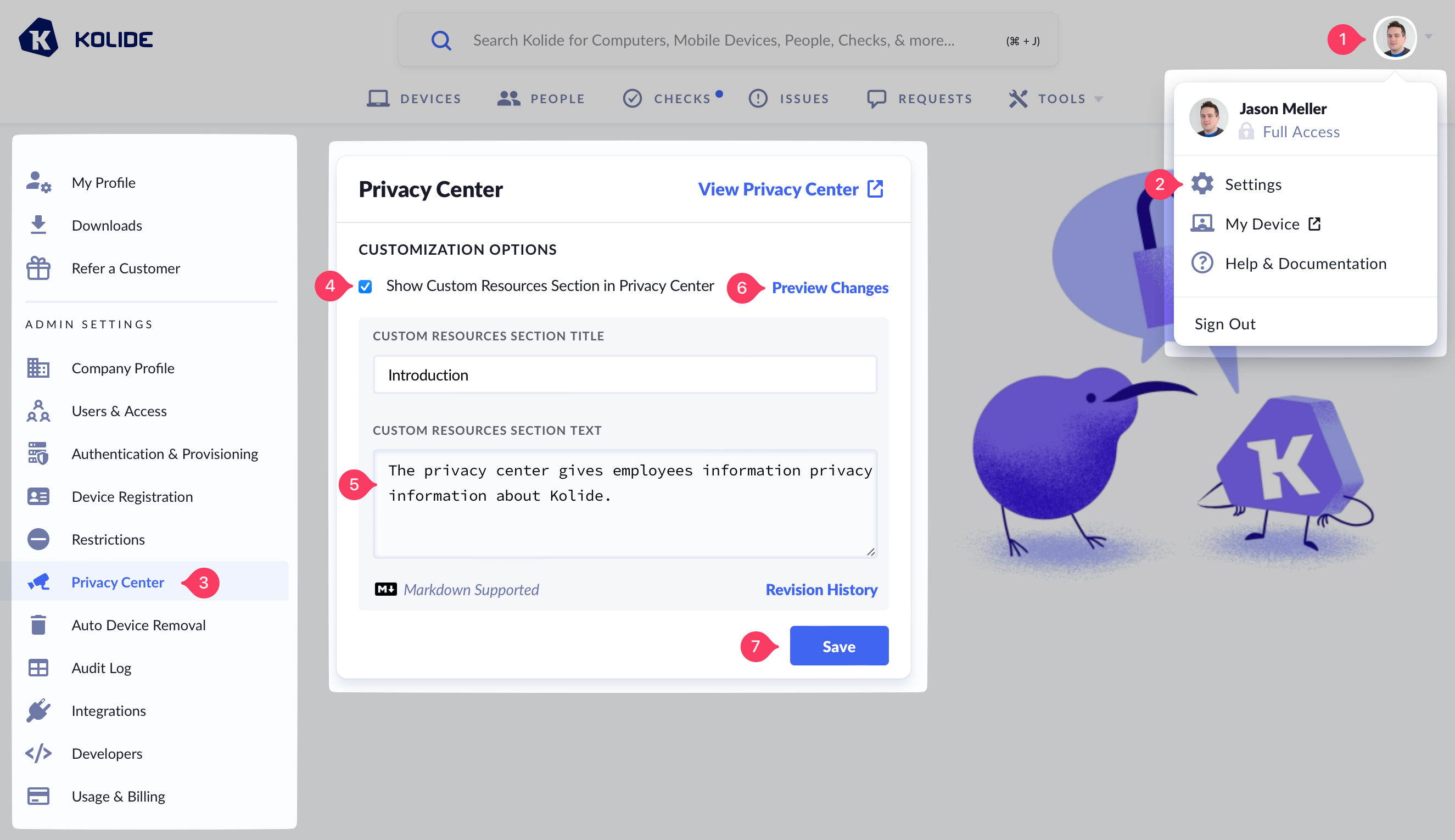
The customization supports markdown. Text, links, and any other markdown formatted content can be displayed at the top of the Privacy Center for all end users.
My profile
The End-User Portal includes a “My Profile” section where end users can set their preferred language.
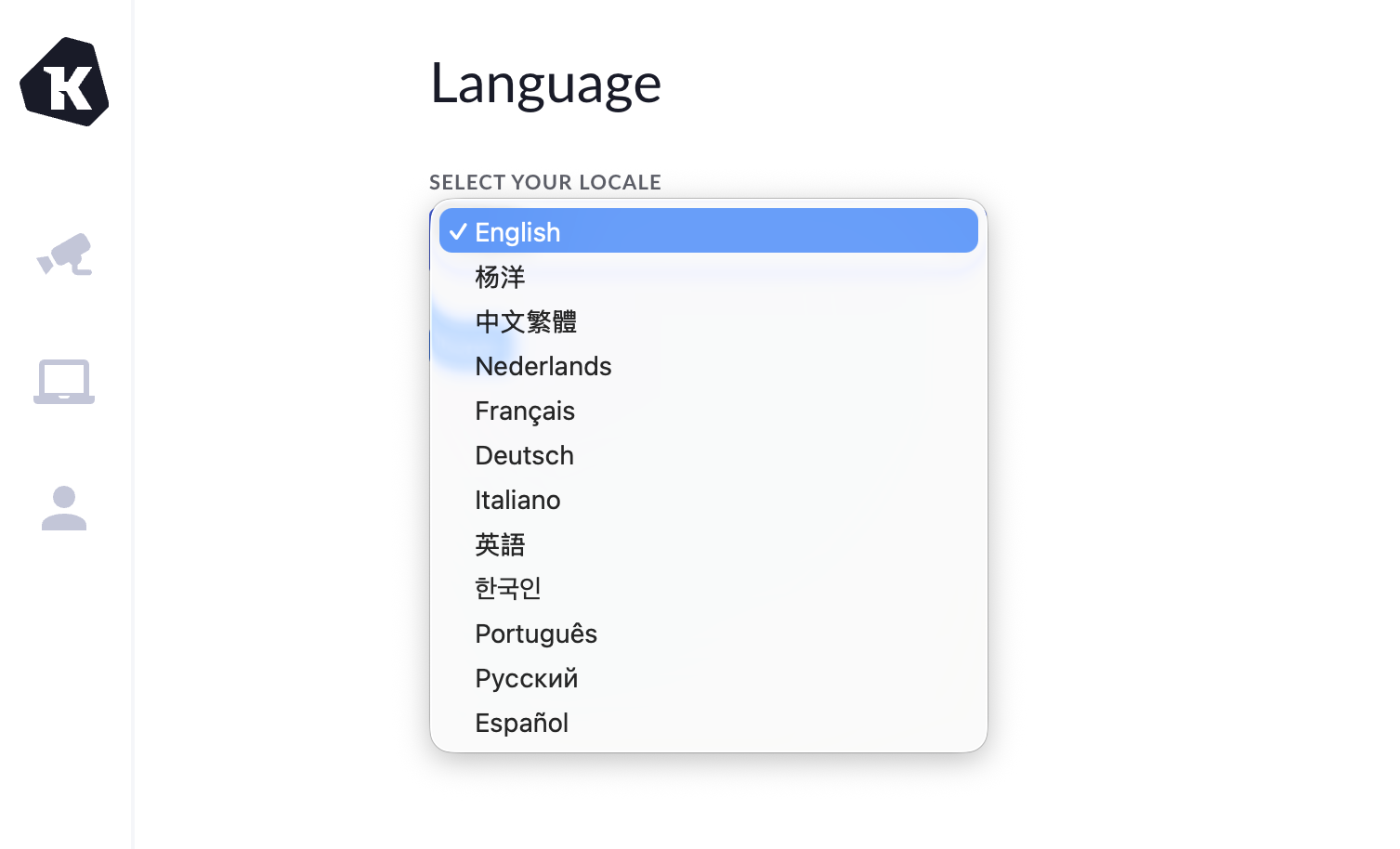
When an end user updates their language, the change is applied to their Device Trust web portal and the Checks details page.
Was this article helpful?
Glad to hear it! If you have anything you'd like to add, feel free to contact us.
Sorry to hear that. Please contact us if you'd like to provide more details.