1Password Device Trust updates the agent on your organization’s devices automatically. New agent versions are released to the Beta release channel first, then to the Stable release channel. Each device subscribes to one channel, and every device subscribes to Stable by default.
You can subscribe groups of devices to Beta on the Agent Updates page. Those devices get new agent versions before the rest of your organization. That way, your IT team or a test group can try a new version on a few devices before it reaches everyone.
Help
Release channels
| Channel | Which devices subscribe to it | What they receive |
|---|---|---|
| Stable (default) | Every device that isn’t subscribed to Beta | Agent versions that finished testing on Beta |
| Beta | Devices in the groups you subscribe to Beta | New agent versions, before Stable gets them |
A device subscribes to Beta when it matches the Beta channel’s subscription rules. Every other computer subscribes to Stable.
Release channels apply only to Mac, Windows, and Linux computers with the agent installed. They don’t affect the mobile app, and mobile devices aren’t counted on the Agent Updates page.
Important
View your release channels
To view your release channels:
- In the Device Trust admin console, select your profile in the top-right corner and select Settings.
- Select Agent Updates in the sidebar.
For each release channel, you see:
- Subscribed Devices: The number of devices that subscribe to the channel.
- Devices in the Following Groups Subscribe to: The groups whose devices subscribe to the channel.
- Unless They Are Also in the Following Groups: The groups whose devices stay off the channel, even if they’re also in a subscribed group.
- Component Versions: The current agent (
launcher) andosqueryversions for the channel. The Released column shows when each version reached the channel, and the Platform column shows which operating systems it applies to. Select a version number to see its release notes.
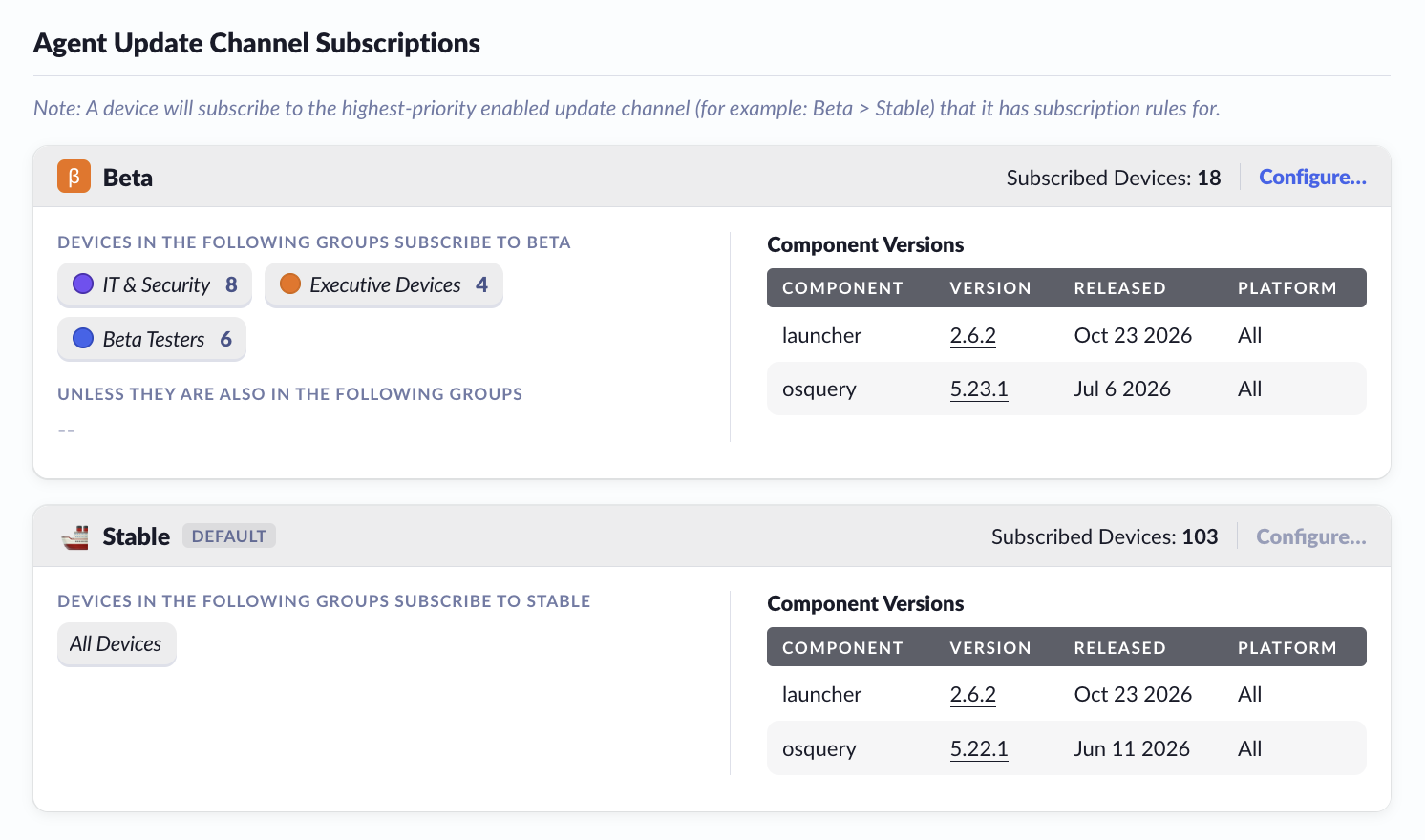
The Stable release is labeled Default and always lists All Devices. You can’t configure it, because every device that isn’t subscribed to Beta subscribes to Stable. Its device count goes down as you subscribe devices to Beta.
Subscribe devices to Beta
To choose which devices subscribe to Beta, add groups to the Beta release. You can use two types of groups:
- Device groups: Every device in the group subscribes to Beta.
- Person groups: Every device registered to a group member subscribes to Beta. This includes groups synced from Okta, Google Workspace, or 1Password.
Important
To subscribe devices to Beta:
- In the Device Trust admin console, select your profile in the top-right corner and select Settings.
- Select Agent Updates in the sidebar.
- On the Beta release, select Configure.
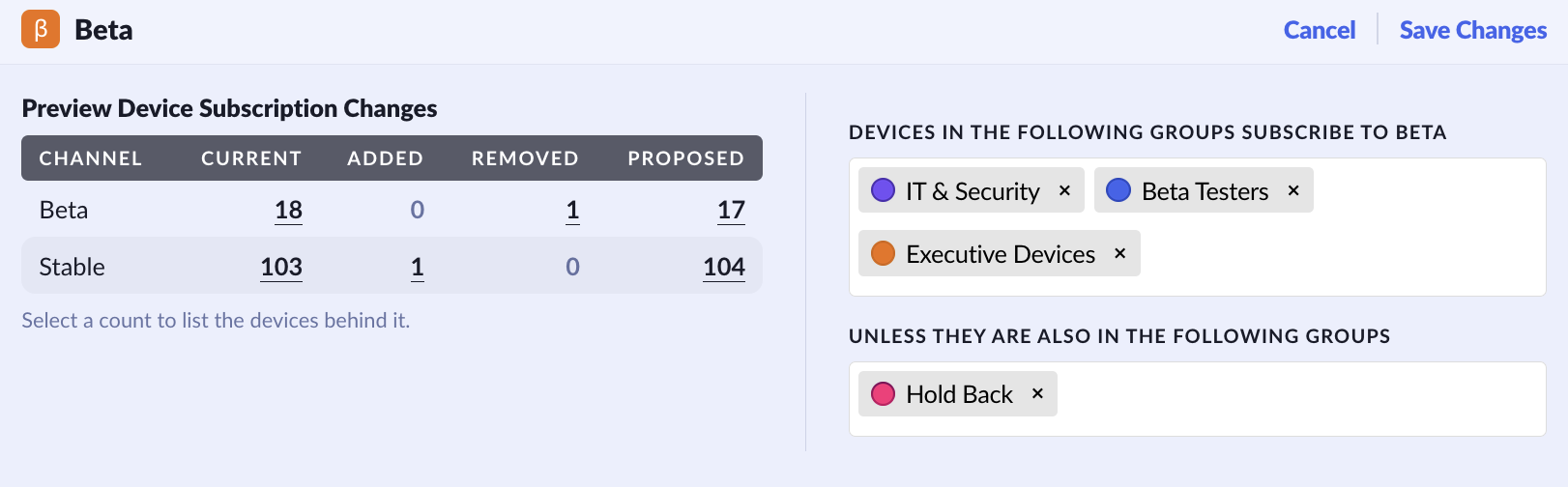
- In “Devices in the Following Groups Subscribe to Beta”, search for a group by name, then choose it from the list. Add as many groups as you need.
- To keep some of those devices on Stable, add their groups to “Unless They Are Also in the Following Groups”.
- Select Save Changes.
After you save, the Beta release shows the new groups and the new number of subscribed devices.
Keep some devices on Stable
To keep devices on Stable that would otherwise subscribe to Beta, add their groups to “Unless They Are Also in the Following Groups”. A device that’s in both a subscribed group and an excluded group stays on Stable.
For example, devices registered to people in “IT & Security” and devices in “Beta Testers” subscribe to Beta. Any devices in “Executive Devices” stay on Stable, even if they also belong to “Beta Testers” or are registered to someone in “IT & Security”.
A group can only be in one of the two fields. After you add a group to one field, you won’t see it in the other.
Person groups include only registered devices
A person group subscribes only the devices registered to its group members. It doesn’t include devices that a group member can sign in with but that are registered to someone else, like a shared computer.
This is different from how person groups work with Checks, where they also include the devices that group members can authenticate with. That way, a shared computer doesn’t move to Beta only because one person who uses it is in a subscribed group. To subscribe a shared computer to Beta, add it to a device group, then subscribe that group.
What happens after you save
Device Trust sends the new channel to each device whose channel changed. When a device receives it, the agent checks for an update, installs the current version for its new channel, and restarts.
- Updates aren’t instant. Device Trust spreads out downloads over time. A device that’s offline switches channels when it’s back online. The Subscribed Devices count changes as soon as you save, before the devices update.
- Moving a device back to Stable can roll back its agent. When a device leaves Beta, it installs the current Stable version, which can be older than the Beta version it had.
- Group changes apply automatically. If the membership of a subscribed group changes or a subscribed group is deleted, Device Trust updates the affected devices. You don’t need to save the Agent Updates page again.
- Your changes are logged. Each time you change a channel’s groups, Device Trust adds a “release channel group rules updated” entry to the audit log. The entry shows the groups before and after the change.
Check a device’s release channel
To find out which release channel a device subscribes to, open its details page. You see the channel in parentheses after the agent version, for example, Agent 2.6.2 (Beta).

Get help
If a device you subscribed to Beta is still on Stable
Make sure that:
- The device isn’t in an excluded group.
- The device is registered to a group member, if the subscribed group is a person group. Learn more about which devices person groups include.
- The device has been online since you saved. The agent switches channels the next time it connects to Device Trust.
If a device shows Beta but has an older agent version
The agent may still be downloading the Beta version. Device Trust spreads out downloads over time, so some devices update later than others.
If you find a problem with a Beta version
Move the affected devices back to Stable, then contact 1Password Device Trust support. Include the agent version from the device’s details page.
Learn more
Was this article helpful?
Glad to hear it! If you have anything you'd like to add, feel free to contact us.
Sorry to hear that. Please contact us if you'd like to provide more details.