With the 1Password Extended Access Management user identity beta, you can manage your team’s access to web-based applications using 1Password’s access gateway. Controlling access with team apps allows you to speed up provisioning, reduce password-related risks, and improve the sign-in experience for apps that handle sensitive data or are used by many team members.
During the beta, you can:
- Configure team apps that sign in with 1Password using OIDC or SAML authentication protocols.
- Assign team apps to groups, then add team members to groups to automatically provide them with the apps they need.
- Give your team a unified sign-in experience through 1Password. Your team members can launch team apps directly from their Managed vault.
- Monitor how your team uses team apps in the audit log.
You can manage the access gateway if you’re part of the Owners or Security group.
Create a test group
To test assigning a team app with the access gateway, create a new group and add anyone you want to test the app to it:
- Sign in to your account on 1Password.com.
- Select Groups in the sidebar.
- Select New group and give your test group a name and description, then select Create group.
- On the next page, select Manage next to People.
- Select the people you want to add to the test group, then select Update Group Members.
Add team apps to the access gateway
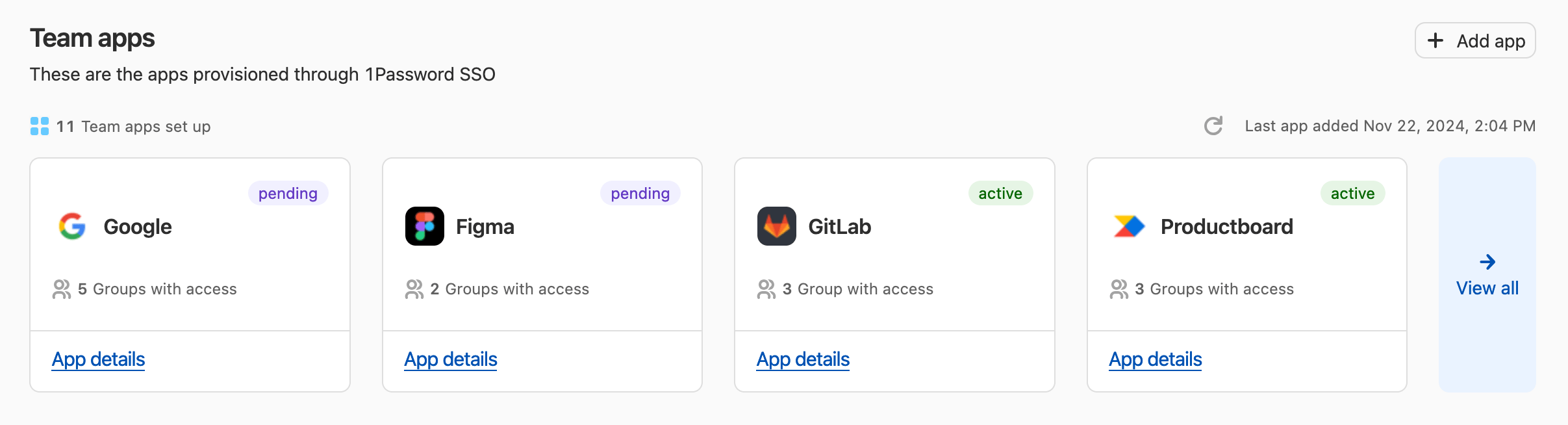
You can configure team apps to sign in with 1Password using SAML 2.0 or OIDC protocols. Before you add an app to the access gateway:
- Make sure the app supports SSO at your current pricing tier.
- Find the appropriate authentication protocol for the app in its SSO setup guide.
Learn how to add a team app with SAML or OIDC.
Assign team apps to groups
After you add a team app to the access gateway, you can assign it to groups on your team. When you assign an app to a group, each person in the group will be able to launch the app from their Managed vault.
- Select Apps in the sidebar.
- Select App details under the team app you want to assign, then select Assign Groups.
Or select View all, then select the ellipsis and choose Assign access to group(s) next to the app you want to assign.
- Select the groups you want to be able to access the app. If you want to test the app before assigning it to your team, only select your test group.
- Select Review, review your assignment, then select Assign access to confirm.

Repeat the above steps at any time to assign the team app to additional groups.
If you add a new person to a group, they’ll automatically get access to all the apps previously assigned to the group.
Manage group access to team apps
To change which team apps a group has access to:
- Select Groups in the sidebar.
- Choose the group you want to manage.
- Next to Managed Applications, select Manage.
- Select which apps you want the group to have access to, then select Update group access.

Edit or remove team apps
To make changes to an existing team app:
- Select Apps in the sidebar.
- Select App details under the app you want to update.
Or select View all, then choose an app.
- On the app details page, select the ellipsis , then choose Edit app or Delete app.
Help your team get started
Your team members will see team apps assigned to them with the access gateway in a new Managed vault.
When a team member opens an app in the Managed vault and selects Sign in using 1Password SSO, 1Password launches the website and authenticates them.
Learn how to help your team members get started with the Managed vault.

Monitor team app activity using the audit log
After you start adding apps to the access gateway, you’ll see events related to team apps in your audit log, including:
- Access gateway session. Creating or deleting an access gateway session.
- Team app. Creating, updating, deleting, and launching team apps.
- Team app group assignment. Modifying a group’s access to team apps.
Get help
You can only assign team apps to team members. Guest accounts don’t have access to a Managed vault.
If you have questions about 1Password Extended Access Management, contact 1Password Support for help.