Adjusting the size of items on a high-resolution display above 100% or 125% can make text easier to read, but it can make text blurry in 1Password 4.
To resolve this in Windows 8 or later:
Quit 1Password.
Open Windows Explorer and go to
C:\Program Files (x86)\1Password 4.Right-click
1Password.exe, then select Properties.Select the Compatibility tab.
Select Disable display scaling on high DPI settings, then select OK.
Right-click
Agile1pAgent.exe, then select Properties.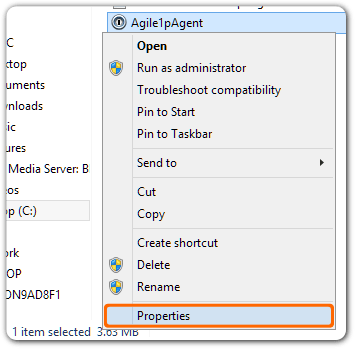
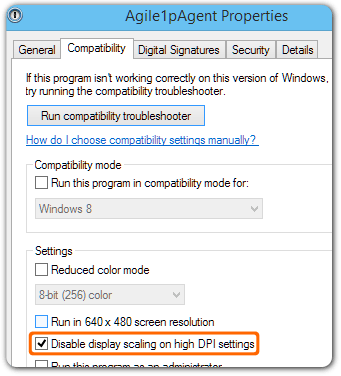
Select the Compatibility tab.
Select Disable display scaling on high DPI settings, then select OK.
Open 1Password, then select Help > Restart 1Password Helper.