
With 1Password Business, you can integrate 1Password with Okta to automate many common administrative tasks:
Provision
- Create users: Assigned users and groups will be provisioned to 1Password.
To sync groups from your directory to 1Password, use Push Groups.
- Update user attributes: Changing user attributes in your directory will change the mapped attributes in 1Password.
- Deactivate users: Deactivating a user or disabling the user’s access to 1Password in Okta will suspend the user in 1Password.
Import
- Import users and groups: Existing 1Password users and groups will be imported and can be linked to existing Okta objects.
Manage groups
- Push Groups: Use Push Groups to sync groups from your directory to 1Password or manage existing 1Password groups in Okta.
To provision users to 1Password, use Okta group assignments.
To get started, sign in to your account on Okta.com , select Admin in the top right, and follow these steps.
Before you begin
Before you can integrate 1Password with Okta, you’ll need to:
- Have the lifecycle management feature in your Okta account.
- Be an administrator in your 1Password Business account.
Step 1: Turn on provisioning in 1Password
- Sign in to your account on 1Password.com.
- Select Integrations in the sidebar.
- Select Okta in the User Provisioning section.
- Select Set up hosted provisioning.
- Save your credentials in 1Password in case you need it later, then select Next.
- Leave this page open and continue to step 2.
Step 2: Add the 1Password Business application to Okta
These steps were recorded in July 2025 and may have changed since. Refer to the Okta documentation for the most up-to-date steps.
To add the 1Password Business application to Okta:
- Select Applications, then select Browse App Catalog.
- Search for 1Password Business and select it, then select Add Integration.
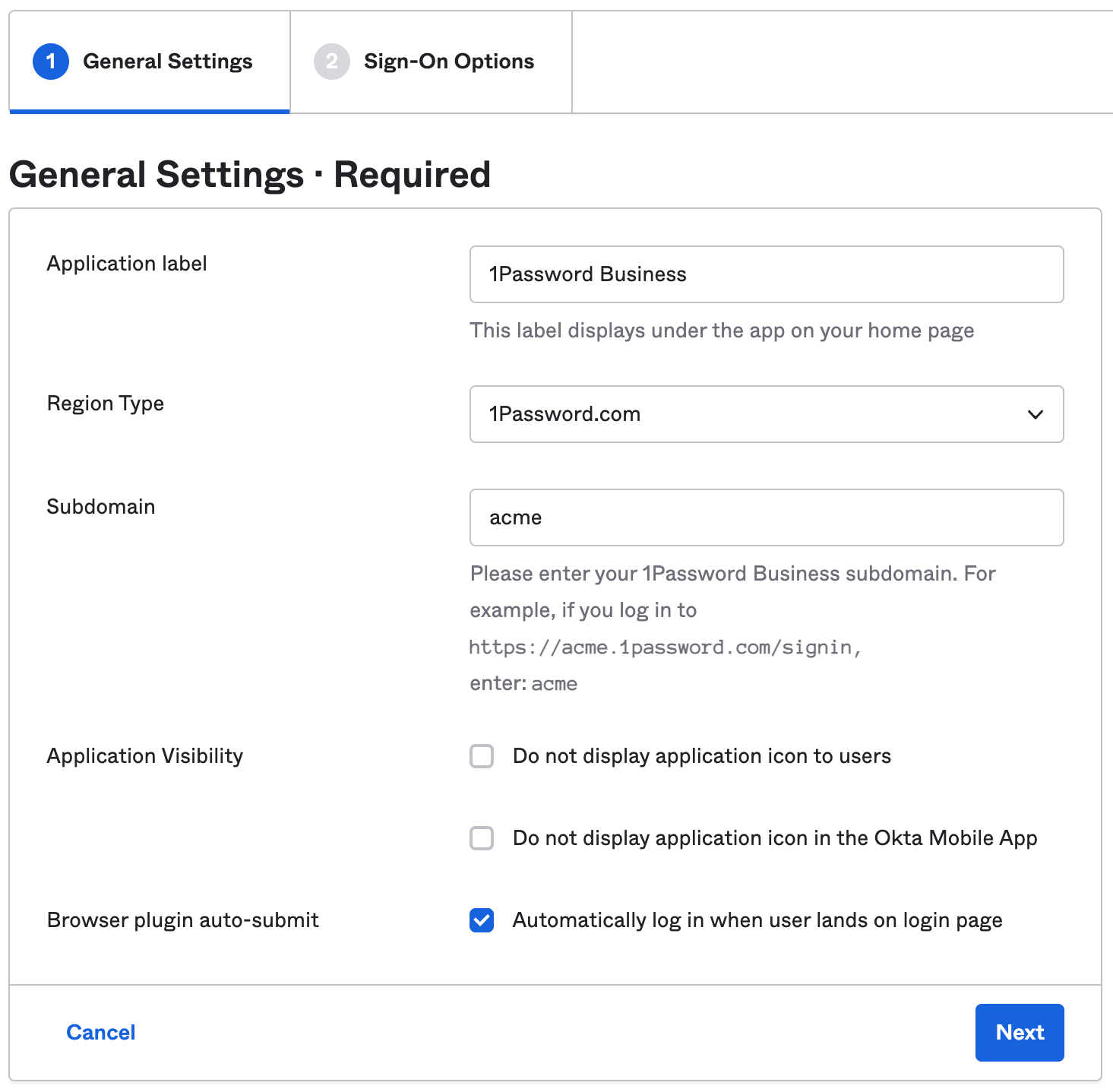
- Choose the region for your 1Password account, then enter the beginning of your sign-in address (for example:
acme) and select Next. - From the sign on methods, select Bookmark-only > Done.
You’ll see the details of the application you just created.
Step 3: Configure the application
On the 1Password Business application details page, select Provisioning. Then follow these steps.
3.1: Set up API integration
- Select Configure API Integration, then turn on Enable API Integration.
- Fill out the following fields:
- Base URL: Copy and paste your SCIM URL from the hosted provisioning setup page (not your 1Password account sign-in address). Do not include a trailing slash. For example:
https://provisioning.dev.us.svc.1infrapreview.net/scim/v2. - API Token: Copy and paste your bearer token from the hosted provisioning setup page.
- Base URL: Copy and paste your SCIM URL from the hosted provisioning setup page (not your 1Password account sign-in address). Do not include a trailing slash. For example:
- Select Save.
- Go back to the 1Password setup page and select Finish.
3.2: Set up provisioning to 1Password
Select Assignments and assign the users and groups you want to provision to 1Password. Then follow these steps:
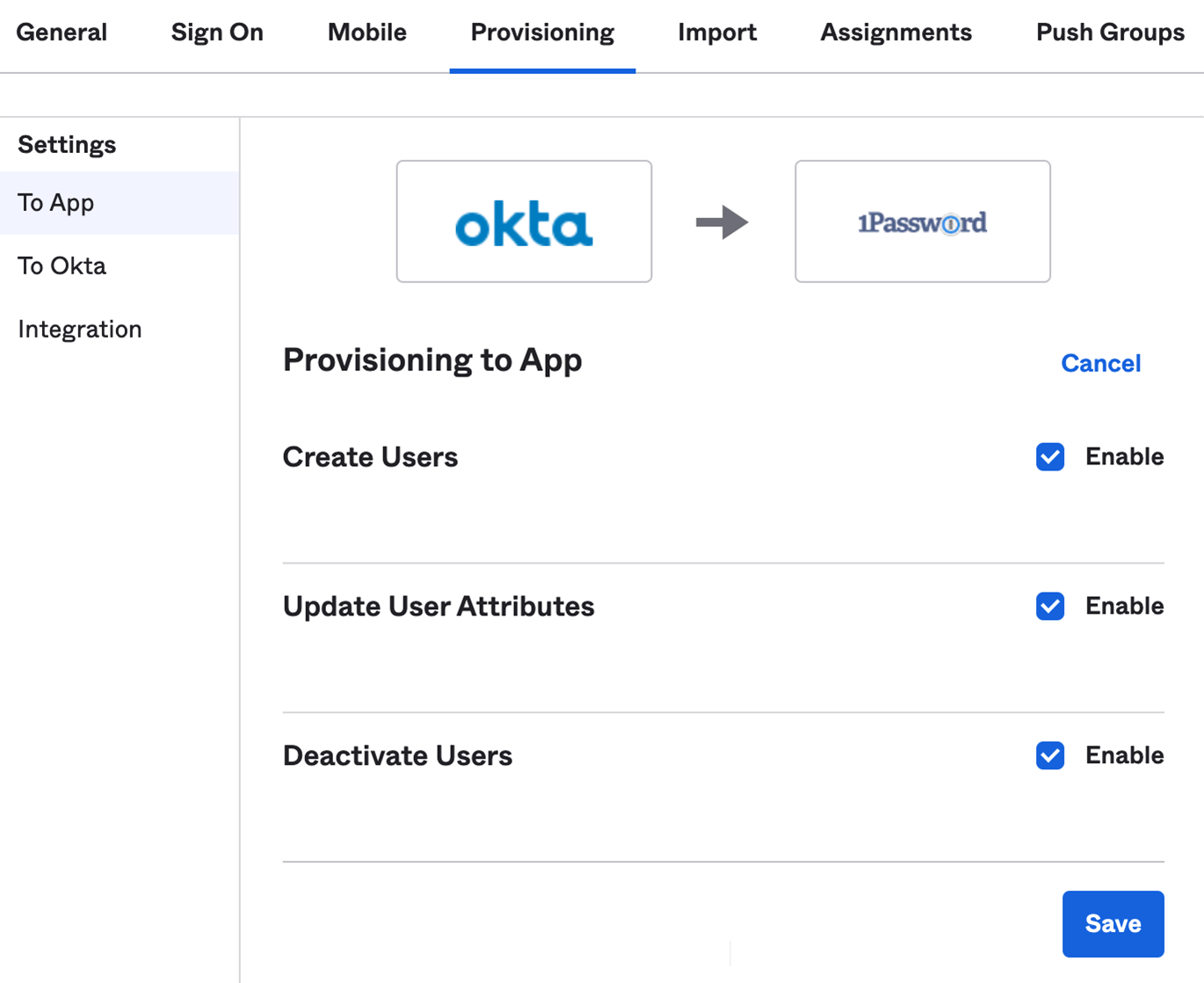
- Select Provisioning.
- Select Edit and turn on these options:
- Create Users
- Update User Attributes
- Deactivate Users
- Select Save.
3.3: Map the displayName attribute
To make sure display names in 1Password sync correctly from Okta, you’ll need to map the displayName SCIM attribute. This step is required after the application setup is complete.
On the Provisioning tab, follow these steps:
- Select Go to Profile Editor
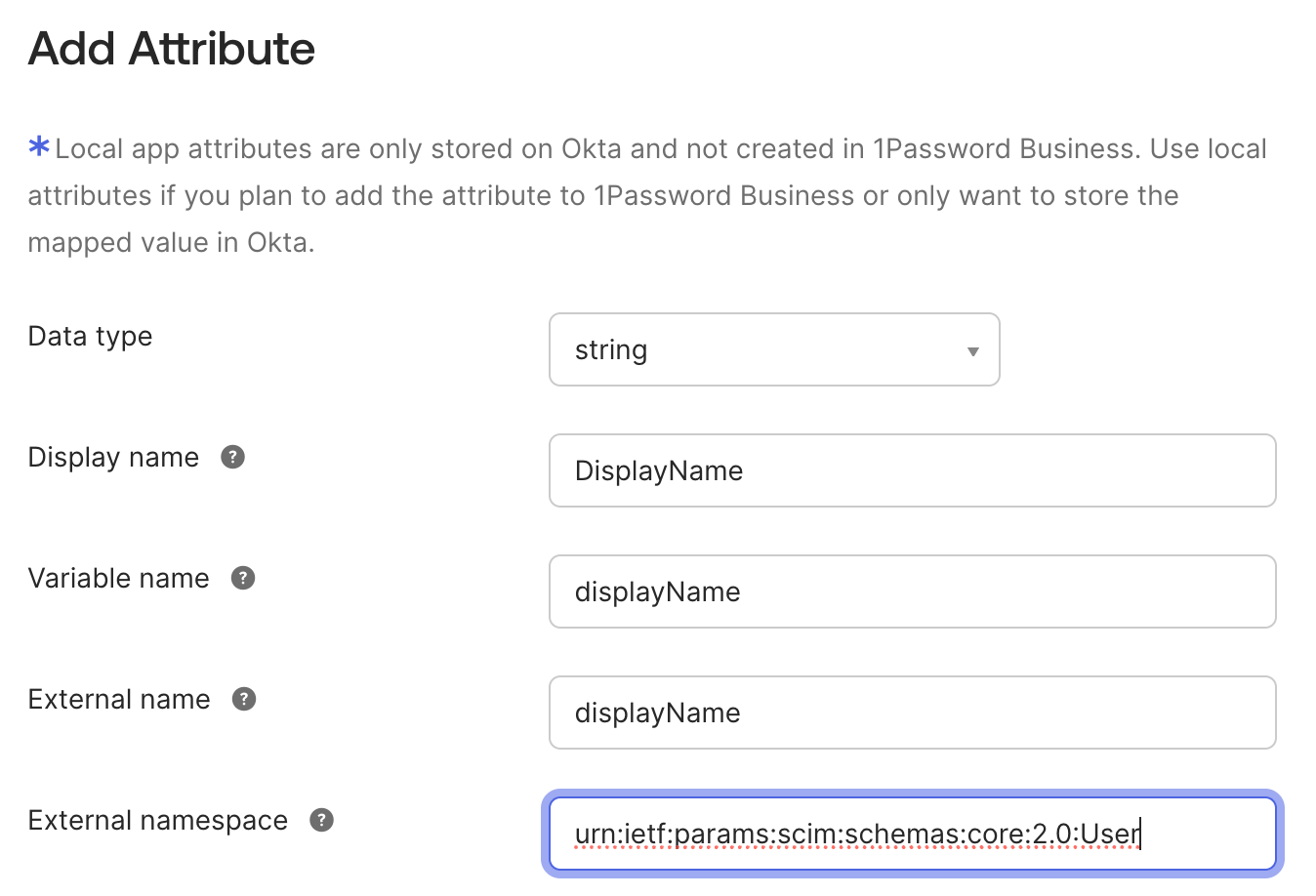
- Select Add Attribute.
- Fill out the following fields:
- Display name: Enter
DisplayName. - Variable name: Enter
displayName. - External namespace: Copy and paste the following:
urn:ietf:params:scim:schemas:core:2.0:User
- Display name: Enter
- Select Save, then select Mappings.
- Map the
displayNameattribute todisplayName, then select Save Mappings > Apply updates.
If you prefer to use the user’s first and last name as the displayName, follow these steps:
- Select Applications in the sidebar and select the 1Password Business application, then select the Provisioning tab.
- Select Show Unmapped Attributes.
- Select the pen beside DisplayName.
- Select Select a type > Expression.
- Enter the following formula:
String.join(" ", user.firstName, user.lastName) - Select Create and update, then select Save.
Next steps
When you turn on provisioning, existing 1Password users will be linked to Okta users if their email address matches. If their email address is different, they’ll be invited to 1Password again, so make sure any affected team members update their email address before you turn on provisioning.
If a team member hasn’t accepted their invite after 2 days, they’ll receive a reminder email. Invites don’t expire.
If you have existing groups in 1Password that you want to sync with Okta, add them to the groups managed by provisioning:
- Sign in to your account on 1Password.com.
- Choose Integrations in the sidebar and choose Automated User Provisioning.
- Choose Manage in the Managed Groups section, then select the groups to sync.
If you've previously used the SCIM bridge, make sure to select any groups that were already synced with Okta. This will prevent problems syncing with your identity provider, including duplicate groups.
Tip
Learn about best practices for using automated provisioning.
Manage your settings
To turn off synchronization, select Active > Deactivate.
To change the region to match your 1Password account, select General, then select your account’s region from the Region Type menu.
Learn more in the Okta Help Center.
Get help
If you need to manage team members with 1Password CLI, you’ll need to turn off hosted provisioning. You’ll be able to use 1Password CLI and hosted provisioning together in the future.
If users and groups aren’t being provisioned, make sure provisioning is turned on in your 1Password account:
- Sign in to your account on 1Password.com.
- Select Integrations in the sidebar.
- Select Hosted Provisioning.
- Make sure Sync 1Password with my identity provider is turned on.
Appendix: Attribute mappings
The following are the default attribute mappings for the 1Password Business application in Okta:
| 1Password SCIM attribute | Okta attribute | Description |
|---|---|---|
| userName | Okta username | The team member’s username and email address. |
| givenName | firstName | Their first name. |
| familyName | lastName | Their surname. |
Learn how to map Okta attributes to app attributes in the Profile Editor.