Managed items are assigned to you by your administrator and used to sign in to team apps, without requiring a username or password. You can find your managed items in your Managed vault.
Before you begin
Before you can access your Managed vault, you’ll need to install the latest version of 1Password:
After you’ve installed and signed in to 1Password, follow the steps below.
Sign in to an app with a managed item
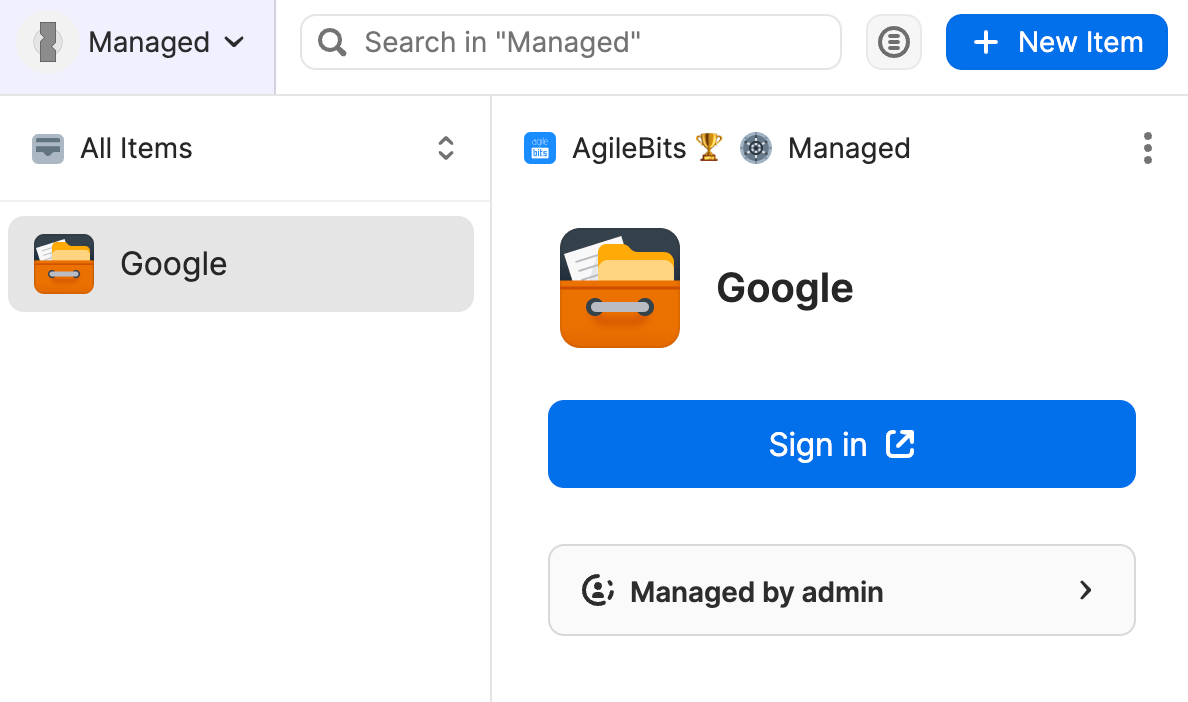
Use managed items to sign in to team apps. You can search for a managed item in your account or find it in your Managed vault.
Select Sign in , and 1Password will launch the website and sign you in automatically.
Access your Managed vault
Open your Managed vault to see the team apps your administrator has assigned to you.
In the 1Password browser extension
- Select
 in your browser’s toolbar.
 - Select your account or All Accounts in the top left.
- Select the Managed vault under your work account.
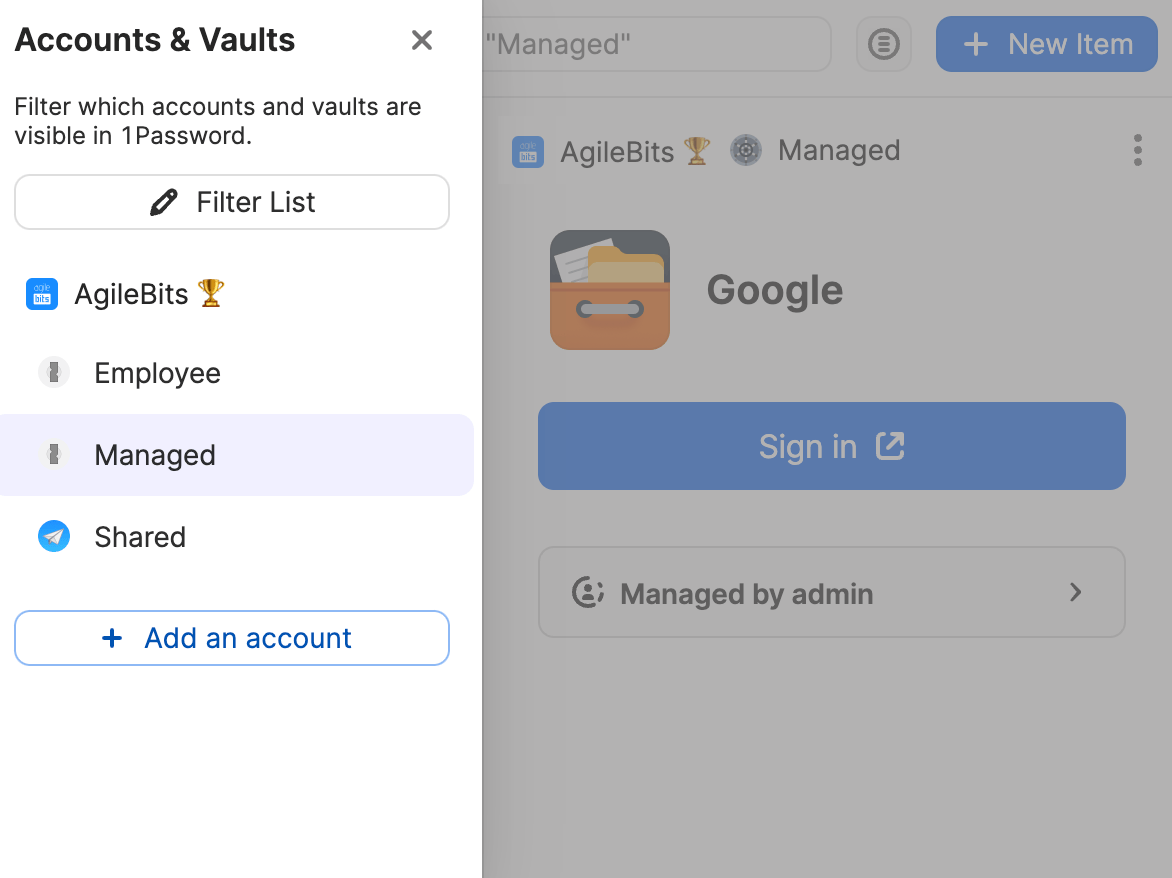
After you select your Managed vault, you’ll see all your managed items. Learn more about how to switch between accounts and vaults in the 1Password browser extension.
In the 1Password apps
- Open and unlock 1Password.
- Select your account or collection at the top of the sidebar, then select your work account.
- Select the Managed vault in the sidebar under your work account.
Important
Managed items aren’t yet fully supported in 1Password for iOS. You can find your Managed vault in 1Password for iOS, but you can’t sign in with managed items.
- Open and unlock 1Password.
- Select the icon for your account or collection at the top left, then select your work account.
- Select Items, then select the Managed vault under your work account.
- Open and unlock 1Password.
- Select your account or collection at the top of the sidebar, then select your work account.
- Select the Managed vault from the left sidebar under your work account.
Important
Managed items aren’t yet fully supported in 1Password for Android. You can find your Managed vault in 1Password for Android, but you can’t sign in with managed items.
- Open and unlock 1Password.
- Select the icon for your account or collection at the top left, then select your work account.
- Select Items, then select the Managed vault under your work account.
- Open and unlock 1Password.
- Select your account or collection at the top of the sidebar, then select your work account.
- Select the Managed vault from the left sidebar under your work account.
On 1Password.com
- Sign in to your account on 1Password.com.
- Select Your Vault Items in the sidebar. This will take you to the All Vaults view.
- Select All Vaults in the top left, then select the Managed vault.
Get help
If you don’t see a Managed vault in your account, or if you don’t see an item you need in your Managed vault, contact your team administrator for help.
If you have a guest account, you won’t have access to a Managed vault. If you’re not sure if you’re a guest, contact your team administrator for help. This is usually the person who invited you to join your 1Password account.