Tip
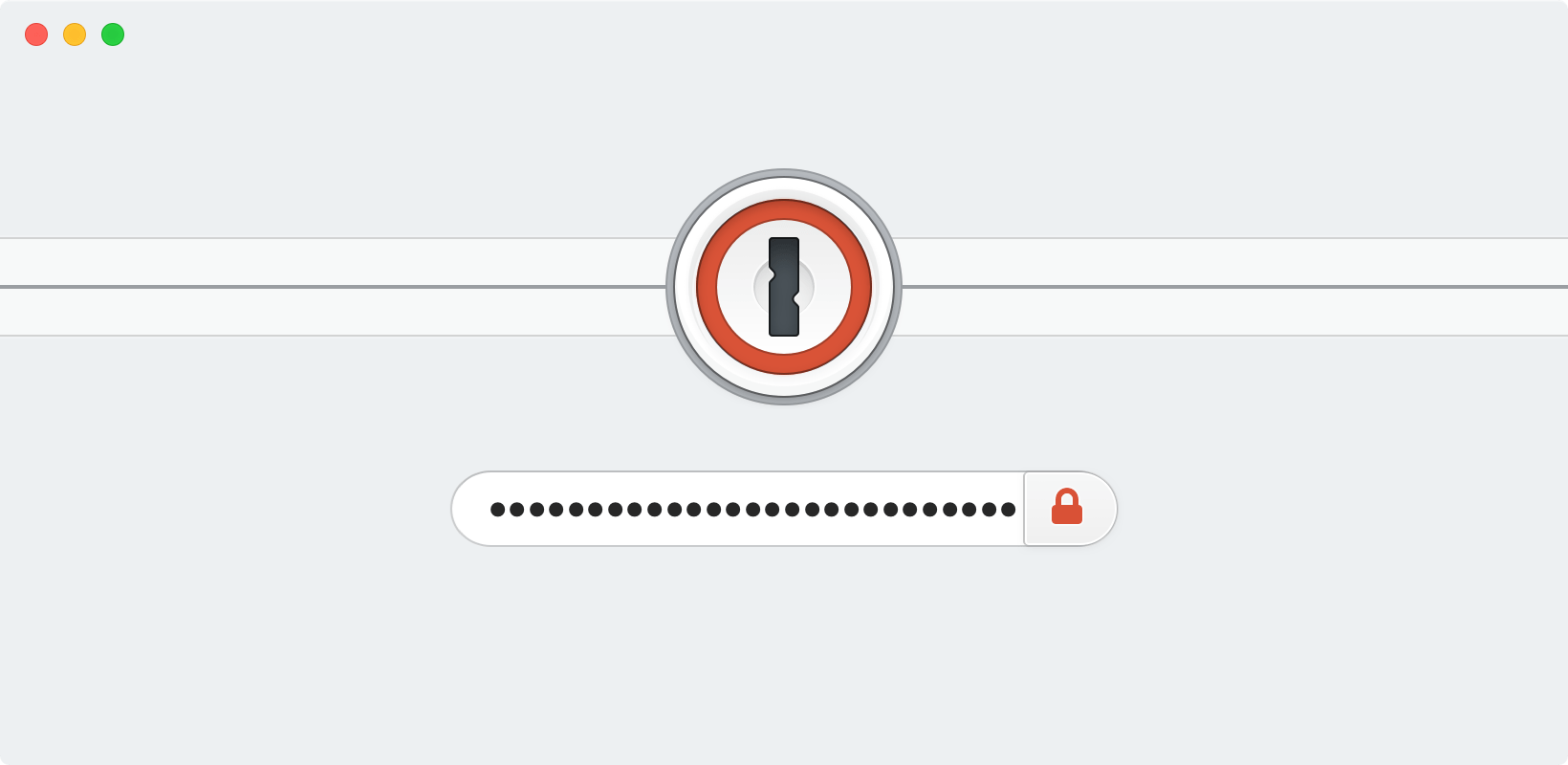
The password you use to unlock the 1Password apps is your Master Password. If you forgot your Master Password, follow the steps below to try to recover it.
If you think you remember your Master Password
If you believe you know your Master Password, but it isn’t accepted, try these steps:
Make sure you’re typing lowercase and uppercase letters correctly. If Caps Lock is turned on, the Master Password field shows a Caps Lock symbol ⇪.
Type your Master Password in another app, like a text editor, so you can see that you’ve entered it correctly. Then copy and paste it into 1Password.
If you’ve ever changed your Master Password, try previous ones.
If you have multiple vaults, try your other Master Passwords.
If your Master Password has spaces, try it with and without spaces.
If your Master Password has accents or special characters, try it with and without them.
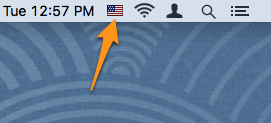
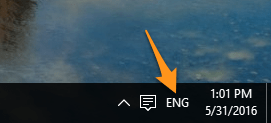
If you use multiple languages, make sure you’re using the correct keyboard layout when you enter your Master Password.
If you don’t know your Master Password or it isn’t accepted
For your security, your Master Password is:
- never transmitted over the internet
- never logged locally
- never known to us at 1Password
- only known to you
- the only way to decrypt your data
This makes sure that your data is safe from intruders, but it also means that no one can reset your password. However, you might be able to recover access to your data.
Recover using Touch ID or Apple Watch
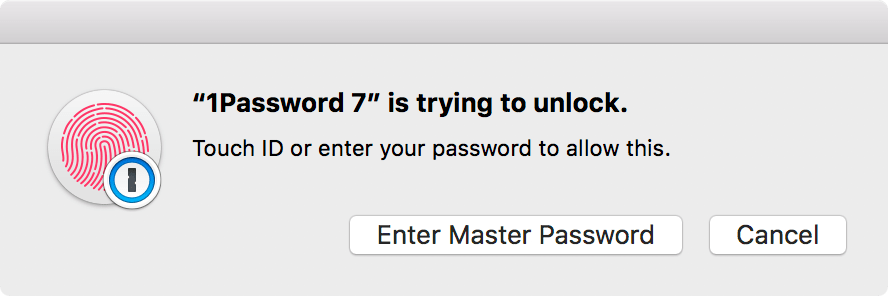
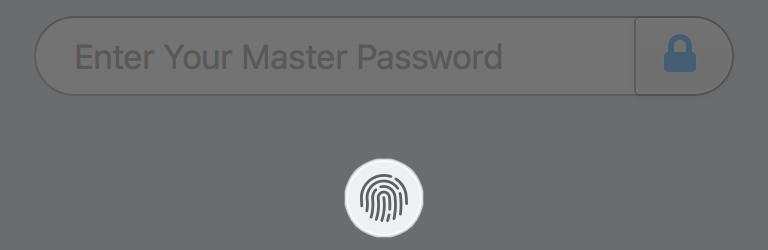
If 1Password is locked, you’ll see a message that “1Password is trying to unlock.”
To approve and unlock 1Password, place your finger on the Touch ID sensor on your Mac or double-click the side button on your Apple Watch.
If you don’t see the prompt, select the Touch ID button or Apple Watch button on the lock screen.
Important
Recover using Touch ID or Face ID
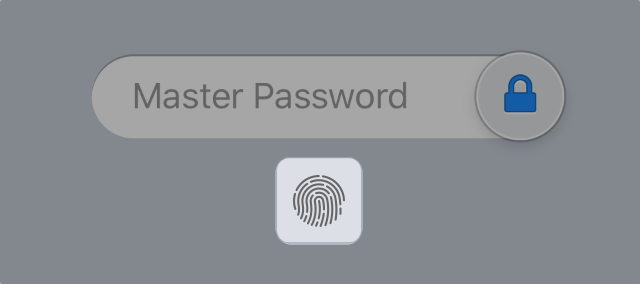
If you use 1Password on an iOS device with Touch ID or Face ID, try to unlock the app using it.
If you aren’t prompted to use Touch ID or Face ID when you open 1Password, select the button below the password field.
Important
Recover using Windows Hello
If 1Password is locked, try to unlock the app using Windows Hello.
If you aren’t prompted to use it when you open 1Password, select  or press Enter when the Master Password field is blank.
If you’re prompted to unlock with Windows Hello, but your fingerprint or face isn’t recognized, select More choices and unlock the app with your device PIN.
Important
Recover using biometric unlock
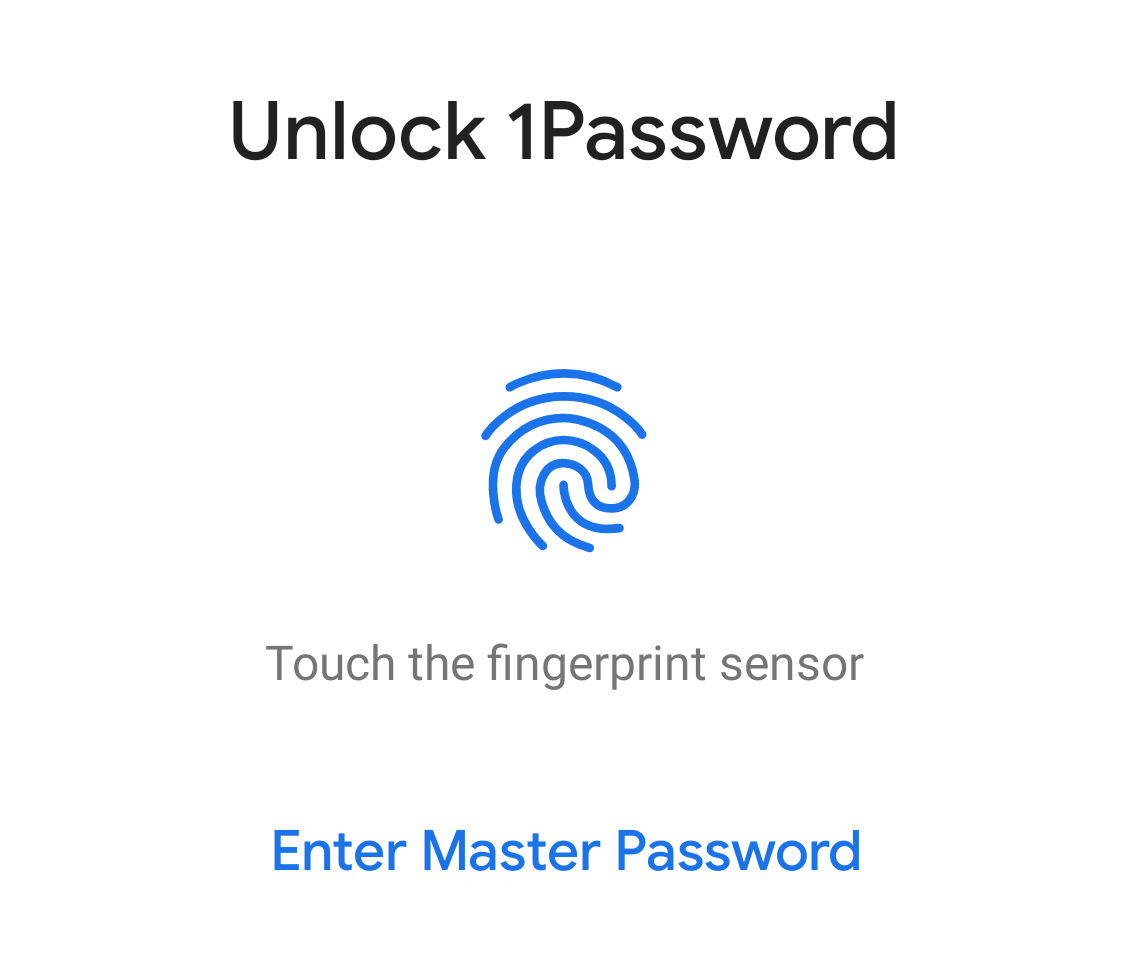
If you use 1Password on an Android device with biometric unlock, try to unlock the app by placing your finger on the fingerprint sensor, or let your device scan your face or eyes, until 1Password unlocks.
If you aren’t prompted to use biometric unlock when you open 1Password, select the fingerprint button below the password field or enter your PIN code, if you set one up.
Important
Restore a backup
If you can’t unlock using the methods above, try to restore a backup from when your Master Password was previously accepted.
Recover using another device
If you have 1Password on multiple devices, see if your Master Password works on the others.
If your Master Password works everywhere except one device, send a 1Password diagnostics report from the device where it’s not working.
Get more help
If you tried all the steps above and still can’t unlock 1Password, you’ll need to start over. Contact 1Password Support.