Step 1: Export the data
Open the 1Password Data Export page in Safari (Mac only) or Chrome, whichever browser has the 1Password 3 extension installed with the data you want to export:
Enter your password.
Select the export option you were instructed to choose by 1Password Support:
- Export non-synced items
- Export everything
Select Export.
Then choose your platform below and follow the steps to copy, paste, import, and delete your exported data.
Step 2: Copy and paste the data
Select inside the text area.
Select Edit > Select All.
Select Edit > Copy.
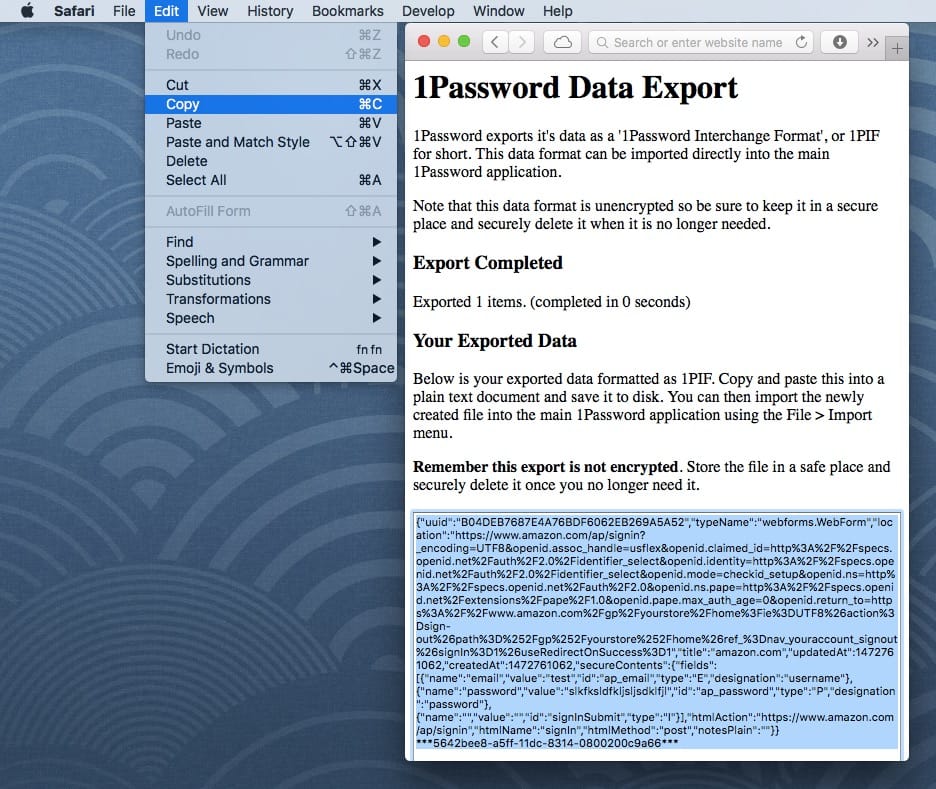
Only copy the data in the box, not the text above. If you copy the text above the box you won’t be able to import it.
Open TextEdit, located in your Applications folder.
Select Format > Make Plain Text.
Select Edit > Paste.
Select File > Save.
Name the file
extension.1pifand save it on your desktop to make it easy to locate.
Step 3: Import the 1PIF file into 1Password
- Open and unlock 1Password.
- Select File > Import.
- Select Other, then select Import a 1PIF File and follow the on-screen instructions to import the
extension.1piffile from your desktop.
Step 4: Delete the unencrypted data
After you’ve migrated the data into 1Password, you’ll want to make sure to delete the extension.1pif file since it contains your sensitive data in an unencrypted format.
- In Finder, drag
extension.1piffrom your desktop to the Trash. - Select Finder > Empty Trash.
Step 2: Copy and paste the data
Select inside the text area.
Select all the items by pressing CtrlA.
Select the Chrome menu in the toolbar.
Select Copy.
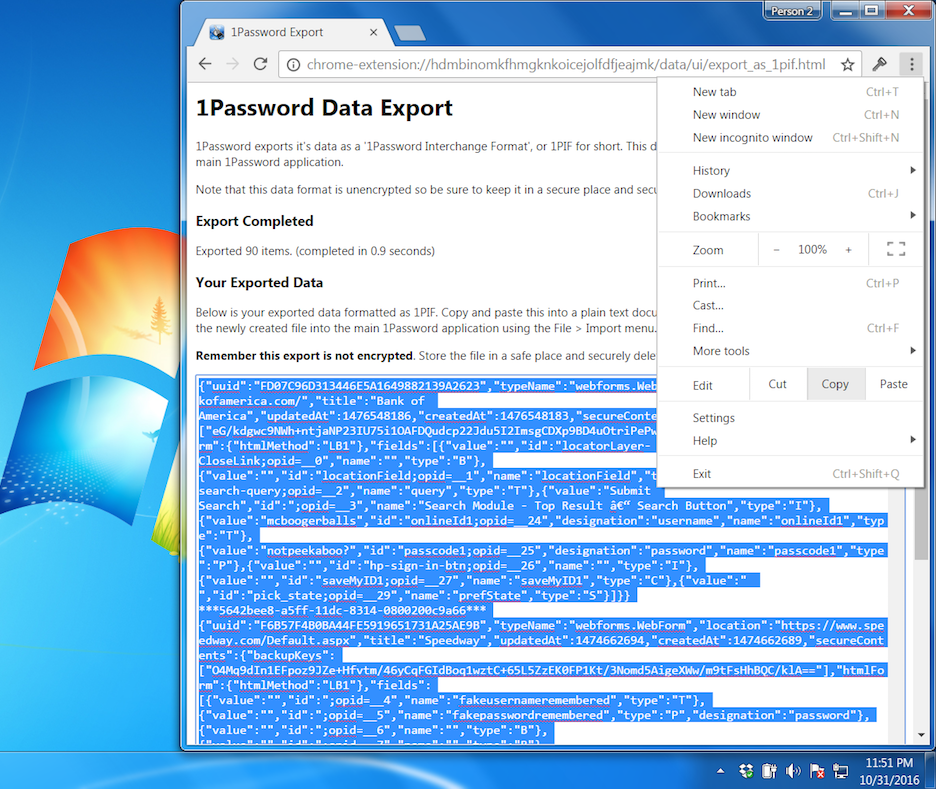
Only copy the data in the box, not the text above. If you copy the text above the box you won’t be able to import it.
Open Notepad, located in the Start Menu.
Select Edit > Paste.
Select File > Save As.
Set “Save as type” to All Files, and Encoding to Unicode.
Name the file
extension.1pifand save it on your desktop to make it easy to locate.
Step 3: Import the 1PIF file into 1Password
Open and unlock 1Password.
Select File > Import, select the
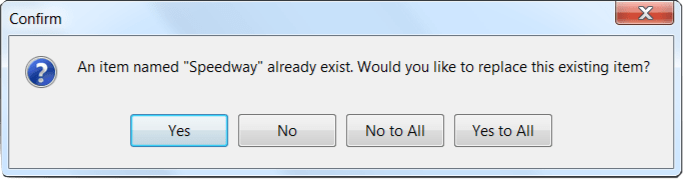
extension.1piffile, then select Open.Select Yes to All on the import confirmation dialog.
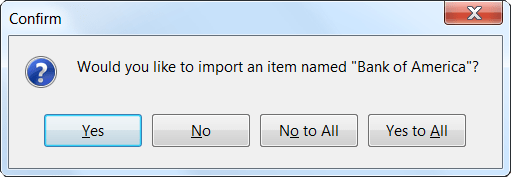
Select No to All if asked to replace existing items with the same name.
Step 4: Delete the unencrypted data
After you’ve migrated the data into 1Password, you’ll want to make sure to delete the extension.1pif file since it contains your sensitive data in an unencrypted format.
- Drag
extension.1piffrom your desktop to the Recycle Bin. - Right-click, then select Empty Recycle Bin.