This page shows how shortcodes, Markdown, and HTML elements render on the support site. To view and copy the source for an example, select Show template in its section.
Shortcodes
Callouts
Show template
{{< callout "tip" >}}

{{< /callout >}}
A paragraph and an image:
Tip
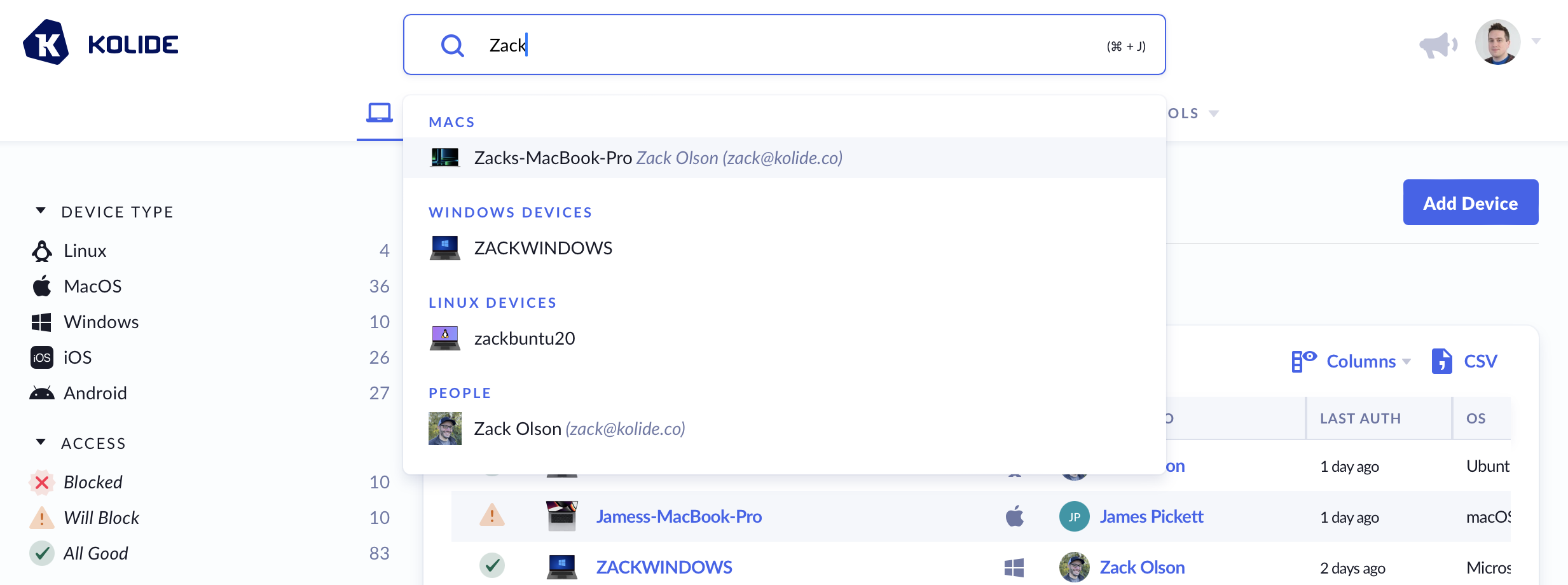
You can search the device list by team member name to find every device assigned to one person.
A lead-in paragraph, fenced code block, and closing paragraph:
Note
If you installed 1Password CLI with Homebrew, check which version you have before you report a problem:
op --version
Include that version number in your report.
A paragraph and a button:
Help
Don’t have a 1Password membership? Try one free. After you have your new account, migrate your existing 1Password data to it.
A nested list of links:
Read More
A heading, paragraph, unordered list, and closing paragraph:
User Guide
Before you begin
Account recovery needs two people, so check that both are ready:
- A team member who’s lost access to their account.
- An administrator with the Recover Accounts permission.
If nobody has that permission, an account owner can grant it first.
A paragraph and a link:
Try it yourself
Explore our interactive demo to see how the import works.
A bold lead-in and a numbered list:
Important
What if Kolide isn’t listed?
If you don’t see “Kolide” in the list of available applications, try the following steps:
- Click the
+button to add a new permitted application. This will open a new Finder window. - On your keyboard, press the
Command + Shift + Gkeys simultaneously to open the Go to Folder window. - In the Go to Folder window, type
/usr/local/kolide-k2/Kolide.appand press Enter.
Cards
Show template
{{< featured-cards >}}

  {{< card-column 3 >}}
    {{< card href="" img="" alt="" title="" description="" >}}
  {{< /card-column >}}

{{< /featured-cards >}}






Platforms
Show template
{{< platform >}}

{{< mac >}}

{{< /mac >}}

{{< ios >}}

{{< /ios >}}

{{< win >}}

{{< /win >}}

{{< android >}}

{{< /android >}}

{{< linux >}}

{{< /linux >}}

{{< /platform >}}
To turn off Markdown formatting:
- Open 1Password, then select 1Password > Settings.
- Turn off Format secure notes using Markdown.
To turn off Markdown formatting:
- Open and unlock 1Password.
- Select the icon for your account or collection at the top left, then select Settings.
If you're using an iPad, select your account or collection at the top of the sidebar.
- Select General, then turn off Format Using Markdown.
To turn off Markdown formatting:
- Open 1Password, then select the ellipsis at the top of the sidebar. Select Settings.
- Turn off Format secure notes using Markdown.
To turn off Markdown formatting:
- Open and unlock 1Password.
- Select the icon for your account or collection at the top right, then select Settings.
If you're using a tablet, select your account or collection at the top of the sidebar.
- Select General, then turn off Format secure notes using Markdown.
To turn off Markdown formatting:
- Open 1Password, then select the ellipsis at the top of the sidebar. Select Settings.
- Turn off Format secure notes using Markdown.
Flex boxes
Show template
{{< flex first col-sm-3 >}}
<p><img src="" alt="" width="128"></p>
{{< /flex >}}

{{< flex last col-sm-9 >}}

{{< /flex >}}

Icons
Show template
{{< icon fa-pencil >}}
Edit · More · Devices
Table of contents
Show template
{{< toc >}}

* [{{< icon fa-pencil >}} Link text](#heading-id)

{{< /toc >}}
Steps
Show template
{{< steps first col-sm-8 >}}

## Step heading

{{< /steps >}}

{{< steps last col-sm-4 >}}
<p><img class="round" src="" alt="" width="235"></p>
{{< /steps >}}
Example step
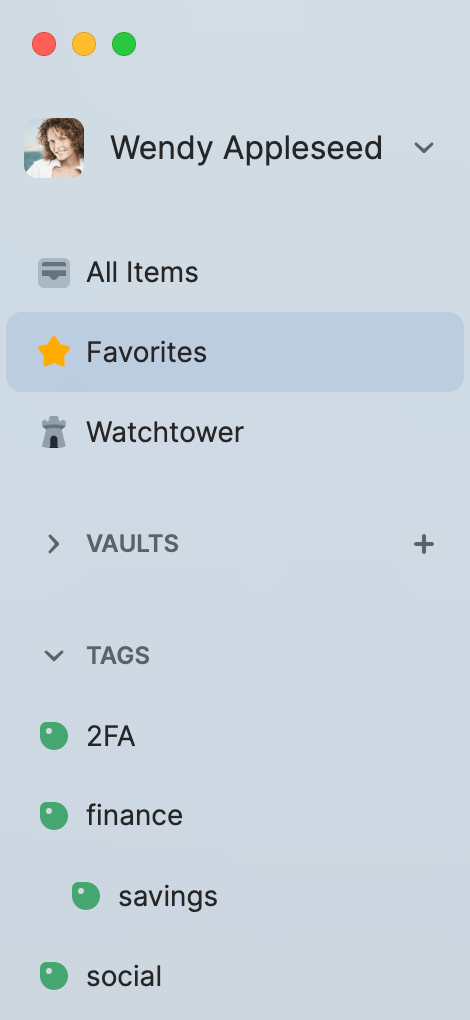
Step content beside an image.
Columns
Show template
{{< columns >}}

* List item
* List item

{{< /columns >}}
- never transmitted over the internet
- never logged locally
- never known to us at 1Password
- only known to you
- the only way to decrypt your data
Table
| Style | Syntax |
|---|---|
Heading | # Heading 1, ## Heading 2, ### Heading 3 |
| Bold | **Bold** |
| Italic | _Italic_ or *Italic* |
| ~~Strikethrough~~ | |
| Dividing line | --- Requires an empty line above and below. |
| ● Bulleted list | * List item Use asterisks (*), hyphens (-), or plus signs (+). |
| 1. Numbered list | 1. List item |
Quotation | > Quotation |
Code | `Code` |
| ``` Pre-formatted text ``` Or indent each line with at least four spaces. |
Table rule
Show template
| Rule | Action |
| ---- | ------ |
| Example rule | Allow |
{.firewall-rule}
| Rule | Action |
|---|---|
| Example rule | Allow |
Horizontally scrollable code block
Show template
{{< scrollable-code-block >}}{{< /scrollable-code-block >}}
{
	"accounts": [{
		"attrs": {
			"accountName": "Wendy Appleseed",
			"email": "wendy.c.appleseed@gmail.com",
			"uuid": "D4RI47B7BJDT25C2LWA7LEJLHZ",
			"domain": "https://my.1password.com/"
		},
		"items": [{
			"title": "Dropbox",
			"url": "https://www.dropbox.com/login?continue",
			"notesPlain": "Secure note for Dropbox login."
		}]
	}]
}
Snippet
Show template
{{< snippet name="dt-api-version.md" plain="true" >}}
The current API version is 2026-04-07.
Extension and no-extension
Show template
{{< extension >}}
{{< /extension >}}

{{< no-extension >}}
{{< /no-extension >}}
These boxes are toggled by browser extension detection. You may not see them on this page unless the site JavaScript shows the matching state.
Markdown
Headings
Show template
# Heading 1

## Heading 2

### Heading 3

#### Heading 4

##### Heading 5

###### Heading 6
Heading 1
Heading 2
Heading 3
Heading 4
Heading 5
Heading 6
Heading 2
This is a test paragraph.
Heading 3
This is a test paragraph.
Heading 4
This is a test paragraph.
Heading 5
This is a test paragraph.
Heading 6
This is a test paragraph.
Paragraphs and lists
Show template
This is a paragraph with **bold**, *italic*, and a [link to 1Password](https://1password.com/).

1. Numbered list item
2. Another item
   1. Nested numbered item
3. Final item

- Bulleted list item
- Another item
  - Nested bullet

> Block quotation for quoted text or callouts that are not shortcodes.
This is a paragraph with bold, italic, and a link to 1Password.
- Numbered list item
- Another item
- Nested numbered item
- Final item
- Bulleted list item
- Another item
- Nested bullet
Block quotation for quoted text or callouts that are not shortcodes.
Inline code and fenced code blocks
Press CommandC to copy. Inline code: `example`.
curl -H "Authorization: Bearer $TOKEN" "https://example.com/api"
Markdown table
Show template
| Column | Value |
| ------ | ----- |
| One    | First |
| Two    | Second |
| Column | Value |
|---|---|
| One | First |
| Two | Second |
HTML
Notes
Show template
1. Step
2. Step
	<p class="note"></p>
- Open and unlock 1Password.
- Select the icon for your account or collection at the top left, then select Settings.
If you're using an iPad, select your account or collection at the top of the sidebar.
- Select General, then turn off Format Using Markdown.
Images with classes
Show template
<p><img class="round shadow" src="" alt="" width="420"></p>

<p><img class="round border" src="" alt="" width="420"></p>

<p><img class="center" src="" alt="" width="420"></p>

Caption below an image
Show template
![]()
<figcaption></figcaption>
<br>

<figure>
  <img src="" alt="">
  <figcaption></figcaption>
</figure>
Other inline HTML
Show template
H<sub>2</sub>O and E=mc<sup>2</sup>. <del>Deleted</del> and <ins>inserted</ins> text. ~~Strikethrough via Markdown.~~
H2O and E=mc2. Deleted and inserted text. Strikethrough via Markdown.
Legacy / unused
Legacy and unused HTML elements
Block elements
div element.Päivänsäteenkuja 4 A, Espoo, Finland
- Definition List Title
- This is a definition list division.
Inline elements
The b element is stylistically different text from normal text.
The i element is text that is offset from the normal text.
The u element is underlined text.
This small text is for fine print.
Abbreviation: HTML
This text is a short inline quotation.
This is a citation.
The dfn element indicates a definition.
The mark element indicates a highlight.
The variable element, such as x = y.
The time element:
This is sample text inside code markup- This is sample text inside kbd markup
- This is sample text inside samp markup
- This is sample text inside tt markup
Embedded content
Random markup
Generic span wrapper
HTML How to meet ladies
This is inline text with subscript and superscript elements.
f(x) = a0 + a1x + a2x2, where a2 ≠ 0
Tables
| Char. | Explanation | Notes |
|---|---|---|
| ê | e with circumflex | Latin 1 character, should be okay. |
| — | em dash | Windows Latin 1 character, should also be okay. |
| ā | A with macron (line above) | Latin Extended-A character, not present in all fonts. |
| Ω | capital omega | A Greek letter |
| − | minus sign | Unicode minus |
| ⌀ | diameter sign | relatively rare in fonts. |
Hyphenation
In the following, a width setting should cause some hyphenation, depending on support for various methods of hyphenation.
CSS-based hyphenation
Until recently the great majority of naturalists believed that species were immutable productions, and had been separately created. This view has been ably maintained by many authors.
JavaScript-driven hyphenation
Until recently the great majority of naturalists believed that species were immutable productions, and had been separately created. This view has been ably maintained by many authors.
Explicit hyphenation hints (soft hyphens)
Until recently the great majority of naturalists believed that species were immutable productions, and had been separately created. This view has been ably maintained by many authors.