Note
During sign-in, Device Trust may need to save information, such as an updated Check result or a new device registration. If a service disruption prevents that information from being saved, Device Trust automatically retries for up to 30 seconds.
If it still can’t save the information, it follows the Device Trust Authentication setting you choose. Depending on that setting, Device Trust can allow the person to continue signing in without completing some or all of the required verification, known as “failing open”.
How it works
Most sign-ins don’t need Device Trust to save information. For example, if a registered device has up-to-date Check results and isn’t blocked, Device Trust only needs to read information. A service disruption doesn’t affect that sign-in.
If Device Trust can’t save information during a sign-in, it shows the person a “One moment” page and tries again every 5 seconds. If the disruption is brief, the sign-in continues without the person doing anything.
If Device Trust still can’t save the information after 30 seconds, it follows your organization’s setting.
Sign-in steps that require saving information
The following sign-in steps require Device Trust to save information:
| Sign-in step | When it happens |
|---|---|
| Refresh a stale Check | A blocking Check’s latest result is older than its shelf life. Device Trust runs the Check again before allowing sign-in, even if the device would pass. |
| Recheck | The person selects Recheck on the Device Blocked page. |
| Register a device | The person registers their device or requests approval to register it. |
| Snooze a Check | The person snoozes a blocking Check they have permission to snooze. |
Important
Choose a Device Trust Authentication setting
To choose what happens when Device Trust can’t save sign-in information:
- In the Device Trust admin console, select your profile in the top-right corner.
- Select Settings, then select Device Trust Authentication in the sidebar.
- In the “If it takes too long to check the device” section, choose a setting:
- Keep Waiting: Device Trust never skips verification. Choose this if every sign-in must be fully verified, even if team members have to wait or start over.
- Verify Device Registration and Skip any End-User Snoozable Checks (Recommended): Device Trust skips stale Checks only if the person could have snoozed all of them. Otherwise, the person keeps waiting. Choose this to keep team members signing in without letting them skip a Check they couldn’t already snooze.
- Verify Device Registration and Skip any Unresponsive Checks: Device Trust skips any stale Check, including Checks people can’t snooze. Choose this to let team members keep signing in, even if a Check they can’t snooze has a stale result.
- Skip everything, just let the user authenticate (High Risk): Device Trust skips stale Checks, Rechecks, and device registration. This setting isn’t available by default, so review the considerations before you choose it.
- Select Save.
Note
Compare settings
If Device Trust still can’t save information after 30 seconds, it follows your Device Trust Authentication setting:
| Setting | Stale Checks | Recheck | Device registration |
|---|---|---|---|
| Keep Waiting | Waits | Waits | Waits |
| Verify Device Registration and Skip any End-User Snoozable Checks (Recommended) | Skipped if every stale Check can be snoozed. Otherwise, waits. | Waits | Waits |
| Verify Device Registration and Skip any Unresponsive Checks | Skipped | Waits | Waits |
| Skip everything, just let the user authenticate (High Risk) | Skipped | Skipped | Skipped |
When a step waits, the person stays on the “One moment” page while Device Trust keeps trying. If Device Trust saves the information before the sign-in times out after 5 minutes, the sign-in continues as usual.
If a person snoozes a Check and Device Trust can’t save the snooze:
- With “Keep Waiting”, the Check still blocks the sign-in.
- With any other setting, the person continues to sign in.
Considerations for Skip everything
Important
“Skip everything, just let the user authenticate” isn’t available by default. To turn it on for your organization, contact your 1Password account team or 1Password Device Trust support. After it’s turned on, follow the steps to choose a setting and select Skip everything, just let the user authenticate.
Even with this setting, Device Trust still denies a sign-in if:
- The device is registered to a different person.
- The person isn’t allowed to access the app.
- Your organization or an administrator previously denied the device’s registration.
What your team members see
When stale Checks are skipped
When Device Trust skips stale Checks, the person sees the Checks that were skipped before they continue to sign in.
With “Verify Device Registration and Skip any End-User Snoozable Checks”, the list only includes Checks the person could have snoozed:
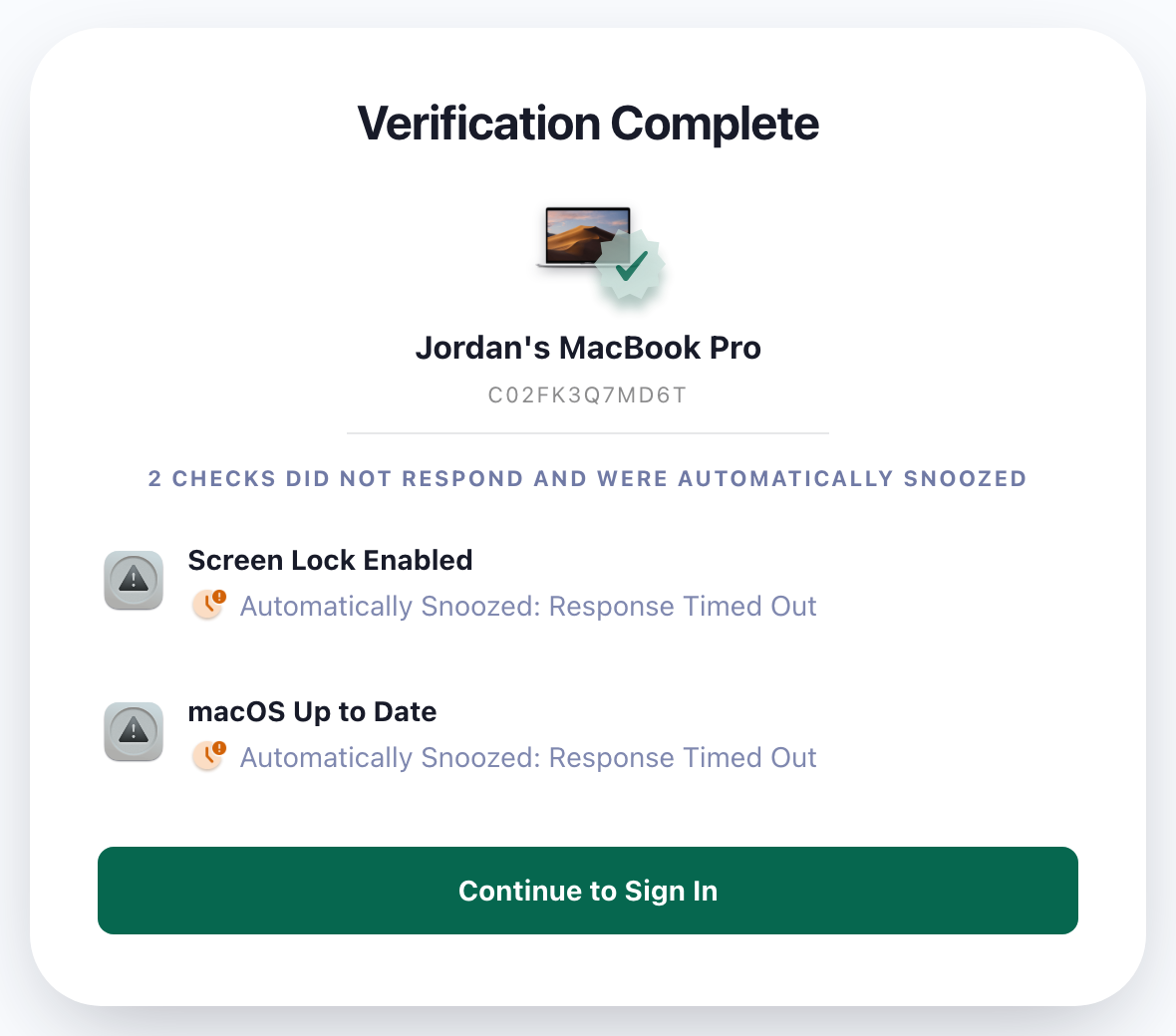
With “Verify Device Registration and Skip any Unresponsive Checks”, the list can also include Checks that can’t be snoozed.
When Skip everything is used
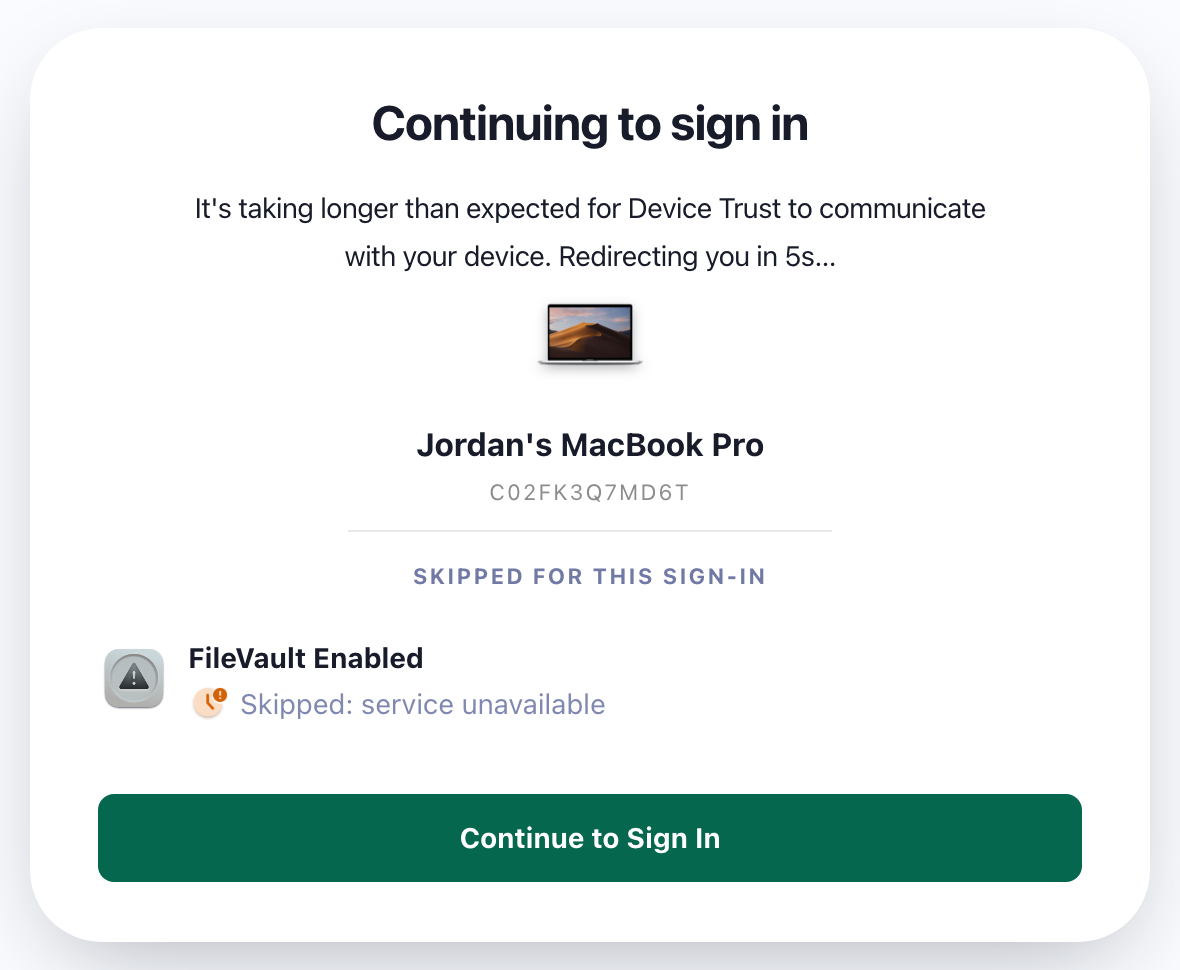
Before the person signs in, they see a “Continuing to sign in” page that lists what was skipped, like device registration or blocking Checks. The sign-in continues automatically after 5 seconds, or the person can select Continue to Sign In.
For example, if a blocked device’s Recheck couldn’t be saved, the page lists the Checks that were skipped:
When the sign-in times out
If a step is still waiting when the sign-in times out after 5 minutes, the person sees a timeout page and can start the sign-in again.
Review sign-ins that failed open
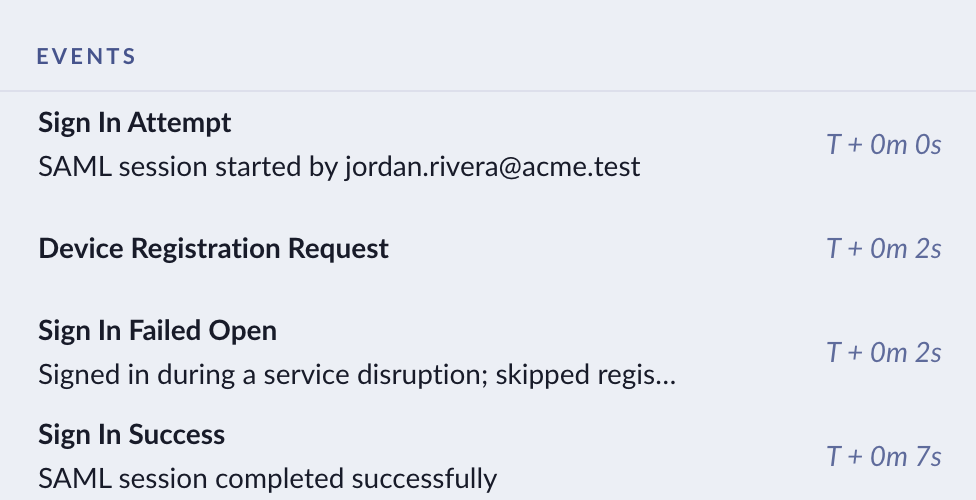
Each sign-in that uses Skip everything, just let the user authenticate appears in Auth Logs with a Sign In Failed Open event. The event description lists what was skipped. For example: “Signed in during a service disruption; skipped registration and 2 Checks”.
When Device Trust skips stale Checks, the session shows a Checks Automatically Snoozed event instead.
To review these sign-ins:
- In the Device Trust admin console, select Tools > Auth Logs.
- Select the arrow next to a session to show its events.
Get events with the API
You can also get these events with the Device Trust API. Sign-ins that failed open have the event type sign_in_failed_open:
{
  "timestamp": "2026-10-14T18:25:03.114Z",
  "event_type": "sign_in_failed_open",
  "event_description": "Signed in during a service disruption; skipped registration"
}