Tip
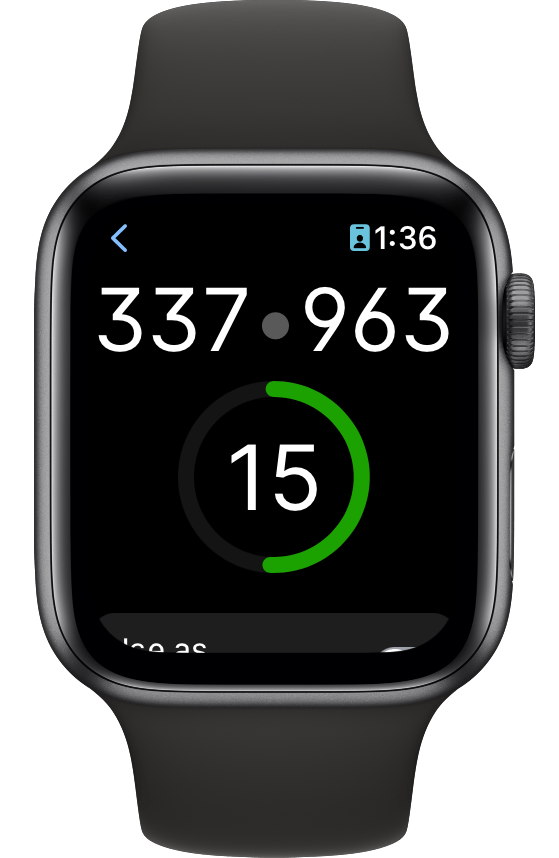
Use 1Password on your Apple Watch to quickly look up information:
- credit card numbers and PINs
- one-time passwords
- bank account details
- passport numbers
- Wi-Fi QR codes
- secure notes
To get started, download and set up 1Password on your iPhone, then add items to your Apple Watch.
Add and remove items from your Apple Watch
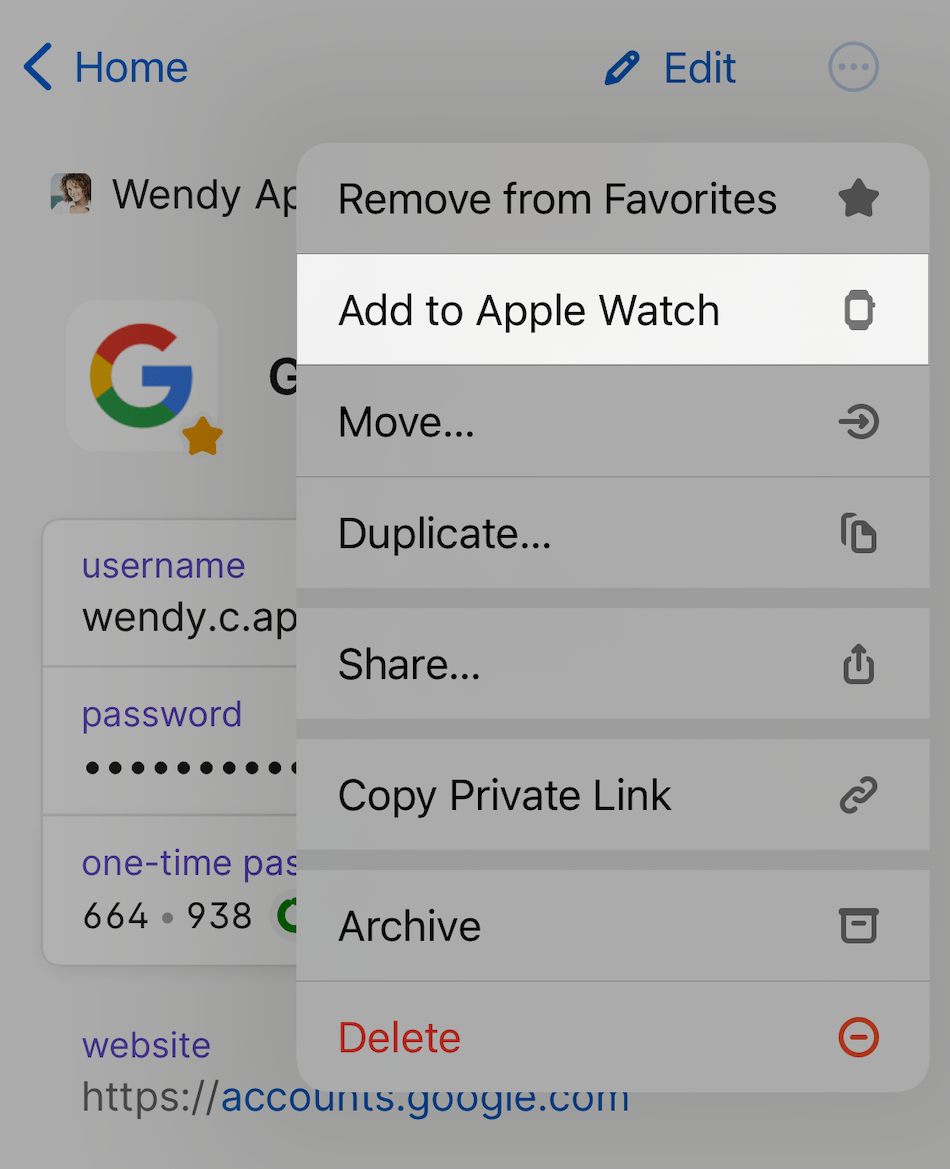
To add an item to your Apple Watch:
- Open and unlock 1Password on your iPhone.
- Find the item you want to add to your watch.
- Select the ellipsis > Add to Apple Watch.
To add multiple items to your Apple Watch at the same time:
- In a list of items, swipe to the right on an item and select the checkmark .
- Select the items you want.
- Under the Done button, select the ellipsis > Add to Apple Watch.
To see all the items you’ve added to your watch, select Items, then scroll down to Tags and select Apple Watch.
If you don't see the Tags section, learn how to customize the items tab to see your tags.
To remove an item from your Apple Watch, select it, then select the ellipsis > Remove from Apple Watch.
View items on your Apple Watch
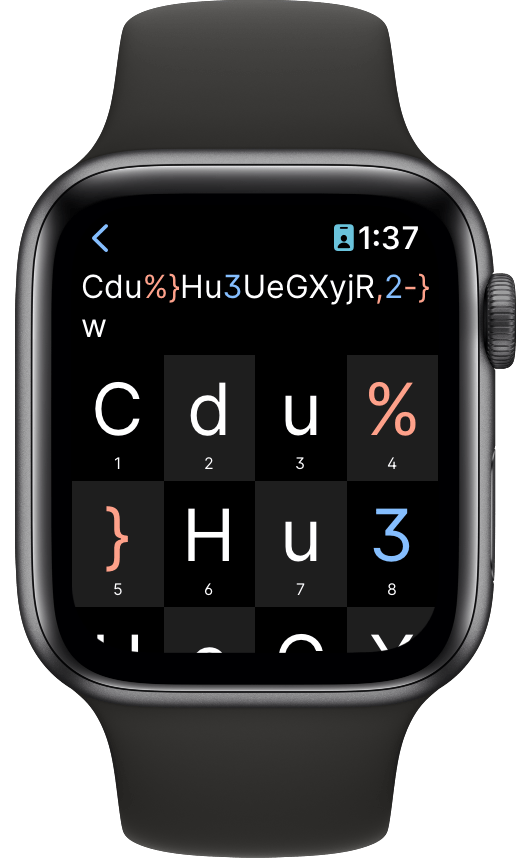
To open 1Password on your Apple Watch, press the Digital Crown and select  on the Home screen.
To view an item, select it. You can select any field to enlarge it.
View one-time passwords on your watch face
- Open 1Password on your Apple Watch and select an item.
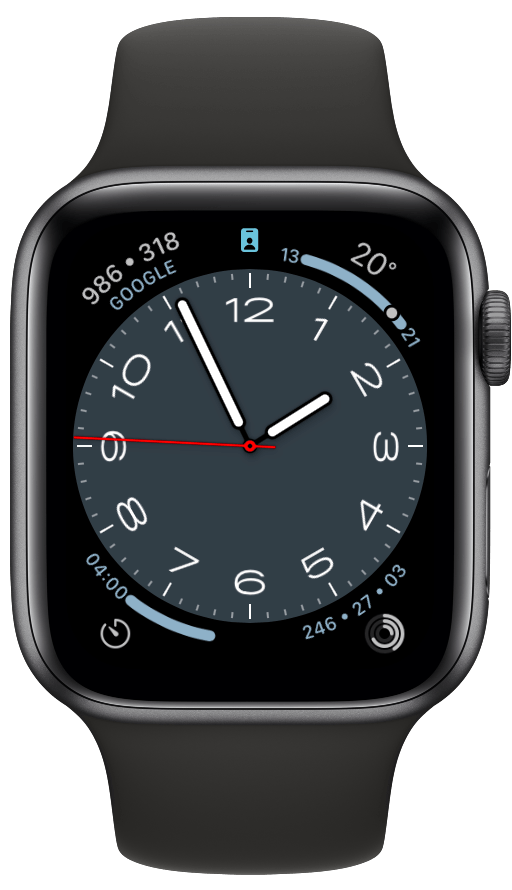
- Scroll down and turn on Use as complication.
- Customize your watch face and add the new complication.
You can add regular password fields as a complication as well, but they'll be concealed. You can select the complication to view the password.
Get help
Document items can’t be viewed on Apple Watch.
If you see “Your Apple Watch passcode must be set”:
- Open Settings on your Apple Watch.
- Select Passcode, then select Enable Passcode.
If you don’t see 1Password on your Apple Watch:
- Open the Watch app on your iPhone and select My Watch.
- Scroll down and select 1Password.
- Turn on Show App on Apple Watch.
Learn more
- About 1Password security on Apple Watch
- Use your Apple Watch to unlock 1Password on your Mac
- (Apple) Use apps on your Apple Watch
Was this article helpful?
Glad to hear it! If you have anything you'd like to add, feel free to contact us.
Sorry to hear that. Please contact us if you'd like to provide more details.