1Password can identify the work-related items and applications your organization saves across vaults in a business account. This gives administrators better visibility into the work apps team members are using, and lets them take ownership of the credentials used to sign in.
Depending on your setup, discovery works in one of two ways. Both use the same technical design.
Item discovery
With 1Password Business, item discovery identifies work-related items in your organization’s vaults and lists them on the Items page, where administrators can take ownership of them. To use it, turn on the “Let 1Password discover items” policy.
App discovery
With 1Password SaaS Manager, app discovery identifies work-related applications in your organization’s vaults and sends the results to SaaS Manager, where administrators can assess the risk of each app and take ownership of accounts. To use it, turn on the “Let SaaS Manager discover apps” policy.
Technical design
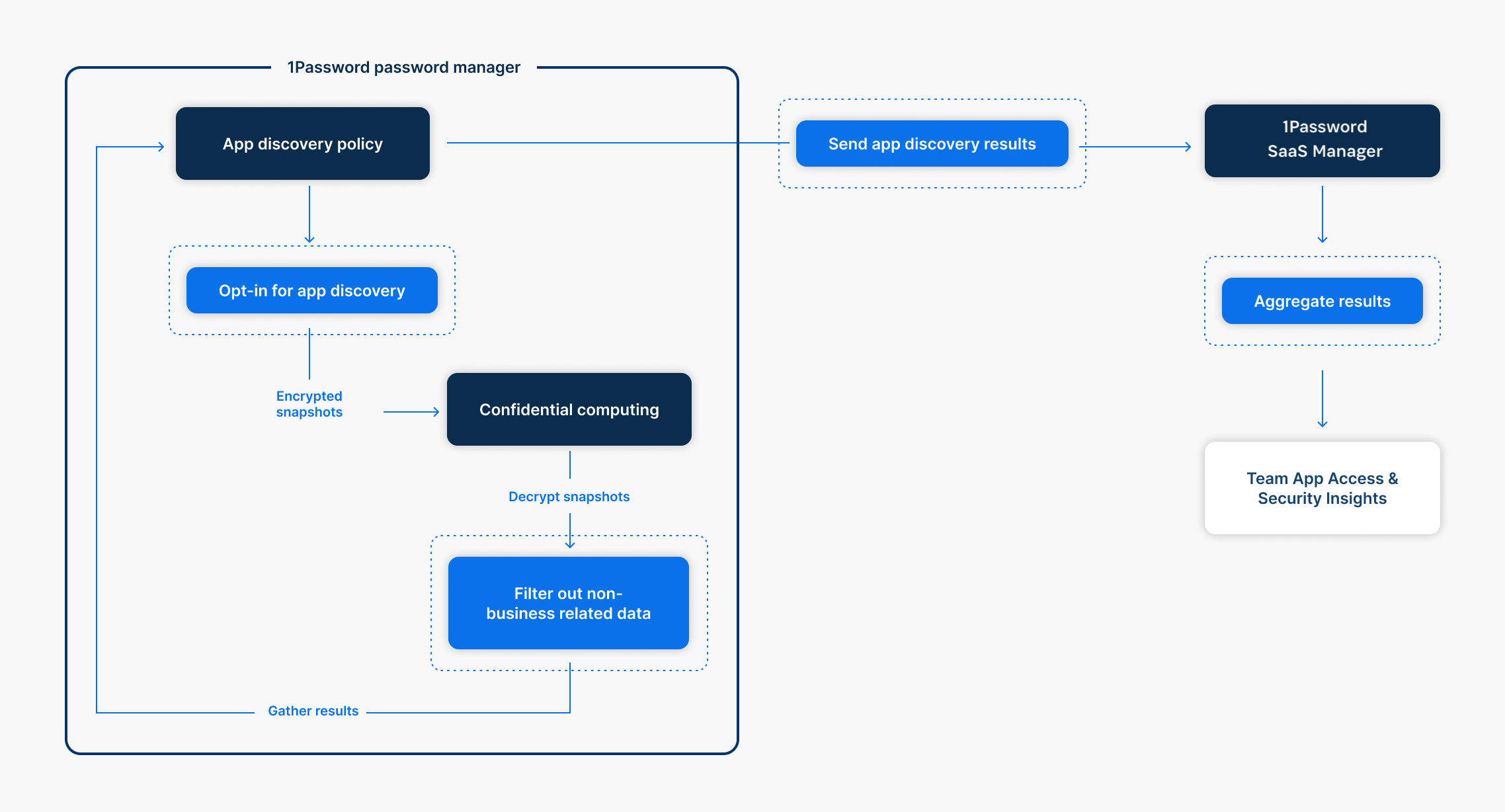
When you turn on item or app discovery, 1Password generates a keyset that contains a public and private key, specific to discovery.
If you’re signed in to 1Password and discovery is turned on, the 1Password clients will automatically generate encrypted snapshots that contain limited information about vault items. The public key is used by 1Password clients to encrypt snapshots of vault items before they’re sent to the 1Password server.
The confidential computing service within 1Password’s infrastructure uses the private key to decrypt snapshots, filter snapshot information, and send work-related application results to your 1Password account or SaaS Manager, depending on which one you use.
What gets discovered
Whether an item is discovered depends on the type of vault it’s stored in:
- Shared vaults: Any items with a username field containing an email address in your approved email domains are discovered. If you use SaaS Manager, work-related items in the SaaS Manager app catalog can also be discovered.
- Employee vaults: Only work-related items with a username field containing an email address in your approved email domains are discovered.
Because the Employee vault filter only recognizes email-based usernames, an item can still be discovered even if it isn’t work-related. For example, a personal banking login saved with an account number as the username isn’t filtered out, since it doesn’t look like an email address.
To reduce the chance of personal items being discovered, ask your team members to store personal logins in their free 1Password family account instead of their Employee vault.
How discovered items are synced
After you turn on item or app discovery, 1Password only syncs vault items that change from that point on, so the number of discovered items grows slowly over time rather than appearing all at once. If you want a complete list of items right away, you can trigger a full sync by removing an approved domain and adding it back. Learn more about what to do if items and apps aren’t being discovered in 1Password Business or SaaS Manager.
Security model
To maintain the privacy and security of vault items, snapshots never contain password credentials. Encrypted snapshot information includes item titles, usernames, websites, Watchtower alerts, and vault names. Usernames aren’t filtered, so if a team member uses sensitive personal information like an account or ID number as a username, that information can be included.
Snapshot information is encrypted with the ChaCha20-Poly1305 key, then encrypted with HPKE using the x25519 public key.
With confidential computing, your data and private key are secured inside a special, isolated environment called an “enclave.” Confidential computing creates this tightly controlled enclave for your data, ensuring that it remains private and secure when processed. Learn more about the security of 1Password confidential computing.
Risk considerations
Snapshots only include information collected from 1Password vaults within a business account. If a team member is signed in to an individual or family account, their personal account vault information will never be collected with item or app discovery.
1Password helps minimize the risk of team members storing personal information in their Employee vaults with in-app communication and by limiting the information presented in vault reports. You can take steps to communicate that your organization’s 1Password account should not be used to store personal information.
Was this article helpful?
Glad to hear it! If you have anything you'd like to add, feel free to contact us.
Sorry to hear that. Please contact us if you'd like to provide more details.