1Password for Claude lets Claude sign in to websites on your behalf, without ever seeing your passwords.
When you ask Claude to complete a task that requires signing in, it sends a request to 1Password. 1Password shows you exactly which item Claude is requesting, so you can approve, choose a different login to use, or deny the request. If you approve, 1Password fills your login directly on the website through a secure channel outside the agent’s view.
While 1Password fills your login, Claude stops reading and tracking the website until 1Password reports back. By the time Claude looks at the site again, your credentials have already been submitted and are no longer visible. Claude only knows which login it used; your password and one-time passwords never enter the model’s context, memory, or Anthropic’s systems.
1Password also locks down into Agentic Mode as soon as Claude takes control of your browser, so only the items you approved for the current task are reachable, and nothing more. When Agentic Mode is activated, you won’t be able to interact with the 1Password browser extension, see inline autofill suggestions, or use 1Password to sign in to other websites.
Learn more about the security of 1Password for Claude.
Before you begin
To use 1Password for Claude, you’ll need:
- A Mac device
- 1Password for Mac (version 8.12.28 or later)
- The 1Password browser extension (version 8.12.28 or later)
- A paid Claude plan (Pro, Max, Team, or Enterprise)
- The Claude desktop app
- Claude in Chrome
Tip
If you have a 1Password Business account, your administrator must turn on agentic autofill before you can set up 1Password for Claude.
If you’re on a Claude Team or Enterprise plan, an Owner for your organization will need to turn on 1Password for Claude.
Step 1: Connect 1Password and Claude
To set up 1Password for Claude:
- Open both the 1Password desktop app and the Claude desktop app.
- In the Claude desktop app, select Customize > Connectors.
- Find the 1Password connector and select Connect.
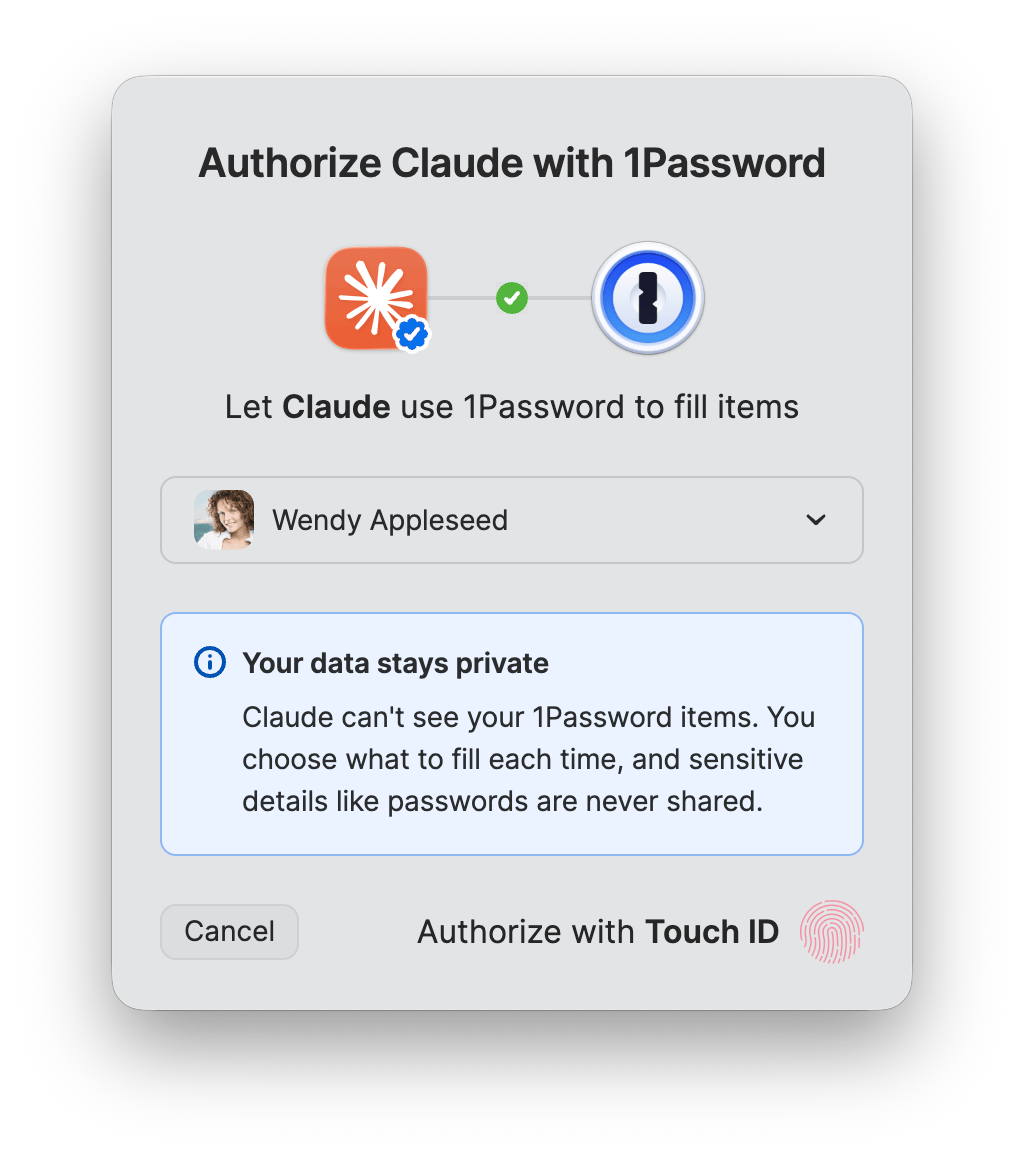
- You’ll see a prompt from the 1Password desktop app. Use Touch ID or your 1Password account password to authorize the connection.
If you’re signed in to multiple 1Password accounts in the app, select the down arrow next to your account name to choose a different account to connect.
Step 2: Ask Claude to sign in to a website
After you’ve set up 1Password for Claude, you can test the connection by asking Claude Cowork to sign in to a website.
Open the Claude desktop app, select +New, then select Cowork.
In the chat, ask Claude to do something that requires signing in. For example, “go to the Amazon website, sign in, and check the status of my latest order”.
1Password will show you an authorization prompt with a suggested Login item for the website. If you have multiple logins saved for the website, you can select the down arrow to choose a different one.
If the Login item uses a sign-in provider like Google or Facebook, Claude requests both the Login item for the website and the linked provider item, then signs in with the provider login.
Authorize the request to continue. The 1Password browser extension will fill the login and let Claude sign in to the website without seeing your password or one-time passwords.
The Claude browser extension may prompt you to allow Claude to navigate to the website.
Note
1Password for Claude currently supports filling usernames, passwords, and one-time passwords from Login items, and signing in with supported providers (for example, Google or Facebook).
Other item types and passkeys aren’t yet supported.
Get help
If you’re using a 1Password business account
If you’re using a business account, and you aren’t able to set up 1Password for Claude, your administrator may need to turn on agentic autofill.
Ask your administrator to sign in to their account on 1Password.com, select Policies in the sidebar, select Manage under “Sharing and permissions”, then turn on Allow AI agents to autofill for users.
If you’re using a Claude Team or Enterprise plan
If you have a Claude Team or Enterprise account, 1Password for Claude is off by default. To turn it on, ask an Owner to adjust your organization’s settings.
- Sign in to Claude with your Owner or Primary Owner account.
- Navigate to Organization settings > Claude in Chrome.
- Turn on Enable for your team if it isn’t already on.
- Turn on Password managers.
After you turn on these settings, people in your organization will be able to connect 1Password and Claude.
If 1Password doesn’t suggest the correct login
If 1Password doesn’t suggest the correct login, make sure the item’s website exactly matches the sign-in URL. If the URLs don’t match, navigate to the item in the 1Password desktop app, select Edit, update the URL in the website field, then select Save and try again.
You can also select the search bar in the authorization prompt to search for an item other than the suggested logins.
If you want to cancel an Agentic Mode session
Agentic Mode is a built-in security feature that triggers automatically when Claude takes control of your browser, whether or not you’ve set up 1Password for Claude.
If you want to interact with the 1Password browser extension or fill logins on other websites while Claude is in control, you’ll need to close the Claude tab group in your browser.
If you want to disconnect 1Password from Claude
To disconnect 1Password from Claude:
- Open the Claude desktop app.
- Select Customize > Connectors.
- Select Disconnect next to 1Password.
Learn more
- About the security of 1Password for Claude
- 1Password for Claude: Give Claude access without giving up your credentials
- Use 1Password to securely provide credentials to Browserbase
- The security principles guiding 1Password’s approach to AI
Was this article helpful?
Glad to hear it! If you have anything you'd like to add, feel free to contact us.
Sorry to hear that. Please contact us if you'd like to provide more details.